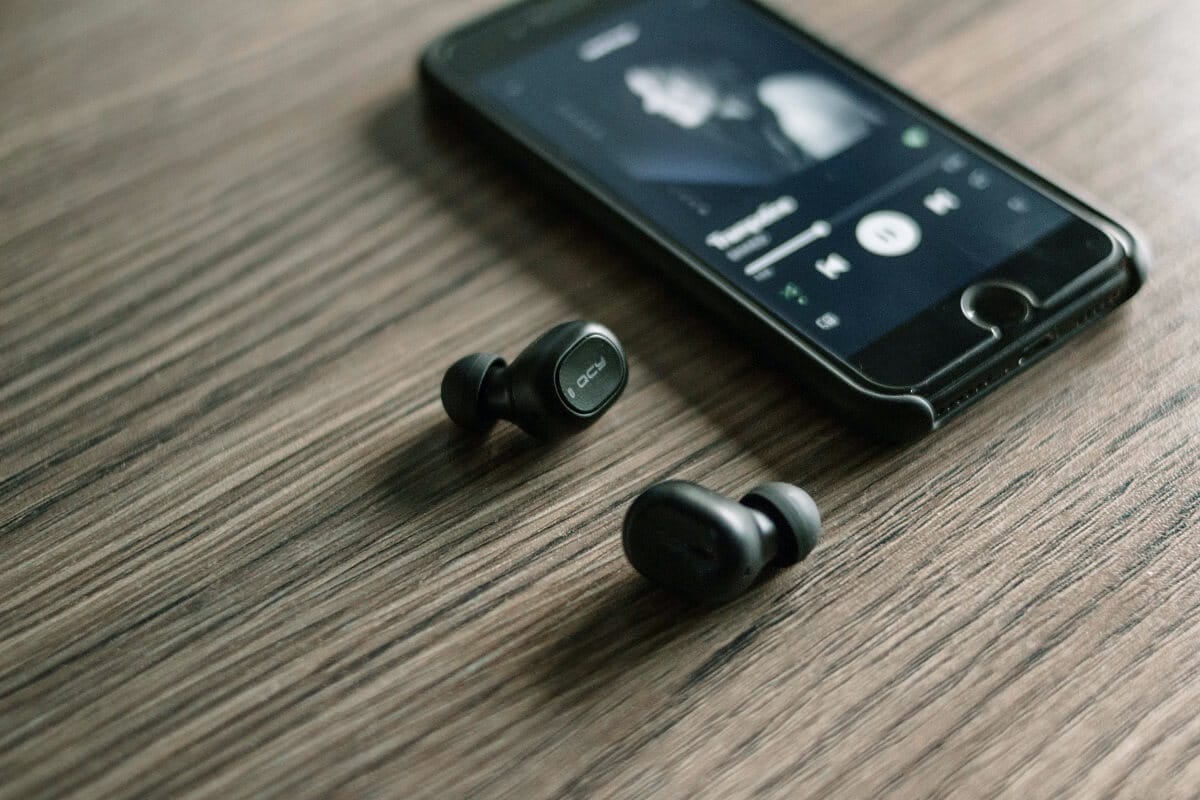
To make your phone alarm louder, you need to adjust the dedicated alarm volume control in your device's settings, not just the general volume buttons. The exact steps differ between iPhone and Android, but both operating systems provide a built-in way to increase alarm loudness so you don't oversleep.
How to make your phone alarm louder on iPhone
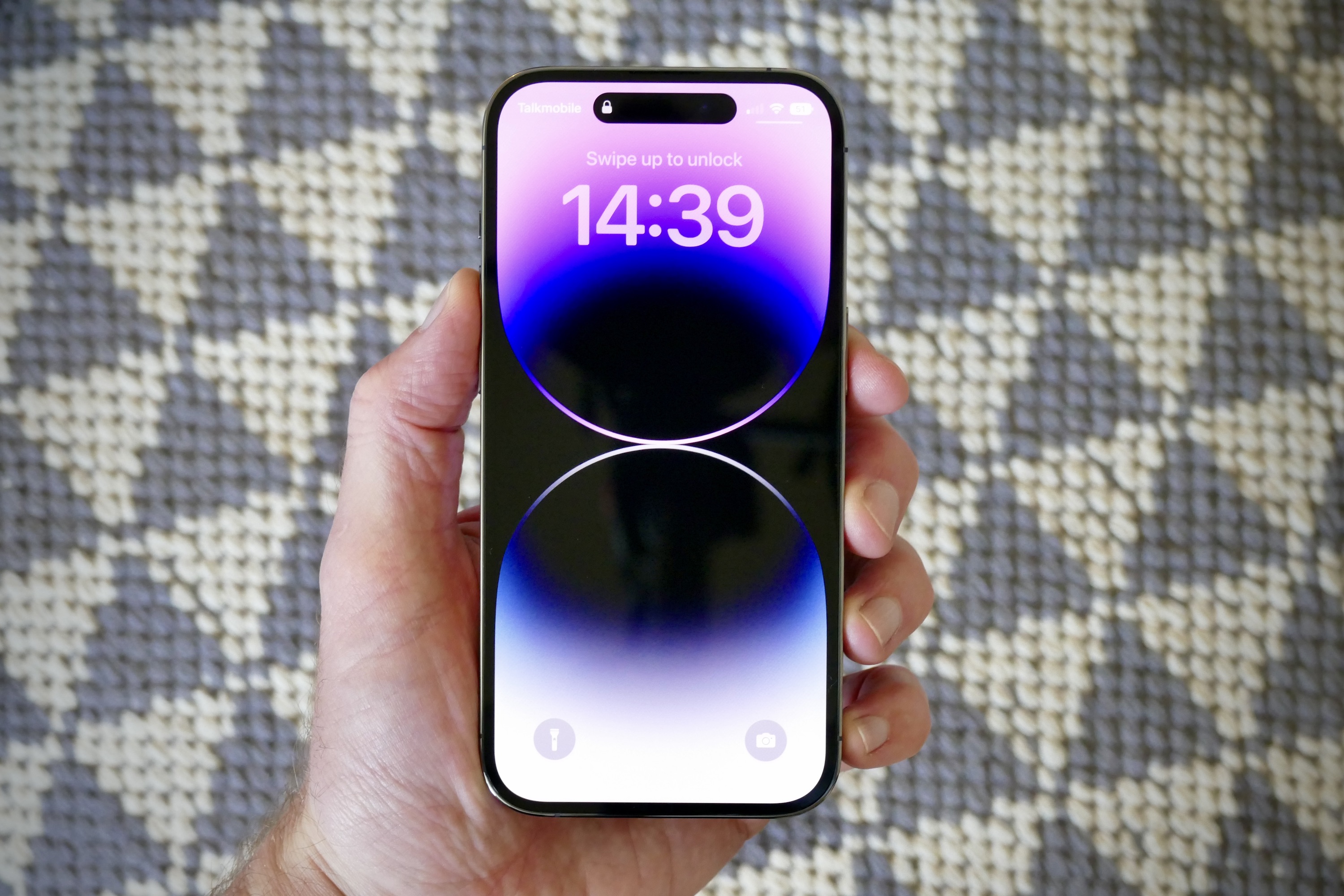
Apple provides a specific slider for alarm volume that is separate from your ringtone and media volume. Follow these steps to ensure your alarm is as loud as possible:
- Open the Settings app on your iPhone.
- Tap Sounds & Haptics.
- Under the Ringtone and Alerts section, drag the slider to the right to increase the alarm volume. This slider controls both your ringtone and alarm volume together. Apple says to open Settings > Sounds & Haptics and drag the slider under Ringtone and Alerts to set the alarm volume; you can also turn on Change with Buttons to use the side volume buttons to change it.
- To use your iPhone's side volume buttons to adjust the alarm volume, turn on the Change with Buttons toggle. With this enabled, pressing the volume-up button while the alarm is sounding will make it louder.
An important fact to remember: even if you have wired or wireless headphones connected, your iPhone alarm will still play through the device's built-in speakers. This ensures you never miss an alarm because your headphones are in use. Apple also says that if headphones are connected, the alarm still plays through the iPhone’s built-in speakers as well as wired and wireless headphones.
How to make your phone alarm louder on Android (Google Pixel)
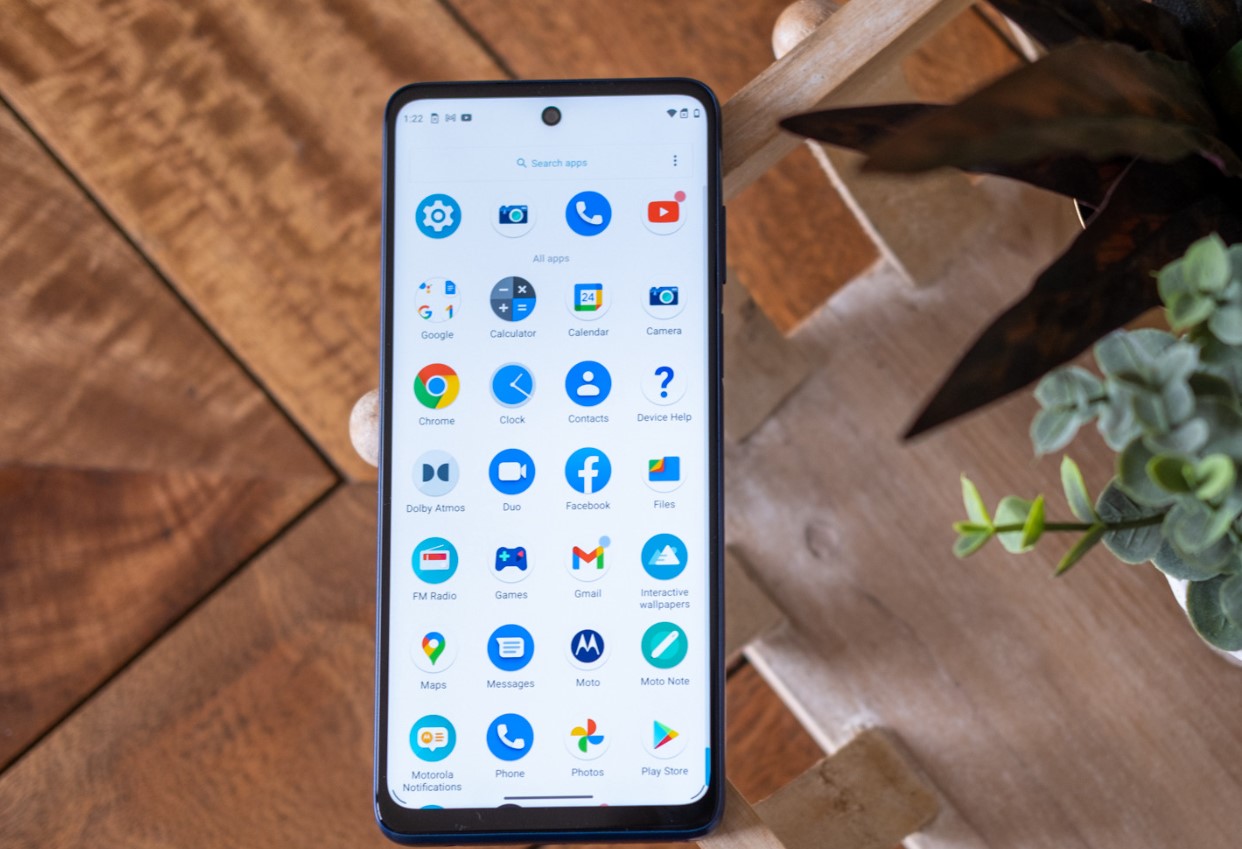
Android devices vary by manufacturer, so the exact menu path is not universal. The following verified steps apply to Google Pixel phones using the stock Clock app. For other Android models, the settings may be located in a different menu, such as Settings > Sound & vibration > Volume, where a separate Alarm slider might exist. A separate Android guide in the retrieved results says some Android phones use Settings > Sound & vibration > Volume and provide a separate Alarm slider, but that path is not from an official support page and may differ by model.
- Open the Clock app on your Pixel phone.
- Tap the Alarm tab at the bottom of the screen.
- Tap the three-dot icon (menu) in the upper-right corner.
- Select Settings from the menu.
- Find the option labeled Gradually increase volume and tap it. Choose a duration (for example, 5 or 10 minutes) so the alarm starts softly and grows louder over time.
This gradual increase feature is a practical way to wake up without a sudden blast, while still ensuring the alarm reaches a loud enough level by the end of the duration. Note that not all Android phones or versions include this setting.
Simple tips to ensure you hear your alarm
Even with the volume set to maximum, physical placement and obstructions can muffle the sound. Use these practical, non-software tips to get the loudest possible alarm:
- Place your phone on a hard surface. A wooden nightstand, glass table, or ceramic tile amplifies both the sound and the vibration of the alarm, making it more noticeable than if it were on a soft mattress or pillow.
- Keep the speaker clear. Ensure your phone's speaker grille is not blocked by a thick case, fabric, or a pillow. If you sleep with your phone under your pillow, the sound is significantly dampened.
- Face the speaker toward you. Position the phone so the speaker (usually at the bottom of the device) is pointed in your direction, not away from you or into a drawer.
These adjustments work alongside the volume settings to maximize audibility without requiring any additional apps or hardware.
Alternatives to a louder alarm
If a louder alarm is not the right solution for you, perhaps because you share a bed or prefer a gentler wake-up, consider these alternatives:
- Use a gradually increasing alarm. This is less jarring than a sudden loud noise.
- Try a vibrating alarm. Some phones can vibrate intensely when the alarm goes off. Pair this with placing the phone on a hard surface to amplify the vibration, or use a smartwatch that vibrates on your wrist. The combination of sound and vibration is often more effective than volume alone.
- Use a dedicated alarm app. Third-party apps may offer additional volume, mute and speaker controls that your phone's default alarm lacks, such as the ability to boost volume beyond the system maximum or to play a custom loud sound file.
Frequently Asked Questions
Why is my phone alarm not loud enough even at max volume?
This usually happens because you are adjusting the media or ringtone volume instead of the dedicated alarm volume. On iPhone, check the Ringtone and Alerts slider in Settings > Sounds & Haptics. On Android, look for a separate Alarm slider in Settings > Sound & vibration > Volume or within the Clock app's settings.
Can I damage my phone's speaker by setting the alarm too loud?
Playing audio at maximum volume for extended periods can strain the speaker, but a short alarm burst is generally safe. However, if you notice distortion or crackling, lower the volume slightly to preserve speaker health.
Will a third-party app make my alarm louder than the system settings?
Some third-party alarm apps claim to boost volume beyond the system limit, but this depends on your phone's hardware and operating system restrictions. No major manufacturer officially recommends a specific app for this purpose, so results vary and may risk audio quality.
Does the alarm still play if my phone is on silent or Do Not Disturb mode?
Yes, on both iPhone and Android, alarms are designed to override silent mode and Do Not Disturb. The alarm will sound at the volume you have set for alarms, regardless of whether your phone is muted for calls or notifications.
Why does my iPhone alarm sound quieter when headphones are connected?
Apple states that alarms play through the iPhone's built-in speakers even when headphones are connected, so the alarm should not be quieter. If you perceive a difference, check that the Change with Buttons setting hasn't inadvertently lowered the alarm volume via the side buttons.
Related reading: How To Make Phone Turn Off After Certain Time and How To Unmute A Phone.