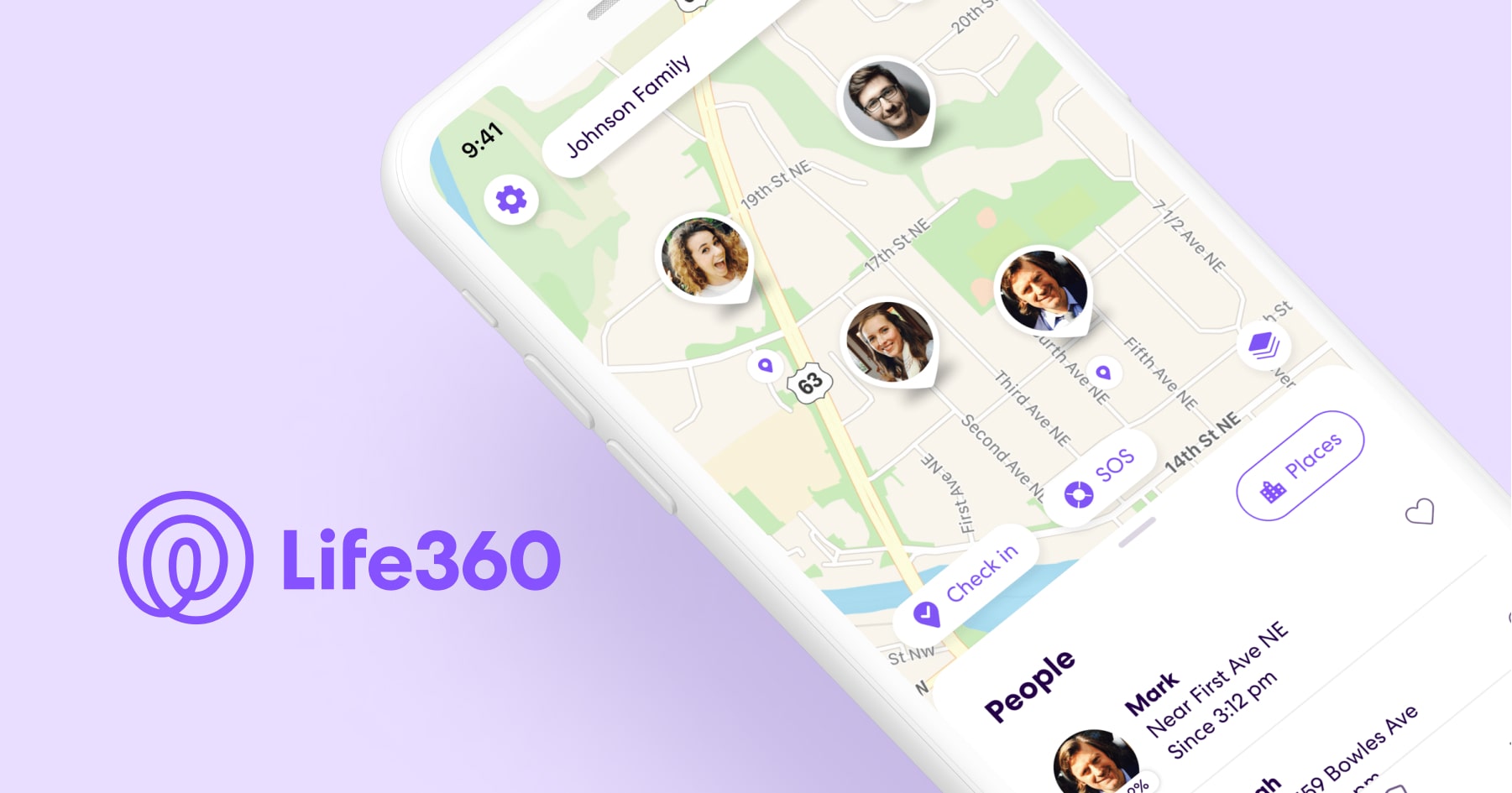
To transfer Life360 to another phone, simply install the Life360 app on the new device and sign in with the same username and password you used on your old phone. Life360 does not have a device-transfer tool, so signing into your existing account on the new phone is all that is required to keep your Circles and history.
Why you don't need a special transfer tool
Life360 stores all your data, including your Circles, location history, and preferences, in your account, not on the device itself. Because of this, signing in with the same credentials on a new phone instantly restores everything. No backup file, restore process, or special tool is needed.
Step-by-step: moving Life360 to a new phone
- Back up your data through the Life360 app settings on your old phone.
- Check that the new phone has sufficient storage space, at least a few hundred megabytes free.
- Log out of Life360 on the old phone if possible.
- Download the Life360 app on the new phone from the app store.
- Open the app and sign in with the username and password on your existing account.
What to do if the new phone shows the old location
If the new device displays the previous phone’s location instead of your current one, Life360 documents a specific fix:
- Change the password on your Life360 account.
- Log out of the Life360 app.
- Power off the phone.
- Log back into the Life360 app.
- Tap Check In to specify your current location.
Updating your phone number on the new device
Life360 provides three documented paths for updating phone number on apps and accounts, depending on your sign-in status:
If you are not logged in: Tap Sign In with Email, enter your email address, tap Continue, enter your password, tap Continue, enter your new phone number, tap Continue, enter the SMS verification code sent to that number, and tap Continue.
If you are already logged in: Go to Update Phone Number, enter the new phone number, tap Continue, enter the SMS verification code, and tap Continue.
If you have a new phone number and cannot sign in: Reset your password, open the Life360 app, tap Sign In with Email, tap Continue, enter your new password, tap Edit phone number, enter the new phone number, and tap Send Code.
If you are also transferring your phone number itself to a new iPhone, Apple documents going to Settings > Cellular > Set Up Cellular or Add eSIM > Transfer From Nearby iPhone on the new iPhone, with confirmation on the old iPhone. Some carriers support eSIM Quick Transfer, and activating the cellular plan on the new iPhone deactivates the previous SIM.
Frequently Asked Questions
Do I need to create a new Life360 account on the new phone?
No. You sign in with the same username and password from your existing account. Creating a new account would start a fresh profile with no Circles or history.
Can Life360 be transferred from iPhone to Android or Android to iPhone?
Yes. Life360 does not list a platform restriction for the sign-in transfer. The same login method works regardless of whether you are moving from iPhone to Android or the reverse.
What happens to my Circle members when I switch phones?
Nothing changes for other Circle members. They continue to see your location in the Circle as long as you sign into the same account on the new device. They do not need to take any action.
How do I transfer data from one Samsung phone to another for Life360?
You do not need to use Samsung’s device-to-device transfer tools for Life360. Simply install the Life360 app on the new Samsung phone and sign in with your existing account. All your Life360 data is stored in the account, not on the old phone.
Can I be signed into Life360 on more than one phone at the same time?
However, the app is designed for one primary device per account. If you sign in on a new phone, the old phone may stop updating location.
How can I get help with my Life360 transfer?
Contact Life360 support for transfer assistance if you encounter issues during the process.
Related reading: How To Get Life360 To Say No Network Or Phone Off and How To Put 360 On Phone.