To transfer photos from Nikon Coolpix to phone, the fastest and most reliable method is using Nikon's official SnapBridge app for compatible models, or a memory card reader with a computer as an intermediary for unsupported cameras. Start by checking if your specific Coolpix model supports SnapBridge, as this determines your primary path.
Before you start: is your Nikon Coolpix compatible?
SnapBridge supports compatible iPhone, iPad, iPod touch, and Android devices, but only with specific Coolpix models. Nikon's current list includes the P1100, P1000, P950, A1000, A900, A300, B700, B500, B600, W300, W150, and W100. For iPhone and iPad users, your device must run iOS 11 or later. Nikon's app listings show device support can vary by model, and the supported-camera list is model-specific. If your model is not on this list, you will need to use an offline method instead of SnapBridge.
The official way: transfer photos from Nikon Coolpix to phone with SnapBridge
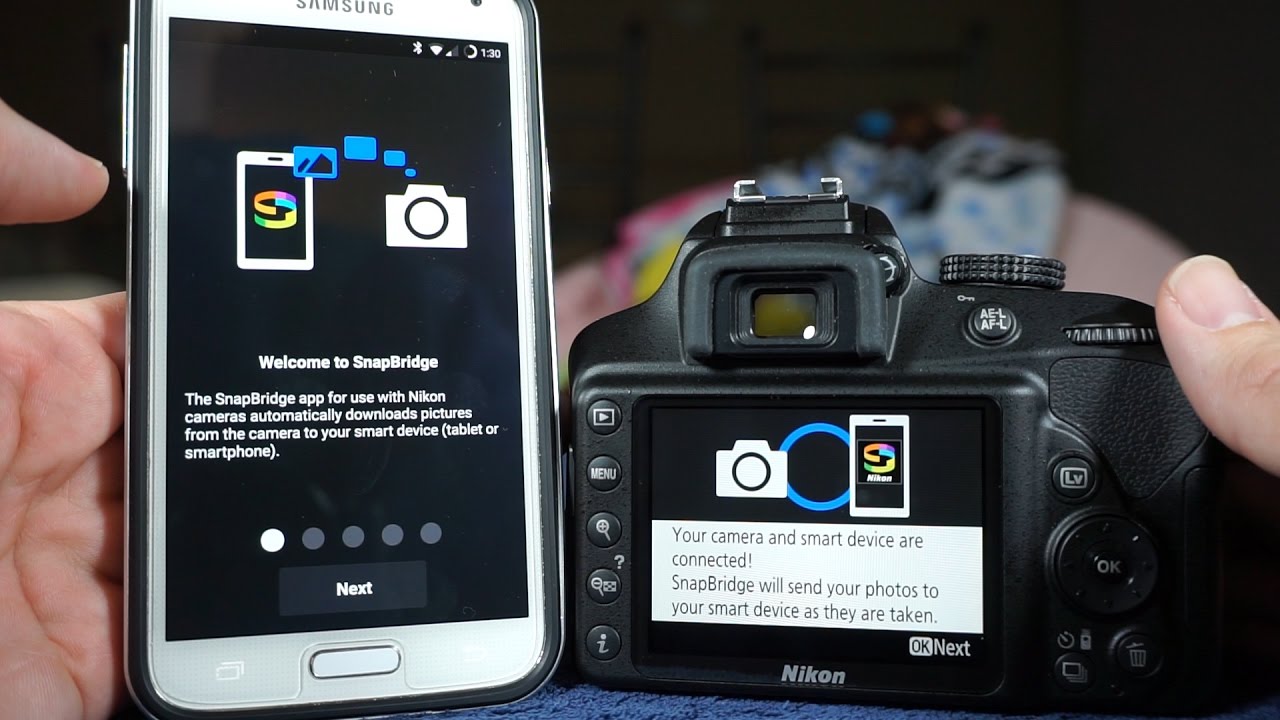
SnapBridge is Nikon's official app for managing and transferring photos wirelessly. It is available from the Apple App Store and Google Play. Follow these steps to pair your camera and download photos:
- Install SnapBridge on your phone from the appropriate app store.
- On your camera, enable Wi-Fi (the network name will start with "Nikon").
- On your phone, open Wi-Fi settings and select the camera's network that begins with "Nikon".
- Nikon's older official workflow says to launch the Nikon app after joining the camera's Wi‑Fi network.
Once paired, SnapBridge can automatically download every photo you take, or you can manually select specific pictures. The app distinguishes between these two modes, and choosing the right one prevents common frustrations.
How to download only selected pictures in SnapBridge
To transfer only the photos you want, rather than every shot, you must disable Auto download. This is the documented fix for the most common user complaint. In SnapBridge, go to the Connect tab and turn off Auto download. After disabling it, you can browse your camera's photos within the app and manually select each picture to transfer. This gives you full control over what moves to your phone.
What to do if your Coolpix doesn't support SnapBridge
If your Coolpix model is not on the SnapBridge compatibility list, Nikon does not support direct wireless, USB, or card reader connections to a phone. The documented offline fallback requires a computer as an intermediary. Use a memory card reader to copy pictures from the camera's memory card to a computer, then transfer photos from phone to computer using a USB cable or cloud service. Nikon says to check that the card is compatible with the reader. Alternatively, connect the camera to a computer with the supplied USB cable and use Nikon Transfer 2 or NX Studio to import files. Nikon's documented steps on the official page are for transfer to a computer, not directly to iPhone or Android. From the computer, you can sync or email photos to your phone.
Troubleshooting a failed connection
If SnapBridge cannot connect or selected pictures won't download, check these two fixes first. If you are trying to download only a few photos, verify that Auto download is turned off in the Connect tab; leaving it on can override manual selections. These two steps resolve the vast majority of connection problems.
Frequently Asked Questions
Can I transfer photos from my Nikon Coolpix to an iPhone?
Yes, if your Coolpix supports SnapBridge, use the app to transfer wirelessly. For unsupported models, use a memory card reader with a computer, then transfer the files to your iPhone via a Lightning-to-SD card adapter or cloud service.
Which apps can I use to transfer photos from Nikon Coolpix to an Android phone?
SnapBridge is Nikon's official and recommended app for Android. Older Wi-Fi-equipped Coolpix models that do not support SnapBridge used the Wireless Mobile Utility app instead. No third-party app is officially documented by Nikon for direct camera-to-phone transfer.
Does SnapBridge work with all Nikon Coolpix cameras?
No. SnapBridge only works with the models listed in the compatibility section above. Older Coolpix cameras with built-in Wi-Fi used the separate Wireless Mobile Utility app, and cameras without Wi-Fi require a memory card reader and computer.
Can I transfer photos over USB directly from my Coolpix to my phone?
The USB cable method is documented only for transferring to a computer using Nikon Transfer 2 or NX Studio.
Are there file-size, photo-count, or transfer-rate limits for COOLPIX-to-phone transfers through SnapBridge?
Related reading: How To Transfer Photos From Android Phone To Chromebook.