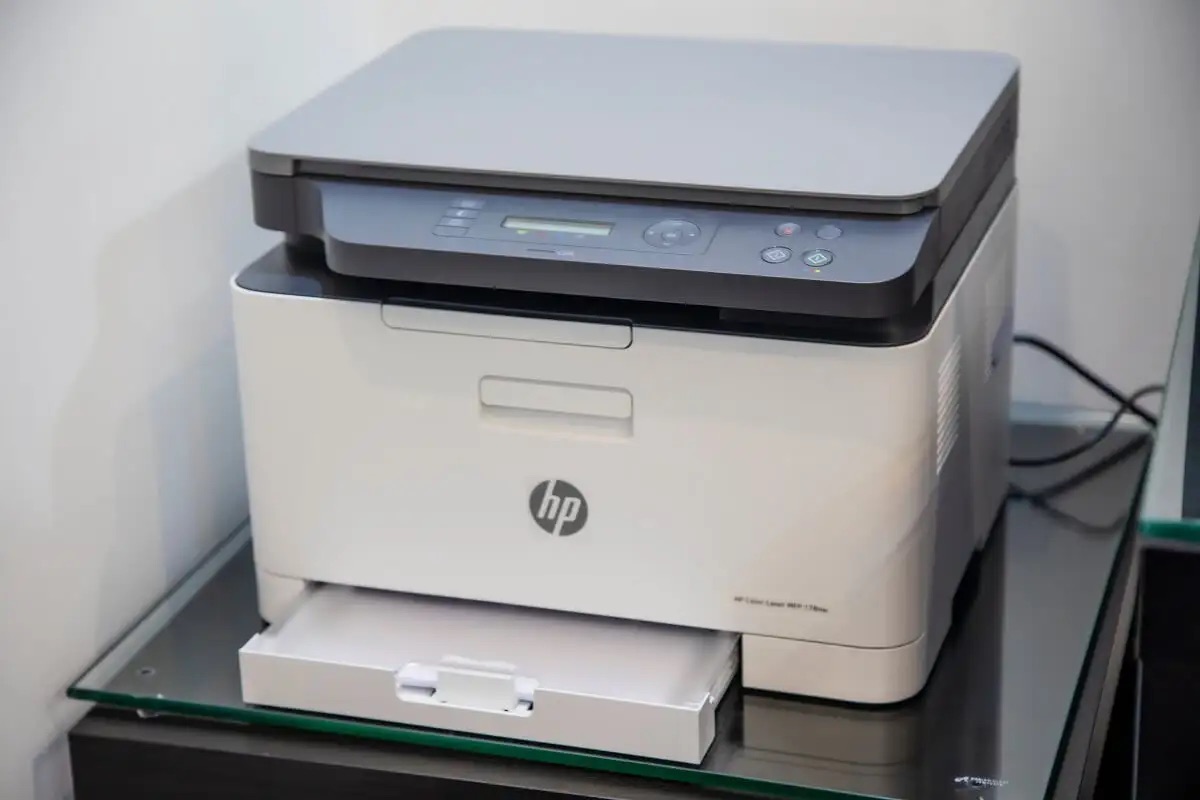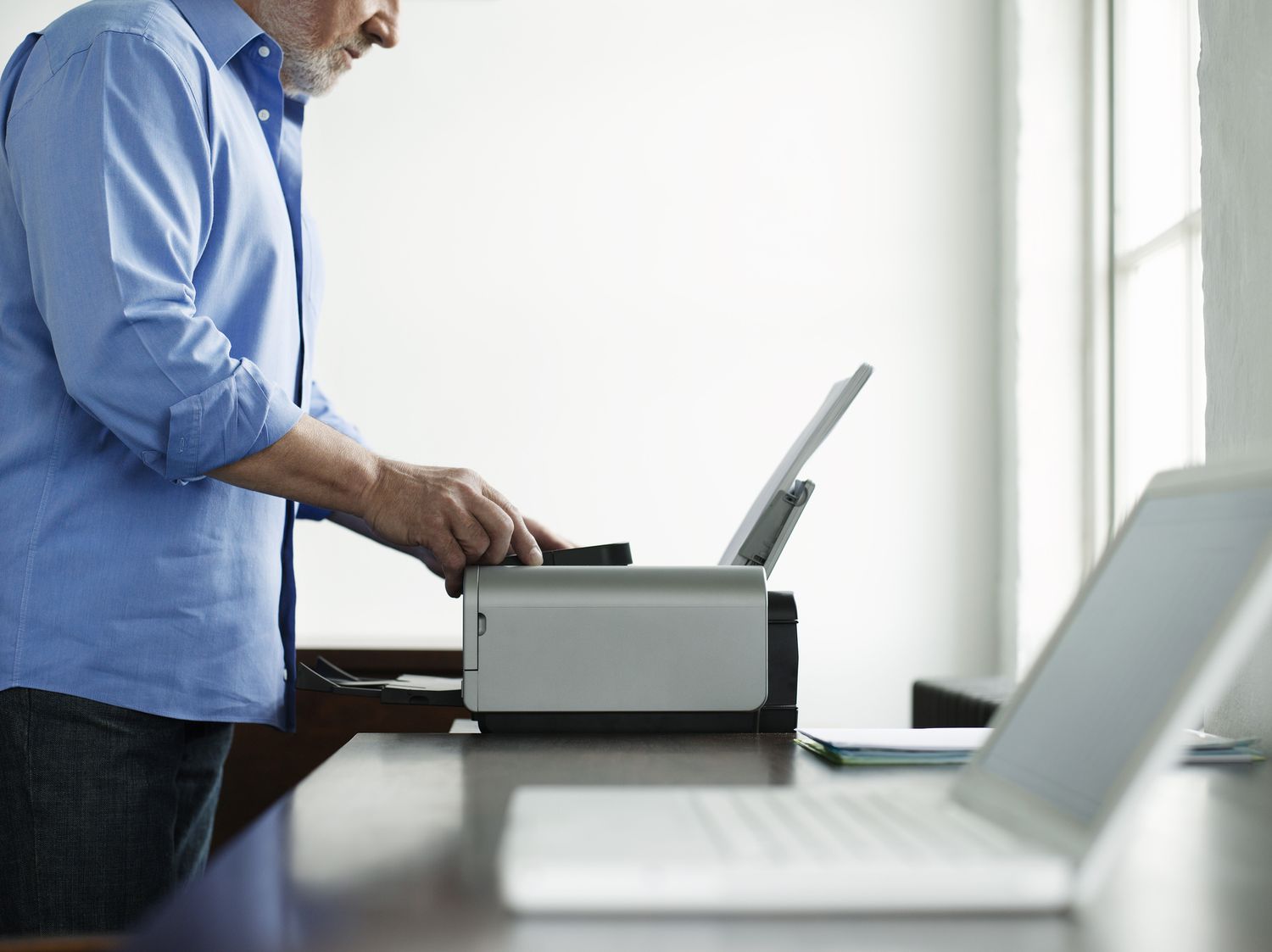
To connect to an HP wireless printer from a laptop, both devices must be on the same local Wi‑Fi network, and the printer must be added through the laptop’s printer settings or HP software. This straightforward process involves first connecting the printer to your Wi‑Fi network, then installing the necessary drivers, and finally adding the printer to your laptop.
Before you start: prepare your HP wireless printer and laptop
Before beginning the wireless printer setup, ensure your HP printer is turned on and within range of your Wi‑Fi network. Verify that your laptop also supports wireless connectivity and that you know your network name (SSID) and password. If your printer supports 5 GHz, it will work on that band; otherwise, HP recommends using the 2.4 GHz band for best compatibility. It is also helpful to print a Network Configuration Page from the printer to confirm it has a valid IP address.
Step 1: Connect your HP printer to your Wi‑Fi network
- On your printer’s control panel, open the wireless setup menu. For touchscreen models, go to Setup or Settings, then Network/Wireless Settings, and select Wireless Setup Wizard.
- From the list of available networks, choose your Wi‑Fi network and enter the password when prompted.
- If your printer supports WPS, you can use an alternative method: press and hold the router’s WPS button until its light blinks, then within two minutes press and hold the printer’s Wi‑Fi button. The connection is established when the printer’s Wi‑Fi light turns solid blue.
Step 2: Connect your laptop to the same wireless network
Make sure your laptop is connected to the exact same Wi‑Fi network you selected on the printer. Both devices must be on the same local network for wireless printing to work. If your printer does not support 5 GHz, connect your laptop to the 2.4 GHz band.
Step 3: Install the HP printer software or app on your laptop
- Download the printer drivers from HP’s website or install the HP app from the Microsoft Store on Windows 11.
- Start the printer software installation. When prompted, choose the Network (Ethernet/Wireless) setup option.
- Select Yes, send my wireless settings to the printer to complete the connection.
- For Android devices, go to Settings → Printing and turn on HP Print Service. If the plugin is not visible, tap Add Service and install it. Wireless printing is not enabled by default on older Android devices, which may need the HP ePrint App from Google Play.
Step 4: Add your HP printer to your laptop
- On Windows, open Settings → Bluetooth & devices → Printers & scanners → Add device (or Add a printer or scanner). The HP community guidance path for adding a printer is: Settings → Devices → Printers & Scanners → Add a printer or scanner.
- Wait for your laptop to detect the HP printer on the network. When it appears, select it and follow the prompts to finalize the installation.
- After the printer is added, print a test page to confirm the connection is working.
Troubleshooting: can’t connect to your HP wireless printer?
If the printer is not detected, first check its IP address by printing a Network Configuration Page from the printer’s control panel. Restart your laptop, printer, and Wi‑Fi router to refresh the network. Ensure the printer is not in an error state (e.g., paper jam or low ink) and that both devices remain on the same network. For persistent issues, temporarily disable firewall or antivirus software to see if it is blocking the connection.
Frequently Asked Questions
Can I connect multiple laptops to the same HP wireless printer?
Yes, as long as each laptop is connected to the same Wi‑Fi network, you can add the printer to each one by following the same setup steps. The printer can serve multiple devices simultaneously.
How do I find the IP address of my HP wireless printer?
Print a Network Configuration Page from the printer’s control panel (usually under Settings or Network Setup). The IP address will be listed in the network information section.
What should I do if my laptop is not detecting the HP wireless printer?
First, confirm both devices are on the same Wi‑Fi network and that the printer is turned on and ready. Restart all devices, then try adding the printer again. If it still does not appear, you can manually enter the printer’s IP address in the “Add a printer or scanner” option on Windows.
How do I turn wireless capability on HP printer?
To turn wireless capability on HP printer, go to the printer’s control panel and open the Network or Wireless Settings menu. Ensure the wireless option is enabled (often indicated by a Wi‑Fi icon or light).
Can I connect my laptop to an HP wireless printer without Wi‑Fi?
No, a Wi‑Fi network is required for the standard wireless connection method. However, some HP printers support a direct Wi‑Fi connection (HP Wireless Direct) that allows a laptop to connect directly to the printer without a router, though this is a different setup than the one described here.