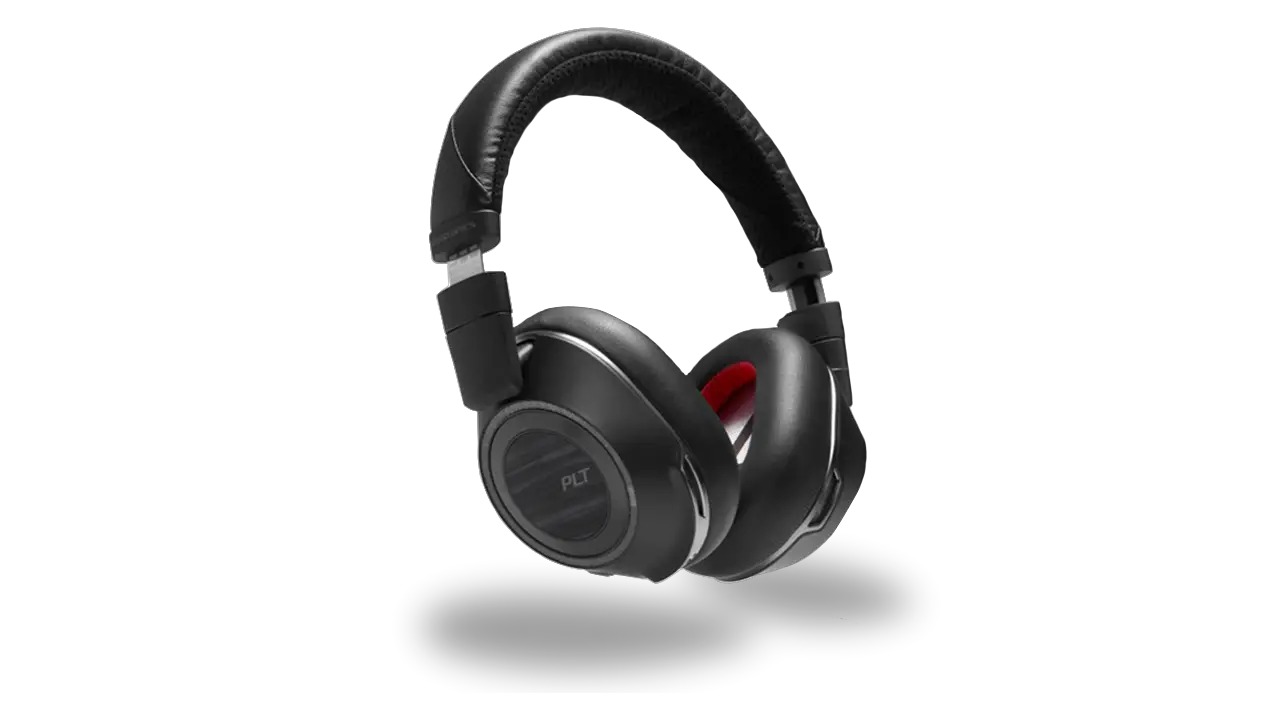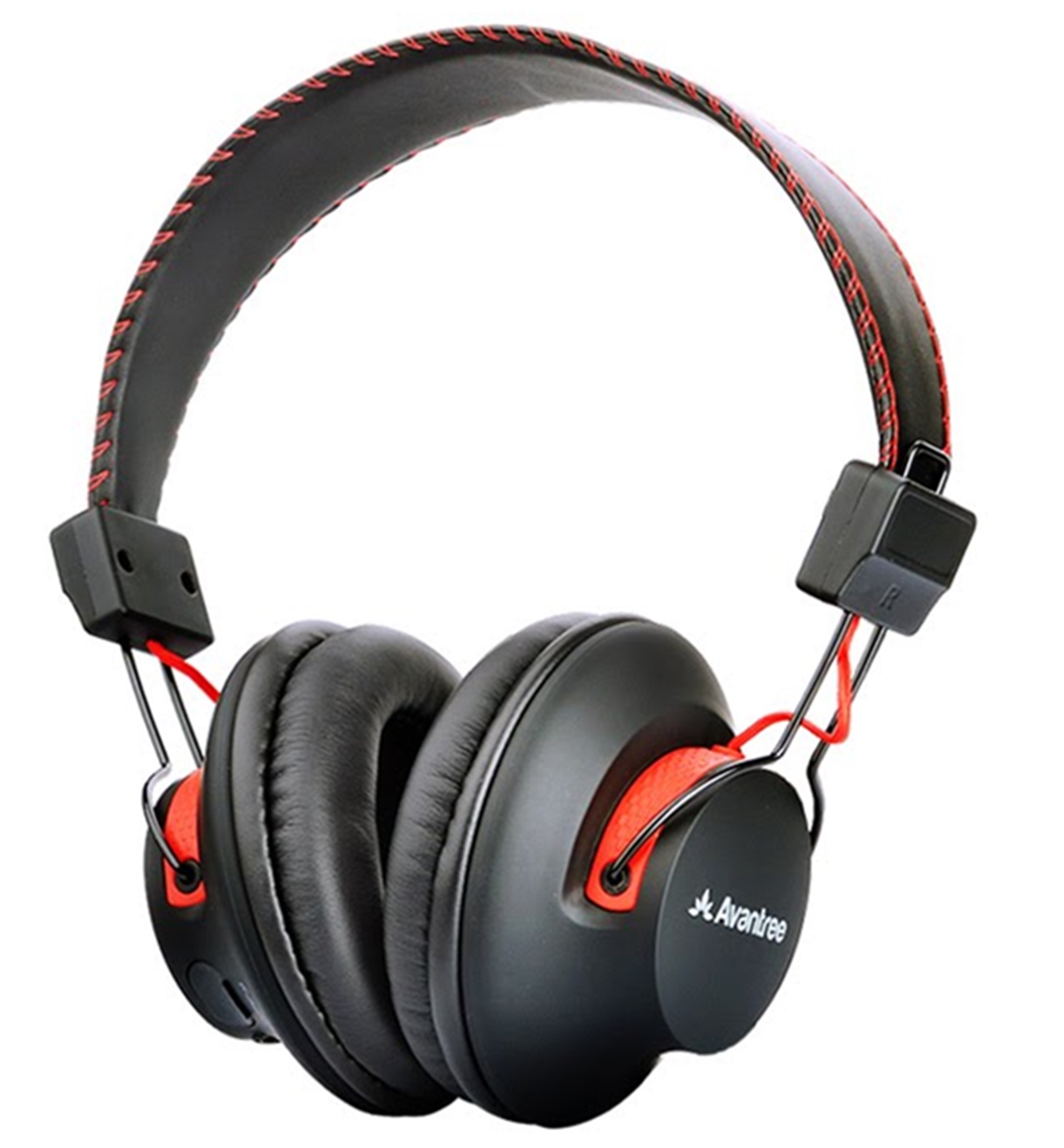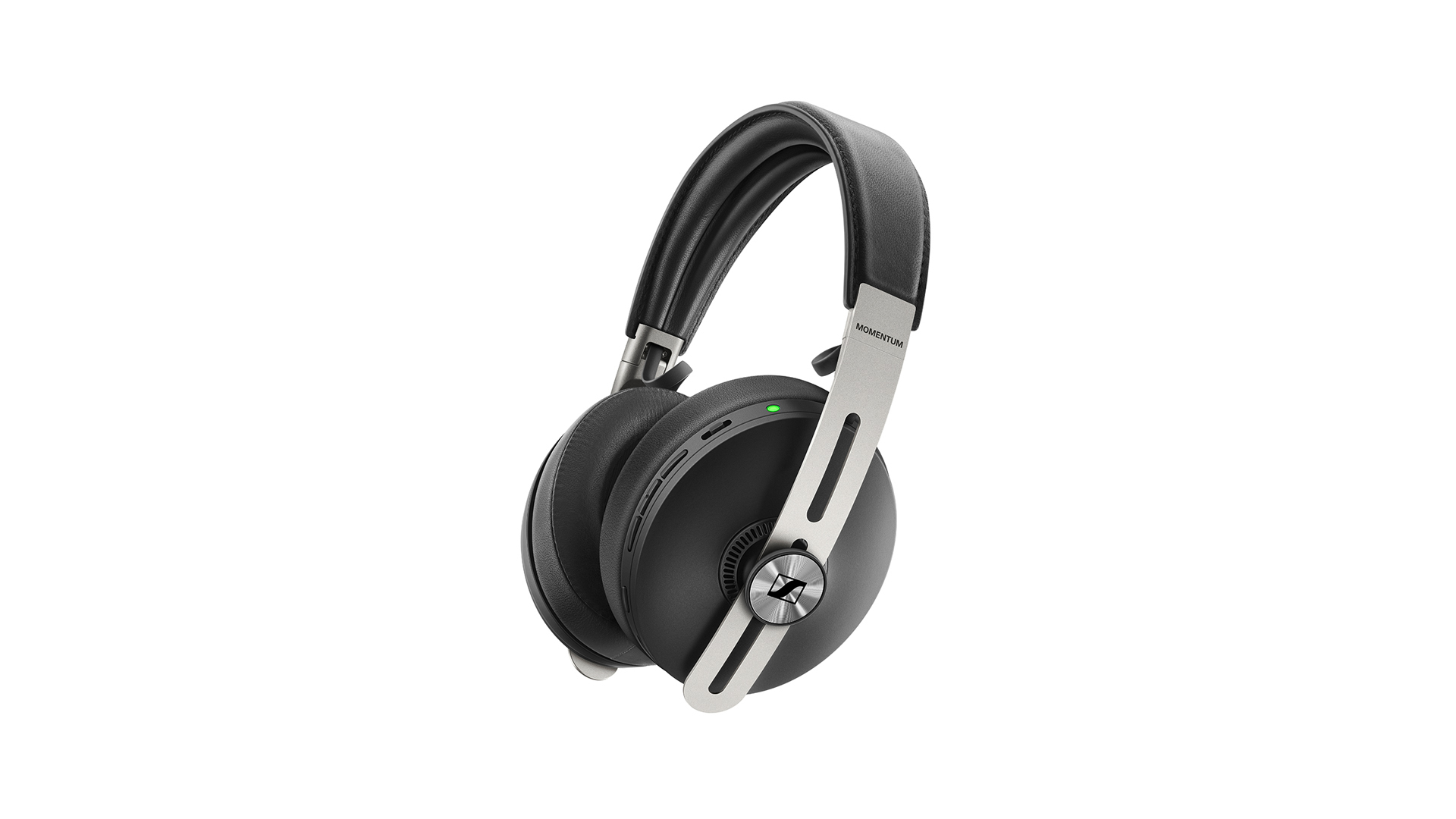
To connect your Sennheiser wireless headphones, the process always begins with putting them into pairing mode and then selecting them from your device's Bluetooth menu.
Before you connect your Sennheiser wireless headphones
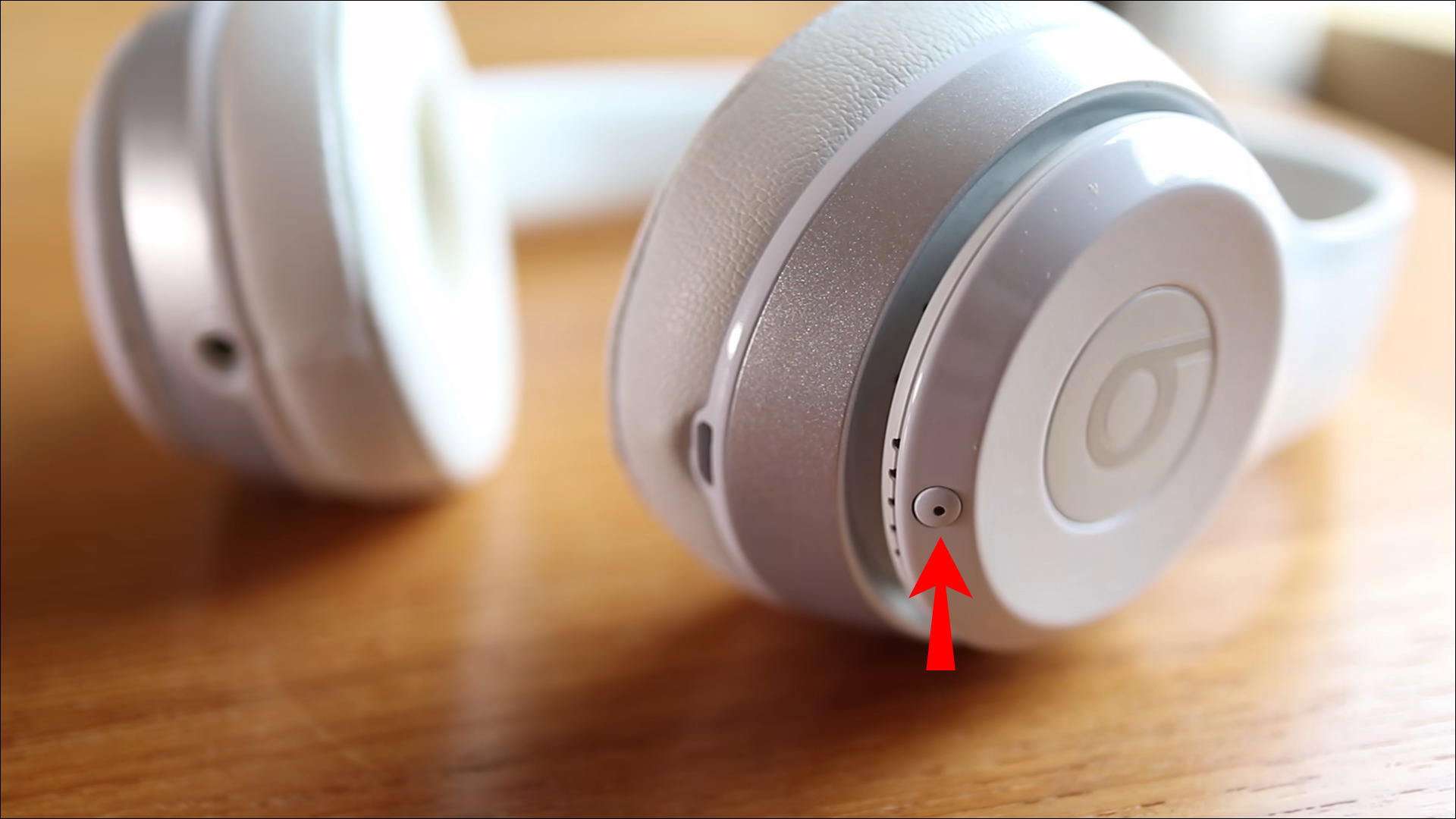
First, confirm your Sennheiser wireless headphones support Bluetooth. Most models do, but check the user manual or the side of the box for the Bluetooth logo. Next, charge the headphones fully using the included USB cable, a low battery can interrupt pairing. Finally, locate the power button, which also serves as the pairing button on most models; it's usually on the right earcup or the control module. Always refer to the specific user manual for your Sennheiser headphone model, as exact button names, LED indicators, and pairing steps can vary.
How to put Sennheiser headphones in pairing mode
With the headphones powered off, press and hold the power/pairing button for about 5-7 seconds. You'll know you're in pairing mode when the LED light flashes red and blue, or sometimes just blue. This flashing indicator means the headphones are discoverable and ready to connect to your device.
Connecting to your phone or tablet
- On your smartphone or tablet, open the Settings app and tap Bluetooth (or Connections > Bluetooth on some Android devices).
- Make sure Bluetooth is toggled on. Your device will start scanning for nearby Bluetooth devices.
- Tap the headphone name to pair.
Once paired, the LED light will stop flashing and stay solid, and you'll hear a confirmation tone. Your headphones are now connected for calls, music, and media.
Connecting to a Windows PC or laptop
For Windows 11, click the Start button, then go to Settings > Bluetooth & Devices > Add Device > Bluetooth. Your PC will search for nearby devices, select your Sennheiser headphones from the list. After pairing, right-click the speaker icon in the system tray, choose Sound settings, and under Output, select your Sennheiser headphones as the default playback device. This ensures audio plays through the headphones, not the laptop speakers.
Using the Sennheiser Smart Control app
Many Sennheiser wireless headphones work fully with the free Sennheiser Smart Control app (available for iOS and Android). First, establish the standard Bluetooth audio connection as described above. Then, open the app, it will automatically detect your headphones and offer a secondary Bluetooth LE connection for firmware updates and custom EQ settings. Follow the on-screen instructions to complete the setup; this also enables features like noise cancellation adjustments and button customization.
Troubleshooting connection problems
If your Sennheiser wireless headphones won't connect, try these verified fixes. First, "forget" or "unpair" the headphones from your device's Bluetooth settings, then re-pair them from scratch, this clears any corrupted connection data. Second, power cycling both your headphones and the connecting device (turning them off and on again) can resolve persistent pairing problems. Third, check for too many simultaneous Bluetooth connections, some devices only support a limited number, so disconnect unused earbuds, smartwatches, or speakers before reconnecting your Sennheiser headphones. Some devices may only support a limited number of simultaneous Bluetooth connections; ensure no other unnecessary devices are connected to your phone or computer. If the problem persists, consult your model's user manual for a factory reset procedure.
Frequently Asked Questions
Why won't my Sennheiser headphones show up in the Bluetooth list?
Make sure the headphones are in pairing mode (LED flashing) and close enough to your device, within 3 feet. Also, check that no other device is already connected to them; if so, disconnect or turn off that device first.
Can I connect my Sennheiser headphones to two devices at once?
Some Sennheiser models support multipoint pairing, allowing two simultaneous connections (e.g., phone and laptop). Check your manual for the specific button combination to enable this feature, it's often a double-press of the power button.
Do I need the Smart Control app for basic use?
No, the app is only required for firmware updates and advanced features like EQ presets. Basic Bluetooth audio works without it.
How do I reset my Sennheiser headphones?
This clears all paired devices and returns the headphones to factory settings.
Why does the sound cut out intermittently?
Interference from Wi-Fi routers, microwaves, or walls can cause dropouts. Move closer to the source device and ensure no other Bluetooth devices are competing for the same frequency. Also, keep the headphones charged, low battery can cause stuttering.
For the wider topic, see pairing wireless earbuds.
Related reading: How To Connect Wireless Headphones To Switch and How To Connect The Bose Wireless Headphones.