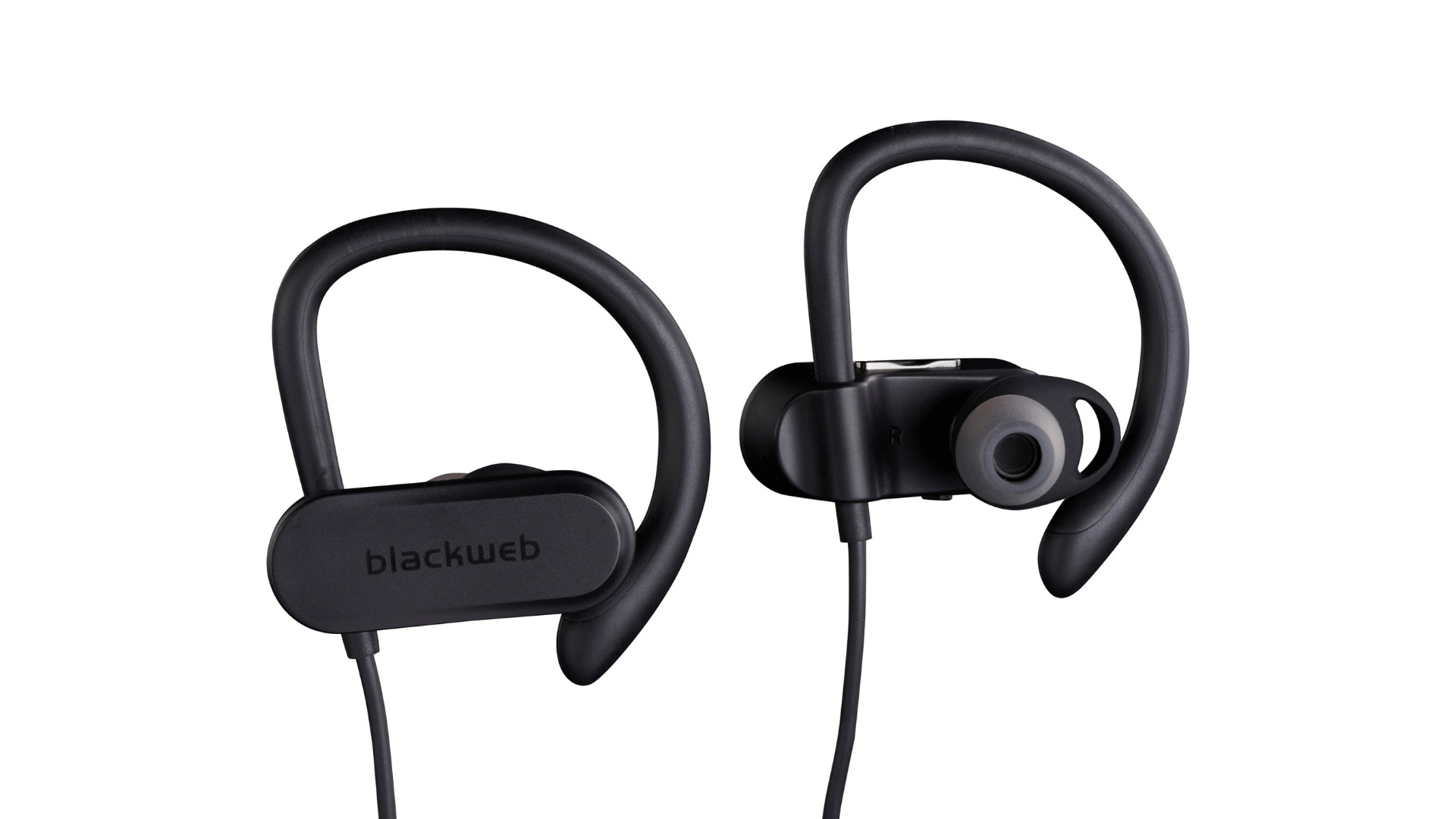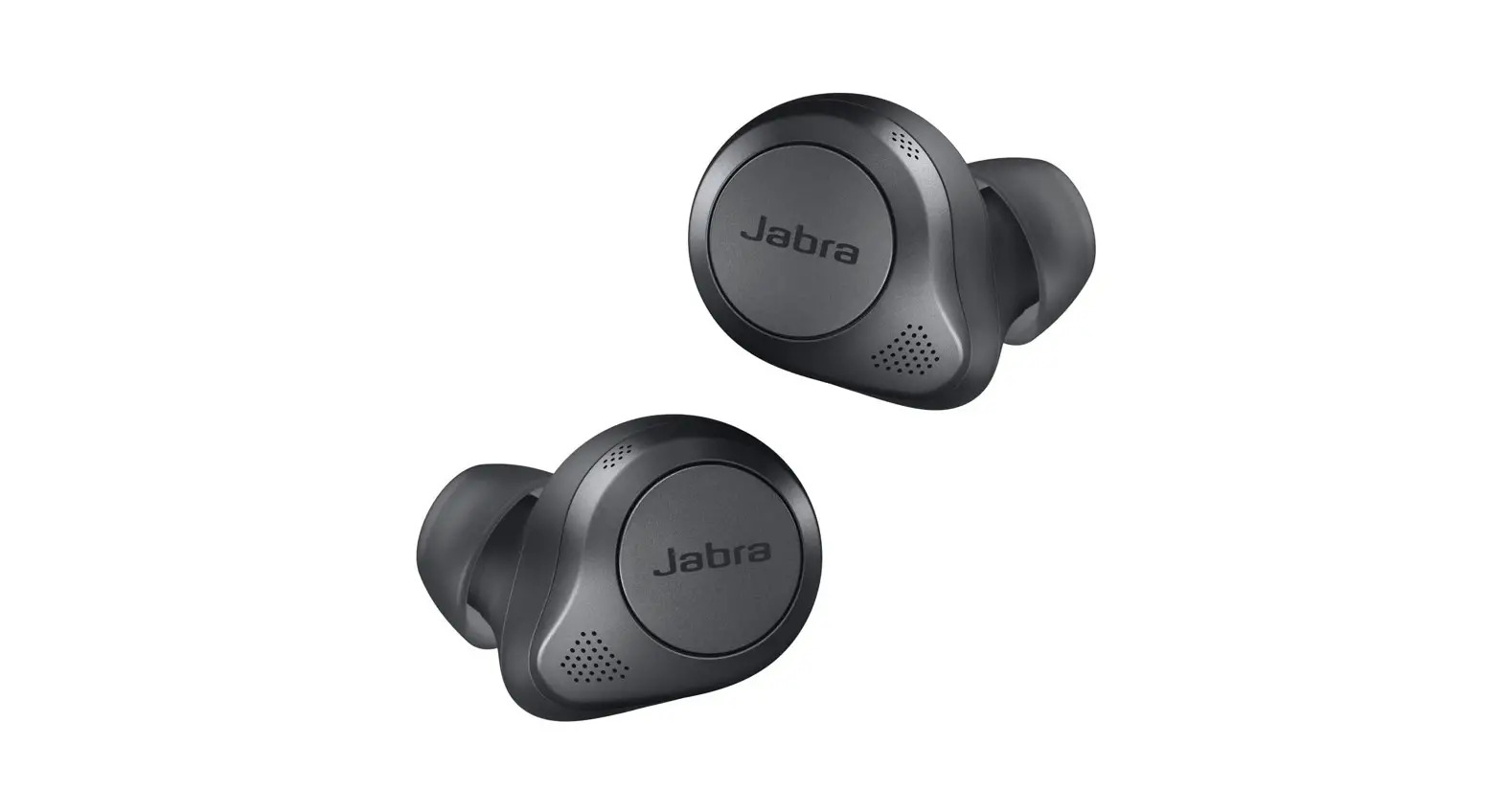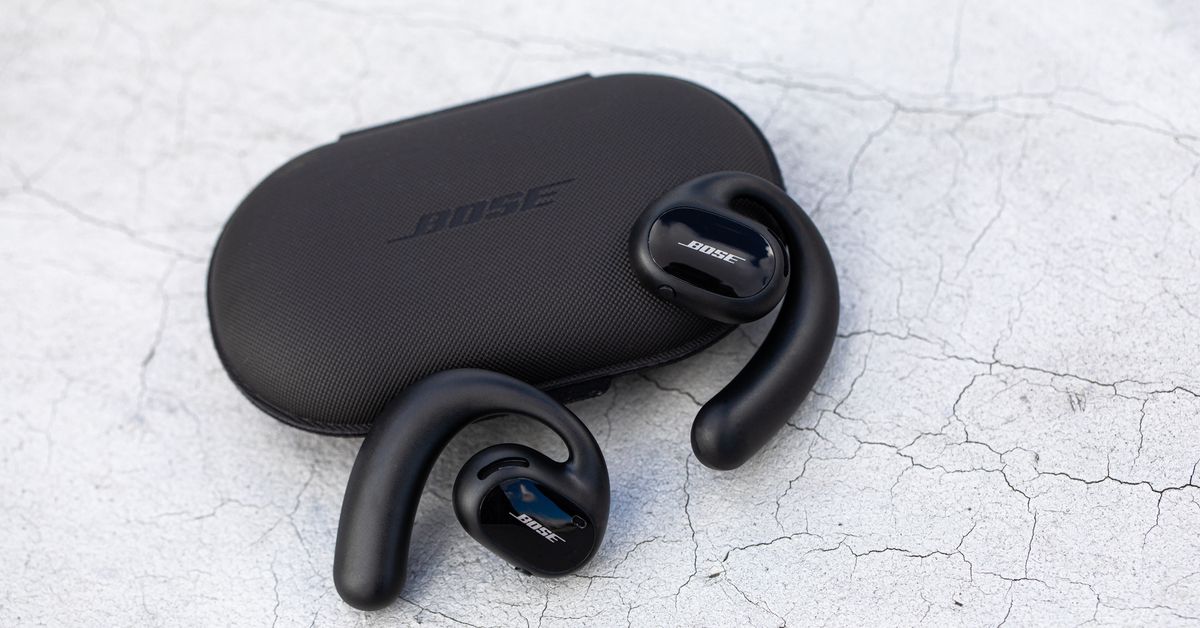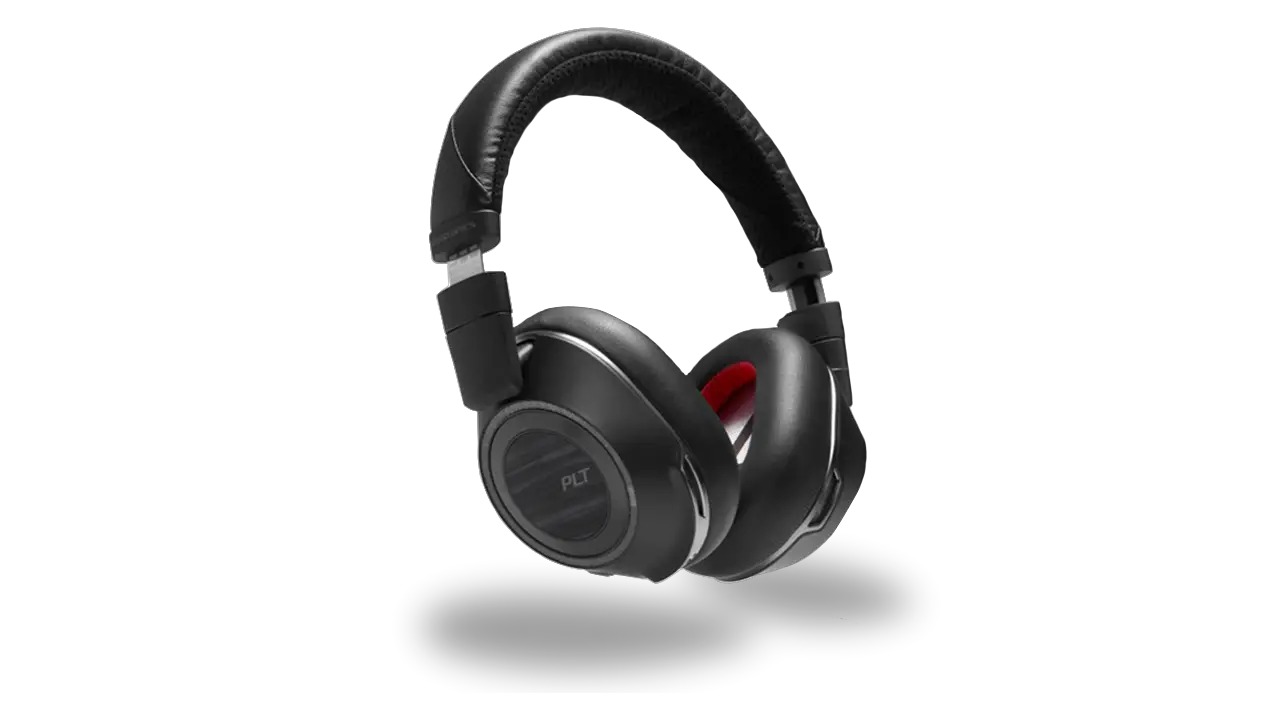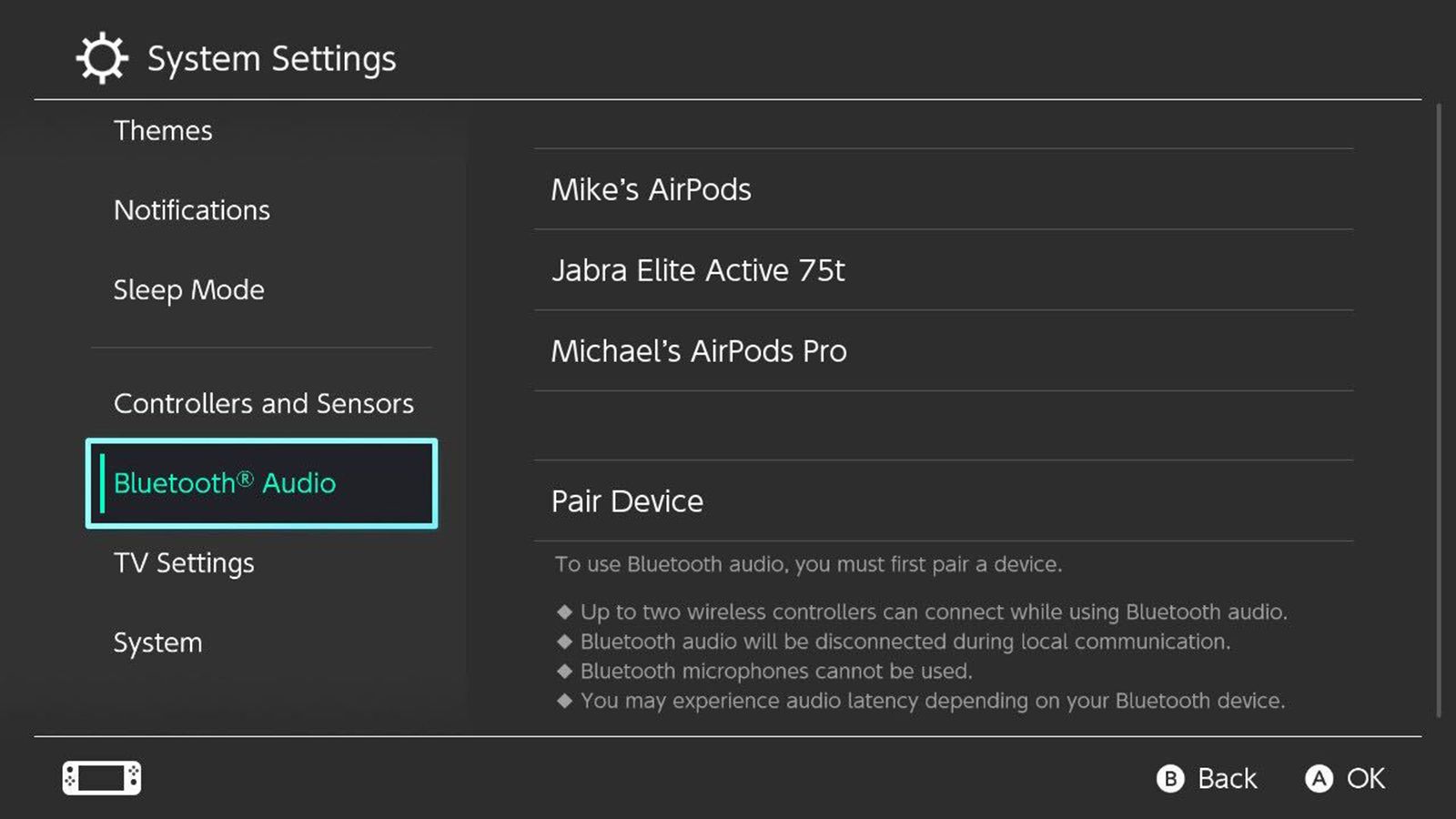
To connect wireless headphones to Switch, you need a system running version 13.0.0 or higher, then use the Bluetooth Audio menu in System Settings. After putting your headphones into pairing mode, the Switch will detect and connect them for wireless game audio.
Before you connect wireless headphones to your Switch
Your Nintendo Switch must be updated to system version 13.0.0 or higher to use Bluetooth audio. The console supports only the A2DP audio profile and the SBC codec; Bluetooth microphone input is not supported, so in-game voice chat will not work through the headphones. Ensure Airplane Mode is turned off, as Bluetooth functionality is disabled when it is active. Nintendo does not provide operation guarantees for specific devices, so compatibility may vary. If your headphones don't have Bluetooth, you can use a Bluetooth adapter plugged into the Switch's USB port as an alternative.
Put your wireless headphones into pairing mode
Follow the headset manufacturer’s instructions to make the headphones discoverable. This typically involves pressing and holding a dedicated pairing button or a combination of buttons until an LED indicator flashes or a confirmation sound plays. Consult the user manual for your specific model if the process is unclear.
Pair the headphones in the Switch's Bluetooth Audio menu
- From the HOME Menu, select System Settings.
- Select Bluetooth Audio.
- Select Pair Device. The Switch will begin searching for nearby devices.
- When your headphones appear in the list, select them to complete pairing.
After pairing, the Switch will indicate that the device will connect automatically when turned on or removed from its charging case. This allows you to use the same wireless gaming controllers or other Bluetooth accessories without needing to re-pair each time.
Reconnect already-paired headphones
If your headphones are already saved on the Switch, the path is: HOME Menu > System Settings > Bluetooth Audio, then select the saved device and choose Connect Device. The Switch will also attempt to reconnect automatically when the headphones are powered on or taken out of their charging case, provided they were the last paired device.
Frequently Asked Questions
Can I use any Bluetooth headphones with my Switch?
Most Bluetooth headphones that support the A2DP profile and SBC codec will work, but Nintendo does not guarantee compatibility with every device. Check your headphone’s specifications if you encounter connection issues. The Switch supports Bluetooth 4.1, which may affect compatibility with some headphones.
Will my microphone work with wireless headphones on the Switch?
No. The Nintendo Switch does not support Bluetooth microphone input. You will need a wired connection or a separate microphone for voice chat in supported games. Some wireless headphones may experience a slight audio delay due to the Bluetooth connection.
Why won’t my Switch find my headphones?
Make sure your headphones are in pairing mode and that Airplane Mode is off on the Switch. Also confirm the console is running system version 13.0.0 or higher. If the issue persists, try restarting both devices.
Can I connect headphones to the Switch while it’s docked?
Yes. The Bluetooth audio feature works in handheld mode, tabletop mode, and docked mode. The connection process is the same regardless of how the console is being used.
How many Bluetooth devices can I pair at once?
The Switch can store multiple paired Bluetooth audio devices, but only one can be connected at a time. To switch to a different headset, disconnect the current one and connect the other from the Bluetooth Audio menu.
Related reading: How To Connect My Sennheiser Wireless Headphones and How To Connect Wireless Headphones To Sony TV.