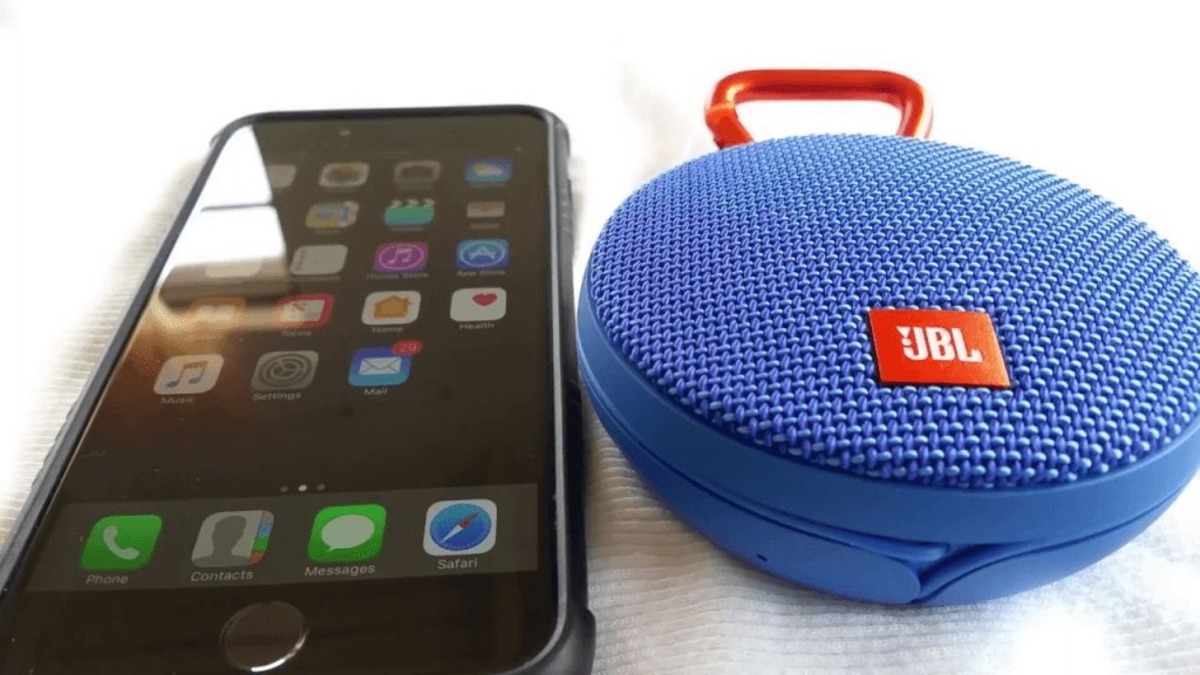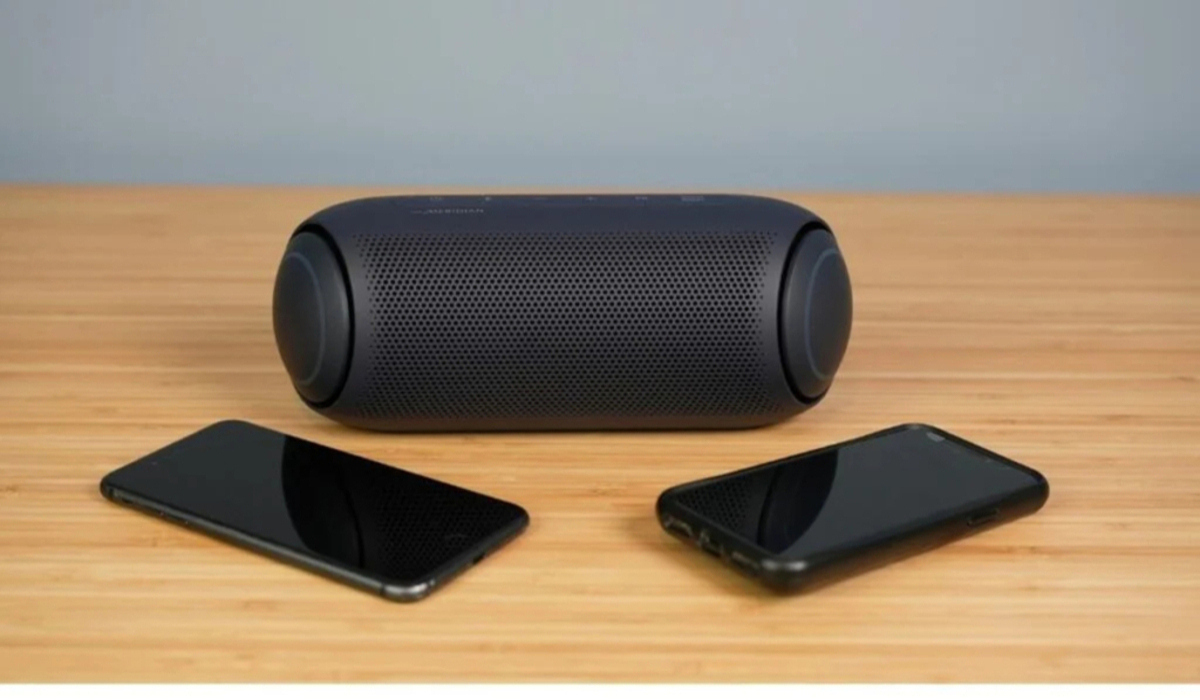
To connect wireless speakers to your phone or tablet, you first put the speaker in pairing mode, then use your device's Bluetooth settings to select it.
How to connect wireless speakers to an iPhone
Apple's verified path for pairing a wireless speaker with an iPhone starts by ensuring the speaker is in discovery mode. On your iPhone, open Settings, then tap Bluetooth. Turn Bluetooth on if it is not already enabled. Your iPhone will scan for nearby accessories. When the speaker name appears below the devices list, tap it to pair. Apple notes that your iPhone must be within about 33 feet (10 meters) of the Bluetooth accessory to pair successfully. A PIN or passcode may be required; if prompted, enter the code shown in the speaker's instructions.
How to connect wireless speakers to an Android phone
Google's verified path for Android devices is to open Settings, then tap Connected devices followed by Pair new device. Your phone will search for available Bluetooth accessories. Tap the speaker name under Available devices. After pairing, the speaker will show as Connected.
Samsung Galaxy devices
On Samsung Galaxy phones, the path is similar: open Settings, then tap Connections. Alternatively, from the Quick settings panel, touch and hold the Bluetooth icon. Make sure the Bluetooth switch at the top is on, then select the speaker under Available devices.
Before you start: put your speaker in pairing mode
This is the universal first step required by all platforms. Before your phone can find the speaker, the speaker must be in pairing or discovery mode. This is typically done by pressing and holding a dedicated button on the speaker until a light begins flashing (often blue and red) or you hear a sound indicating it is ready to pair. Check your speaker's manual if you are unsure which button to press.
Troubleshooting wireless speaker connection problems
If the speaker does not appear on your iPhone, first verify that Bluetooth is on in Settings > Bluetooth. Then check the speaker's instructions to confirm it is in discoverable mode. On Android, if pairing does not work, ensure both Bluetooth and Location are turned on for Fast Pair accessories. Google's Fast Pair requires Android 6.0 or higher and the accessory must support Fast Pair. If no pairing notification appears, use the manual path: Settings > Connected devices > Pair new device. For all devices, ensure the speaker is within range (about 33 feet for iPhone) and has sufficient battery or power.
What to do after connecting your speaker
Once paired, the speaker will automatically reconnect to your phone when both are in range and Bluetooth is on. To manually reconnect a saved device, go to your Bluetooth list and tap the speaker name. After connecting, you might want to adjust the audio balance or explore whether your speaker supports a multi-speaker Bluetooth setup for synchronized sound in multiple rooms.
Frequently Asked Questions
Can I connect multiple wireless speakers to one phone at the same time?
Some phones and speaker brands support this, but there is no universal limit documented by Apple, Google, or Samsung for the number of wireless speakers that can be paired at once. Check your speaker's app or manual for specific multi-speaker features.
Why does my wireless speaker keep disconnecting?
This is often caused by the phone moving out of the Bluetooth range (about 33 feet for iPhone) or by interference from other wireless devices. Try moving the speaker closer to your phone and away from routers or microwaves.
Do I need an internet connection to use a Bluetooth speaker?
No. Bluetooth creates a direct wireless connection between your phone and the speaker, so you can play audio stored on your device without an internet connection. Wi-Fi-based speakers may require a network for some features.
How do I unpair a wireless speaker from my phone?
On iPhone, go to Settings > Bluetooth, tap the "i" icon next to the speaker name, then tap Forget This Device. On Android, go to Settings > Connected devices, tap the gear icon next to the speaker, then tap Forget or Unpair.