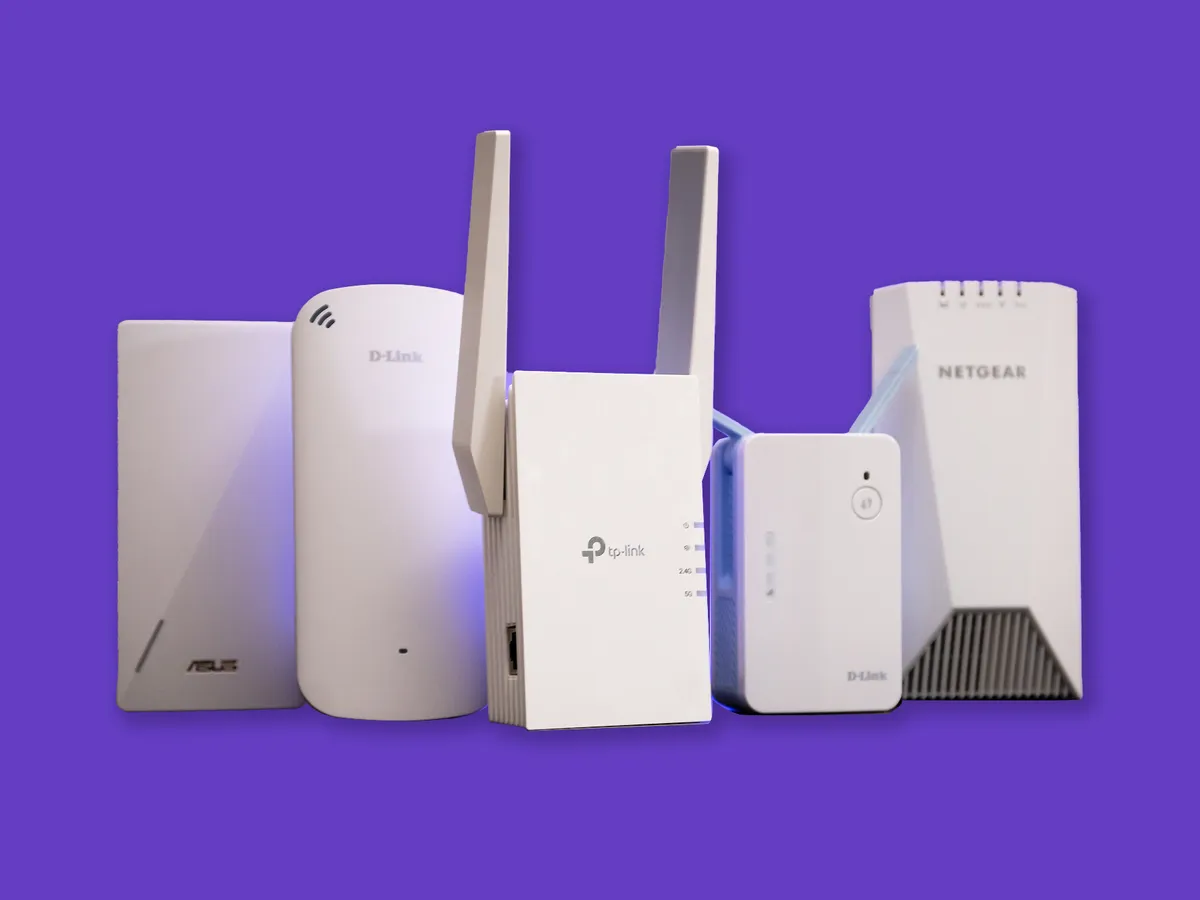
Understand your wireless extender options before you buy
Before you connect a wireless extender, it helps to know how a Wi-Fi signal booster work. The device receives your router’s existing wireless signal and rebroadcasts it, so placement is everything. A common mistake is putting the extender in the dead zone you are trying to fix, which just repeats a weak connection. Instead, place it roughly halfway between your router and the problem area. TP-Link recommends a distance of about 25 to 40 feet from the router for models with external antennas, and 20 to 35 feet for internal-antenna designs. Their Tether app includes a Location Assistant under Tools to help you find the right spot, and if the extender’s signal LED shows red, it is not getting a strong enough feed from the router.
Your phone can also help you make your wireless internet signal stronger before you spend any money. Apple advises bringing the device closer to the router and steering clear of interference from microwave ovens, cordless phones, and fluorescent lights. If your router supports both bands, connecting more devices to 5 GHz reduces congestion on the 2.4 GHz band where Bluetooth and many other gadgets also operate. To determine best wireless channel, configure your Wi‑Fi router to use a different Wi‑Fi channel, or have it scan for the channel with the least interference, since neither iPhone nor Android settings offer a channel picker on the phone itself. Once you are ready to extend wireless router coverage, these small adjustments to band and channel often make the extender’s job much easier from the start.
Set up a dedicated extender or access point
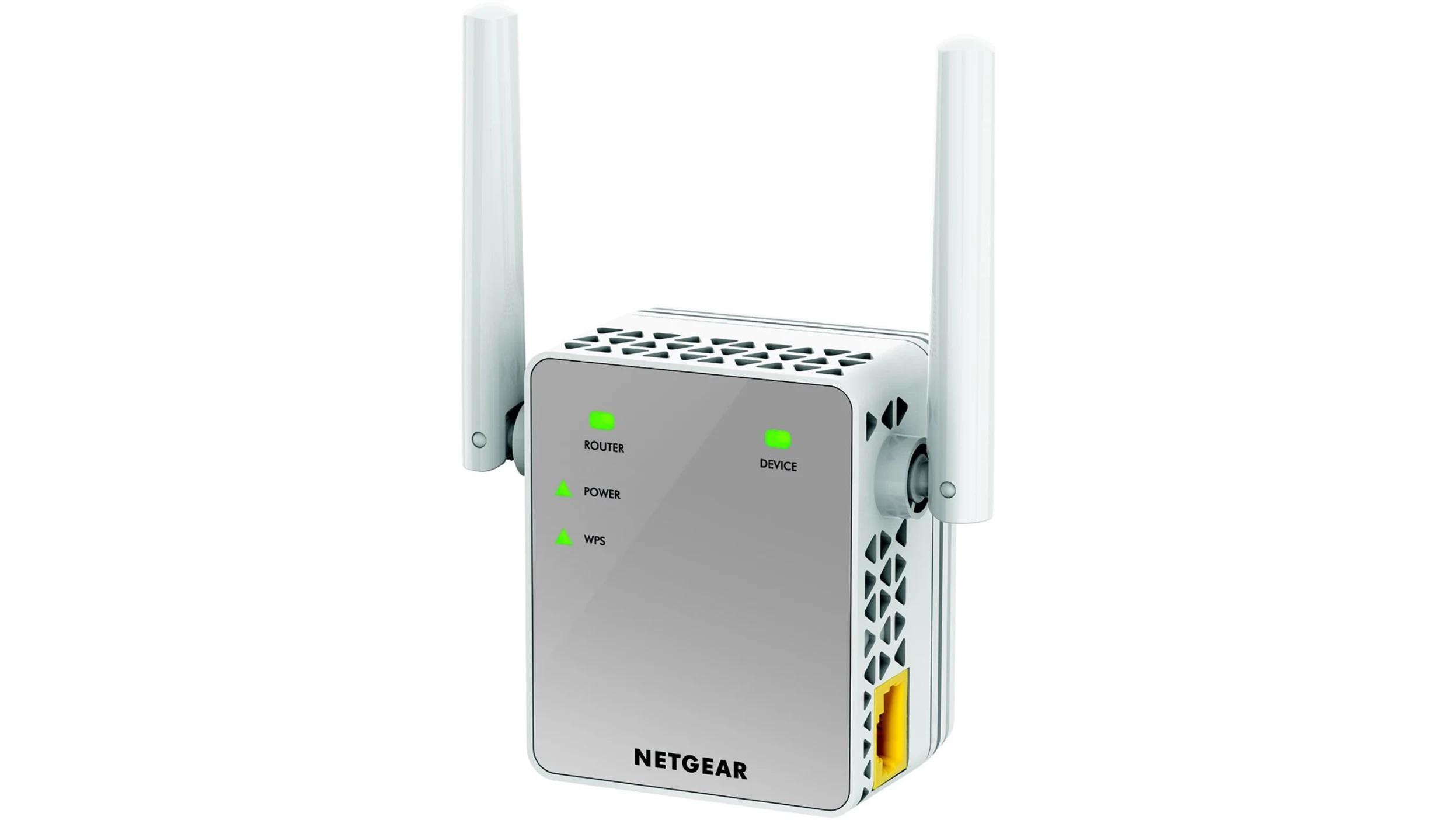
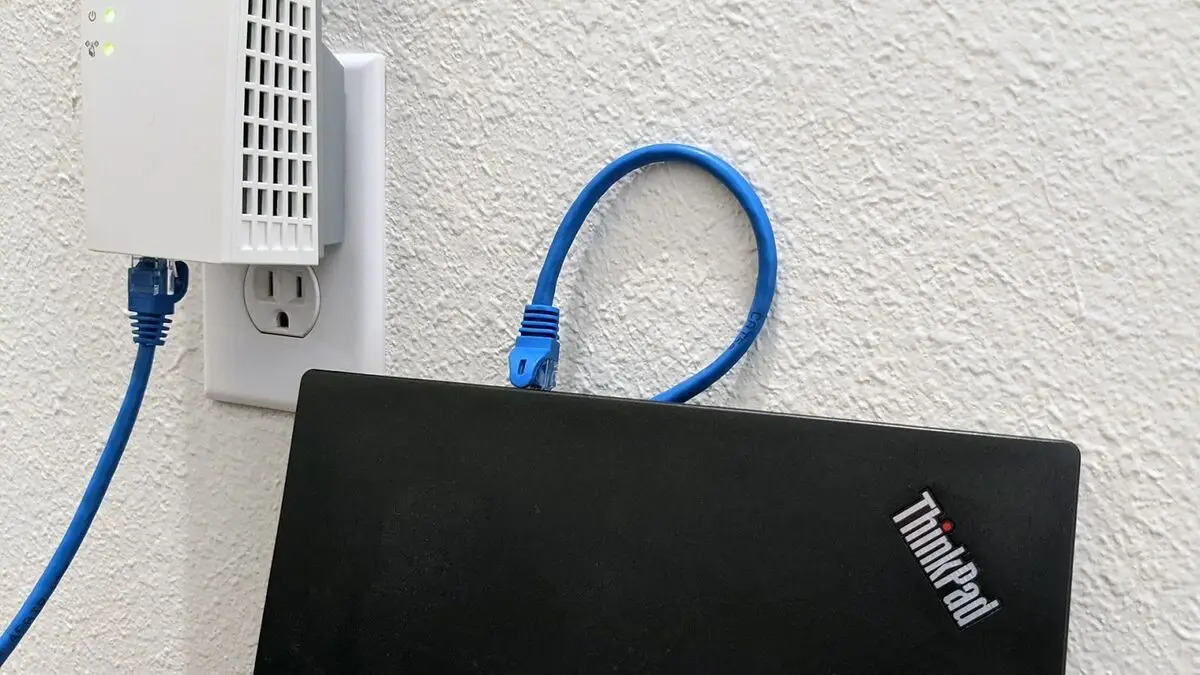
When you are ready to connect a tp link wireless extender, the quickest path is often the WPS button; press the button on your main router, then within two minutes press the extender’s WPS button for about one second and wait for the signal LED to glow solid blue. To connect to Netgear wireless extender, power it up within good range of your router and use its dedicated setup network or app to pair it, then move it to its final spot halfway toward the dead zone. You may need to access Amped wireless range extender settings through a browser. When coverage demands a wired backbone, you can connect a wireless access point by running an Ethernet cable from your router to the AP and configuring it through an app or browser page, which creates a new strong zone without the signal loss that repeating introduces. In a hotel room or temporary workspace, you might set up wireless mini router to share a single login across several devices, which gives you a private network behind the room's existing connection.
Repurpose an old router or create a bridge
If you have a spare router in a drawer, you can often repurpose it to extend your network without buying new hardware. The process of using an old router as a repeater usually starts by logging into its web interface. You then look for an operation mode setting. On an ASUS model, for instance, you would log in to the router web interface, go to Operation Mode, and select Repeater mode. This disables firewall and NAT functions so the device focuses purely on rebroadcasting the signal. Before you commit to a full wireless repeater installation, check the vendor’s rules. Linksys notes that only some of its Smart Wi-Fi Routers support this feature. Your older unit may need a specific firmware or simply lack the option.
For a more deliberate link between two buildings or floors, you can create a dedicated pathway by making a wireless bridge between two routers. This is not the same as casual repeating. It pairs two access points to form a single, transparent connection. If you need to extend a network without running cables, you would want to make a wireless bridge between two routers to link separate wired networks. TP-Link’s approach involves enabling a bridge mode and entering the remote unit’s MAC address. NETGEAR routers let you define both a Wireless Base Station and a repeater under Advanced > Wireless Repeating Function, configuring each radio band separately. If you need to link two separate wired networks without a cable, a proper wireless bridge configuration turns one router into a client. That client then feeds its Ethernet ports from the main network. When you pair two wireless routers this way, remember that the secondary unit must sit where it still receives a robust signal from the primary. Do not place it at the far edge of the dead zone.
Frequently Asked Questions
How do I log into an Amped wireless extender to change settings?
Open a browser and go to setup.ampedwireless.com to access the extender's settings panel. The exact menu layout depends on your specific Amped model, but the setup address is the documented entry point for configuration.
What does the red Signal LED mean on a TP-Link extender?
A red Signal LED means the extender is not receiving a strong enough signal from your router. Move the extender closer to the router or use the Location Assistant under Tools in the Tether app to find a better spot.
Which Linksys routers support Wireless Repeater mode?
Only some Linksys Smart Wi-Fi Routers support Wireless Repeater mode. The official page does not provide a full model list, so you must check your specific router's settings under Connectivity > Internet Settings for the Wireless Repeater option.
Where do I find the MAC address for a wireless bridge on a TP-Link router?
TP-Link's bridge setup requires entering the remote router's MAC address under Wireless > Wireless Settings after enabling Bridge mode. The MAC address is typically printed on the router's label or found in its web interface status page.