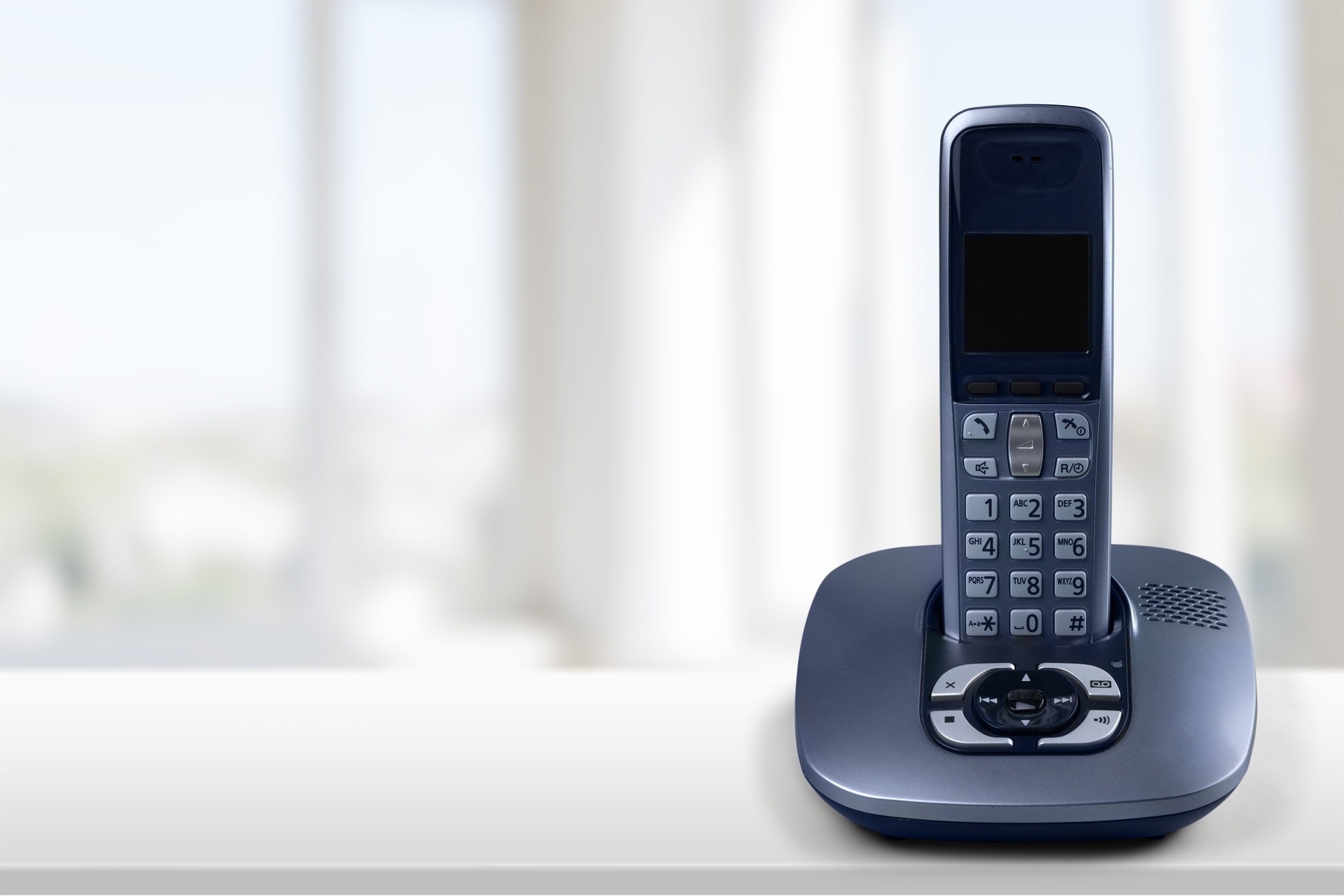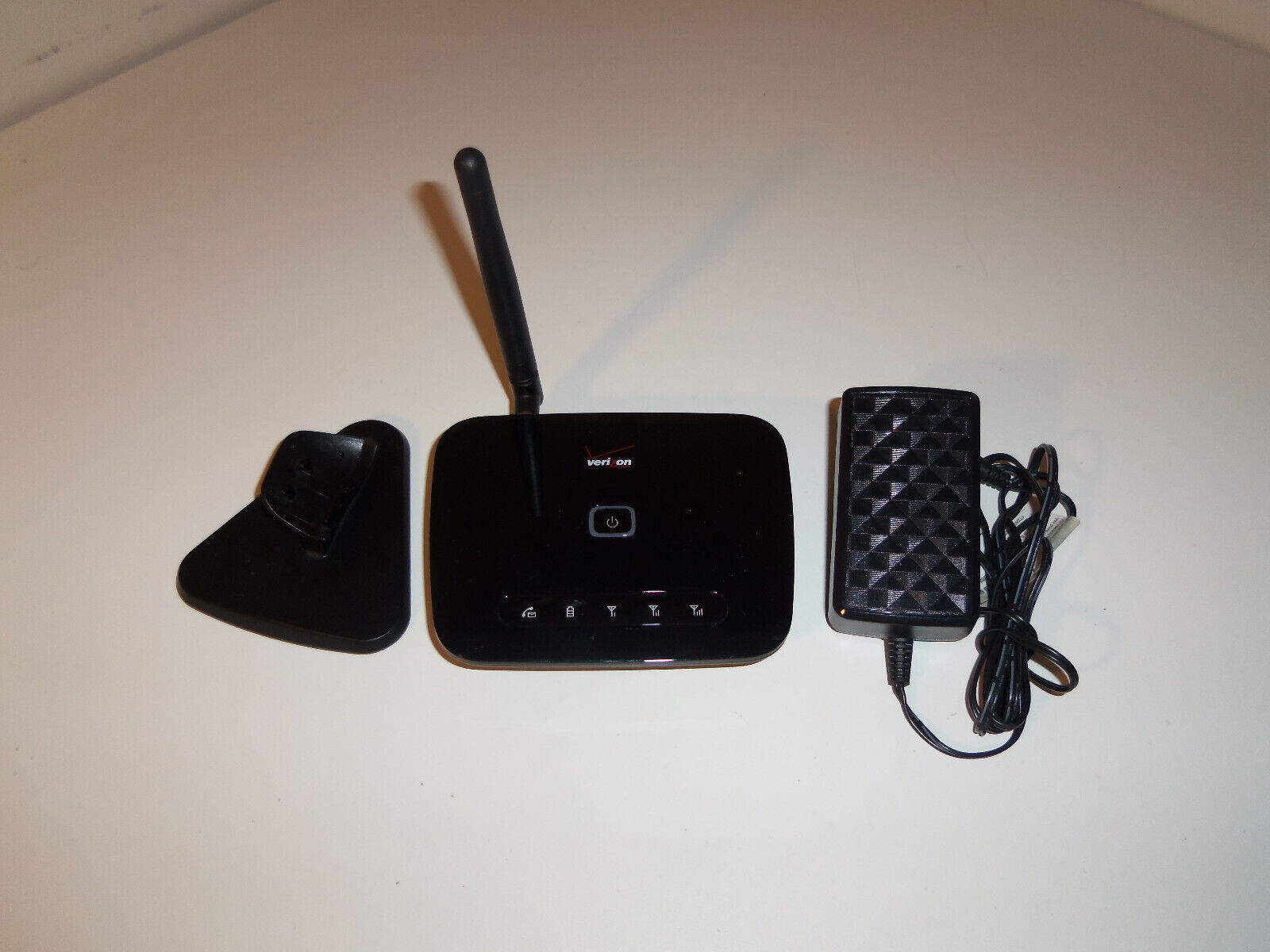
To reset a Verizon Wireless Home Phone, the exact method depends on your device model, LVP2, T2000, or Home Phone Base, and you should always try a soft reset (power cycle) first, as it fixes most issues without erasing data.
Power cycling your Verizon wireless home phone
A soft reset, also called a power cycle, simply turns the device off and back on using the Power button. This is the first troubleshooting step for a frozen or malfunctioning device and usually does not affect stored data such as contacts or call history. Verizon's glossary defines a soft reset as turning a device off and back on again, and says it usually does not affect data. To perform a soft reset on any model (LVP2, T2000, or Home Phone Base), press the Power button to turn the device off, wait a few seconds, then press the Power button again to turn it back on.
Step 2: Factory reset the device
A factory reset erases all settings and call history, restoring the device to its original factory defaults. Use this only after a soft reset fails to resolve the problem. For the Wireless Home Phone (LVP2), the documented factory reset method is to press and hold the Power button for 10 seconds. After the reset screen appears, the user should press the Menu button twice to select OK and proceed. To cancel, press the Menu button once or wait 10 seconds. Verizon says that after a factory reset, all settings are restored to factory defaults and call history data will be erased. Note that the T2000 and Home Phone Base models have separate factory reset instructions; check Verizon’s support pages for your specific device.
Step 3: Reconfigure the device after a reset
After a factory reset, all settings are returned to default, so you must repeat the initial setup process. This includes reconnecting the device to your home phone system and verifying your account. If a SIM card issue screen appears during reconfiguration, call Verizon support at (800) 922-0204 for assistance.
Troubleshooting tips
Always begin with a soft reset when the device crashes, freezes, or runs slowly, this resolves most common issues without data loss. Verizon defines a hard reset/factory reset as a last resort after other solutions, including a soft reset, have been tried. Because reset steps differ by model, match your device to Verizon’s support pages for the Wireless Home Phone (LVP2), Wireless Home Phone T2000, or Home Phone Base. Verizon's support pages show model-specific reset pages, so the exact steps may differ by device: Wireless Home Phone (LVP2), Wireless Home Phone T2000, and Home Phone Base. If you need a device-specific walkthrough for a different service, you might also search for how to reset T-Mobile 5G home internet, as the general troubleshooting principle of starting with a power cycle applies there as well.
Frequently Asked Questions
How do I reset my Verizon Wireless Home Phone?
For the LVP2 model, hold the Power button for 10 seconds to start a factory reset, then press Menu twice to confirm OK. For other models like the T2000 or Home Phone Base, check Verizon’s support pages for their specific reset sequences. For the LVP2 support page, Verizon also provides a separate soft reset and factory data reset page, so the correct method depends on the model.
Will resetting my Verizon Wireless Home Phone delete all my settings?
Verizon's glossary says a soft reset usually does not affect stored data.
Will resetting my Verizon Wireless Home Phone affect my phone service?
Verizon's documents say a factory reset erases call history and restores settings to defaults, but they do not state that it cancels service or changes the line itself. If a SIM card issue screen appears after reset, contact Verizon support. If the device has a SIM-card issue after reset, Verizon directs the user to contact support.
What should I do if resetting my Verizon Wireless Home Phone doesn’t solve the problem?
Verizon's guidance is to try a soft reset first, then a factory reset if needed, and to contact Verizon support if the SIM-card issue screen appears or the problem continues.
Related reading: How To Reset Xbox Wireless Headset and How To Fix A Wireless Doorbell.