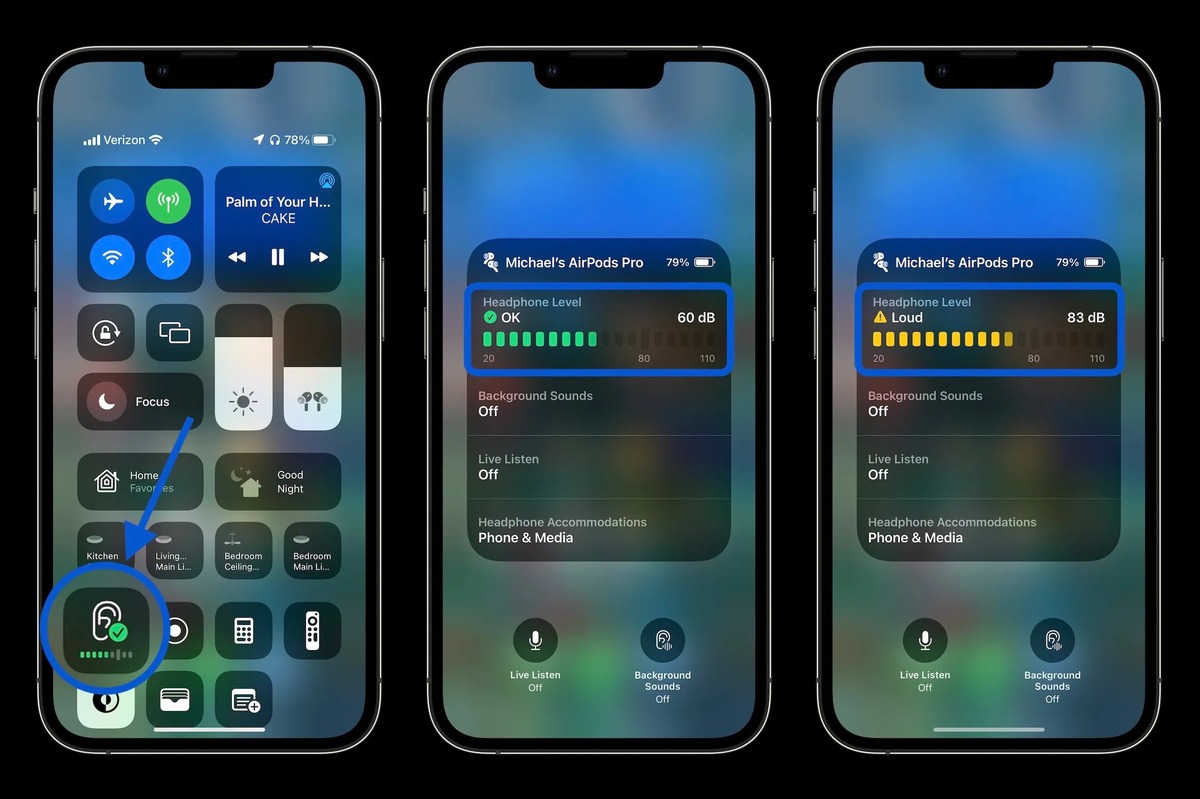
To measure decibels on iPhone for headphone audio, open Control Center, tap the Hearing control, and read the Headphone Level meter in decibels. This built-in tool helps you monitor your listening volume in real time to protect your hearing.
How to measure decibels on iPhone with the built-in hearing control
Apple provides a built-in way to measure decibels for headphone audio through the Hearing control in Control Center and the Health app. Follow these steps to set it up and view live levels:
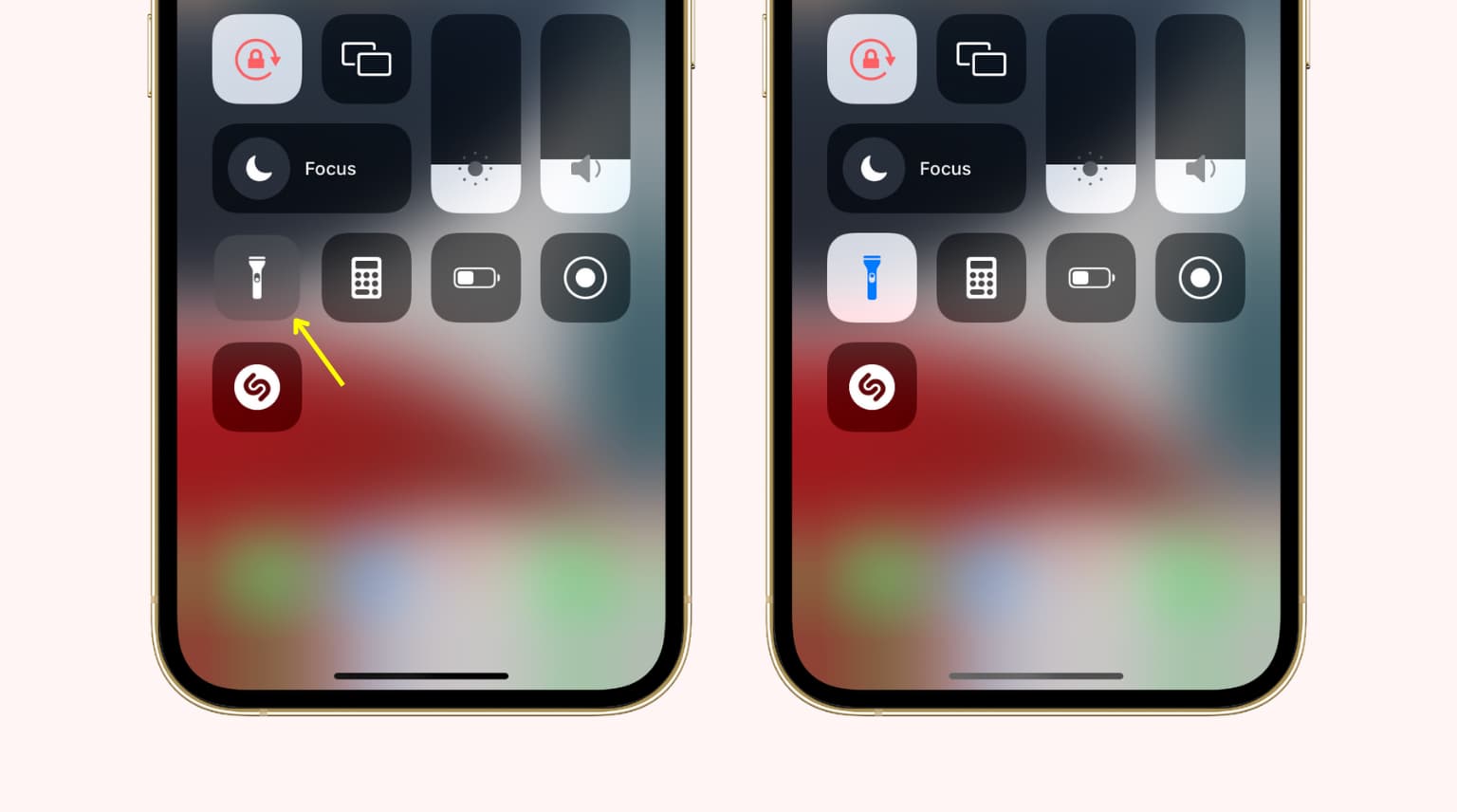
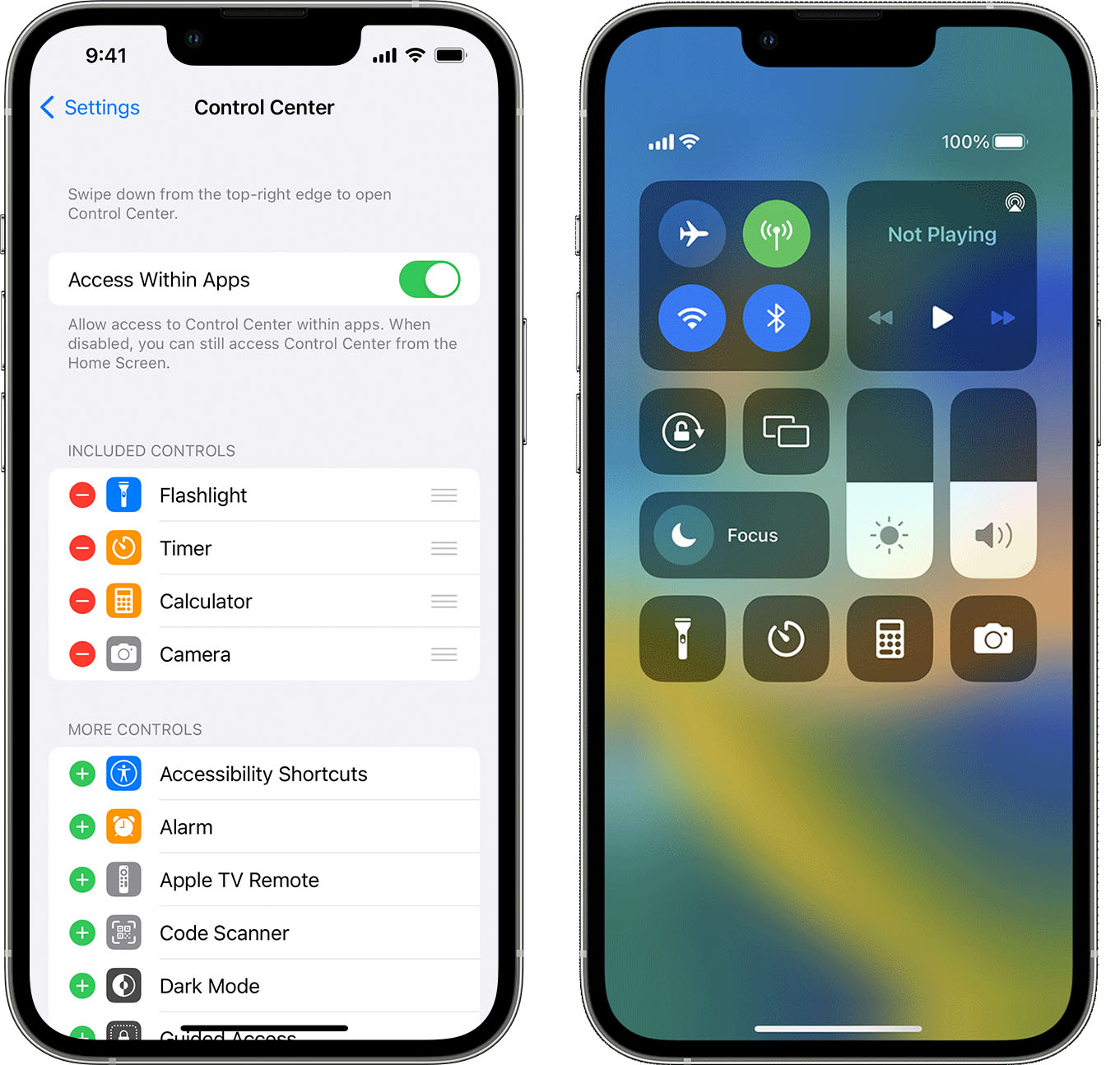
- Open Control Center on your iPhone.
- Tap Add a Control (or the plus icon if available).
- Scroll to Hearing Accessibility, then tap Hearing to add it.
- Open Control Center again and tap the Hearing control.
- The Headphone Level meter appears, showing the audio level in decibels.
To add the hearing control: open Control Center, tap Add a Control, scroll to Hearing Accessibility, then tap Hearing.
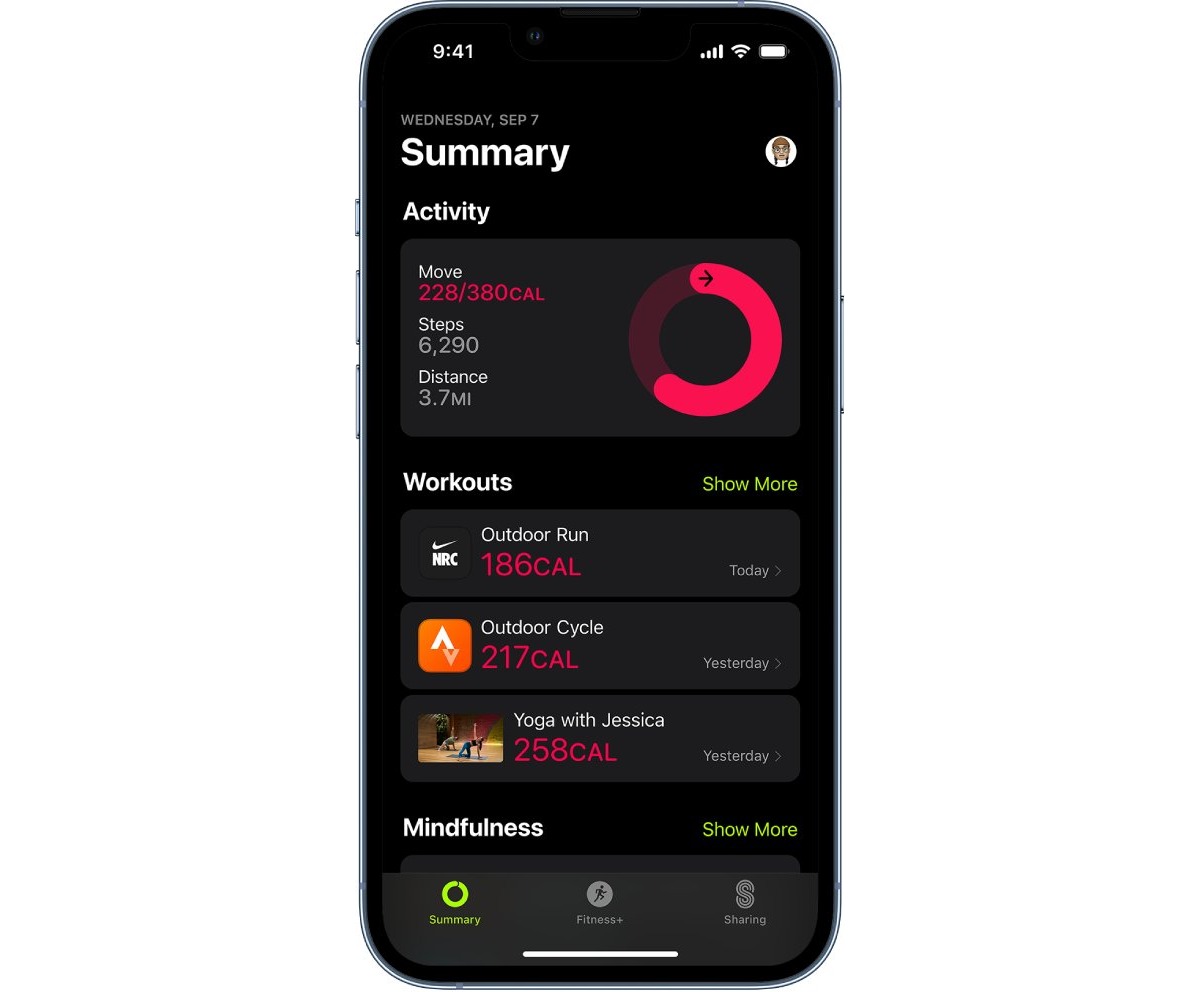
To review your exposure history, go to Health > Browse > Hearing > Headphone Audio Levels. This screen shows your headphone audio levels over time, all measured in decibels.
What decibels mean for your headphone audio levels
Apple uses decibels to display headphone audio levels and sound exposure in the Health app. Decibels use a logarithmic scale, meaning a small change in number represents a large change in intensity. Apple ties headphone notifications to exposure thresholds; for example, exceeding 80 dB for 40 hours total within the last 7 days triggers a notification. Apple’s headphone notifications page gives a documented exposure example of 80 dB for 40 hours total within 7 days and says notifications occur after exceeding 100% of the 7-day exposure limit. This scale helps you understand when your listening habits may pose a risk to your hearing.
How to set a maximum headphone volume limit
To cap your headphone output and prevent accidentally loud audio, enable Reduce Loud Sounds:
- Go to Settings > Sounds & Haptics > Headphone Safety.
- Turn on Reduce Loud Sounds.
- Drag the slider to set a maximum decibel level for headphone audio.
This setting applies to all connected headphones and keeps the volume, mute and speaker controls from exceeding your chosen limit.
When the headphone level meter works and what you need
The live Headphone Level meter only shows readings when headphones are connected and audio is playing. Without active audio, the meter will not display a meaningful level. Apple’s instructions imply the headphones must be connected and audio playing before the live meter is meaningful. Apple’s support pages cover iPhone headphone-level features broadly, including older models. The settings path appears as Settings > Sounds on earlier iPhone models and Settings > Sounds & Haptics on iPhone 7 and later. iOS versions documented for these features include iOS 13, 14, 15, and 16-era guidance. Headphone Accommodations, a related audio customization feature, is available in iOS and iPadOS 14 and later, but that feature is separate from decibel measurement. A separate Apple page says Headphone Accommodations is available in iOS and iPadOS 14 and later, but that page is about audio customization, not decibel measurement.
Frequently Asked Questions
Can my iPhone measure ambient noise or room decibels?
The built-in tools only monitor headphone audio levels through Control Center and the Health app.
How accurate are the headphone decibel readings on iPhone?
The readings come directly from your iPhone’s headphone output monitoring and are designed to give you a reliable estimate of your listening level. For professional-grade accuracy, dedicated sound level meters are recommended.
How do headphone notifications work?
Apple’s headphone notifications are triggered when your 7-day exposure limit is exceeded. For example, listening at over 80 dB for 40 hours total within the last 7 days will cause a notification, as that reaches 100% of the 7-day exposure limit.
Do I need special headphones to see the decibel meter?
No. Any wired or Bluetooth headphones connected to your iPhone will work. The meter reads the audio level being sent to the headphones, not the ambient environment.
Can I use a third-party app to measure decibels on iPhone?
Apple’s support pages document only the built-in headphone audio level tools. Third-party decibel meter apps are available on the App Store, but Apple does not provide official guidance or accuracy guarantees for them.
Related reading: How To Track Walking Distance On IPhone and How To Brighten IPhone Screen.