To factory reset a Google phone, open Settings, go to System, tap Reset options, and choose Erase all data (factory reset). This process permanently deletes all data on the device, so backing up to your Google Account or another cloud service before starting is essential to avoid losing photos, contacts, and app data.
Before you factory reset your Google phone: back up your data
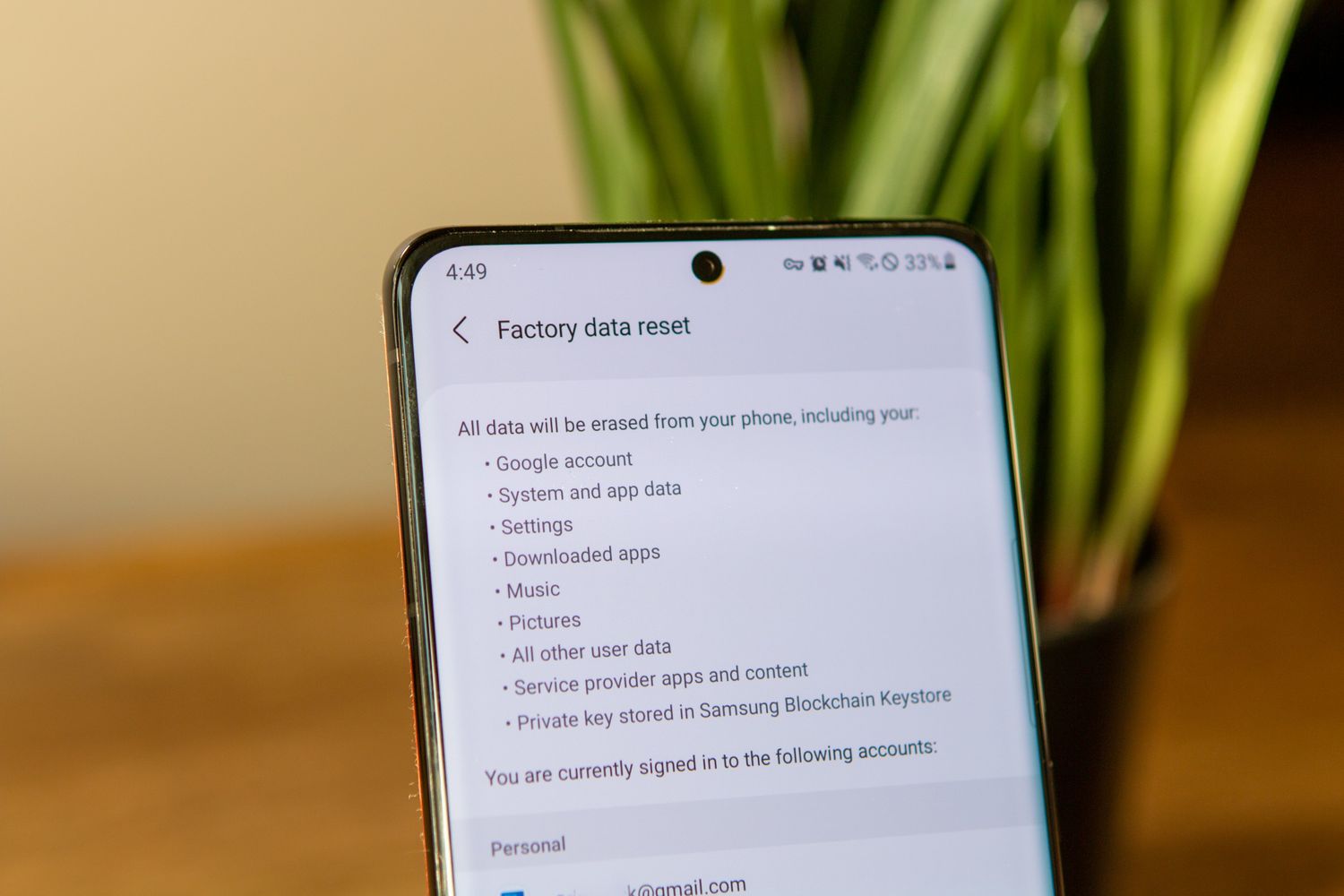
A factory reset erases everything on your phone, including apps, settings, and personal files. Google recommends backing up first to prevent permanent data loss. To back up, go to Settings > System > Backup and ensure backup to Google Drive is enabled. This saves your app data, call history, contacts, and settings. For photos and videos, use Google Photos. If you are preparing the device for repair, also sign out of your Google Account before proceeding. Google's Pixel repair page also says to sign out of your Google Account if you cannot delete data before repair, and that the device will be reset.
How to factory reset a Google phone from Settings
This is the standard method when your phone is working normally.
- Open the Settings app.
- Tap System.
- Tap Reset options.
- Tap Erase all data (factory reset).
- Enter your PIN, pattern, or password when prompted.
- Follow the on-screen prompts and confirm the reset.
For iPhone, Apple's current documented path is Settings > General > Transfer or Reset iPhone > Erase All Content and Settings. Apple says to enter the passcode or Apple Account password if asked, then tap Continue to confirm. The phone will restart multiple times during the process. When it finishes, you will see the initial setup screen.
How to factory reset a Google phone using buttons (if Settings won't open)
If your phone is frozen or the Settings app cannot be opened, you can use the hardware buttons to enter Fastboot mode and perform a reset from Recovery. The button combination depends on your Pixel model.
For Pixel 6 and later devices
- Press and hold Volume Down + Power for up to 30 seconds until Fastboot mode appears.
- Use the volume buttons to scroll to Recovery Mode and press the Power button to select it.
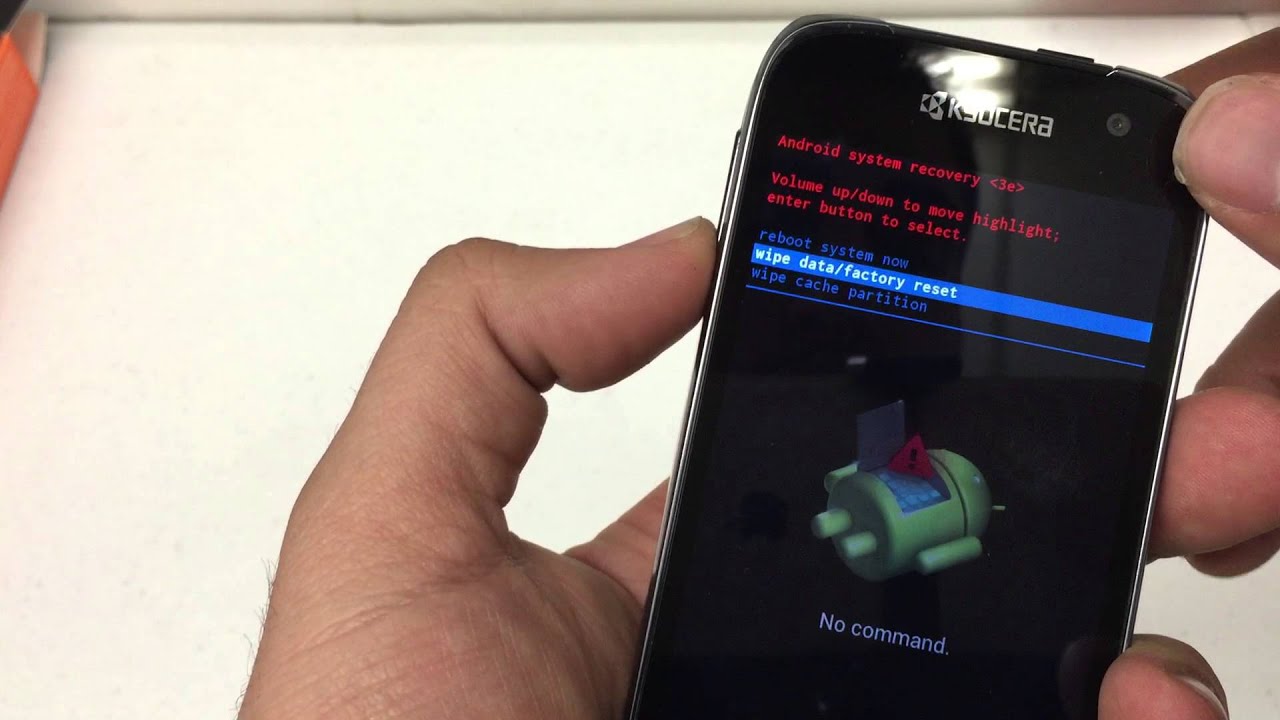
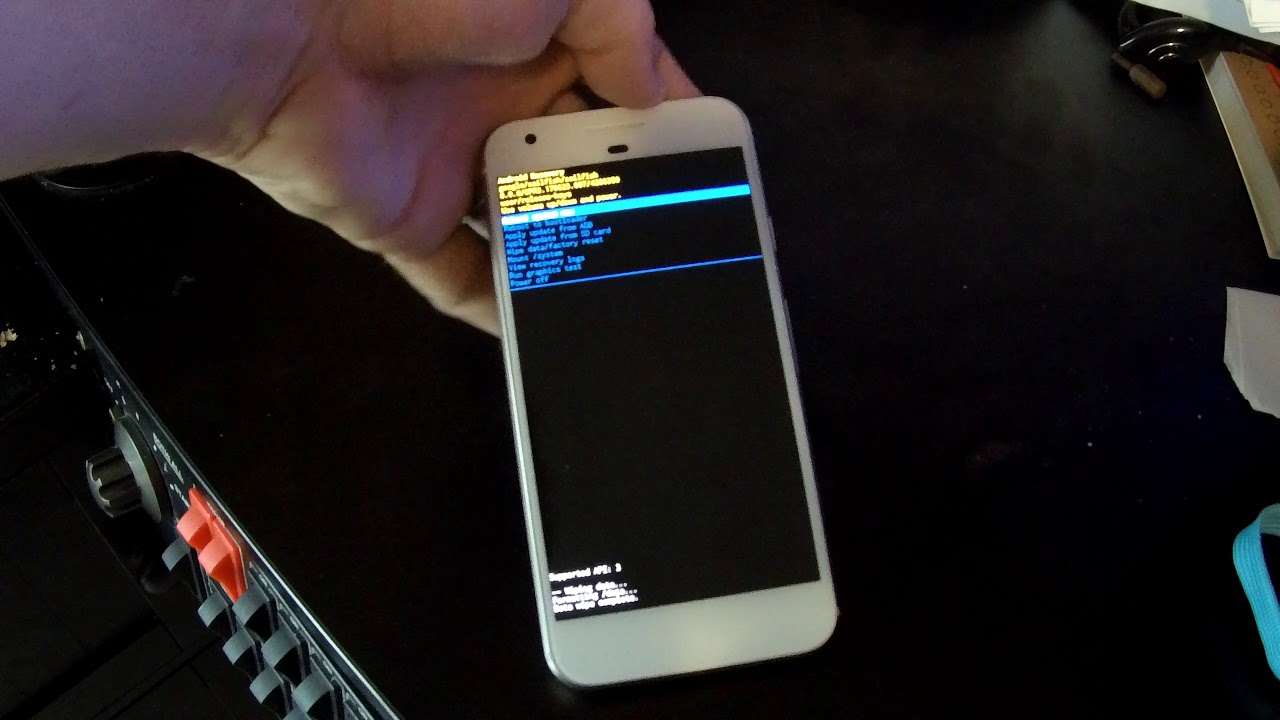
- When the Android Recovery screen appears, press the Power button while holding Volume Up, then release both.
- Use the volume buttons to highlight Wipe data/factory reset and press Power to select it.
- Highlight Factory data reset and press Power to confirm.
- After "Data wipe complete" appears, highlight Reboot system now and press Power.
For earlier Pixel devices
- Follow the same Recovery steps as above to wipe data and reboot.
This button method is documented by Google for any Android device that cannot open Settings, though the exact button sequence varies by device family.
What to do after the factory reset
The phone reboots to the setup screen. You can restore your backed-up data during setup by signing into your Google Account. Your apps, contacts, and settings will be reinstalled. If you backed up photos separately, restore them from Google Photos. The phone will function as a fresh device until you complete the setup.
Frequently Asked Questions
Does factory reset delete everything?
Yes. A factory reset erases all data on the phone, including apps, settings, accounts, and personal files. It returns the device to its original out-of-box state.
Can you factory reset without the Settings app?
Yes. On Pixel devices, you can use the Fastboot/Recovery button method described above. This works even if the phone is frozen or the touchscreen is unresponsive.
What happens to eSIM data during a factory reset?
On Pixel phones, a factory reset may erase the eSIM profile depending on the device and carrier. For iPhone, Apple's erase flow gives you the option to keep or delete the eSIM. If you erase it, you must contact your network provider to reactivate the mobile plan. Apple says you can choose whether to keep or delete the eSIM, and if you erase the eSIM you must contact the network provider to reactivate the mobile plan.
Are the steps the same on all Android phones?
No. While Google documents a general Android recovery method using power and volume buttons, the specific button sequence and recovery menu labels are documented by device family. The steps above apply specifically to Google Pixel phones.
How long does a factory reset take?
The process typically takes a few minutes, depending on the amount of data being erased. The phone will restart multiple times. Do not interrupt the process until it finishes.
For the wider topic, see factory resetting phones.
Related reading: How To Factory Reset Galaxy S21 Ultra and How To Factory Reset My Blu Phone.