






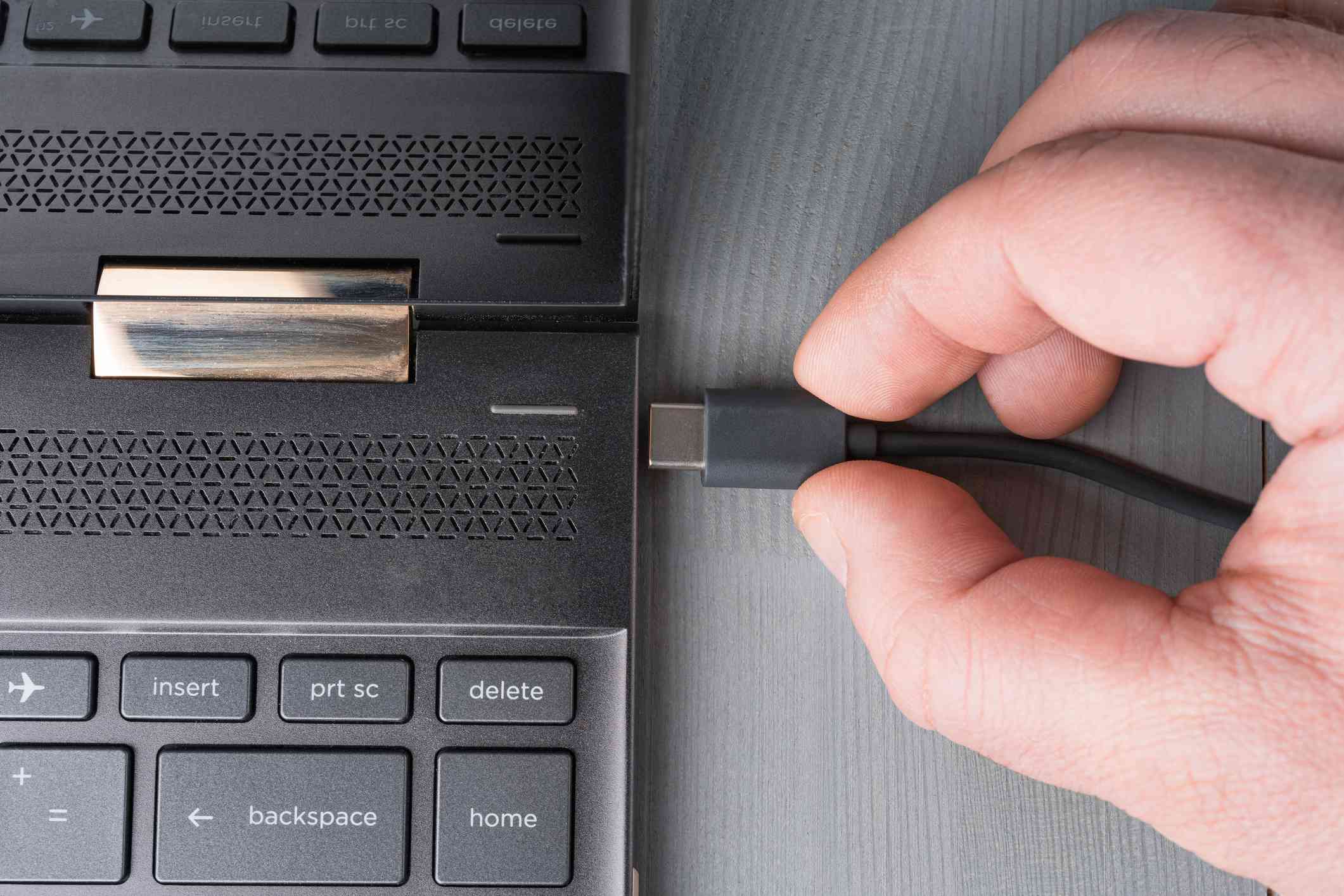
To connect an HP laptop to a Dell docking station, you must first confirm that the dock is a Dell USB-C or Thunderbolt model and that your HP laptop’s USB-C port supports video output and power delivery. This connection works across brands only when both devices meet these specific technical requirements, enabling you to use external monitors, a keyboard, and a mouse with a single cable.
Before you connect HP laptop to Dell docking station: check compatibility
Only Dell USB Type-C and Thunderbolt docks are documented as compatible with HP laptops. Proprietary Dell docks, such as older E-Port models or non-USB-C WD docks, are not designed for cross-brand use. Dell's compatibility page is specific to its USB Type-C and Thunderbolt dock families such as WD19, WD19S, WD19TB, WD19TBS, and WD22TB4. If your dock does not belong to one of these USB-C or Thunderbolt families, it will not work with an HP laptop.
How to check your HP laptop's USB-C port capabilities
Before connecting, inspect the USB-C port on your HP laptop. Look for a DisplayPort (DP) logo next to the port, which indicates video output support. A Thunderbolt lightning bolt symbol means the port supports Thunderbolt 3, 4, or 5. If neither symbol is present, the port may not support video or power delivery, making it incompatible with a Dell dock for full functionality.
Connecting via USB-C: what will and won't work
For a standard USB-C connection to succeed, the HP laptop’s USB-C port must support video output, USB 3.1 Gen 1 or better, and USB Power Delivery. Dell documents that a laptop must have a USB-C port that supports USB 3.1 Gen 1 or better for dock use. If the laptop's USB-C port does not support video output, Dell documents that external display output through the dock will not work, even if charging or other USB functions may still work. Connect the dock to the laptop using the USB-C cable provided with the dock. The dock will then provide ports for monitors, keyboard, mouse, and other accessories.
Connecting via Thunderbolt 3, 4, or 5
Thunderbolt docks use the same USB-C-shaped connector across Thunderbolt 3, 4, and 5. Dell states that a Thunderbolt 4 laptop works with a Thunderbolt 3 dock, and a Thunderbolt 5 dock connected to a Thunderbolt 4 laptop operates at Thunderbolt 4 capability. To connect, ensure your HP laptop has a Thunderbolt-enabled USB-C port (marked with a lightning bolt). Plug one end of a Thunderbolt cable into the laptop’s Thunderbolt port and the other into the Dell Thunderbolt dock. The single cable handles data, video, and power delivery if supported.
Troubleshooting: why your HP laptop and Dell dock won't connect
- Check if the dock is a proprietary model. If your Dell dock is an older proprietary model (not USB-C or Thunderbolt), HP support community guidance confirms it will not work cross-brand. Replace it with a compatible USB-C or Thunderbolt dock.
- Verify the laptop’s port capabilities. The USB-C port must support video output and USB Power Delivery for dock use. Thunderbolt docks require a Thunderbolt-enabled port. If the port lacks these features, the dock cannot provide display output or charging.
- Update dock firmware. Visit Dell’s support site for your specific dock model (e.g., WD19, WD22TB4) and install the latest firmware. Outdated firmware can cause connection failures.
- Check physical connections. Ensure the USB-C or Thunderbolt cable is fully inserted into both the laptop and the dock. Verify the dock’s power adapter is connected and the dock is powered on.
Frequently Asked Questions
Can any HP laptop work with any Dell dock?
No. Dell documents compatibility only for USB Type-C and Thunderbolt docks, and only when the HP laptop supports the needed USB-C or Thunderbolt features. Older proprietary Dell docks are not compatible.
Will a Dell dock charge an HP laptop?
Charging over USB-C requires the HP laptop to support USB Power Delivery.
Will video work automatically?
Not always. The laptop’s USB-C port must support video output. HP community guidance notes that some USB-C ports do not support video, so external displays will not work from those ports.
Do old E-Port docks work with HP?
No. HP support community guidance says older proprietary Dell docks, such as E-Port or non-USB-C WD docks, do not work with HP laptops.
For the wider topic, see laptop docking stations.


















