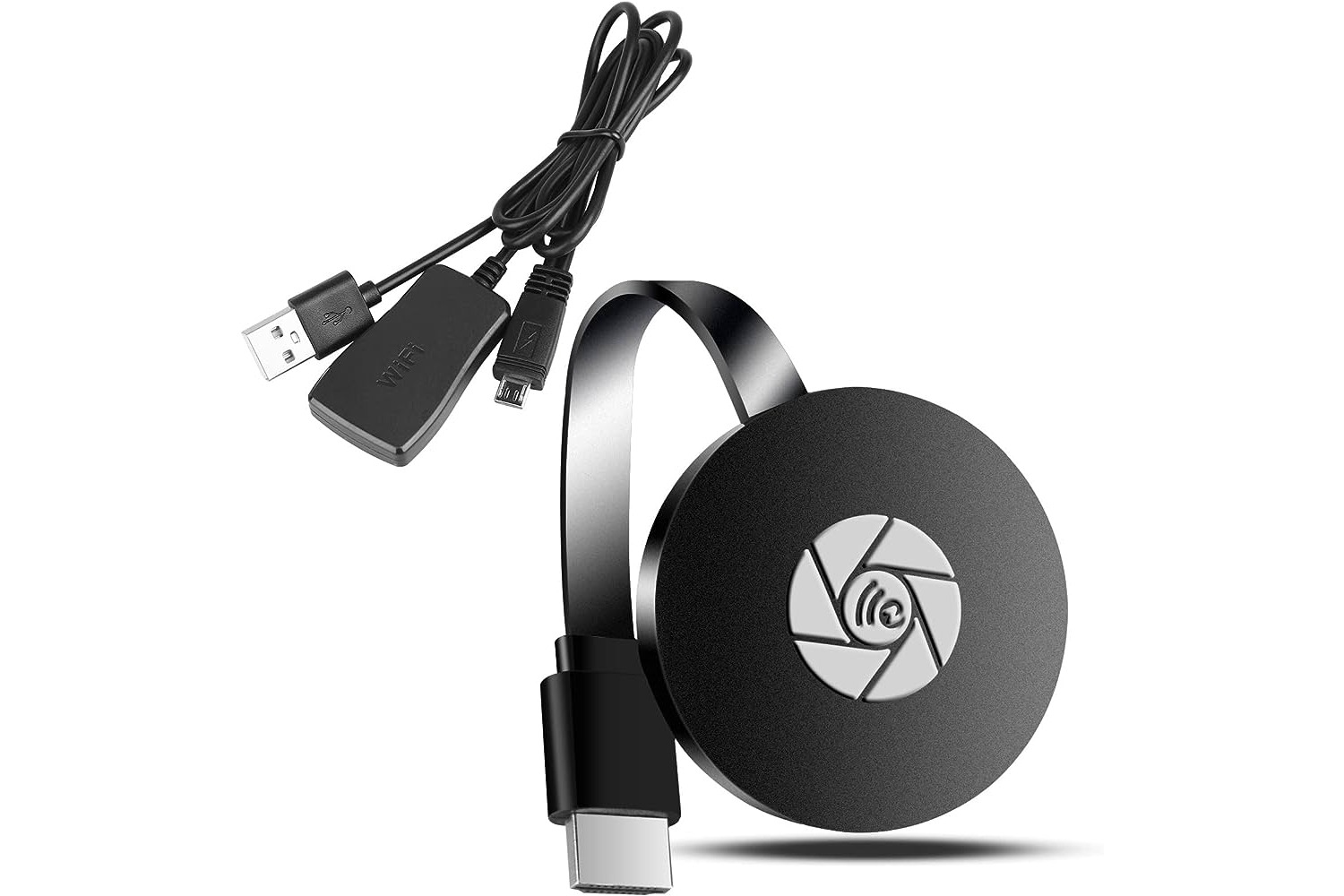
A Miracast dongle is a small device that plugs into your TV's HDMI port and uses Wi-Fi Direct to mirror your Android or Windows screen wirelessly, without needing a shared Wi-Fi network. To use a Miracast dongle, you plug it into the TV, switch to the correct HDMI input, and then connect your phone or laptop directly to the dongle through the device's screen mirroring settings.
What is a Miracast dongle and how do you use it?
This creates a direct peer-to-peer connection so you can share movies, presentations, or games on a larger display.
A Miracast dongle is a compact wireless display adapter that plugs into an HDMI port to mirror your screen without cables or a home network. It creates a direct Wi-Fi connection between your device and the TV, acting as a receiver for content streamed from your phone, tablet, or laptop.
System requirements for Miracast screen mirroring
Before you use Miracast dongle, check that your devices meet these requirements:
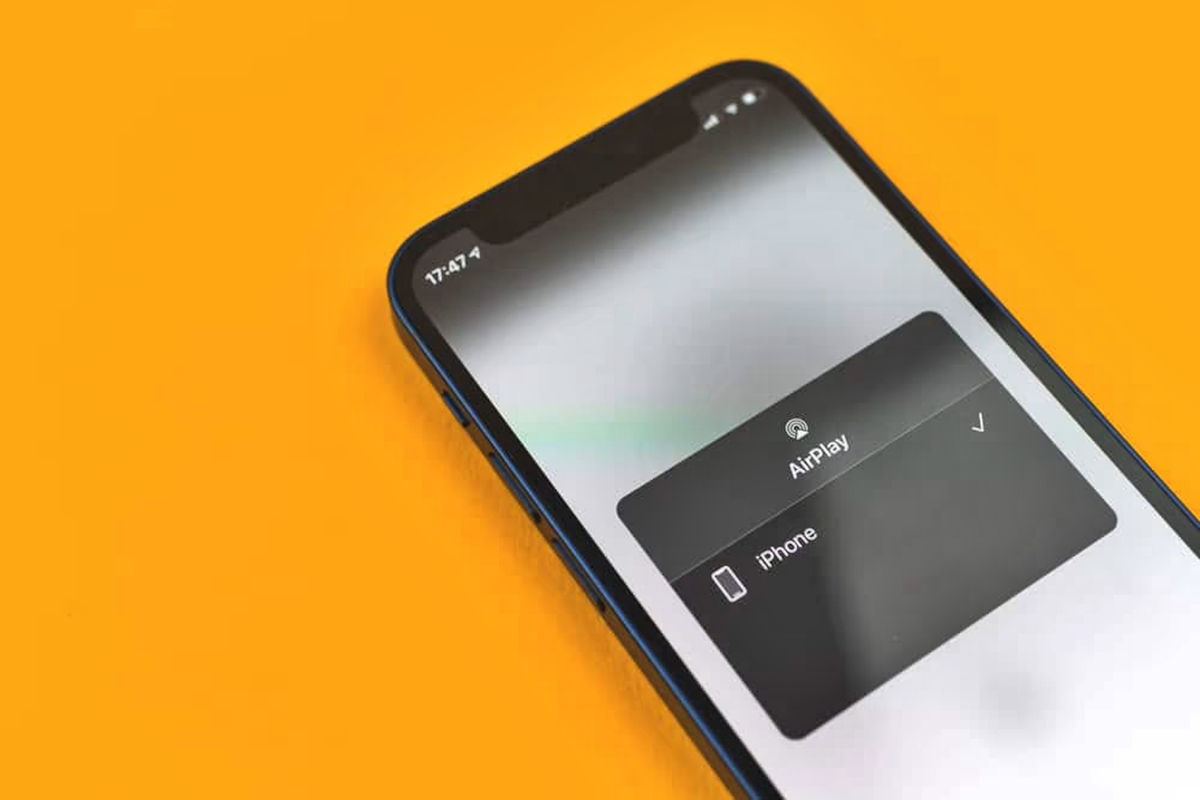
- Compatible devices: Miracast works with most Android devices running Android 4.4.2 or later and Windows devices running Windows 8.1 or later. iPhone does not support Miracast; Apple uses AirPlay for screen mirroring instead.
- Wi-Fi Direct capability: Your device must support Wi-Fi Direct, which allows a direct connection between devices without a Wi-Fi router.
- HDMI input: The display (TV or monitor) must have an available HDMI port for the dongle.
- OS-level support: The operating system must include built-in support for wireless display or Miracast, which is standard on compatible Android and Windows versions.
- Power source: The dongle requires power via a USB port on the TV or a separate power adapter plugged into a wall outlet.
How to set up a Miracast dongle step by step
Follow these steps to set up your Miracast dongle:
- Plug the Miracast dongle into an available HDMI port on your TV or monitor. Make sure it is securely connected.
- Connect the dongle to power. Some dongles draw power from a USB port on the TV; others require a separate power adapter.
- Turn on your TV or monitor and switch the input source to the HDMI port where the dongle is connected. You should see the dongle's startup screen.
- Wait for the dongle to finish its startup process and display a ready screen or device name.
- On your Android device, open Settings, tap Connected devices or Bluetooth & device connection, then select Cast or Screen mirroring.
- On Windows, press Windows key + K to open the Connect panel, or go to Settings > System > Display > Connect to a wireless display.
- Select your dongle's name from the list of available devices to establish the initial pairing.
How to connect your Android or Windows device to the dongle
- On your Android device, go to Settings and look for Display, Screen mirroring, Wireless display, or Cast. The exact menu name varies by manufacturer and Android version.
- Enable screen mirroring or wireless display. Your device will scan for available devices.
- Select the name of your Miracast dongle from the list of detected devices.
- Wait for the Wi-Fi Direct connection to establish. Your device screen should then appear on the TV.
On Windows, open Settings > System > Display, then click Connect to a wireless display. Select your dongle from the list to begin mirroring.
To mirror your device screen on a larger display using Miracast, ensure the dongle is powered on and set to its ready screen. On your device, open the wireless display or cast menu, tap the dongle's name, and accept any connection prompt. Once connected, everything on your device screen appears on the TV in real time.
Adjusting display settings, resolution, and aspect ratio
After connecting, you can adjust the display settings on your source device for the best viewing experience on the larger screen:
- Resolution: Change the output resolution to match your TV's native resolution. Higher resolutions give sharper images but require more bandwidth.
- Aspect ratio: Set the aspect ratio to 16:9 for widescreen TVs or 4:3 for older displays to avoid stretching or black bars.
- Orientation: Switch between landscape and portrait mode to match the content and the display.
- Display mode: Choose duplicate mode to mirror your device screen exactly, or extended mode to use the TV as a second desktop (available on Windows).
- On Android, go to Settings > Display > Screen resolution or Cast settings and select the desired resolution and aspect ratio.
- On Windows, right-click the desktop, select Display settings, then adjust Display resolution and Scale under the TV display to fit the screen properly.
Troubleshooting common Miracast dongle problems
- Connection failures or device not found: Restart both your device and the dongle. Move your device closer to the dongle to reduce distance and interference. Make sure both devices are turned on and near each other.
- Audio/video lag or poor quality: Reduce interference by moving away from other electronic devices. Check that your device and dongle have the latest firmware and driver updates installed.
- Compatibility issues: Verify that your device supports Miracast and that the operating system is up to date. Some older devices or those running outdated software may not work.
- Dongle not responding: Reset the dongle to its default settings. Consult the dongle's manual for the specific reset procedure.
- Screen mirroring freezes or stutters: Close background apps on your device to free up processing power. Reduce the distance between the device and dongle, and remove physical obstacles like walls or furniture that may weaken the signal.
- No audio on the TV: Check that the TV volume is not muted and the correct audio output is selected. On Windows, right-click the sound icon, select Playback devices, and set the Miracast dongle as the default audio device.
- Dongle overheats and disconnects: Unplug the dongle and let it cool down. Ensure it has proper ventilation and is not enclosed in a tight space behind the TV.
Frequently Asked Questions
What is a Miracast dongle?
How do I screen mirror Android to a TV using a Miracast dongle?
To screen mirror Android, plug the dongle into your TV's HDMI port and power it on. On your Android device, go to Settings, enable screen mirroring or wireless display, and select the dongle from the list of available devices.
Can I use a Miracast dongle with an iPhone?
No, iPhone does not support Miracast. Apple uses AirPlay for screen mirroring instead, which requires an Apple TV, an AirPlay-compatible smart TV, or a Mac, and all devices must be on the same Wi-Fi network.
What are the benefits of using a Miracast dongle?
Miracast dongles provide wireless screen mirroring without cables, work with a wide range of Android and Windows devices, and do not require a shared Wi-Fi network because they use a direct Wi-Fi Direct connection.
Can I use a Miracast dongle for presentations?
Yes, a Miracast dongle can be used for presentations by connecting it to a projector or display and mirroring your device screen to share slides, documents, or other content wirelessly.
Related reading: How To Connect Your Phone To A Philips TV and How To Use Xbox One Wireless Display.