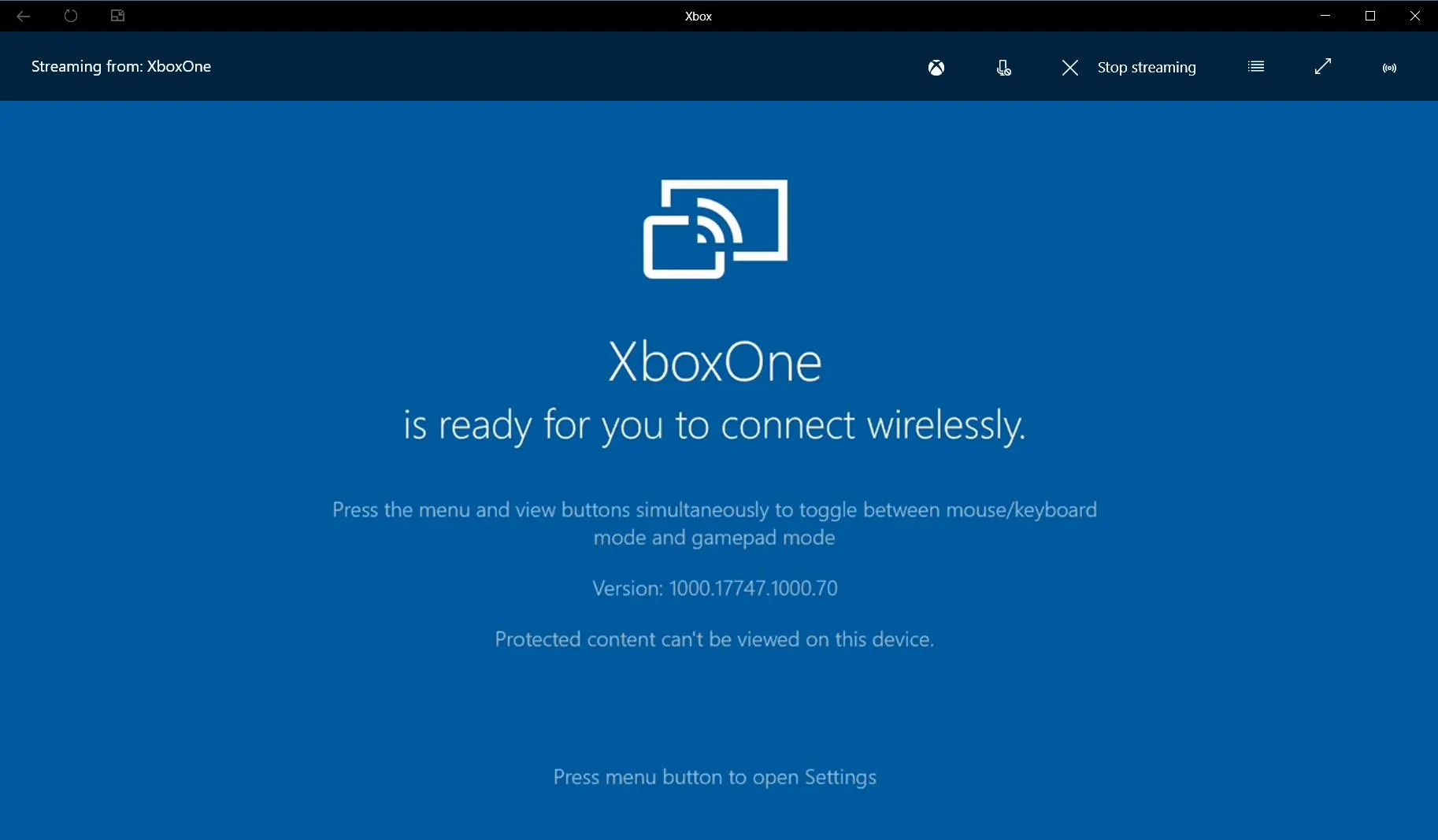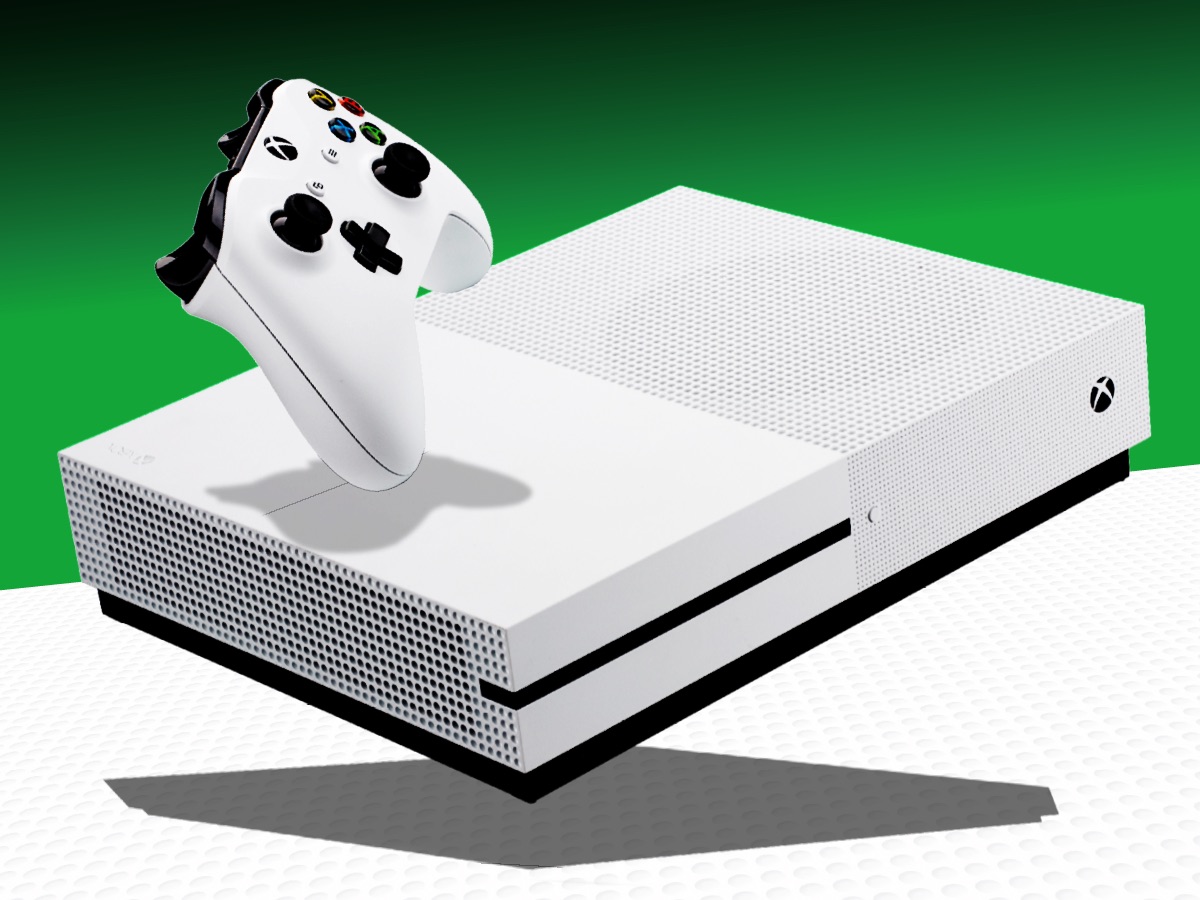
To mirror phone to Xbox One, launch the "Wireless Display" app on your Xbox and keep it open; the screen will indicate it is "ready to connect". Then, from your Android or iOS phone, use the built-in screen mirroring or cast feature to select your Xbox One from the list of available devices.
How to mirror phone to Xbox One
- On your Xbox One, go to the Microsoft Store and install the Wireless Display app. Open the app and leave it running; the screen will display "ready to connect".
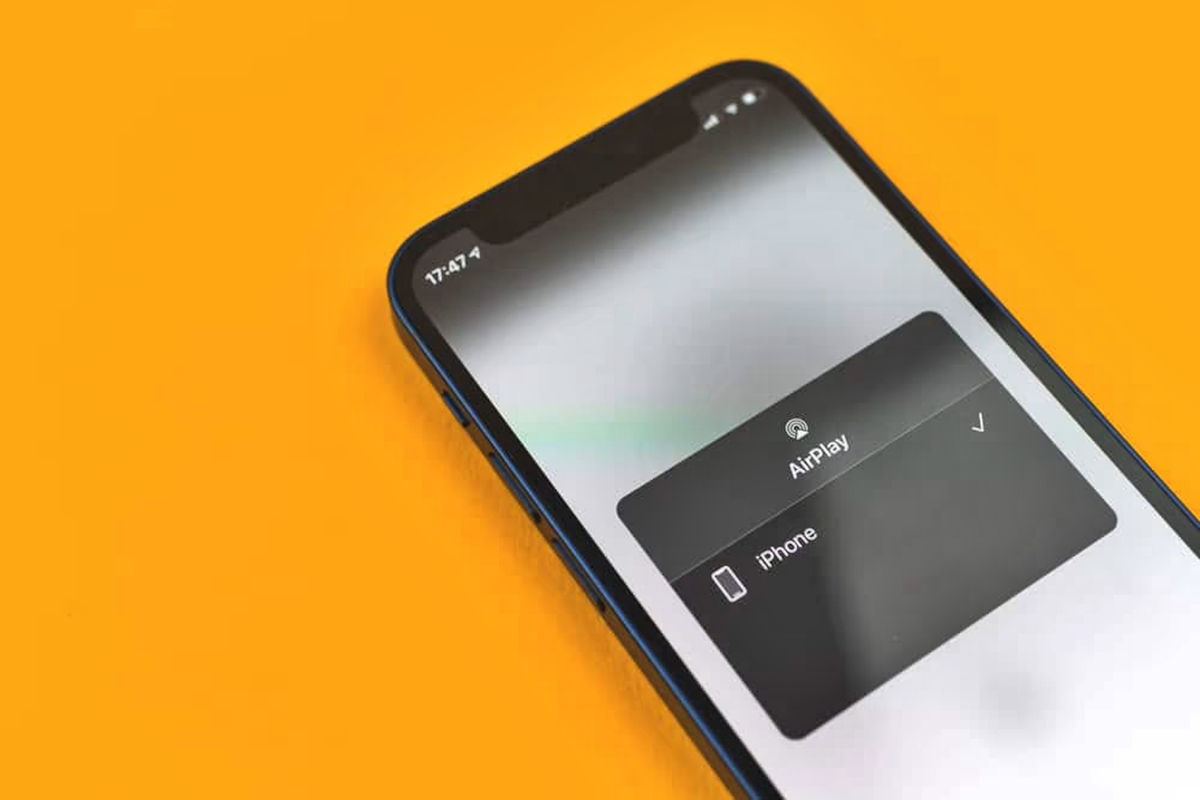
- On your Android phone, swipe down from the top of the screen to open Quick Settings and tap "Cast" or "Screen Mirroring". On an iOS device, swipe up from the bottom to open Control Center and tap "Screen Mirroring".
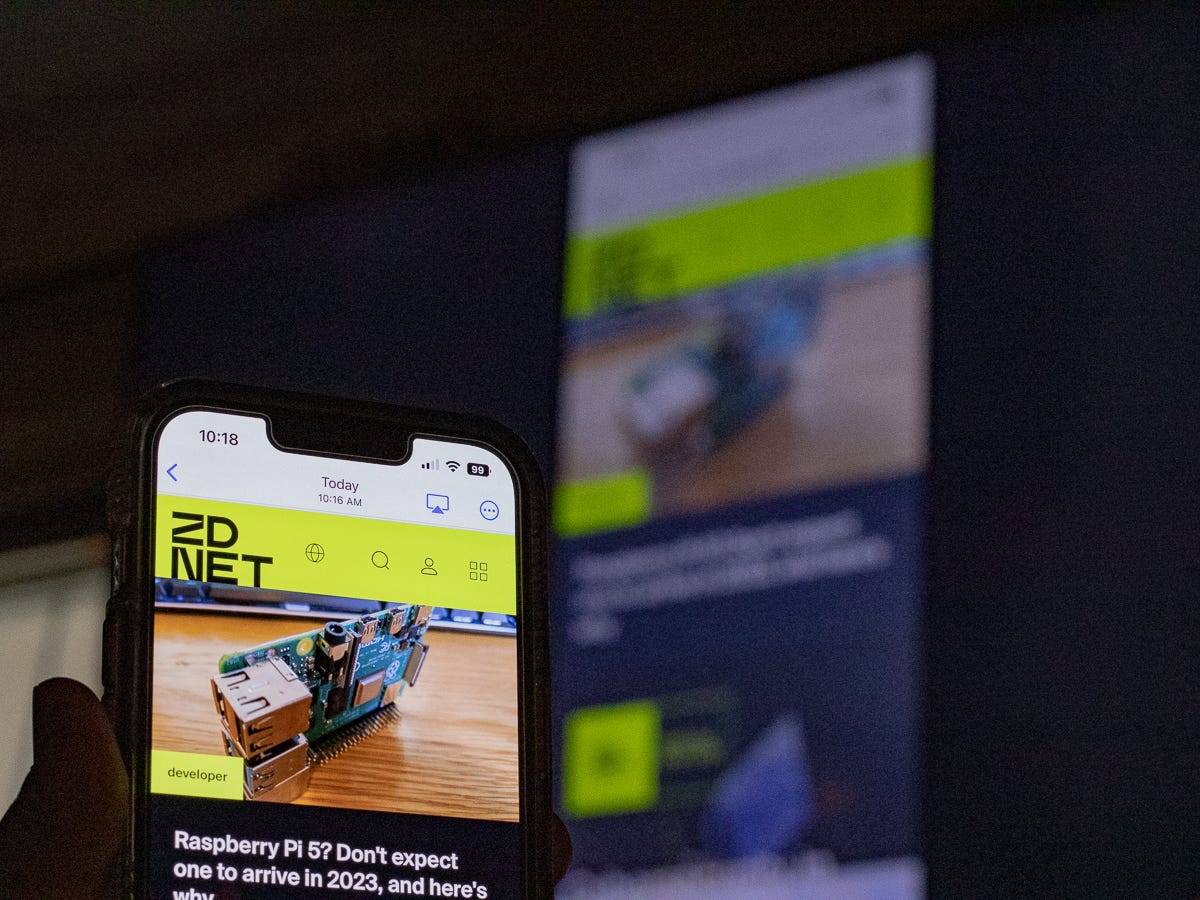
- Select your Xbox One from the list of available devices. Your phone screen will appear on your TV within a few seconds.
You can use Miracast if both your phone and Xbox One support it. You can use a wireless display adapter plugged into the TV's HDMI port as an alternative mirroring method.
What you need before you start
You only need four things: an Xbox One console, the Wireless Display app installed from the Microsoft Store, a compatible smartphone, and both devices connected to the same Wi-Fi network. No additional cables or adapters are required for wireless mirroring. The Xbox Wireless Display app is not available for iOS devices at the time of writing. You can use an HDMI cable to connect your phone directly to the Xbox One if your phone supports HDMI output.
Troubleshooting common mirroring problems
If your Xbox does not appear on your phone's list of devices, make sure both are on the same Wi-Fi network and restart the Wireless Display app on your Xbox. For lag or stuttering, check your Wi-Fi signal strength and move closer to your router if needed. If the connection drops frequently, close the Wireless Display app completely, reopen it, and try connecting again from your phone.
Frequently Asked Questions
Can I mirror my iPhone to Xbox One?
Yes, iOS devices can mirror to Xbox One using the built-in Screen Mirroring feature in Control Center. The Wireless Display app on Xbox One supports connections from both Android and iOS phones.
Can I use my phone as a controller while mirroring?
Using your phone as a controller is not supported through the Wireless Display app. The mirroring feature only displays your phone's screen on the TV; it does not turn your phone into a game controller for Xbox games.
Why is there a delay when mirroring?
A slight delay is normal, especially for video or gaming. To reduce lag, ensure both devices are on a stable 5 GHz Wi-Fi network and close any background apps on your phone that may be using bandwidth. Some apps might not support screen mirroring due to DRM protection or other technical reasons.
Is the Wireless Display app free?
Yes, the Wireless Display app is free to download from the Microsoft Store on your Xbox One. No subscription or additional purchase is required.
Can I mirror my phone without Wi-Fi?
No, wireless mirroring requires both your phone and Xbox One to be on the same Wi-Fi network. A wired HDMI connection is an alternative if your phone supports HDMI output, but this is not a wireless method. You can connect a keyboard and mouse to the console for improved productivity when mirroring.
Related reading: How To Cast A Phone To An Amazon Fire Stick TV and How To Connect Your Phone To A Philips TV.