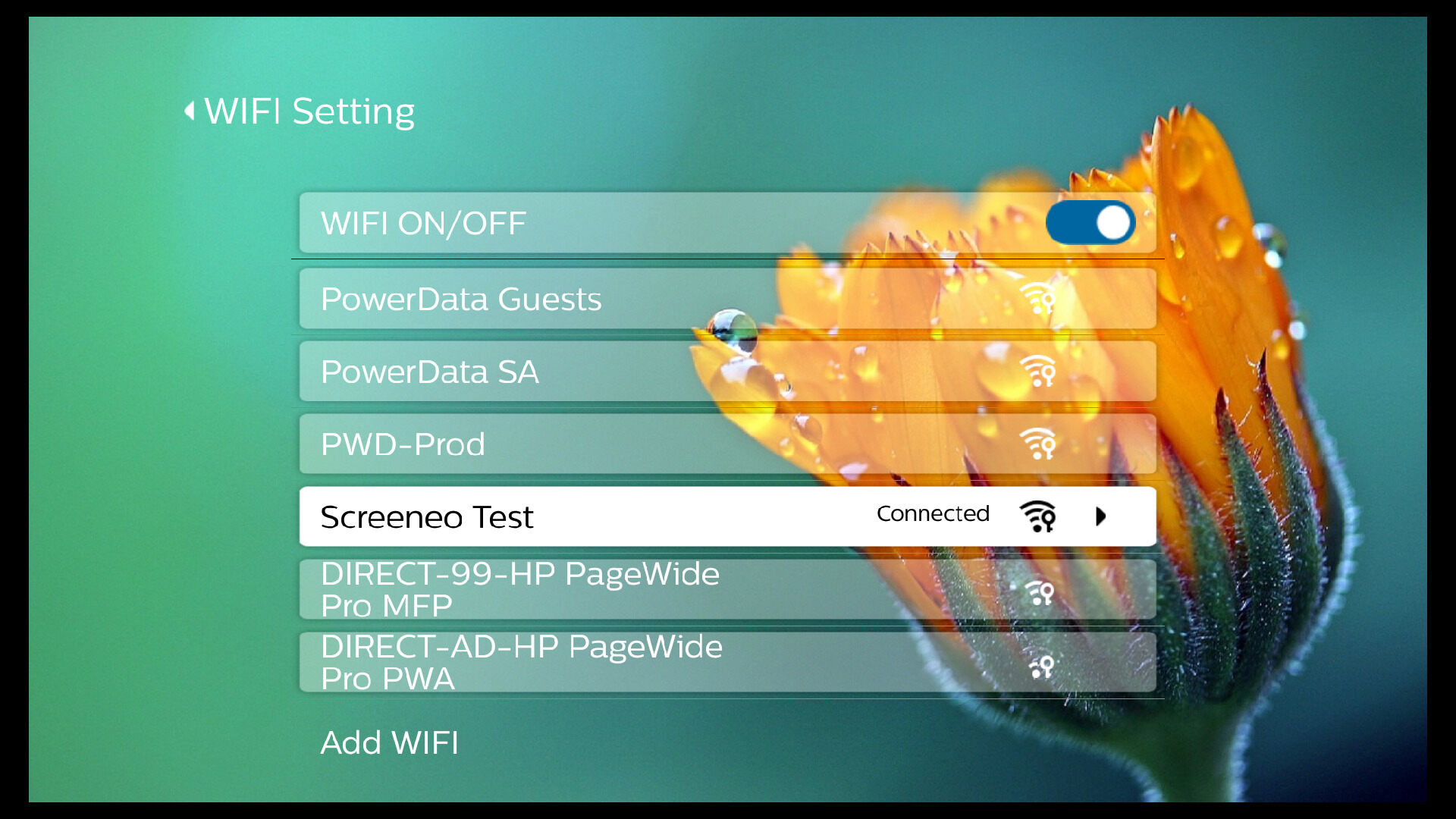
Wireless screencasting on a Philips Smart TV lets you share content from your phone, tablet, or computer on the big screen without cables. To get started, you need a compatible Philips Smart TV, a source device, and both connected to the same Wi-Fi network, with the right technology, Miracast, Google Cast, or AirPlay, depending on your device.
What you need for wireless screencasting on your Philips Smart TV
Your Philips Smart TV must support wireless screencasting, which it does through Miracast, Google Cast (Chromecast built-in), or AirPlay. Check the user manual or Philips website to determine if your specific TV model supports wireless screencasting. You also need a smartphone, tablet, or computer with Wi-Fi, and all devices must be on the same wireless network. Choose Miracast for Android phones, tablets, and Windows PCs; Google Cast for any device using compatible apps on Philips Android or Google TVs; and AirPlay for Apple devices on select newer models. Philips Smart TVs are known for superior picture quality and advanced audio technologies, which enhance the screencasting experience.
How to screencast with Miracast (Android and Windows)
Miracast is a wireless display standard that mirrors your entire screen. It works with Android devices and Windows PCs but is not compatible with Apple devices like iPhones or Macs. You can use the Smart TV's remote control to navigate your device's screen while screencasting. Adjust display settings like resolution, screen size, or aspect ratio on the TV after starting the cast to optimize the viewing experience.
Activate Miracast on your Philips TV
- Press the Sources button on your remote control.
- Select [Miracast] or [Screen Mirroring] from the list.
Alternatively, on some models, press the Home button, then navigate to [Setup] > [Network settings] > [Wi-Fi Miracast] > [On].
Connect from an Android device
- Open your device’s settings and look for Screen Mirroring, Smart View, or Cast (names vary by manufacturer).
- Select your Philips TV from the list of available devices.
- Your phone’s screen will appear on the TV.
Connect from a Windows PC
- Open the Action Center (click the notification icon in the taskbar).
- Click Project and select Connect to a wireless display.
- Choose your Philips TV from the list.
How to cast with Google Cast (Chromecast built-in)
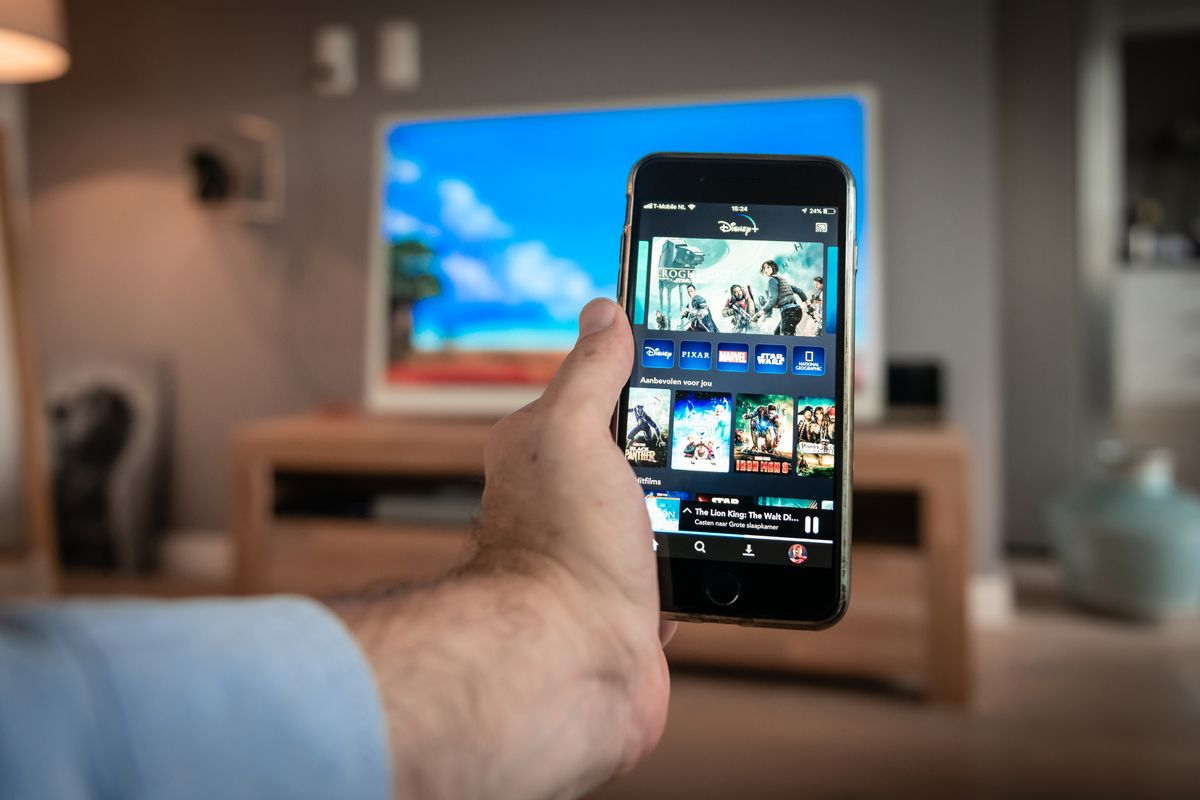
All Philips Android TVs and Google TVs include Chromecast built-in. This method uses your phone or tablet as a remote control to start video or audio from compatible apps, it does not mirror your entire screen. For the best experience when casting your phone to a TV, open a supported app like YouTube or Netflix, tap the Cast icon, and select your Philips TV. The content plays directly on the TV while you continue using your device.
How to use AirPlay on newer Philips TV models
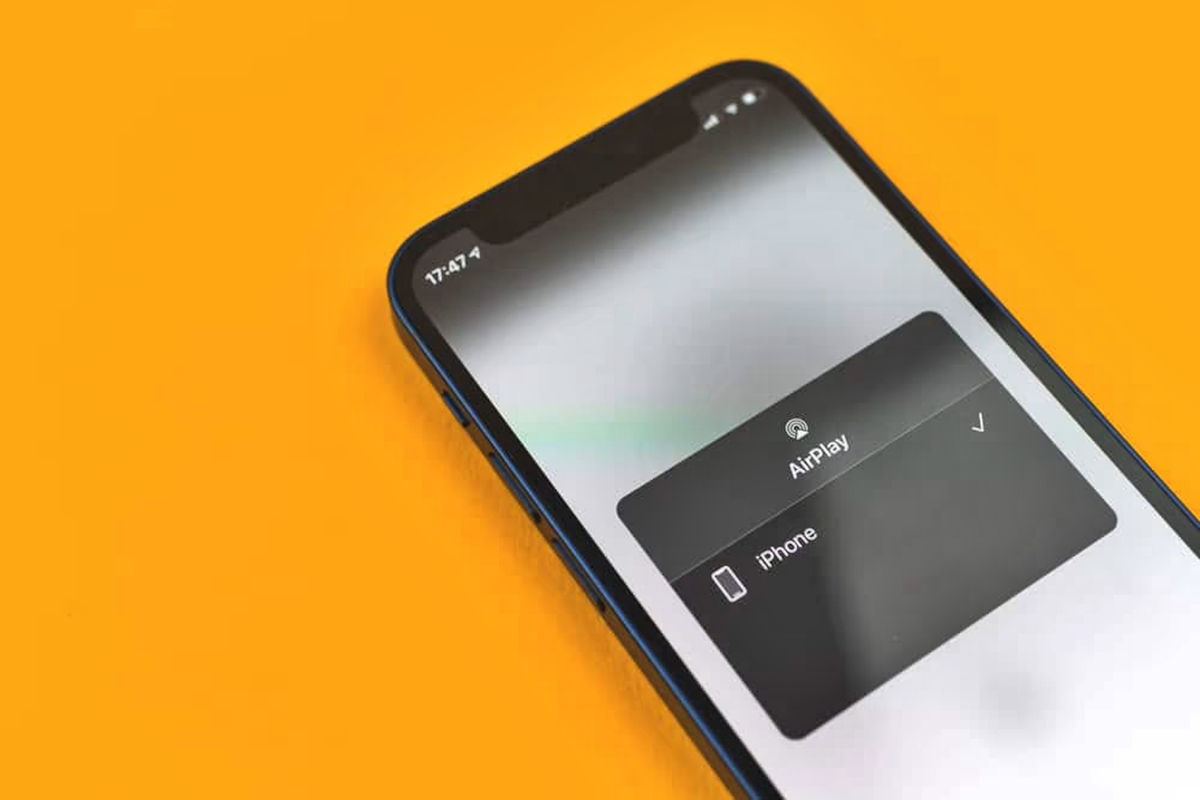
AirPlay is for Apple devices only and is available on specific 2024 models (e.g., 7409, OLED8x9 series) and 2025 models (e.g., 7000, 7200, 78x0 series). To use it, ensure your iPhone, iPad, or Mac is on the same Wi-Fi network as the TV. Open the content you want to share, tap the AirPlay icon, and select your Philips TV from the list.
Troubleshooting wireless screencasting issues
- Check your network: Both devices must be on the same stable Wi-Fi network. Ensure your Wi-Fi router is within range of the TV and restart both the TV and router to refresh the connection if you have issues.
- Restart devices: Turn off your TV and source device, wait a few seconds, then power them back on.
- Update firmware: Check for TV firmware updates in the settings menu and install any available versions.
- Clear cache and data: In the TV settings, locate the screencasting app or feature and clear its cache and data to resolve temporary glitches.
- Switch methods: If wireless fails, use an HDMI cable for a direct wired connection.
Frequently Asked Questions
Can I use Miracast with an iPhone or Mac?
No. Miracast is not compatible with Apple devices. Use AirPlay instead if your Philips TV model supports it, or try a third-party app that works with both systems.
Does wireless screencasting stream audio too?
Yes. When you screencast, both video and audio from your source device are mirrored to your Philips TV, playing through the TV’s speakers.
Why can’t I see my Philips TV in the list of available devices?
Ensure both devices are on the same Wi-Fi network and that the TV’s screencasting feature is activated. Restarting both devices often resolves this issue.
Do I need to install an app to screencast?
For Miracast and AirPlay, no additional app is needed, the feature is built into the TV and your device. For Google Cast, you use the Cast button inside compatible apps like YouTube or Netflix.
Can I cast from an app while using my phone for other tasks?
Yes, with Google Cast. The content plays on the TV independently, so you can browse, message, or use other apps on your phone without interrupting the cast.
Related reading: How To Use Xbox One Wireless Display and How To Cast A Phone To An Amazon Fire Stick TV.