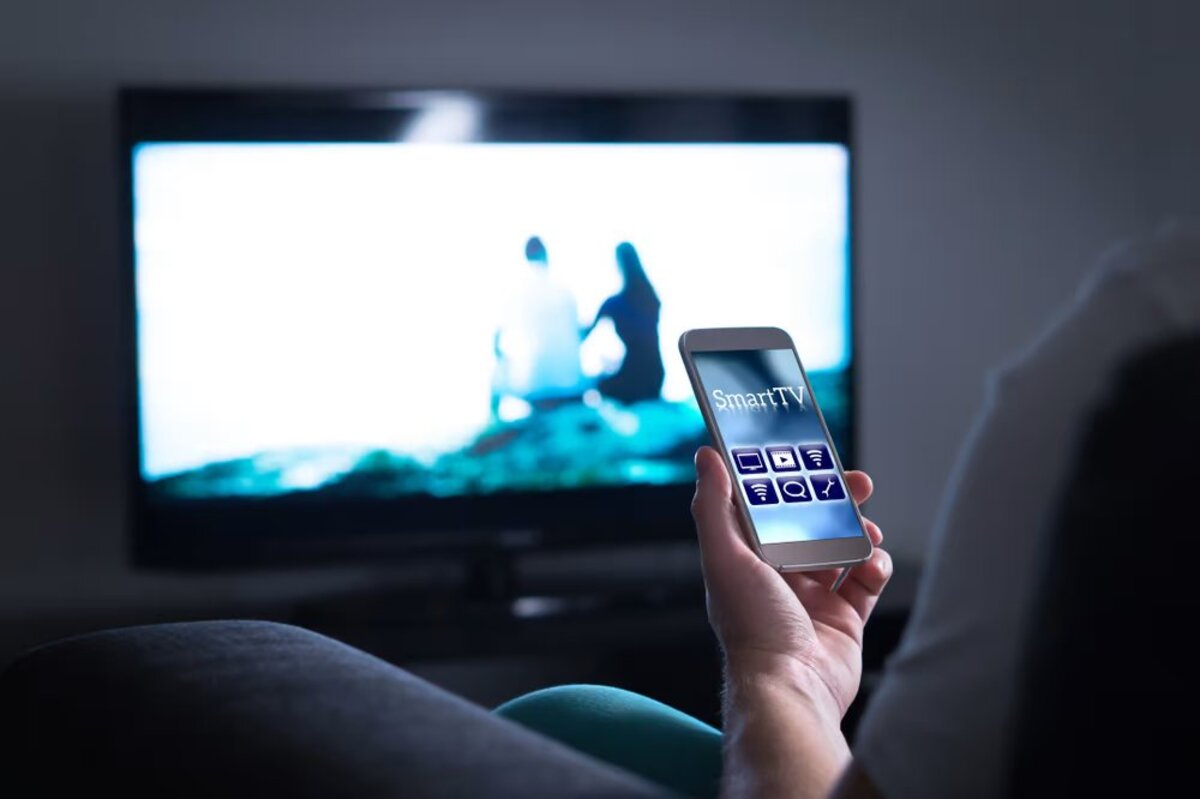
To connect Android to TV, you can use a wireless casting method or a wired HDMI connection. Wireless casting lets you mirror your screen or stream content from apps, while a wired HDMI link provides a stable, high-quality connection for video and audio.
How to connect Android to TV: your quick-start guide
The two main methods to connect an Android phone to a TV are wirelessly via casting or screen mirroring and with a wired connection using an HDMI cable and adapter. For wireless connections, both your Android device and the TV (or a casting device like Chromecast) must be connected to the same Wi-Fi network. Below, you will find step-by-step instructions for each method.
Before you start: key requirements for all methods
Ensure both your Android device and TV have the latest software updates for optimal compatibility and performance. For any wireless connection, confirm that both devices are on the same Wi-Fi network. If you plan to use a wired connection, check that your Android device has a USB-C or Micro-USB port that supports video output. Check the Android version: go to Settings > About Phone (or About Device) and look for the Android version.
Connect wirelessly with built-in screen mirroring
Many Android phones have a "Screen cast" or "Screen mirroring" shortcut in the Quick Settings panel. Swipe down from the top of the screen to open Quick Settings, then look for the Screen cast or Screen mirroring icon. Tap it, and your phone will search for compatible TVs or casting devices on the same network. Select your TV from the list to begin mirroring your screen.
Connect a Samsung phone with Smart View
For Samsung devices, use Smart View. Swipe down from the Quick panel, tap the Smart View icon, select your TV, and tap "Start now." After selecting your TV, tap 'Start now.' This will mirror your Samsung phone's screen to the TV, making it easy to share photos, videos, or apps on a larger display. This is the direct answer to the common question of how to connect my phone to a Samsung TV.
Connect to an LG Smart TV with Screen Share
If you have an LG Smart TV, first ensure Screen Share or Miracast is enabled on the TV. On your Android phone, swipe down from Quick Settings and select the Screen cast or Screen mirroring option. Your LG TV should appear in the list of available devices; tap it to start mirroring.
Connect wirelessly with a Chromecast device
To use a Chromecast, plug the device into your TV's HDMI port and ensure it is powered on. Make sure your phone and Chromecast are on the same Wi-Fi network. In compatible apps like Netflix or YouTube, tap the Cast icon (a square with a Wi-Fi symbol) and select your Chromecast. To mirror your entire Android screen with Chromecast (not just app casting): open the Google Home app, tap the Chromecast device, and select 'Cast my screen'. This method is ideal for casting your phone to a TV without needing built-in smart TV features.
Connect with an HDMI cable for a rock-solid link
For a wired connection, first check your Android device's port. Most newer phones use USB-C, while older models may use Micro-USB. Obtain the correct adapter or cable, such as a USB-C to HDMI cable or a Micro-USB to HDMI adapter. Connect one end to your phone and the other to an available HDMI port on your TV. Switch your TV to the correct HDMI input. Your phone's screen should appear on the TV. Always use high-quality, certified cables and adapters for reliable connections. Note that a standard USB cable used for file transfer will not work for screen mirroring. Some older Android devices may not support HDMI output; check your device's specifications or consult the manufacturer's website.
Troubleshooting common connection problems
If you encounter issues, first check that both devices have the latest software updates. Some apps may restrict screen mirroring or casting of content due to copyright or Digital Rights Management (DRM) protection, which can block video playback. If your TV does not appear in the device list, confirm both devices are on the same Wi-Fi network and that screen mirroring is enabled on the TV. Remember that a standard USB cable is for file transfer, not screen mirroring; you need an HDMI adapter or cable for a wired video connection.
Frequently Asked Questions
Can I connect my Android phone to any TV?
Most modern TVs with an HDMI port or wireless screen mirroring support can connect to an Android phone. Older TVs may require an external device like a Chromecast or an HDMI adapter.
Do I need an internet connection for wireless casting?
You need a Wi-Fi network for both devices to connect to, but the internet itself is not required for local screen mirroring. However, streaming content from apps like Netflix does require an internet connection.
Why is there no sound when I mirror my Android to the TV?
Audio is usually transmitted along with video over HDMI or wireless casting. If sound is missing, check that your TV's volume is not muted and that the correct input is selected. Some wireless connections may have audio settings that need adjustment on the phone.
Can I use my phone while casting to the TV?
Yes, you can use your phone for other tasks while casting. However, if you are mirroring the entire screen, anything you do on the phone will appear on the TV. Using the Cast icon within apps allows you to use your phone independently.
What is the difference between screen mirroring and casting?
Screen mirroring duplicates your phone's entire display on the TV. Casting sends a specific video or audio stream from an app to the TV, allowing you to use your phone for other activities without affecting the playback.
How do I connect my Android phone to a TV using an HDMI cable?
Check your phone's port (USB-C or Micro-USB) and your TV's HDMI port. Get the correct cable or adapter (e.g., USB-C to HDMI). Connect the cable to your phone and TV, then switch the TV to the corresponding HDMI input.
What is Chromecast and how can I use it to connect my Android phone to a TV?
Chromecast is a Google media streaming device that plugs into a TV's HDMI port. Set it up via the Google Home app on your phone, ensuring both are on the same Wi-Fi. Then, tap the Cast icon in apps or use 'Cast my screen' in the Google Home app.
Are there any other methods to connect my Android phone to a TV?
Yes, MHL (Mobile High-Definition Link) technology allows some older devices to output video via a Micro-USB to HDMI adapter. Check if your phone supports MHL.
Related reading: How To Mirror Android To Vizio TV.