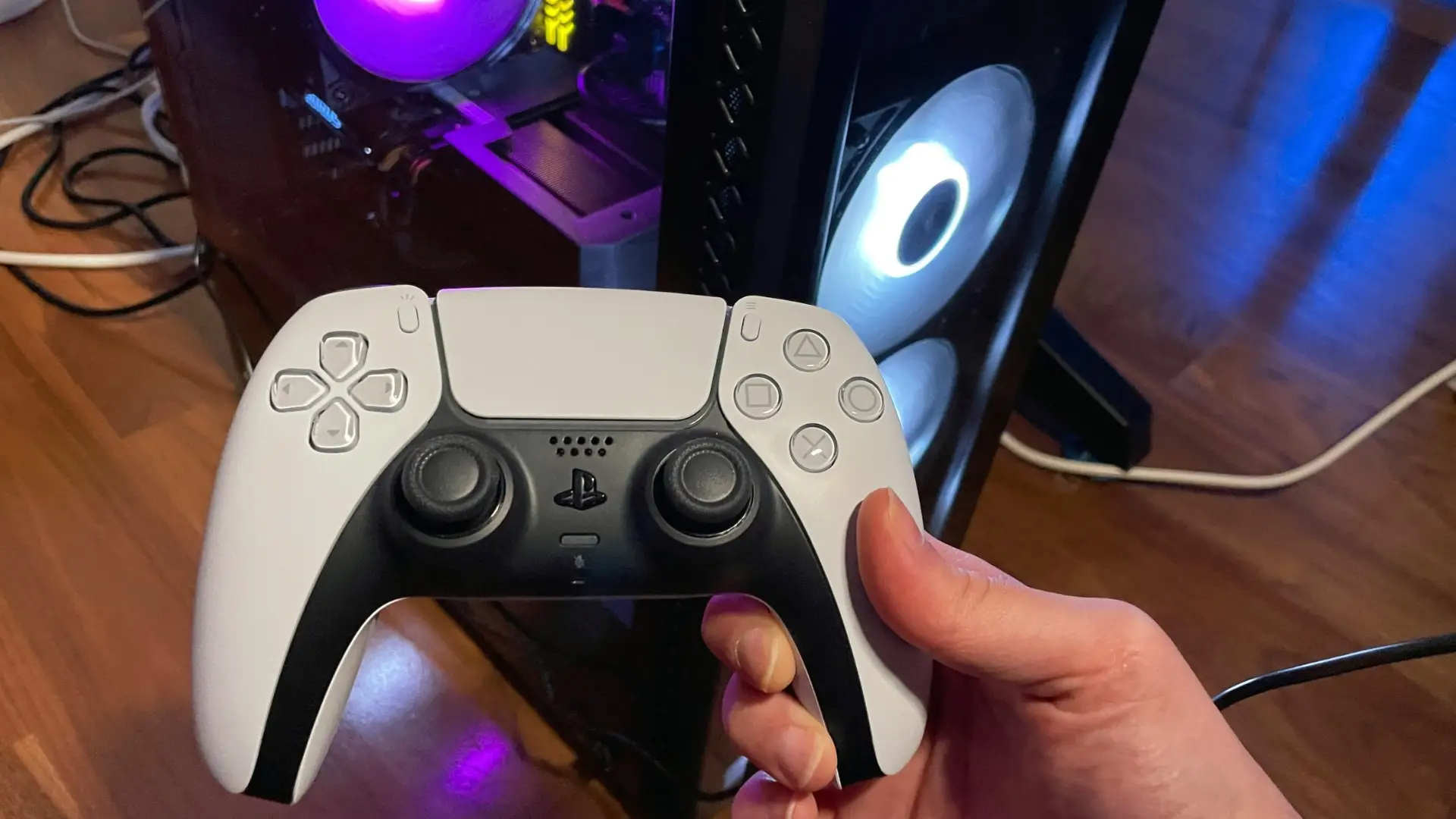
To check PS5 controller battery on PC, use the PlayStation Accessories Windows application or a third-party tool like DS4Windows, as Windows Settings does not display the DualSense battery level. This lets you monitor remaining charge and avoid interruptions during gaming sessions.
How to check PS5 controller battery on PC with the official app
The PlayStation Accessories Windows application is the official way to see your DualSense controller's exact battery percentage. This method ensures you get reliable, first-party information without relying on community workarounds.
- Download and install the PlayStation Accessories Windows application from the official PlayStation website.
- Connect your PS5 controller to your PC using a USB cable or pair it via Bluetooth.
- Open the application and locate your controller in the device list. The battery level appears as a percentage next to the controller icon.
This app also lets you update controller firmware and adjust settings like trigger effect intensity, making it a central hub for managing your DualSense on Windows.
Check your DualSense battery in Steam Big Picture Mode
Steam Big Picture Mode can show a battery icon next to your controller name in controller settings, though this is a community-documented workaround rather than an official Steam feature. It provides a quick visual check if you already use Steam for gaming.
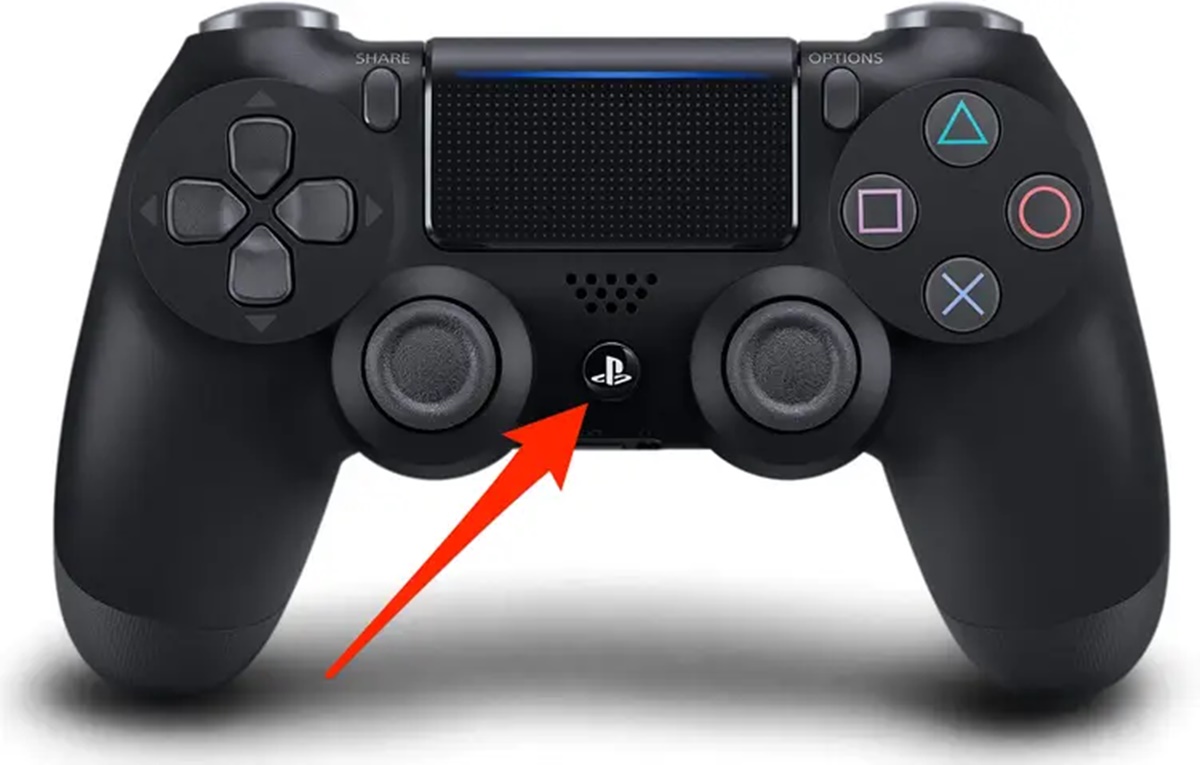
- Launch Steam and enter Big Picture Mode by clicking the Steam menu and selecting Big Picture Mode, or pressing the Steam button on your controller.
- Find your PS5 controller in the list of connected devices. A battery icon displays its approximate charge level.
Use DS4Windows to monitor your controller's battery
DS4Windows is a third-party tool that displays your DualSense battery percentage and lets you customize controller settings. It is a popular alternative when the official app or Steam are not preferred. InputMapper is another third-party software option for checking battery level.
- Download and install DS4Windows from its official website.
- Connect your PS5 controller via USB cable or Bluetooth.
- Open DS4Windows. The battery percentage appears in the main interface, often as a number or icon next to the controller entry.
DS4Windows also supports remapping buttons, adjusting light bar color, and creating profiles for different games. Another third-party option, DSX, can show battery level, connection type, and feature status, but its details are not from official vendor documentation.
Why Windows Settings won't show the battery
Standard Windows Bluetooth battery indicators do not support the DualSense controller. Instead, they direct users to the PlayStation Accessories Windows application or DS4Windows. This prevents wasted time searching for a feature that does not exist in that location.
Frequently Asked Questions
Can I use the PS5 controller while it is charging?
Yes, you can use the controller while it charges via a USB cable. However, the cable may limit your movement, so a long cable or charging dock that allows wireless play while charging is recommended.
How long does the PS5 controller battery last on average?
Battery life varies based on usage, game type, and settings like haptic feedback intensity. Typical continuous gaming sessions last several hours before needing a recharge.
Can I check the PS5 controller battery level without connecting it to my PC?
There is no direct way to check the battery level without connecting it to a device. Use a PlayStation console or the companion mobile app as alternatives to view the battery status when not connected to a PC.
Does the battery level affect controller performance?
As the battery drains, you may notice decreased responsiveness or input lag. Keeping the controller charged ensures optimal performance during gameplay.
Are third-party tools like DS4Windows safe to use?
DS4Windows and DSX are widely used by the gaming community, but they are not official Sony products. Download them only from their official sources to minimize security risks.
For the wider topic, see game controllers and accessories.
Related reading: How To Connect Ps3 Joystick To Laptop, How To Use Gamepad With ePSXe, and How To Use Gamepad With GMod.