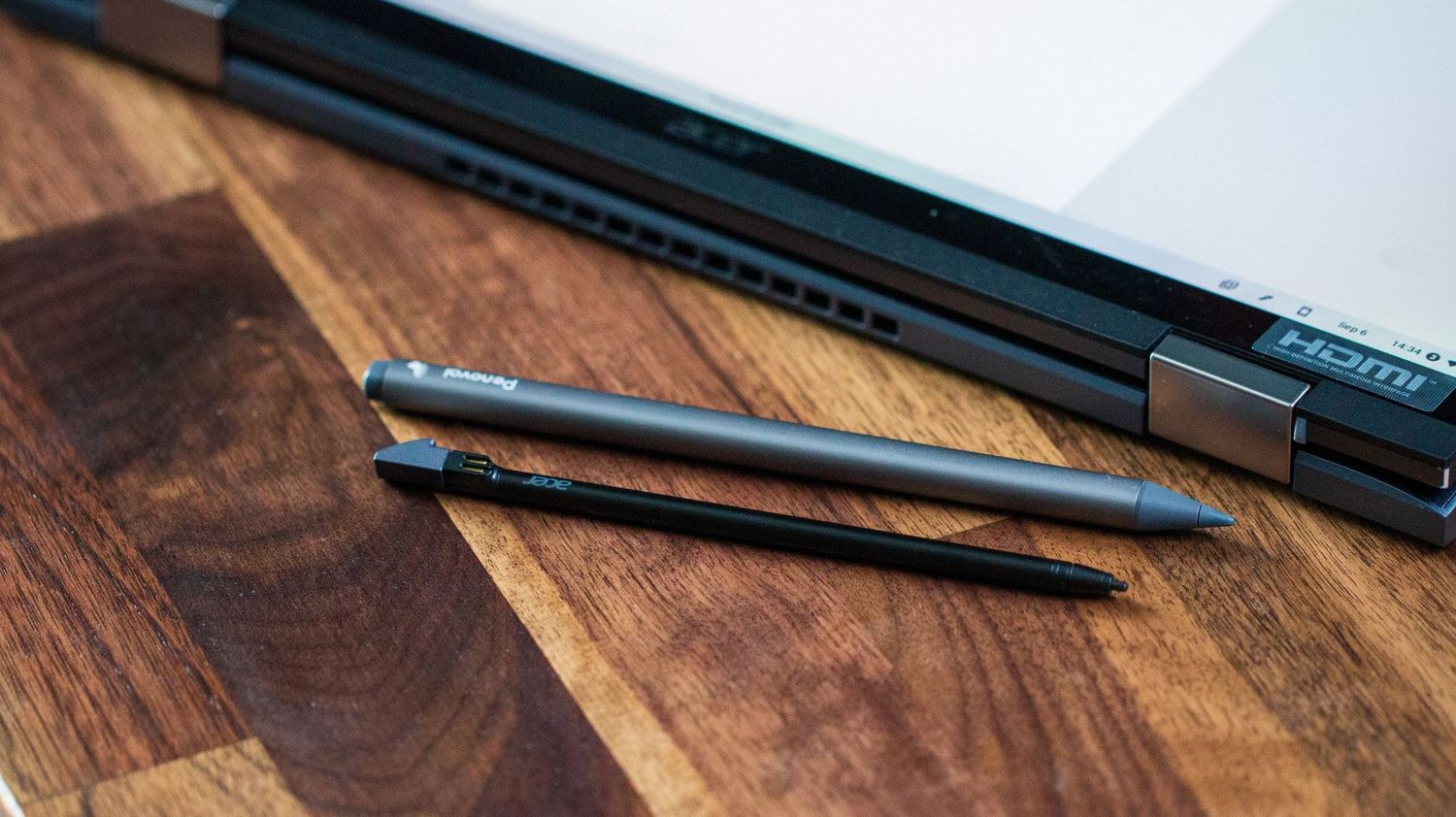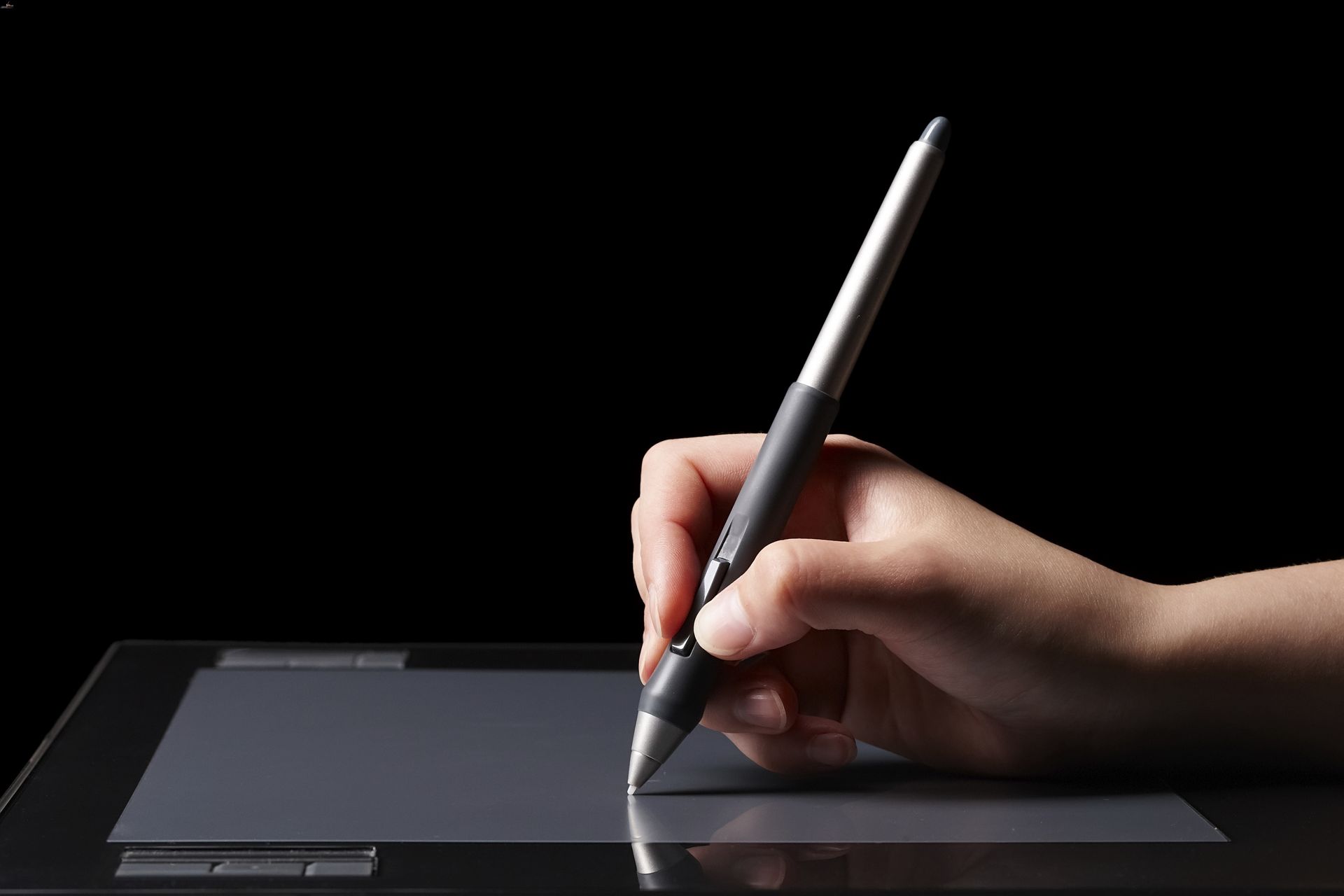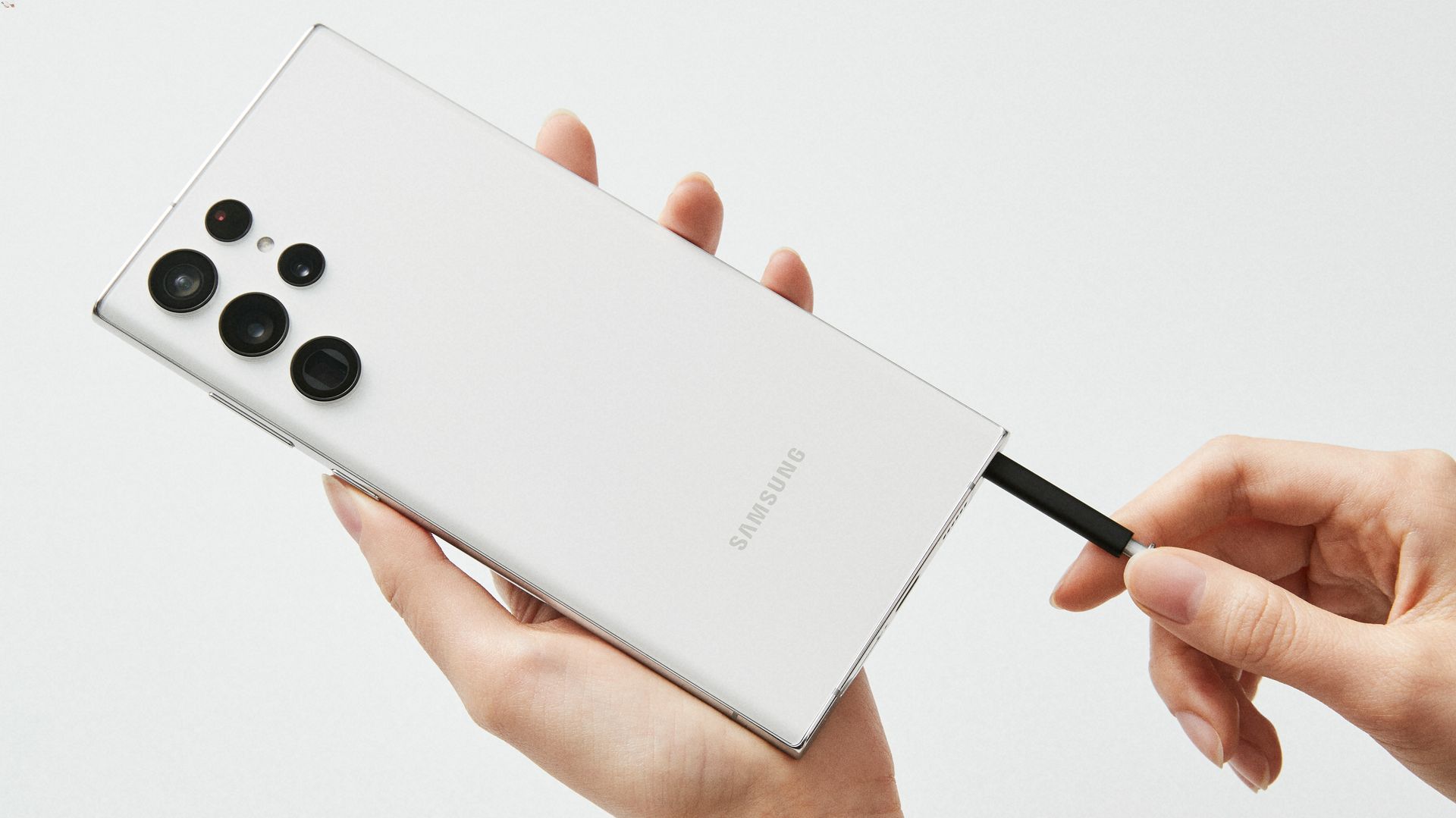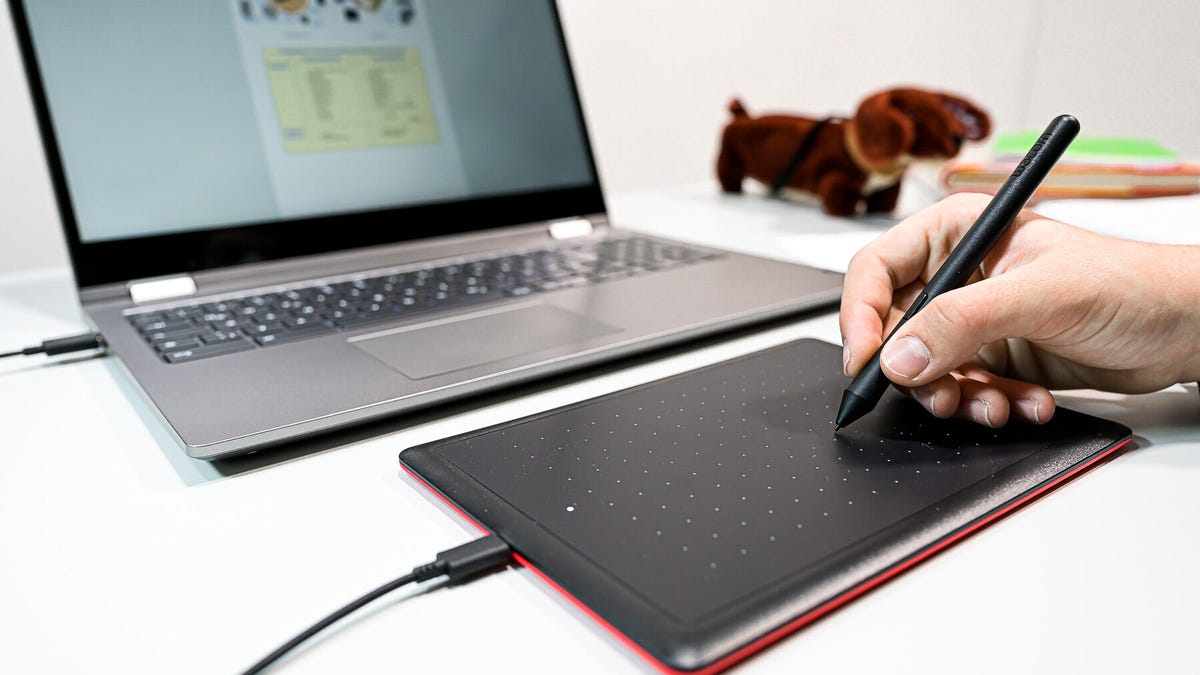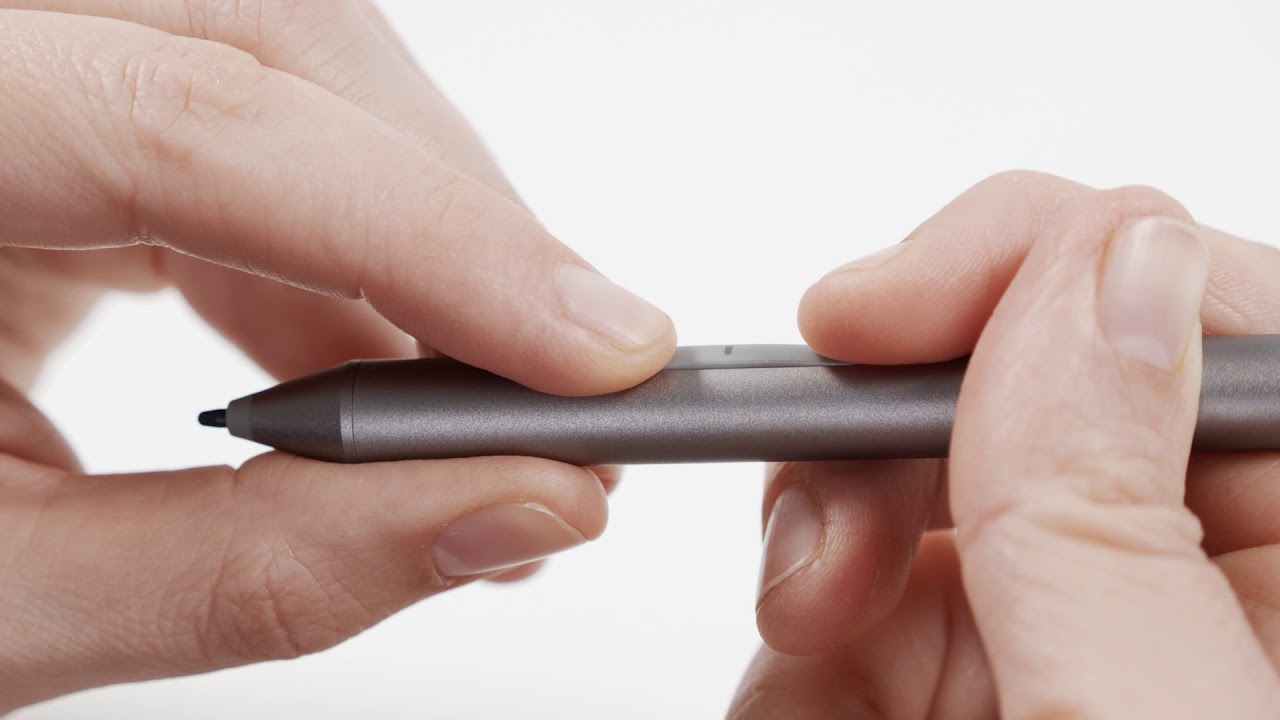
To connect a stylus pen, the method depends entirely on which specific pen and device you own. For the two most common active styluses, the Apple Pencil for iPad and the S Pen for Samsung Galaxy phones, the connection process is straightforward and device-specific, not a generic Bluetooth pairing routine.
Before you connect a stylus pen
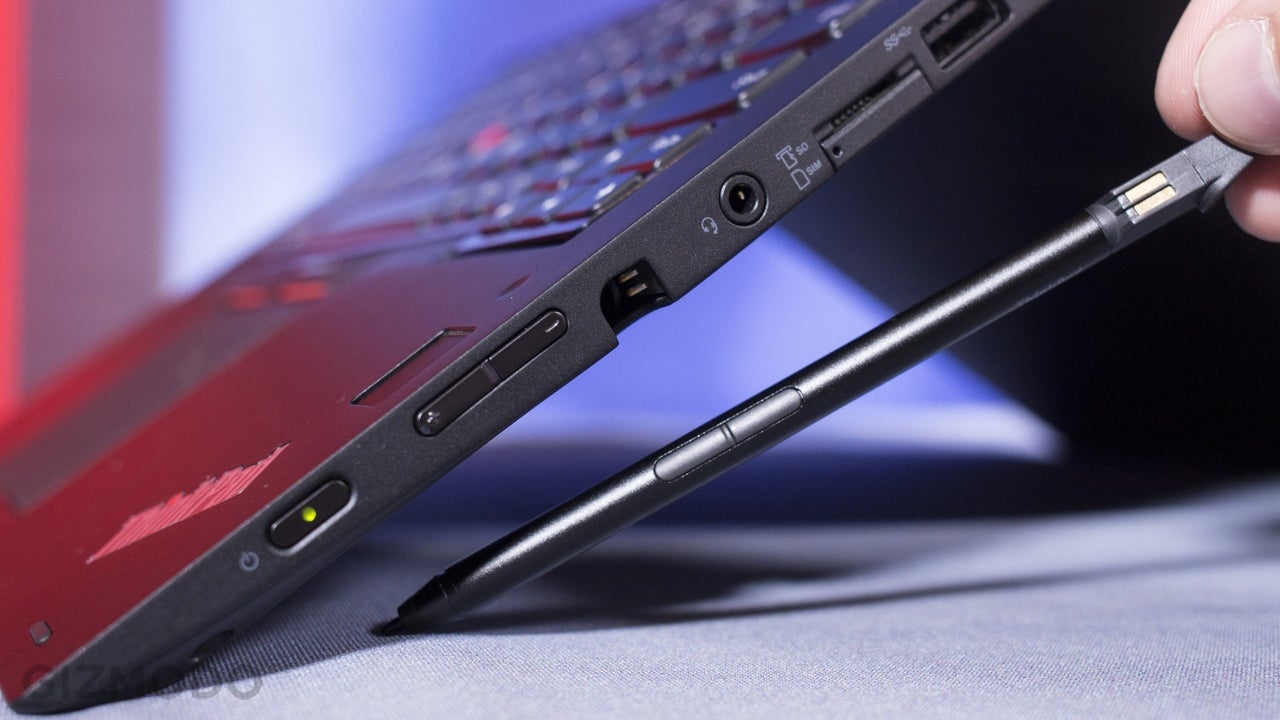
Passive styluses (those without electronics) need no connection at all, they work immediately on any capacitive touchscreen. If you are new to stylus pen usage and basics, you should first confirm that your pen is designed for your specific device model.
How to connect an Apple Pencil to an iPad
The connection method varies by Apple Pencil model and iPad generation. Follow the steps for your specific pen.
Apple Pencil Pro and Apple Pencil (2nd generation)
- Attach the Pencil to the magnetic connector on the compatible iPad.
- The iPad will automatically detect and pair the Pencil.
Apple Pencil (USB-C)
- Slide open the end of the Pencil to reveal the USB-C port.
- Connect the Pencil to the USB-C charge cable that came with the iPad.
- Connect the other end of the cable to the iPad’s USB-C connector.
- Tap the Pair button when it appears on the iPad screen.
Apple Pencil (USB-C) requires iPadOS 17.1.1 or later.
Apple Pencil (1st generation)
- Remove the cap from the Pencil.
- For iPad with a Lightning connector: plug the Pencil directly into the iPad’s Lightning connector.
- For iPad (10th generation): plug the Pencil and a USB-C cable into the USB-C to Apple Pencil Adapter, then plug the other end into the iPad.
- Tap the Pair button when it appears.
Apple Pencil (1st generation) works with iPad (6th through 10th generation).
How to connect an S Pen to a Samsung Galaxy phone
Most S Pens do not require a separate Bluetooth pairing screen. If the connection is lost, use the verified method below.
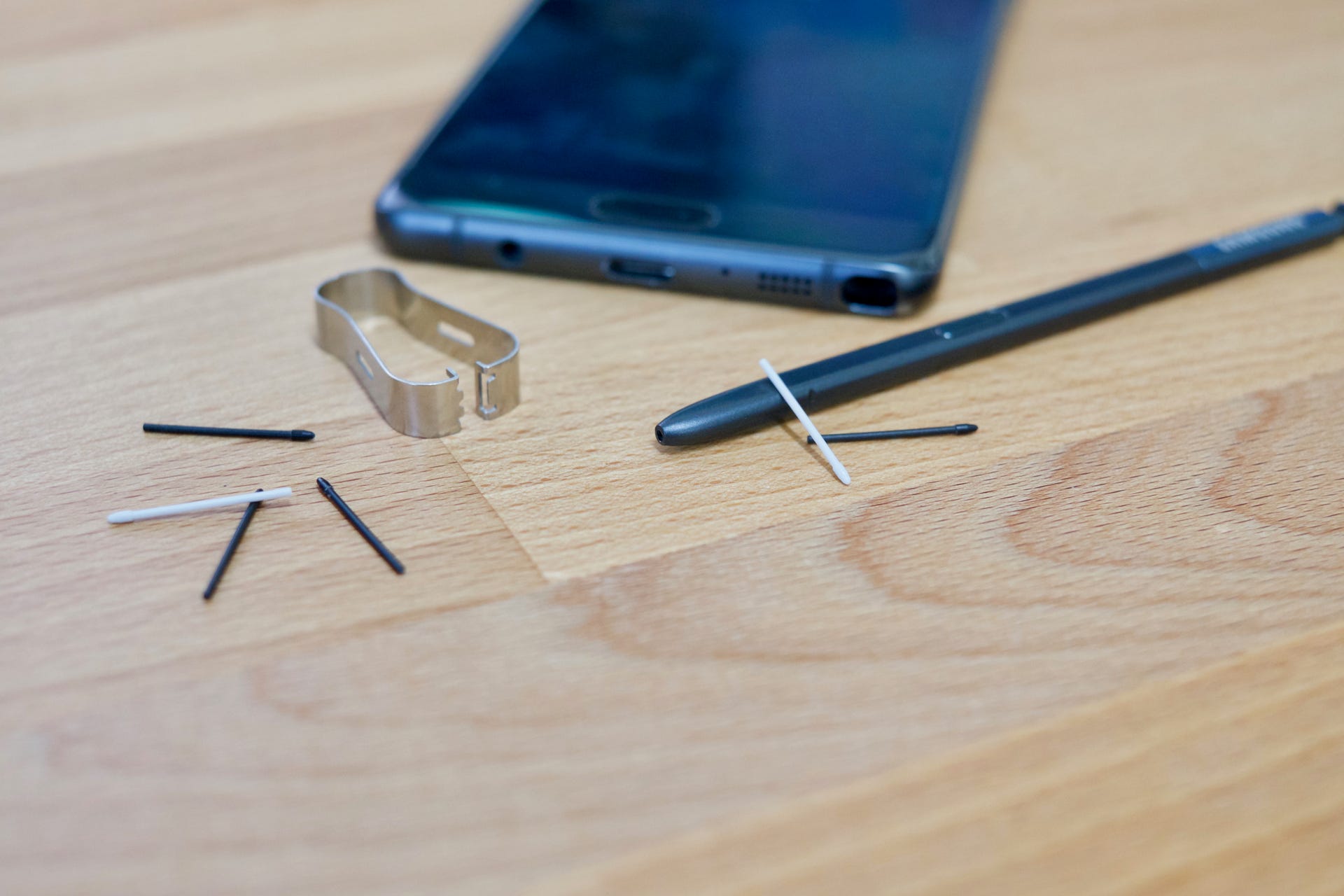
- Insert the S Pen back into the phone’s slot for a couple of seconds.
- Remove the S Pen. The connection should be restored automatically.
- For multi-device S Pens (such as those for the Galaxy Z Fold), check that the physical mode switch on the pen is set to the correct device, such as Galaxy Z Fold.
Troubleshooting Apple Pencil pairing issues
If your Apple Pencil does not pair after following the connection steps, try these verified fixes from Apple Support.
- Keep the Pencil connected (attached or plugged in), then restart your iPad and try again.
- Go to Settings > Bluetooth and make sure Bluetooth is turned on.
- On the same Bluetooth screen, find the Pencil under My Devices and tap Forget this Device if it appears.
- Reconnect the Pencil and tap the Pair button when it appears.
- If the Pair button does not appear, wait one minute while the Pencil charges, then try again.
Troubleshooting S Pen connection issues
If your S Pen does not respond after insertion, try these steps from Samsung Support.
- Reinsert the S Pen into the phone for a couple of seconds to restore the connection.
Frequently Asked Questions
What is a stylus pen?
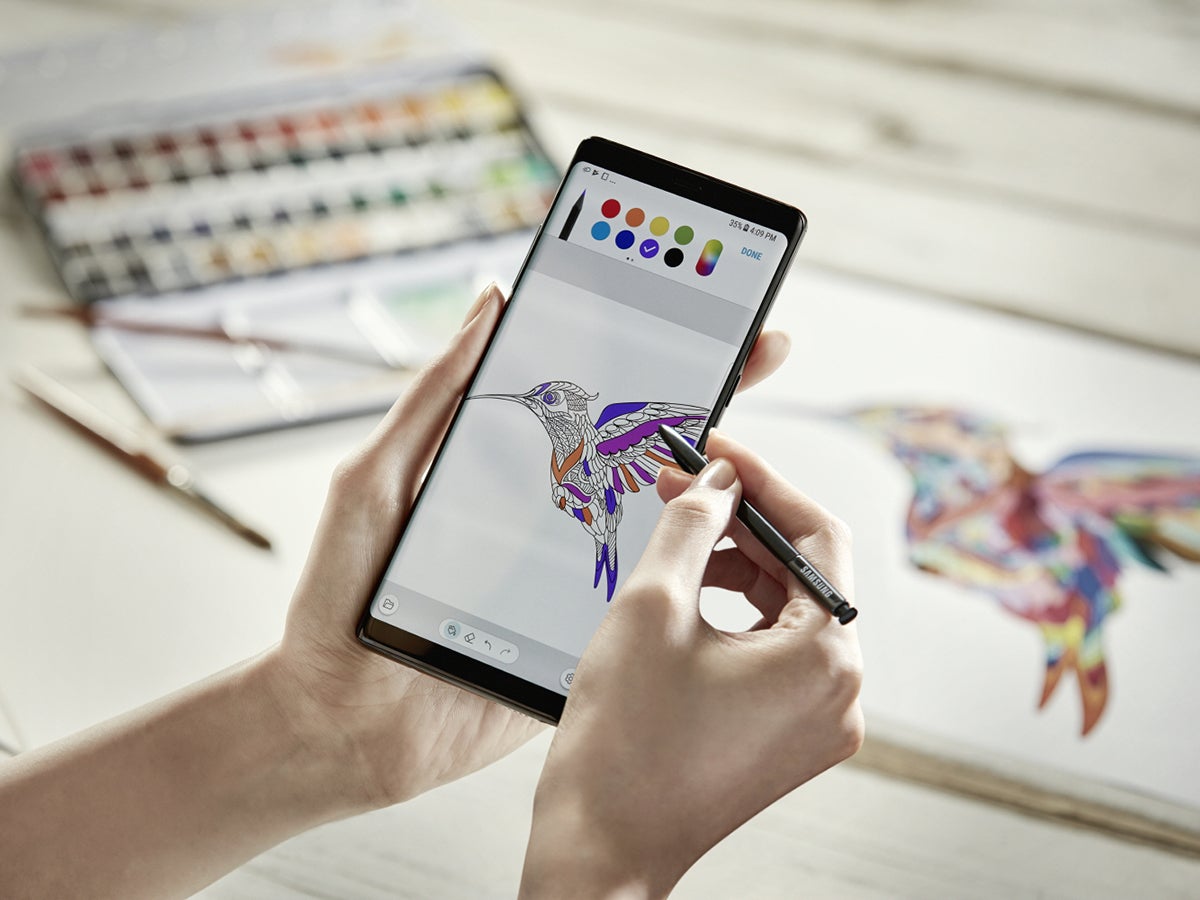
A stylus pen is a pen-shaped input tool that allows you to interact with a touchscreen with more precision than a finger. Active styluses like the Apple Pencil and S Pen include electronics that communicate with the device, while passive styluses simply conduct your finger’s electrical charge.
Does an Apple Pencil work with an iPhone?
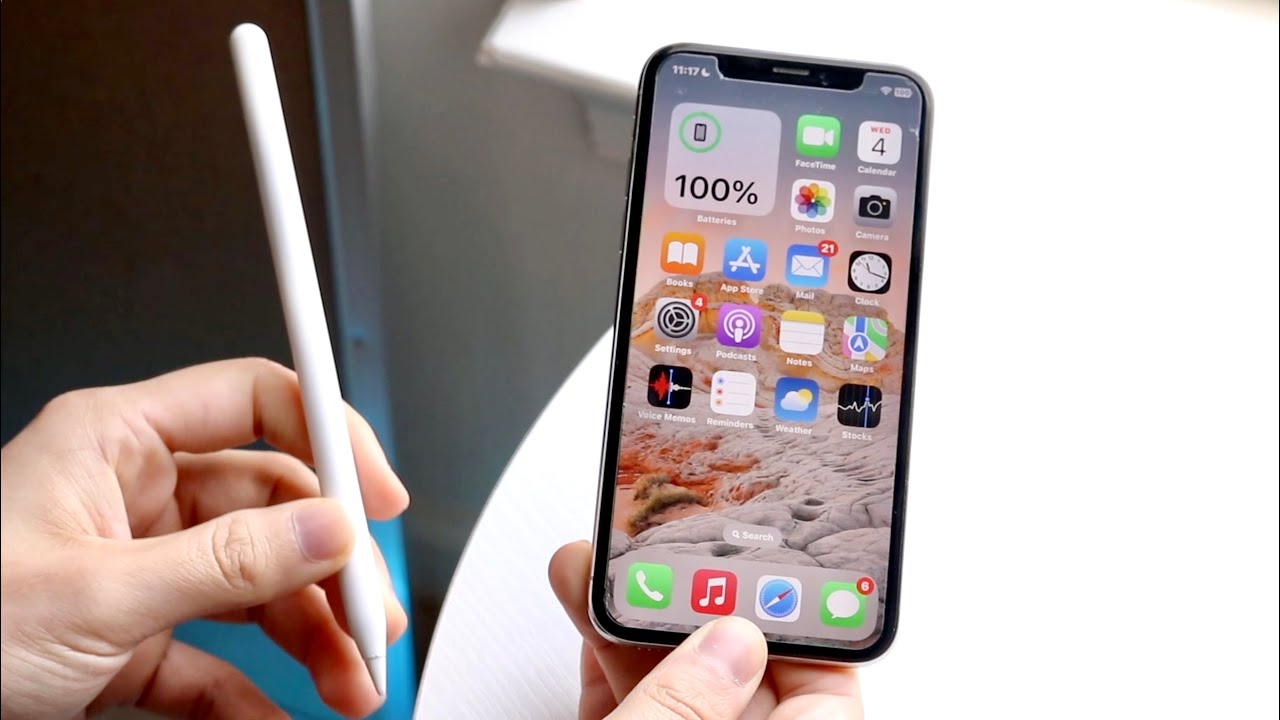
No. An Apple Pencil does not connect to iPhone; the retrieved Apple support pages only document pairing with iPad models.
Do I need Bluetooth to connect a stylus pen?
For an Apple Pencil, Bluetooth must be enabled on the iPad for pairing. For an S Pen on a Samsung Galaxy phone, reinserting the pen restores the connection without a separate Bluetooth pairing screen. Passive styluses do not use Bluetooth at all.
Can I use an S Pen on any Android phone?
No. The S Pen is designed to work only with specific supported Galaxy devices.