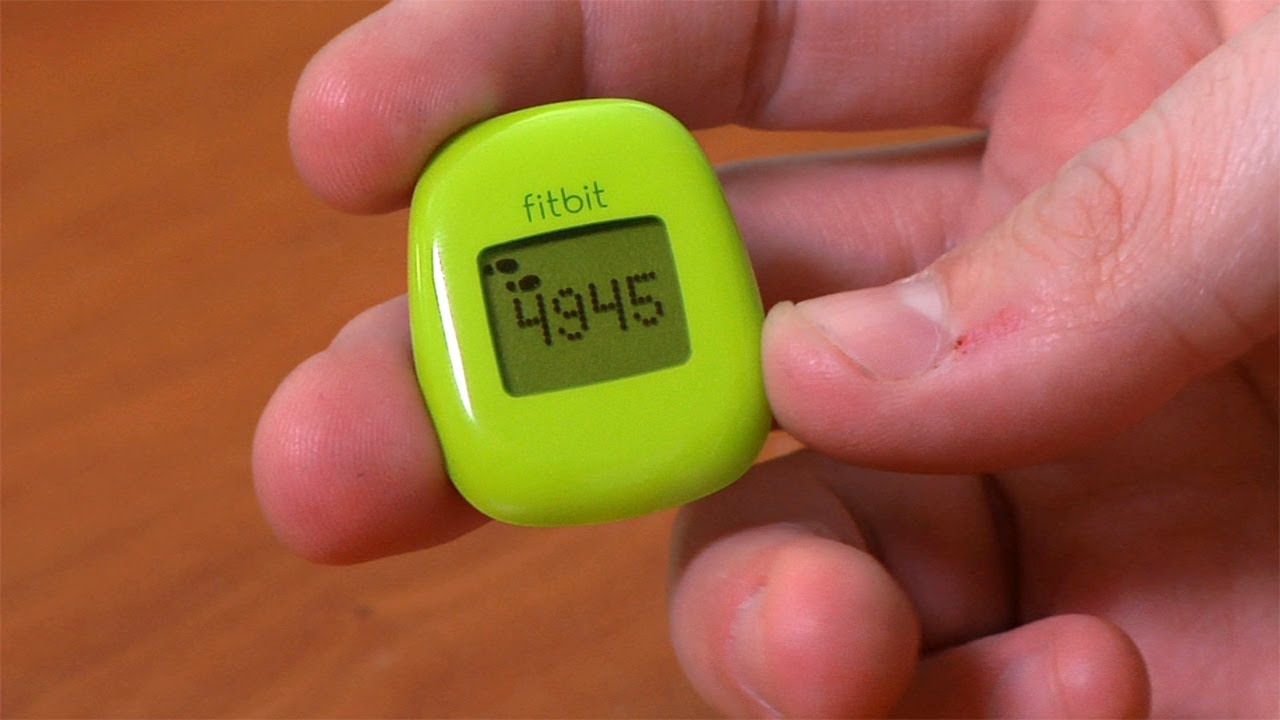
To restart Fitbit Zip, simply remove the battery from the device, wait 10 seconds, then reinsert the battery with the "+" side facing up and close the battery door. This restart process is the only official troubleshooting step documented for the Fitbit Zip and does not delete any of your stored data.
How to restart your Fitbit Zip
If your Fitbit Zip is not syncing, displaying incorrectly, or acting sluggish, restarting the device is the recommended first step. The process requires no tools other than the battery door tool that came with your device. The manual says to use the battery door tool to remove the battery door. The manual says to check mobile compatibility at the Fitbit devices page before setup. The manual says the Zip setup flow is done through Fitbit setup pages and Fitbit Connect.
- Use the battery door tool to open the battery door on the back of the Fitbit Zip.
- Remove the battery from its compartment.
- Wait 10 seconds with the battery removed.
- Insert the battery back into the compartment with the "+" side facing up.
- Close the battery door securely.
That is all that is required to restart the device. There are no buttons to press or additional steps needed.
What happens after you restart
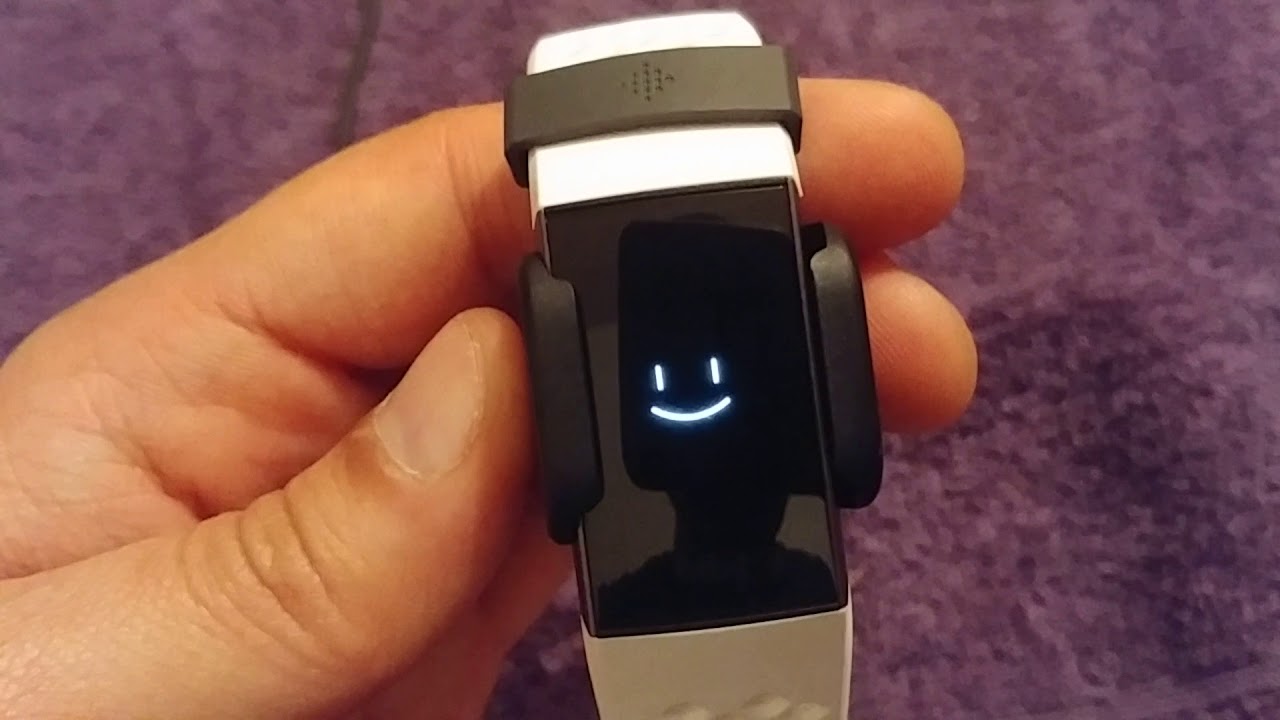
After you reinsert the battery and close the door, the Fitbit Zip will power on and display its version number on the screen. Following the version number, you will see the characteristic Fitbit smileys appear, confirming that the restart process has completed successfully and the device is working normally.
Does restarting delete your data?
Restarting your Fitbit Zip does not delete any of your activity data, goals, settings, or stored information. The official manual explicitly states that removing and reinserting the battery is a restart, not a factory reset, and your personal data remains intact. You can restart your device as often as needed without worrying about losing your progress.
What if restarting doesn't fix the problem?
If your Fitbit Zip continues to malfunction after performing the restart, the official Fitbit support documentation recommends contacting customer support for further assistance. If restarting does not solve the issue, the help article says to contact customer support. The help article does not provide a specific phone number or chat path for Zip support, so visit the Fitbit support website and search for your device to find the available contact options.
Frequently asked questions
Does a factory reset exist for the Fitbit Zip?
No official documentation from Fitbit describes a factory reset process for the Zip. The only documented procedure is the restart by battery removal, which does not erase data.
How is the Fitbit Zip powered?
The Fitbit Zip uses a removable coin cell battery (CR2025), not a charging cable. To replace or restart the device, you access this battery through the battery door on the back.
What should I do before I restart Fitbit Zip if I want to delete my old Fitbit and add a new one?
To delete my old Fitbit and add a new one, first sync your current device with the Fitbit app to ensure your data is backed up. Then remove the old device from your Fitbit account through the app settings before setting up the new tracker.
Why would I need to restart my Fitbit Zip?
Common reasons include syncing failures, display glitches, unresponsive screen, or if the device stops tracking steps accurately. A restart often resolves these temporary software issues without data loss.
How often should I restart my Fitbit Zip?
There is no recommended schedule for restarting. Only restart the device when you experience a specific problem that troubleshooting suggests a restart may fix, such as syncing or display issues.