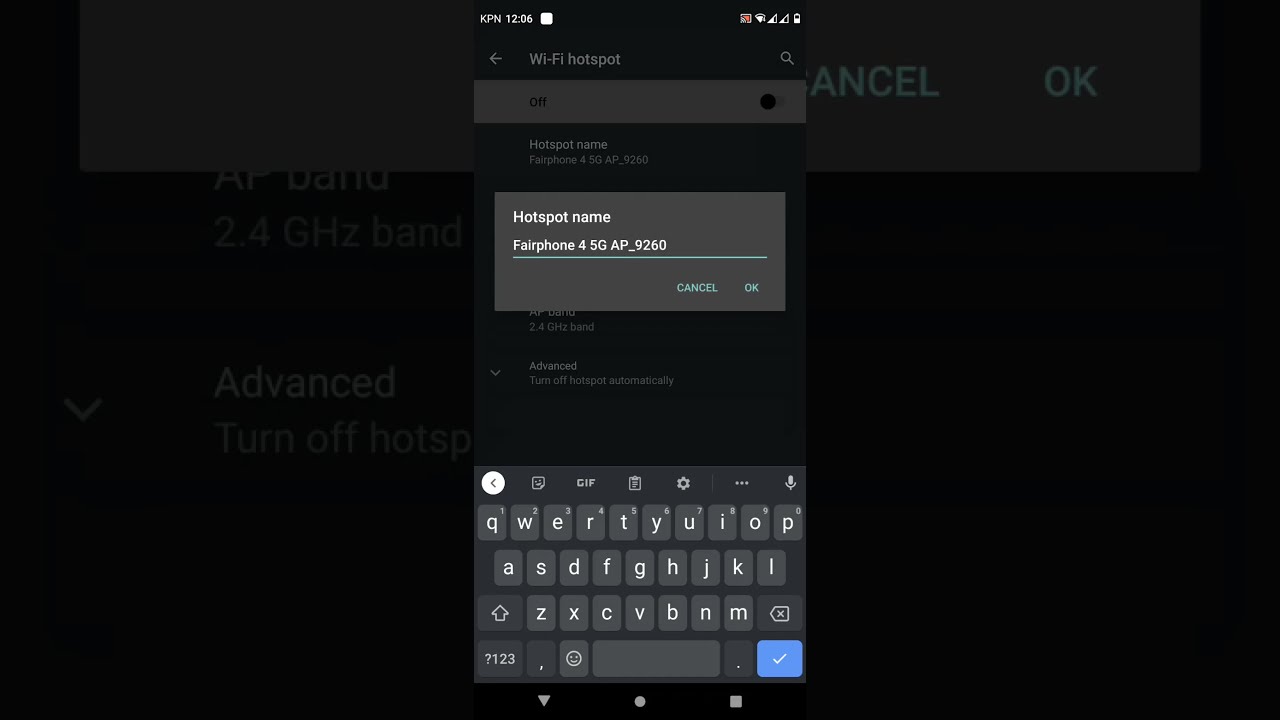
The ap band in hotspot is the Wi‑Fi frequency band your phone uses to create its personal hotspot network, either 2.4 GHz or 5 GHz. Choosing the right band determines whether your hotspot reaches farther through walls (2.4 GHz) or delivers faster speeds when devices are close (5 GHz).
What ap band in hotspot actually means
The term “AP band” stands for Access Point band, and in a phone hotspot it refers to the radio frequency the phone broadcasts on. The two common bands are 2.4 GHz, which offers wider coverage and better wall penetration but slower maximum speeds, and 5 GHz, which provides faster data rates over a shorter range. Your phone acts as a temporary Wi‑Fi access point, and the band it uses directly affects which devices can connect and how well the connection performs.
How to control the hotspot band on iPhone
Apple does not provide a manual “AP band” picker in iOS. Instead, the documented control is a toggle called Maximize Compatibility. When turned on, this forces the hotspot to use the 2.4 GHz band on supported iPhone models. Follow these exact steps:
- Open Settings.
- Tap Personal Hotspot.
- Turn on Maximize Compatibility.
This option is available on iPhone 12 and later. On older iPhones, the hotspot may be limited to 2.4 GHz only, though Apple’s official support pages do not list model-by-model band details. The Maximize Compatibility toggle is the only documented way to change the hotspot band on an iPhone. AT&T’s carrier help page documents the same steps: Settings > Personal Hotspot > Maximize Compatibility.
What about Android?
No official Android support page documenting an “AP band” setting was retrieved from verified sources, so exact steps cannot be provided here. Some Android devices may include a similar compatibility option, often labeled “Extend compatibility”, in the hotspot settings menu. To check, look inside your device’s hotspot or tethering settings for a toggle that forces the network to 2.4 GHz.
When to use 2.4 GHz or 5 GHz for your hotspot
Use the 2.4 GHz band when you need to connect older devices that only see 2.4 GHz networks, or when you need the hotspot signal to travel farther through walls and obstacles. On an iPhone, turn on Maximize Compatibility to force 2.4 GHz. Keep in mind that enabling compatibility mode may reduce internet performance and Wi‑Fi security, as noted in Apple’s community discussions. An Apple community discussion warns that enabling compatibility mode may reduce Wi‑Fi security.
Frequently Asked Questions
Can I manually pick the hotspot band on an iPhone?
No. The only control is the Maximize Compatibility toggle, which forces the hotspot to 2.4 GHz when turned on.
Does the Maximize Compatibility setting affect security or performance?
Yes. Enabling Maximize Compatibility may reduce internet performance and Wi‑Fi security, according to Apple community discussions. The hotspot still uses encryption, but the 2.4 GHz band is more susceptible to interference and congestion.
Why can’t my device see my hotspot?
If a device cannot see the hotspot, it may only support 2.4 GHz while your hotspot is broadcasting on 5 GHz. On an iPhone, turn on Maximize Compatibility to switch to 2.4 GHz. On Android, look for a similar compatibility toggle in the hotspot settings. Other causes include distance, interference, or carrier-specific restrictions. Hotspot behavior can be carrier-specific, as noted in an Apple Community result.
Does the AP band affect how many devices can connect?
The band itself does not limit the number of connections, but the 2.4 GHz band is more crowded and prone to interference, which can degrade performance when many devices are connected. The 5 GHz band offers more available channels and less congestion, often providing a more stable experience with multiple devices.
Is there a way to see which band my hotspot is using?
On an iPhone, there is no built-in indicator that shows the current hotspot band. You can infer it by checking whether Maximize Compatibility is on (2.4 GHz) or off (5 GHz). Some Android devices may display the band in the hotspot or connection details, but this varies by manufacturer and Android version.
Will changing the band help with hotspot basics and troubleshooting?
Yes. If you are troubleshooting connection issues, switching the band is one of the first steps in Mobile Hotspot Basics and Troubleshooting. Forcing 2.4 GHz often resolves compatibility problems with older devices, while switching to 5 GHz can improve speed when devices are close and the 2.4 GHz band is congested.
Related reading: What Is Maximize Compatibility Hotspot and How To Disconnect Devices From Hotspot.