If you have lost your mouse dongle, your first step is to search thoroughly for the small USB receiver, then immediately determine whether your mouse supports Bluetooth or is a 2.4 GHz-only model. This fork decides your next move: a Bluetooth-capable mouse can pair directly without a dongle, while a 2.4 GHz-only mouse will require a model-specific replacement receiver.
What to do first if you lost your mouse dongle
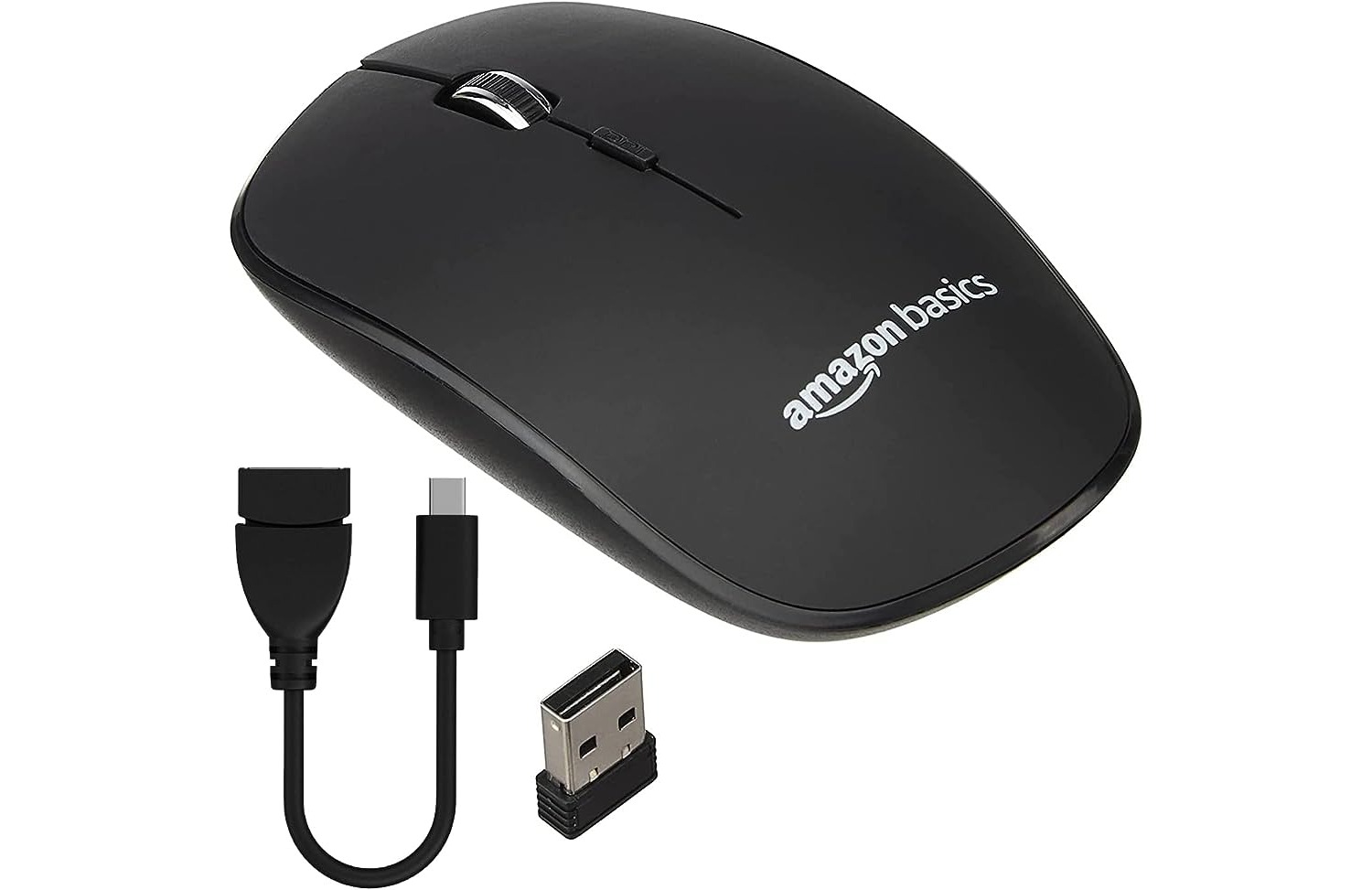
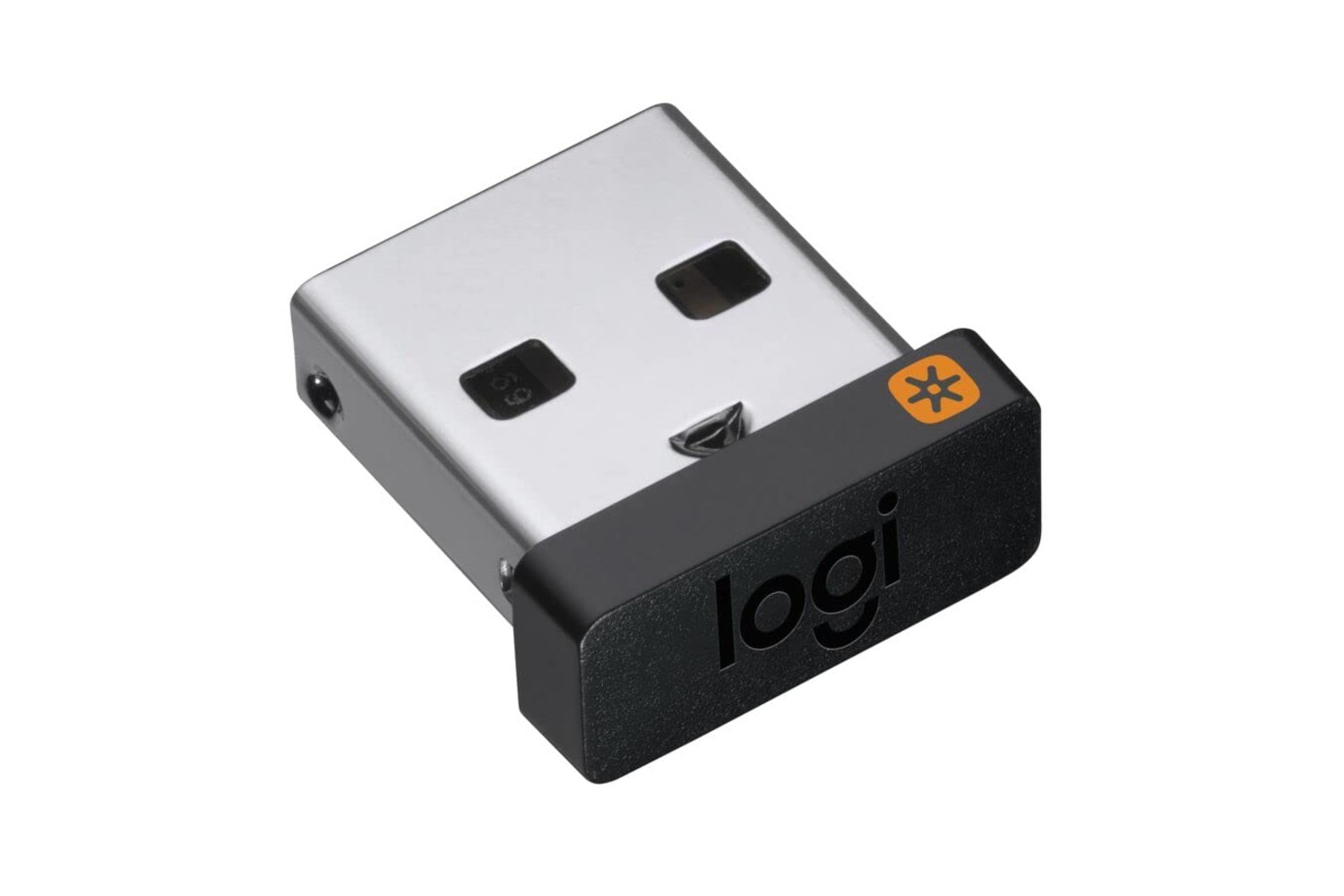
A dongle for a mouse is the small proprietary receiver that came with the device, using radio frequency to connect the mouse to your computer. If the mouse supports Bluetooth, the dongle is not required for Bluetooth pairing. If the mouse is 2.4 GHz-only, the dongle is usually required, and no universal workaround for a missing receiver is documented for iPhone or Android.
- Search your desk, drawers, laptop bag, and any place you last used the mouse. A misplaced dongle saves you time and cost. Designate a specific place to store your dongle when not in use, such as in a dedicated compartment in your laptop bag or a small container on your desk, to prevent future loss. Consider purchasing a mouse with a built-in storage compartment for the dongle to always have a secure place to keep it when not in use.
- Check your mouse’s specifications or underside label for a Bluetooth symbol or “BT” marking. If present, you can skip the dongle entirely.
- Check your mouse's compatibility before taking further steps; some mice have specific dongles that cannot be replaced, and if not compatible with a generic dongle, you may need to contact the manufacturer.
- Try a different USB port on your computer to rule out a faulty port causing the connection issue.
- Test the mouse on a different computer to determine if the problem is specific to your original computer, indicating a need to update drivers or troubleshoot USB issues.
- If the mouse is 2.4 GHz-only, contact the manufacturer for a replacement dongle.
Pair your mouse using Bluetooth instead of the dongle
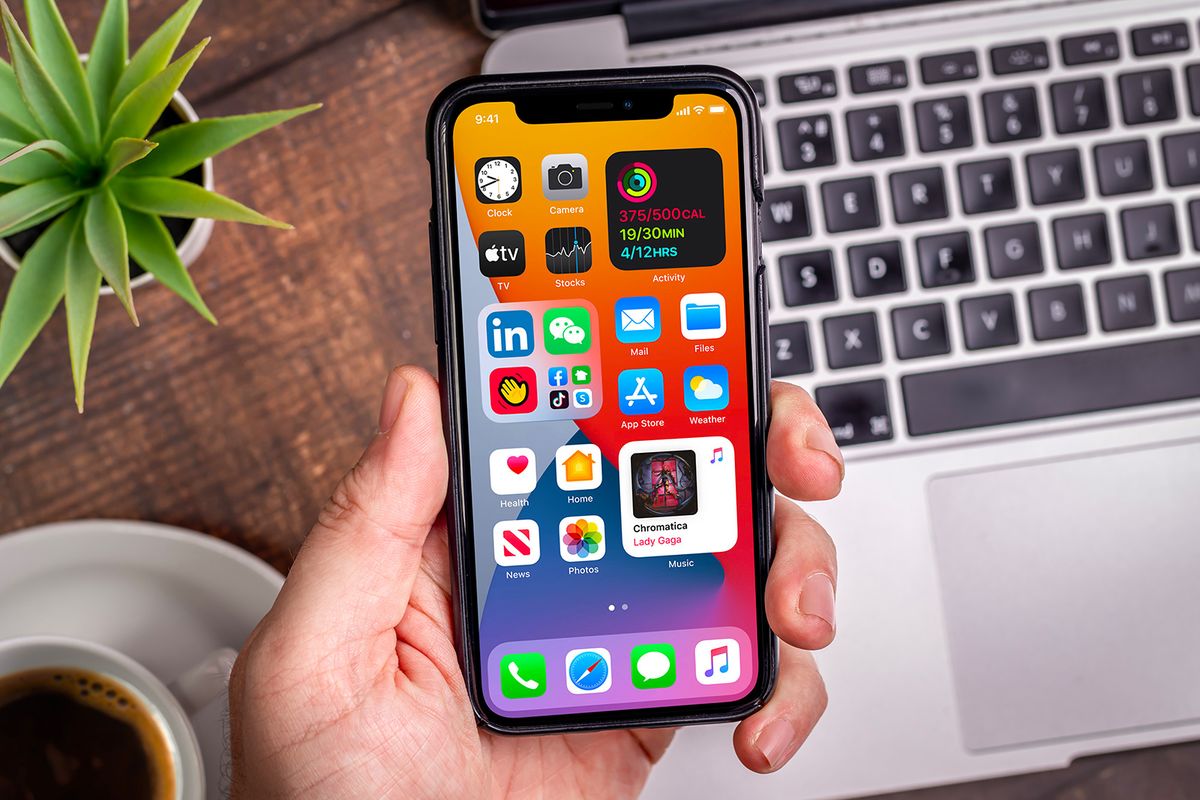
If your mouse has Bluetooth capability, you can connect it directly to a computer, phone, or tablet without any receiver. On iPhone, Apple documents the path through AssistiveTouch: open Settings > Accessibility > Touch > AssistiveTouch > Devices > Bluetooth Devices. Once there, put your mouse in pairing mode and select it from the list. This method works for any Bluetooth mouse, not just Apple-branded devices.
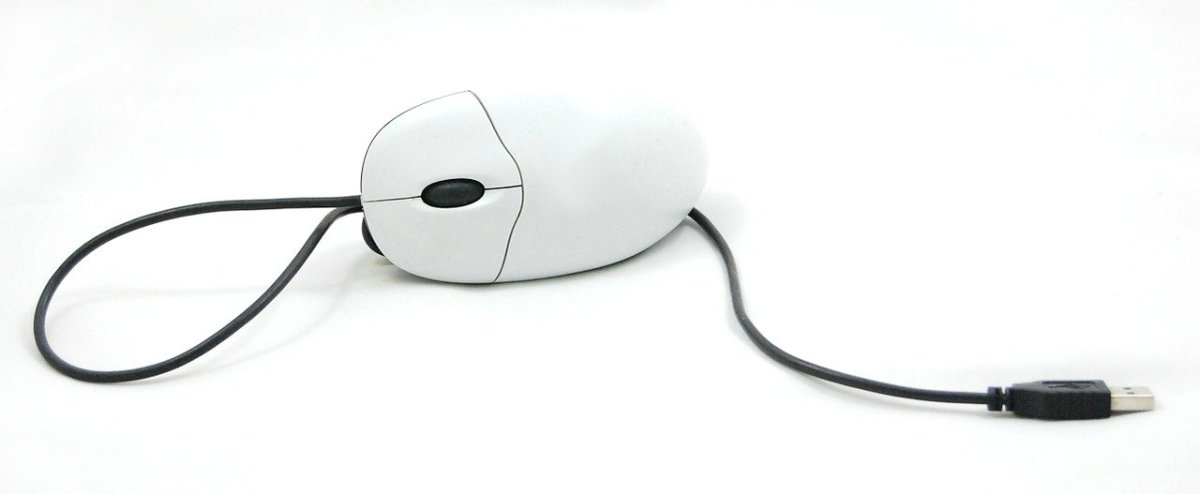
On a computer, enable Bluetooth in system settings, put the mouse in pairing mode, and select it. A Bluetooth dongle is not needed because the mouse’s built-in Bluetooth radio replaces the proprietary receiver entirely. If your mouse lacks Bluetooth, you cannot use this method. If your mouse has a detachable cable, you can connect it directly to your computer or device using a USB cable, bypassing the need for a dongle. Some advanced mice come with the option to connect via Wi-Fi instead of using a dongle, requiring a Wi-Fi receiver or adapter on your computer.
Get a replacement dongle from the manufacturer
For 2.4 GHz-only mice, the only supported solution is a model-specific replacement dongle from the vendor. Contact the manufacturer’s support or check their website for a replacement part. Check if your mouse is still under warranty and contact the manufacturer or place of purchase for a replacement dongle or possible repair. Avoid using a different brand’s dongle; each receiver is locked to its paired mouse and will not connect otherwise. Consider using a wireless mouse that uses a unified or universal dongle, which can pair with various devices, allowing you to connect multiple compatible devices with just one dongle.
To change wireless mouse receiver, you must obtain the exact model designed for your peripheral. The manufacturer may offer a standalone receiver, but you will need to follow their pairing procedure, which typically involves holding a button on the mouse while inserting the new dongle into a USB port.
Using a mouse with your phone when the dongle is lost
Apple also states that wired mice and Bluetooth devices work via AssistiveTouch, and that USB-A devices require an adapter. If the mouse is designed for phone control through an app rather than a hardware receiver, use that app’s own pairing instructions; no such official app page was retrieved here.
To connect wireless mouse to Chromebook, Bluetooth pairing works the same way: enable Bluetooth on the Chromebook, put the mouse in pairing mode, and select it. A dongle is unnecessary for Bluetooth-capable mice. For 2.4 GHz-only mice, no documented Chromebook workaround exists without the original receiver.
Frequently Asked Questions
Can any mouse work without its dongle?
No documented source confirms that. Bluetooth-capable mice can pair without the dongle; receiver-only mice generally cannot function without their specific receiver.
Can iPhone use a mouse directly?
Yes, through Apple’s documented AssistiveTouch Bluetooth path.
Does Apple document Magic Mouse support on iPhone?
Not in the retrieved support page. Apple’s documentation covers pointer-device use generally and the Bluetooth pairing path, but does not specifically list Magic Mouse support on iPhone.
Can Android use a mouse without the dongle?
Bluetooth mice may pair through Android’s standard Bluetooth menu, but no manufacturer or carrier help-center procedure for a missing receiver was retrieved.