






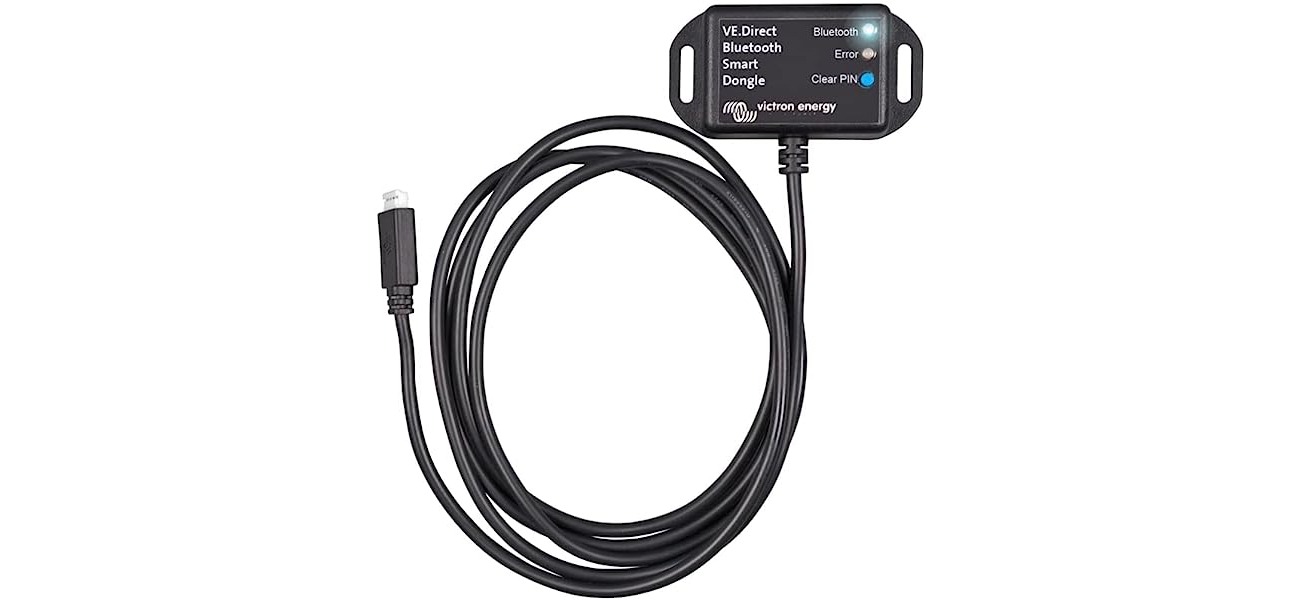
To connect a cellular or mobile broadband dongle to your laptop or desktop computer, plug it directly into an available USB port. After inserting the dongle, your computer will either automatically install the necessary drivers or prompt you to install software from the manufacturer.
Step 1: Plug the dongle into a USB port
Insert the dongle into an open USB port on your computer. Wait a few moments for the device to be recognized. Depending on the dongle model, you may see an auto-installation process begin or a prompt to install drivers.
Step 2: Install any required software
Some dongles automatically install drivers and connection software when plugged in. If this does not happen, you will need to manually install the software from the manufacturer's website. Always follow the specific instructions provided with your dongle, as installation steps vary by manufacturer.
Step 3: Connect to the mobile network
Once the software is installed, open the dongle's connection manager or go to your operating system's network settings. Select your cellular network from the list of available networks. You will need the APN (Access Point Name) and any login credentials from your mobile carrier to complete the connection.
Connecting a dongle to iPhone or iPad
Apple only documents pairing a Bluetooth accessory, not a generic dongle workflow. To pair a Bluetooth accessory on iPhone, go to Settings > Bluetooth and turn on Bluetooth. Put the accessory in discovery mode, then tap it under My Devices when it appears. Enter a PIN if prompted. If the accessory uses a companion app, enable Bluetooth permissions in Settings > Privacy & Security > Bluetooth. For device-specific installation, consult the dongle manufacturer's own app or manual. To disconnect later, go to Settings > Bluetooth, tap the i button next to the device, then tap Forget This Device.
Troubleshooting dongle connection problems
- Make sure the accessory is on and fully charged or connected to power.
- If the accessory uses batteries, check whether they need to be replaced.
- Keep the accessory and iPhone close together.
- Turn the Bluetooth accessory off and back on again.
- If the accessory was previously paired, unpair it from other devices as well.
- Try a different USB port on your computer.
- Restart the computer.
If the accessory uses an app, enable Bluetooth for that app in Settings > Privacy & Security > Bluetooth on iPhone. If it still does not appear, check the accessory's manual for discovery mode instructions and verify compatibility with the manufacturer. If it still will not connect, unpair the accessory and unpair it from other devices as well.
Frequently Asked Questions
Can a dongle be used with a smartphone?
Some smartphones can use a dongle, but not all phones have USB ports compatible with dongles. If your phone has a USB-C port, you may need a USB-C to USB adapter. Check your smartphone's specifications and the dongle manufacturer's compatibility information before attempting to connect.
What should I do if the dongle isn't recognized?
First, try a different USB port on your computer. If the dongle still is not recognized, restart your computer and try again. For Bluetooth accessories on iPhone, ensure the accessory is in discovery mode, is fully charged or connected to power, and is close to the device. If it still does not appear, consult the accessory's manual or contact the manufacturer.
Where can I find manufacturer-specific instructions for my dongle?
Manufacturer-specific instructions are typically found in the user manual that came with your dongle or on the manufacturer's website. Some manufacturers provide support forums or compatibility checkers to help with setup and troubleshooting.
Where is the Bluetooth permission for a companion app?
Settings > Privacy & Security > Bluetooth on iPhone.
Does Apple document a dongle-specific setup path?
No. Only general Bluetooth accessory pairing is documented.
For the wider topic, see a Bluetooth dongle.

















