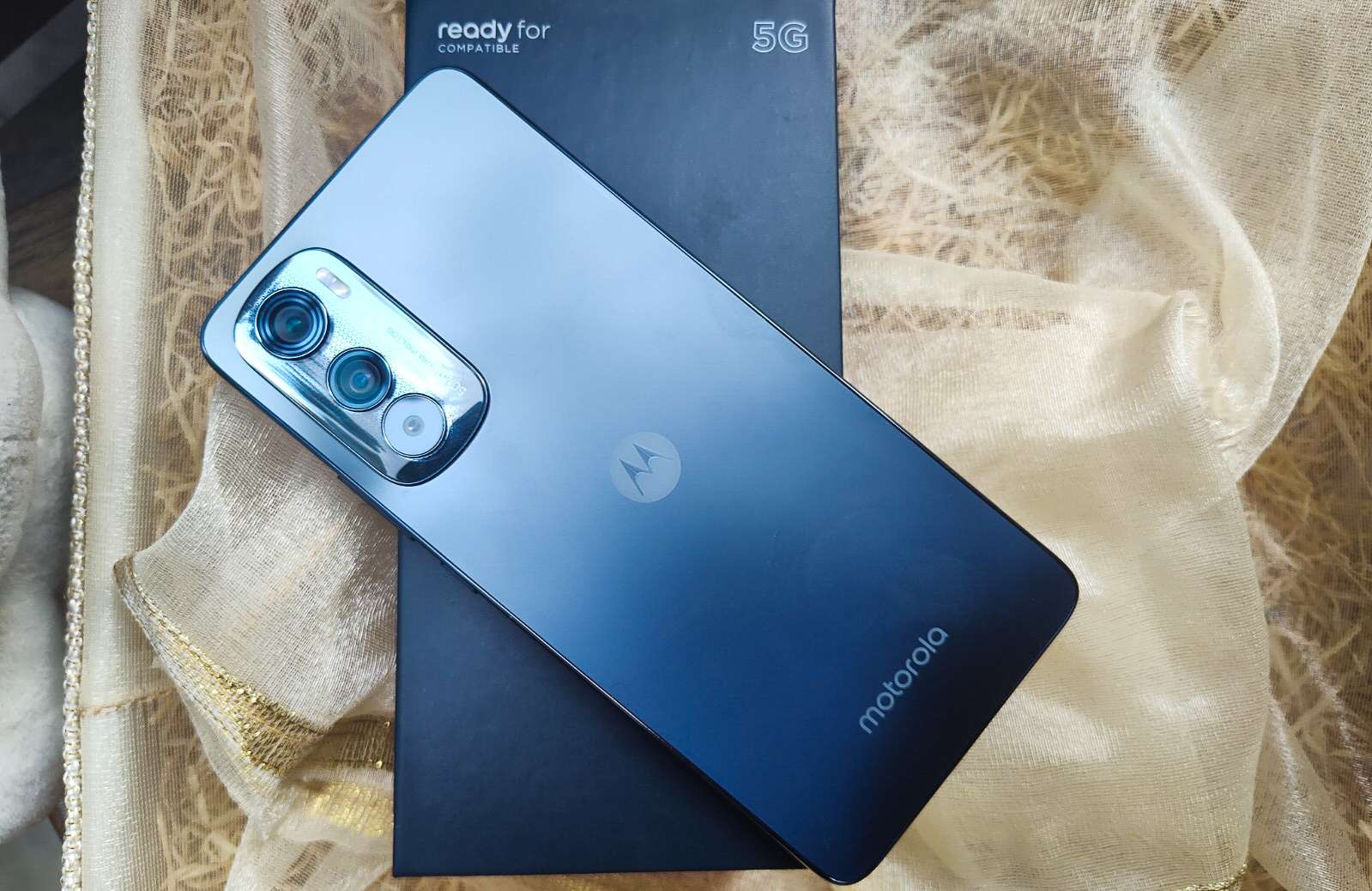
To back up your Motorola phone, use the built-in Android backup feature by going to Settings > System > Backup and confirming Backup by Google One is turned on. This is the exact, current method documented by Motorola’s support page, and it ensures your data is saved to your Google account so you can restore it after a factory reset, device replacement, or loss.
Why backing up your Motorola phone matters
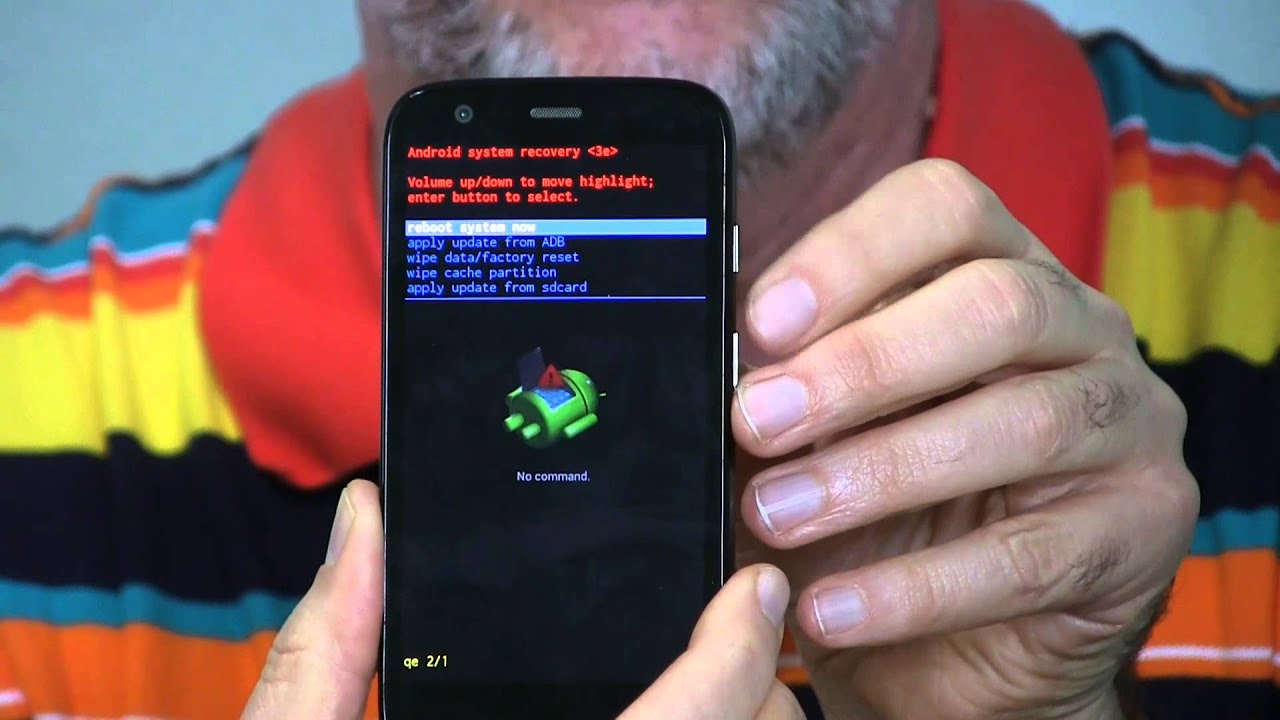
Motorola’s support page states that backup is for protecting phone data before a factory reset. Google adds that backup helps restore data if the device is replaced, lost, or damaged. Without a backup, a hardware failure, accidental deletion, or software issue could permanently erase your photos, contacts, and settings.
What gets backed up
Google’s built-in Android backup covers app data, call history, contacts, device settings, and SMS text messages. On some Motorola devices, you can choose which data to include: Photos & videos, Device data, or both. This selection appears in the backup settings menu.
Before you start: checks to make
Before running a backup, confirm that Backup by Google One is turned on under Settings > System > Backup. If you have multiple Google accounts signed in on the phone, select the correct one, the backup will be stored under that account. Google’s help pages also show you can manage backup settings from Settings > Google > Backup or Settings > Google services > All services > Backup. Additionally, verifying your phone’s storage is part of checking memory and storage capacity, ensuring there is enough free space for the backup process to complete.
How to back up your Motorola phone: exact menu paths
Follow the steps below to start a manual backup. The paths come from Motorola’s support page and Google’s current Android help pages.
- Open the Settings app on your Motorola phone.
- Make sure Backup by Google One is switched on.
- If prompted, choose the Google account you want to use for backup.
- Tap Back up now to start an immediate manual backup.
After the backup completes, your data is saved to your Google account and can be restored on the same device or a new Motorola phone.
Backing up contacts and messages separately
Google’s built-in backup includes contacts and SMS, but Motorola’s older support article documents an additional method for contacts and a separate recommendation for messages. To export contacts, go to Contacts > Organize > Export to file and save the .vcf file to internal storage or an SD card. For SMS, Motorola’s support page recommends using a third-party app such as SMS Backup+, as the built-in tool does not cover text message backup on its own. Motorola's older support article says SMS backup is not covered by its own tool there and suggests a third-party app.
Frequently Asked Questions
How often does my Motorola phone back up automatically?
Google’s backup runs automatically when your phone is idle, connected to Wi-Fi, and charging. The exact frequency is not specified, but you can always trigger a manual backup by tapping Back up now in the backup settings.
Can I restore my backup to a non-Motorola Android phone?
Yes. Because the backup uses your Google account, it can be restored to any Android device that supports Google’s backup feature, as long as you sign in with the same Google account during setup.
What should I do if my backup fails?
First, confirm that Backup by Google One is enabled and that you are connected to a stable Wi-Fi network. If the issue persists, check that your Google account has sufficient storage space, backup data counts toward your Google One storage quota. No supported-model list, storage limit, or backup size limit was documented in the Motorola or Google pages retrieved here.
Does backing up use my mobile data?
Google’s backup is designed to run over Wi-Fi to avoid using your mobile data plan. You cannot force it to use cellular data through the standard settings menu.
Are app passwords and login credentials backed up?
Google’s backup includes app data and settings, but it does not back up passwords stored outside of Google’s Password Manager. For saved Wi-Fi passwords and some app login tokens, the backup may restore them, but this varies by app.
Related reading: How To Erase Motorola Phone and How To Reset A Motorola Phone.