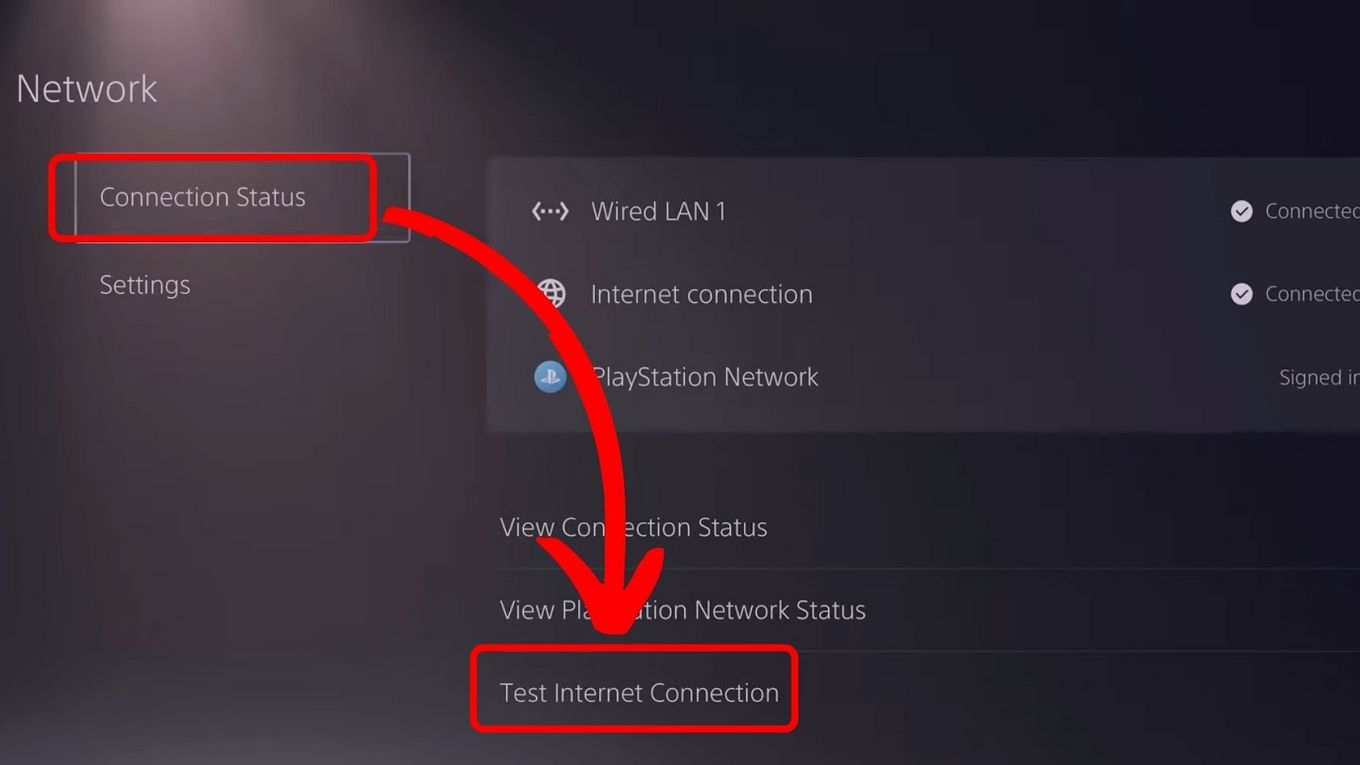
To authenticate PS5 hotel Wi-Fi with your phone, use the console's built-in phone-assisted captive portal flow. This method lets you complete the hotel's browser-based login page on your phone, then pass the connection back to your PS5 without needing a travel router or hotspot.
How to authenticate PS5 hotel Wi-Fi with phone
- On your PS5, go to Settings > Network > Settings > Set Up Internet Connection.
- Select the hotel Wi‑Fi network (SSID) from the list. When the connection fails due to the captive portal, the console displays a public‑network or authentication‑required message.
- Choose How to Authenticate (or Connect Phone to PS5, depending on your screen version).
- The PS5 then shows a temporary Wi‑Fi name that commonly begins with PS5- but the exact suffix is not standardized, and an 8‑digit passcode.
- On your phone, open Wi‑Fi settings and connect to the temporary PS5- network. Enter the 8‑digit passcode when prompted.
- After connecting, the hotel login page should open automatically on your phone. Complete the hotel’s sign‑in form (room number, last name, or any required credentials).
- Once the phone shows you are connected to the internet, return to your PS5. The console will complete the connection to the hotel Wi‑Fi automatically.
What to do if the hotel login page does not appear on your phone
If the hotel login page does not open automatically after you join the PS5 temporary network, open a web browser on your phone manually. Navigate to any non‑secure website (for example, a common HTTP page) to trigger the captive portal. If the login page doesn't appear, try navigating to a non-secure website to trigger it. The hotel’s sign‑in page should then load in the browser. Complete the authentication there, and the PS5 will finish connecting.
Troubleshooting PS5 hotel Wi-Fi authentication issues
The "How to Authenticate" option does not appear
This option only appears when the PS5 detects a captive portal on the selected Wi‑Fi network. If the hotel Wi‑Fi uses a simple password instead of a browser login page, you can enter that password directly in the PS5’s network setup without using the phone method. If the network requires a portal but the option still does not show, try forgetting the network on the PS5 and restarting the setup from Settings > Network > Settings > Set Up Internet Connection.
The temporary PS5- network does not show on your phone
Make sure your phone’s Wi‑Fi is on and that you are within range of the PS5. The temporary network is broadcast directly from the console, so the PS5 must remain on the “How to Authenticate” screen. If the network still does not appear, restart both the PS5 and your phone, then repeat the steps from the beginning.
When to contact hotel staff
If the phone method fails repeatedly and the hotel Wi‑Fi uses a non‑standard login system (for example, a separate app, a voucher code that must be entered on a specific device, or a network that limits the number of connected devices), contact the hotel’s front desk or tech support. They can provide the correct network credentials or advise on any device‑specific restrictions.
Frequently Asked Questions
Can I connect multiple devices to the hotel Wi‑Fi using this method?
This method only authenticates your PS5. Each device that needs internet access must complete its own captive‑portal login separately. Some hotels limit the number of devices per room, so check with the front desk if you need to connect more than one.
What is a captive portal?
A captive portal is the browser‑based login page that appears when you connect to a public Wi‑Fi network (such as a hotel’s). It requires you to enter credentials, accept terms, or provide a room number before granting internet access.
What should I do if the documented phone method is unavailable on my PS5?
If your PS5 does not show the “How to Authenticate” option, you can still connect by using your phone as a mobile hotspot or by using a travel router. With a hotspot, enable it on your phone, connect the PS5 to that hotspot, then open the PS5’s browser to complete the hotel login. A travel router lets you connect the PS5 to a private network that handles the hotel portal for you.
Does this method work with both iPhone and Android?
Yes. The phone‑assisted flow relies only on standard Wi‑Fi and browser capabilities, which both iPhone and Android support. No separate PS5 app, carrier app, or carrier-specific setting is required for this process.
Why does the temporary network name start with PS5-?
The PS5 generates this temporary network to create a direct link between the console and your phone for the captive‑portal handoff. The exact suffix varies per session, but the name always begins with PS5-.
What are the supported devices and requirements for this feature?
For the wider topic, see managing wireless passwords.
Related reading: How To Connect PS5 To Cox Wi-Fi Hotspot and How To Connect Xbox One To Xfinity Wi-Fi Hotspot.