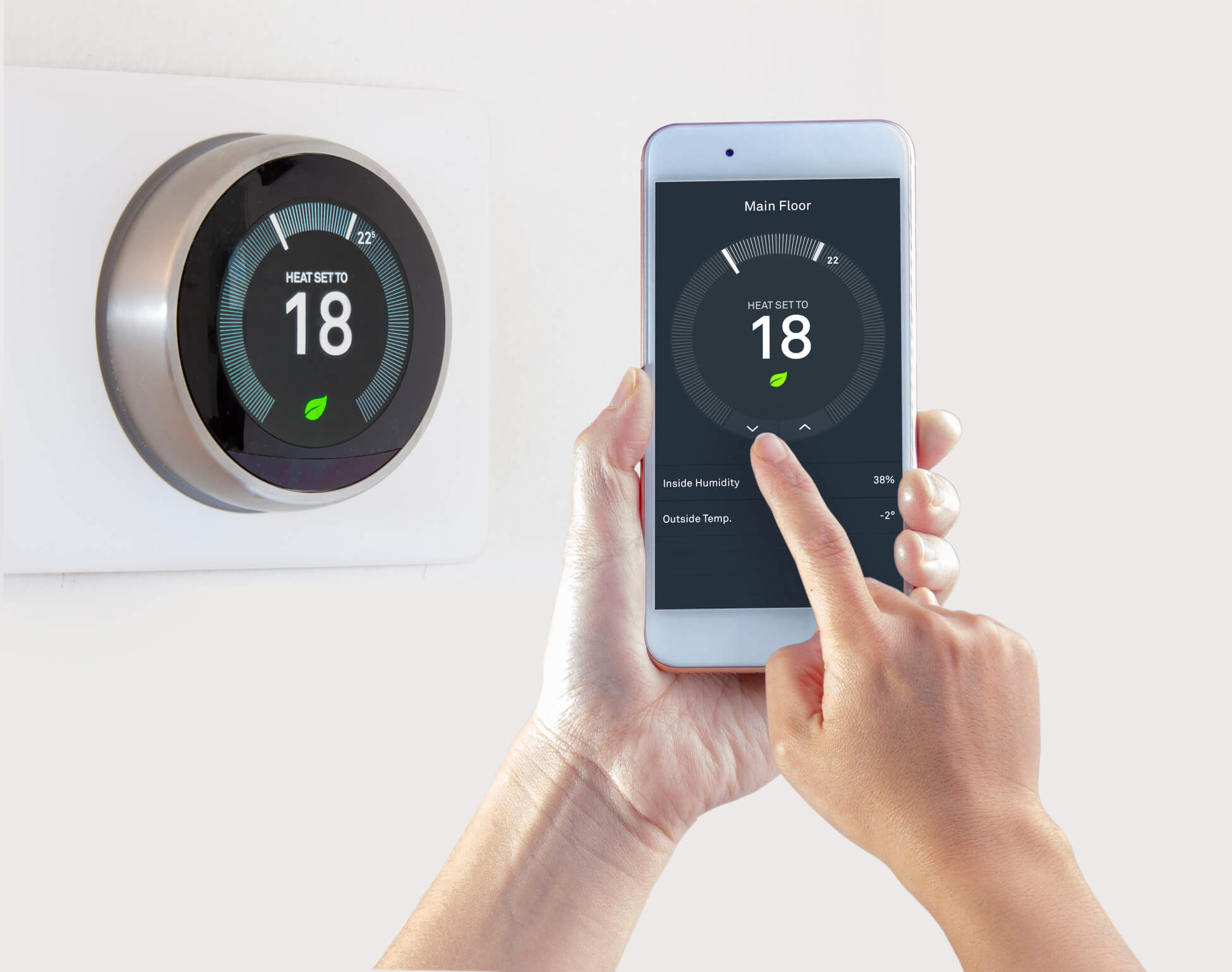
To control your Nest thermostat from a phone, you need the correct app for your specific model. The Nest app is used for the Nest Learning Thermostat (3rd gen or earlier) and Nest Thermostat E, while the Google Home app controls the Nest Thermostat (4th gen) and Nest Learning Thermostat (4th gen).
Which app controls your Nest thermostat from phone
The critical model/app split determines which app you need. The Google Home app is the app used to control Nest Thermostat (4th gen) and Nest Learning Thermostat (4th gen). The table below shows exactly which phone and app combination works for each thermostat.
| Phone / app | Supported thermostat models documented by Google | Notes |
|---|---|---|
| iPhone / iPad + Nest app | Nest Learning Thermostat (3rd gen or earlier), Nest Thermostat E | Full control and settings |
| Android + Nest app | Nest Learning Thermostat (3rd gen or earlier), Nest Thermostat E | Full control and settings |
| iPhone / iPad + Google Home app | Nest Thermostat (4th gen), Nest Learning Thermostat (4th gen) | Full control and settings |
| Android + Google Home app | Nest Thermostat (4th gen), Nest Learning Thermostat (4th gen) | Full control and settings |
How to change the temperature from your phone
In the Google Home app
- Tap Home, then tap Climate.
- Tap your thermostat. The current and target temperatures appear there.
- Drag the dot around the ring to set the desired temperature. You can also tap the plus or minus buttons at the bottom of the ring to fine-tune the temperature.
If the thermostat is set to Off or Eco, you must switch modes first before changing the temperature.
In the Nest app
- On the app home screen, tap your thermostat. Your current and target temperatures appear there.
- Drag your finger along the ring or tap the up or down arrow at the bottom of the ring to change the target temperature.
How to set a temperature hold
Temperature hold is only available when the thermostat is in Heat, Cool, or Heat•Cool mode. To start a hold in the Google Home app:
- Open Google Home, then tap Favourites or Devices.
- Select the thermostat and confirm it is in Heat, Cool, or Heat•Cool mode.
- Tap Hold temperature, then choose the current temp or a preset.
How to manage schedules and settings
In the Google Home app
To view or change schedules, open Home, then tap Climate, tap your thermostat, and tap Schedules. To change thermostat settings, open Home, then tap Climate, tap your thermostat, and tap Settings.
In the Nest app
Tap your thermostat on the home screen, then tap Settings for thermostat settings.
Methods to control from a phone
Beyond the dedicated apps, you can also control your thermostat via the Nest website through a web browser on your phone. For custom applications, developers can use the Nest Thermostat API. The companion mobile app also provides insights and analytics about your energy usage. Additionally, the thermostat integrates with home automation systems like SmartThings and Control4 for centralized control.
Supported devices and versions
The Nest and Google Home apps are available for iOS and Android. Compatibility extends to smartwatches, including Apple Watch and Android Wear devices. The thermostat also supports Windows Phone and Blackberry devices through the Nest website or compatible third-party applications.
Voice control with Google Assistant
Google documents voice control in the Google Home app. You can use commands such as "set the temperature to [#] degrees" and "raise the temperature [#] degrees." This hands-free method is particularly useful when your hands are full or you want quick adjustments without opening the app, making it a great addition to your cell phone facts and usage tips.
Frequently Asked Questions
Can I control my Nest thermostat from my phone?
Yes, you can control your Nest thermostat from your phone using either the Nest app or the Google Home app, depending on your thermostat model. Both apps are available for iOS and Android devices.
Do I need an internet connection to control my Nest thermostat from my phone?
Yes, an internet connection is required. The thermostat communicates with Google's servers through Wi-Fi, allowing you to send commands and receive updates via the app on your mobile device.
Can multiple users control the same Nest thermostat from their phones?
Yes, the Nest thermostat supports multiple users. Each household member can download the appropriate app on their own phone and have individual control over the thermostat, allowing everyone to adjust settings to their preferences.
What permissions are needed to set up a Nest thermostat from a phone?
On Android, Location should be set to "Allow only while using the app," Nearby devices should be allowed, and Camera should be allowed. For presence sensing, Location needs "Allow all the time" with precise location enabled. On iPhone/iPad, Location should be "While using the app," and for presence sensing it should be "Always" with precise location enabled. Bluetooth, Local Network, and Camera should also be enabled.
How close do I need to be to the thermostat during setup?
Keep your mobile device within 5 to 20 feet of the thermostat during setup. The thermostat displays an Entry Key that you enter on your phone or tablet to add it to the Nest app.
For the wider topic, see cell phone facts and usage.
Related reading: How To Turn Off Device Control On Pixel 6.