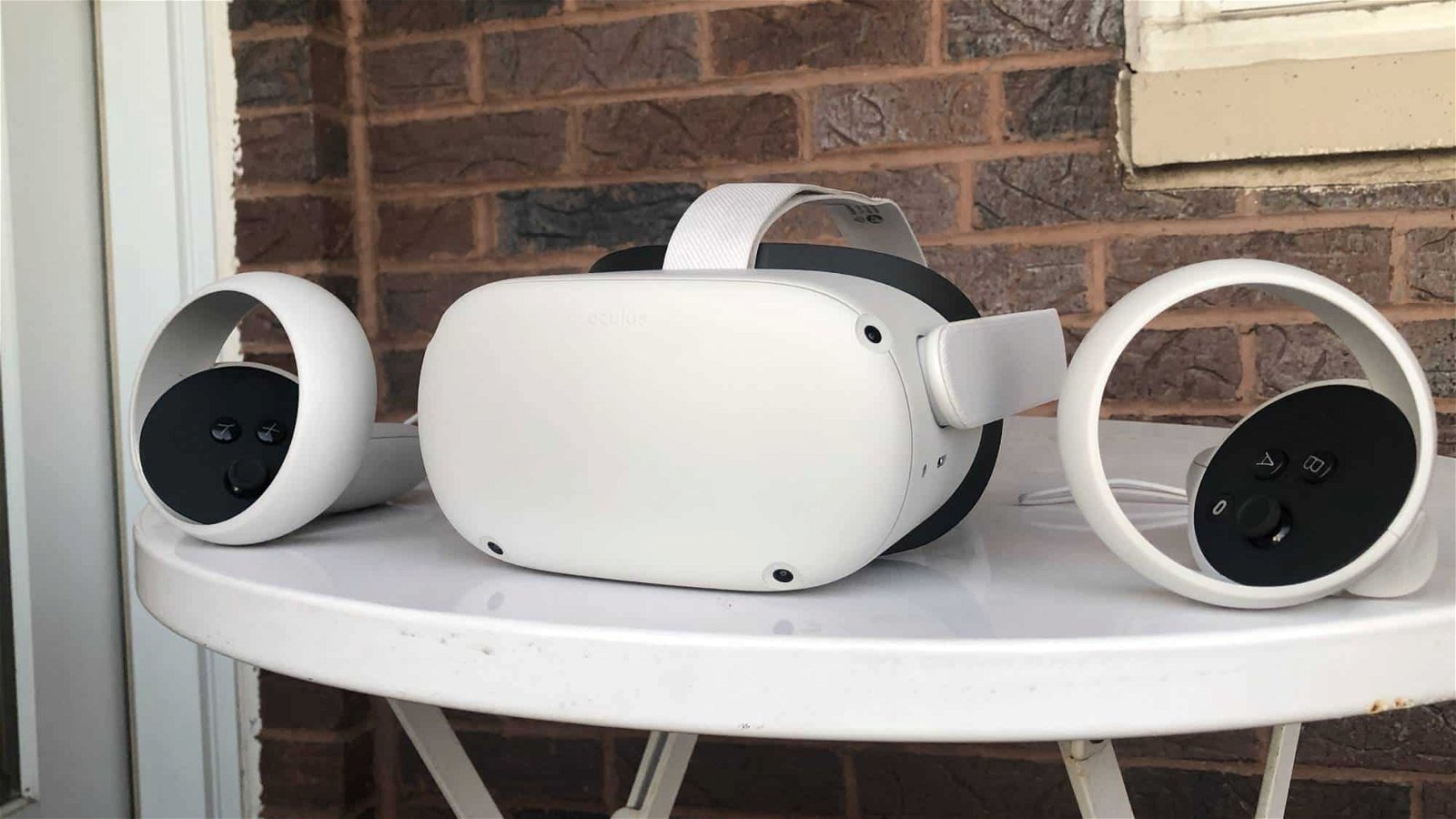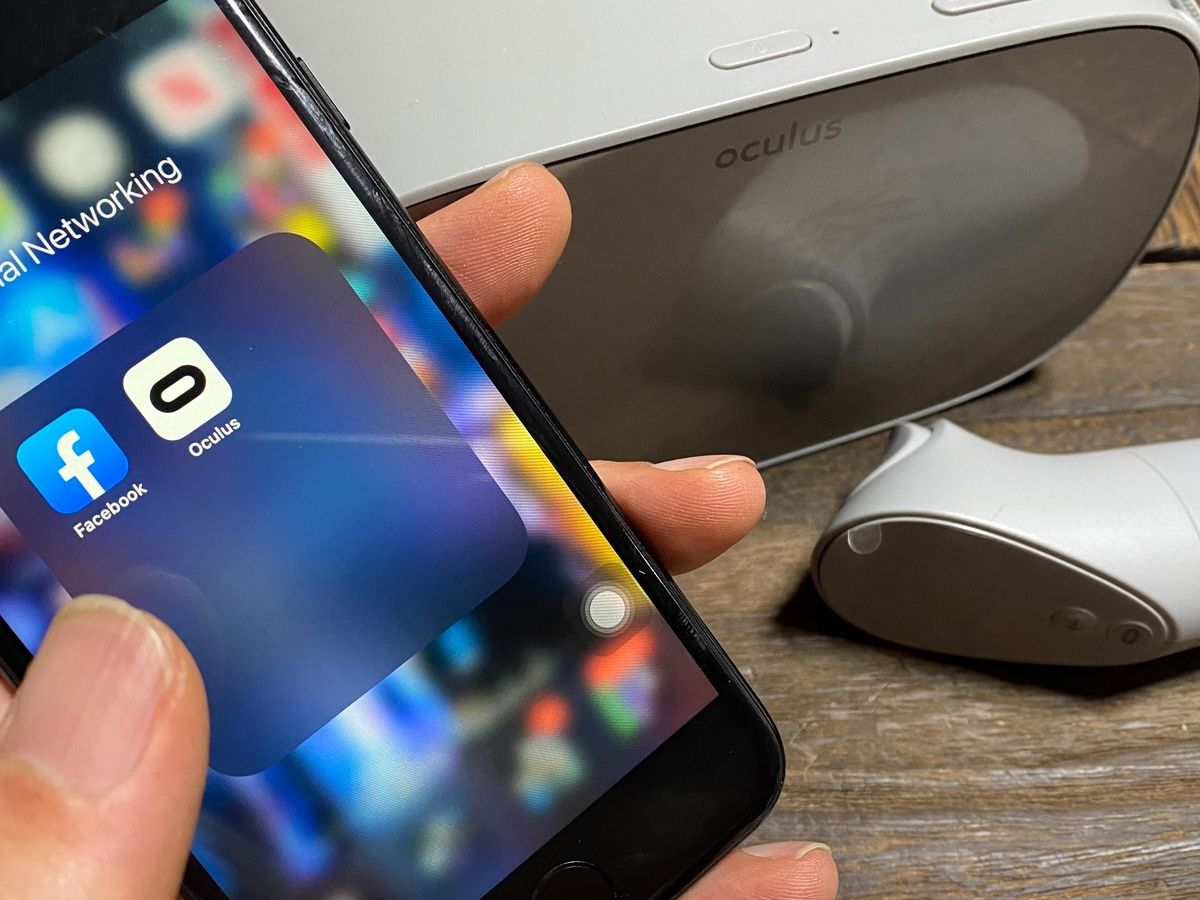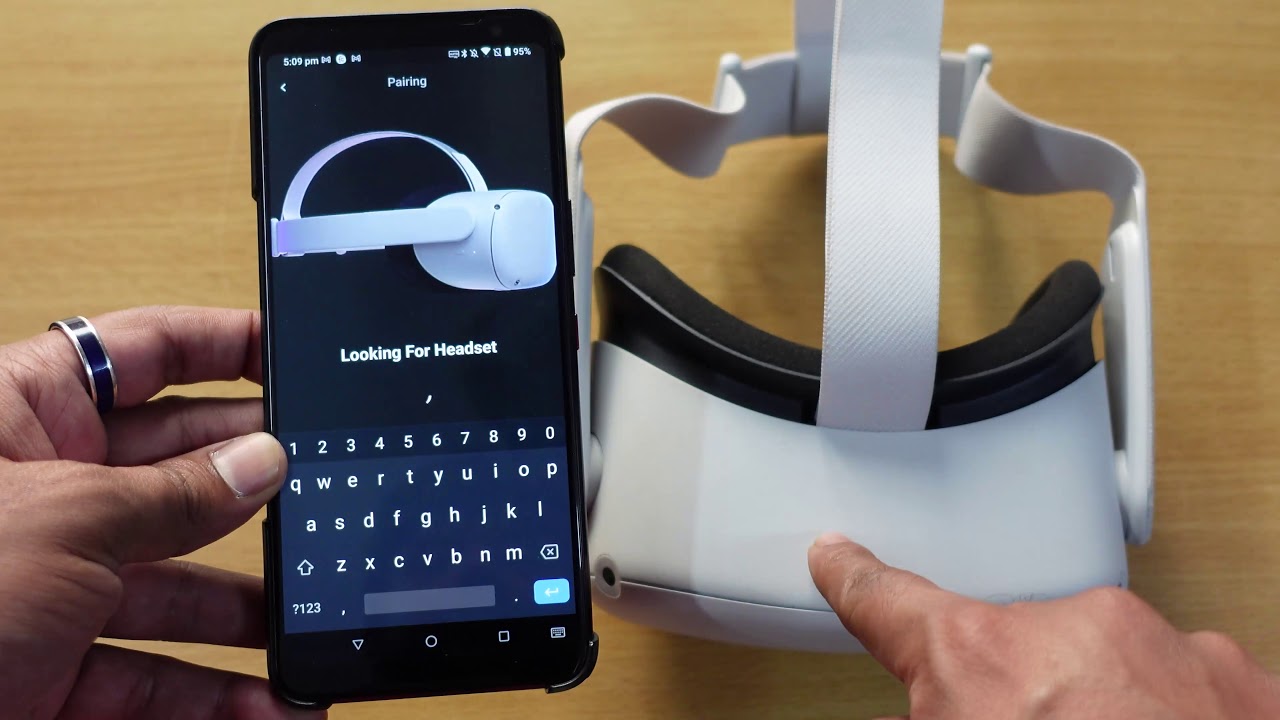
The Meta Horizon mobile app is the official companion for setting up your Meta Quest headset and managing VR content from your phone, not a standalone VR viewer. To watch Oculus on your phone means using this app to pair headset to Oculus app, browse the store, and download games and apps directly to your headset.
What the Meta Horizon mobile app does on your phone
The Meta Horizon mobile app replaces the older Oculus app and is designed to work with your Meta Quest headset for initial setup and ongoing content management. It does not turn your phone into a VR headset or let you play VR games on the phone screen alone. Some VR experiences offer the option to use your phone as a controller for Oculus, but this is not a primary function of the app. The app requires an iPhone running iOS 15.1 or later or an Android phone running Android 5.0 or later based on the current documented minimums.
Download and install the Meta Horizon mobile app
To get the app, open the Google Play Store on Android or the App Store on iPhone. Search for “Meta Horizon” and tap Install or Get. The App Store listing confirms the iPhone app requires iOS 15.1 or later. Once the download finishes, open the app to begin setup.
Connect your phone to Wi-Fi and turn on Bluetooth
Meta requires both Wi-Fi and Bluetooth to be active on your phone to use the mobile app for headset setup. Go to your phone’s settings, connect to a stable Wi-Fi network, and enable Bluetooth. Keep both on throughout the setup process.
Pair your Meta Quest headset with your phone
With the Meta Horizon mobile app open, follow the on-screen instructions to wirelessly connect your headset and phone. The app will guide you through the pairing process, which uses Bluetooth for the initial connection and Wi-Fi for ongoing communication. Meta’s documentation confirms that the phone must be on Wi-Fi and Bluetooth must be turned on, but the exact in-app menu steps for pairing are not fully detailed in the retrieved support pages.
Browse and install VR content from your phone
You can download and install apps and games from the Meta Horizon Store directly within the Meta Horizon mobile app. Alternatively, inside your headset, press the Meta button or Oculus button on the right controller to open the Navigator, select Meta Horizon Store, choose an app or game, then select the price to buy it or select Free if it is a free download. This lets you manage your VR library without needing to be in the headset.
Frequently Asked Questions
Does the Oculus app still exist?
Meta’s current support pages refer to the Meta Horizon mobile app as the official mobile companion. The separate Oculus app is no longer the active app for Meta Quest headsets.
What phones are supported for the Meta Horizon mobile app?
The documented minimum requirements are iPhone with iOS 15.1 or later and Android with Android 5.0 or later. Some older Meta support pages list iOS 12.4, but the current App Store listing and newer help pages specify iOS 15.1 or later.
Do I need Bluetooth to set up my headset with the phone app?
Yes, Meta states that Bluetooth must be turned on for headset setup using the Meta Horizon mobile app. Wi-Fi is also required for the setup process.
Can I install apps from the Meta Horizon mobile app?
You can also install content from the store inside the headset itself.
Can I use my phone as a controller for Oculus?
Can I play VRchat on phone using the Meta Horizon app?
The Meta Horizon mobile app does not let you play VRchat on phone as a standalone VR experience. It is a companion app for headset setup and content management. To play VRchat on phone in a VR environment, you must use a compatible Meta Quest headset paired with the app.