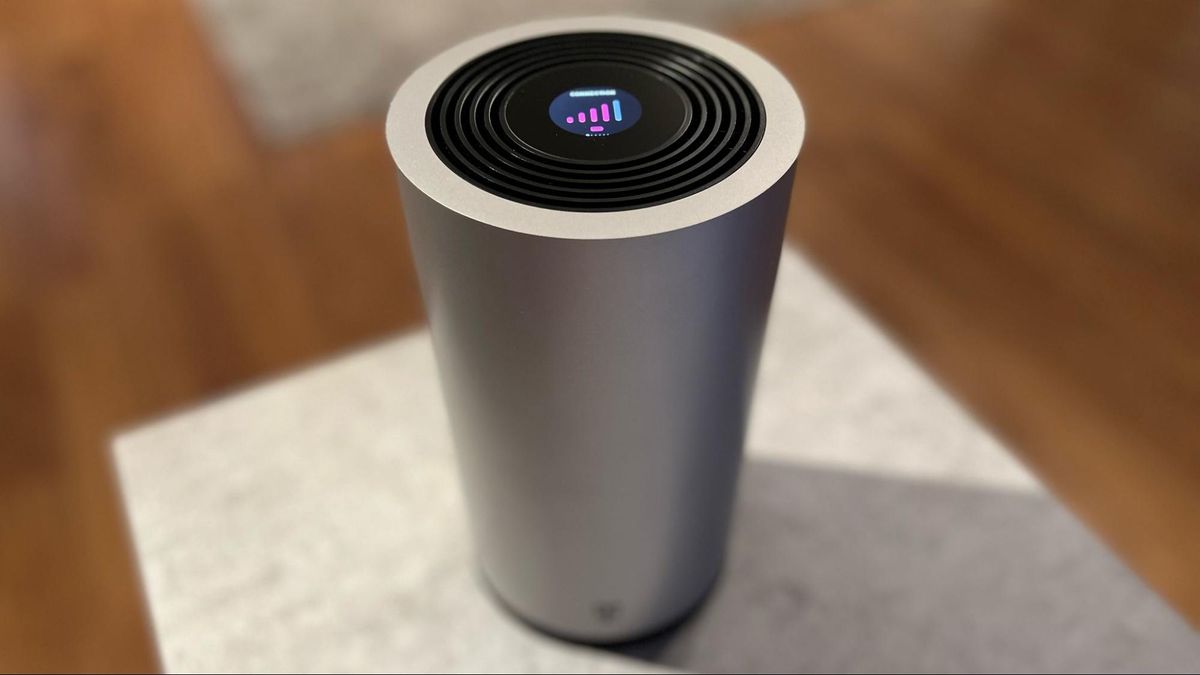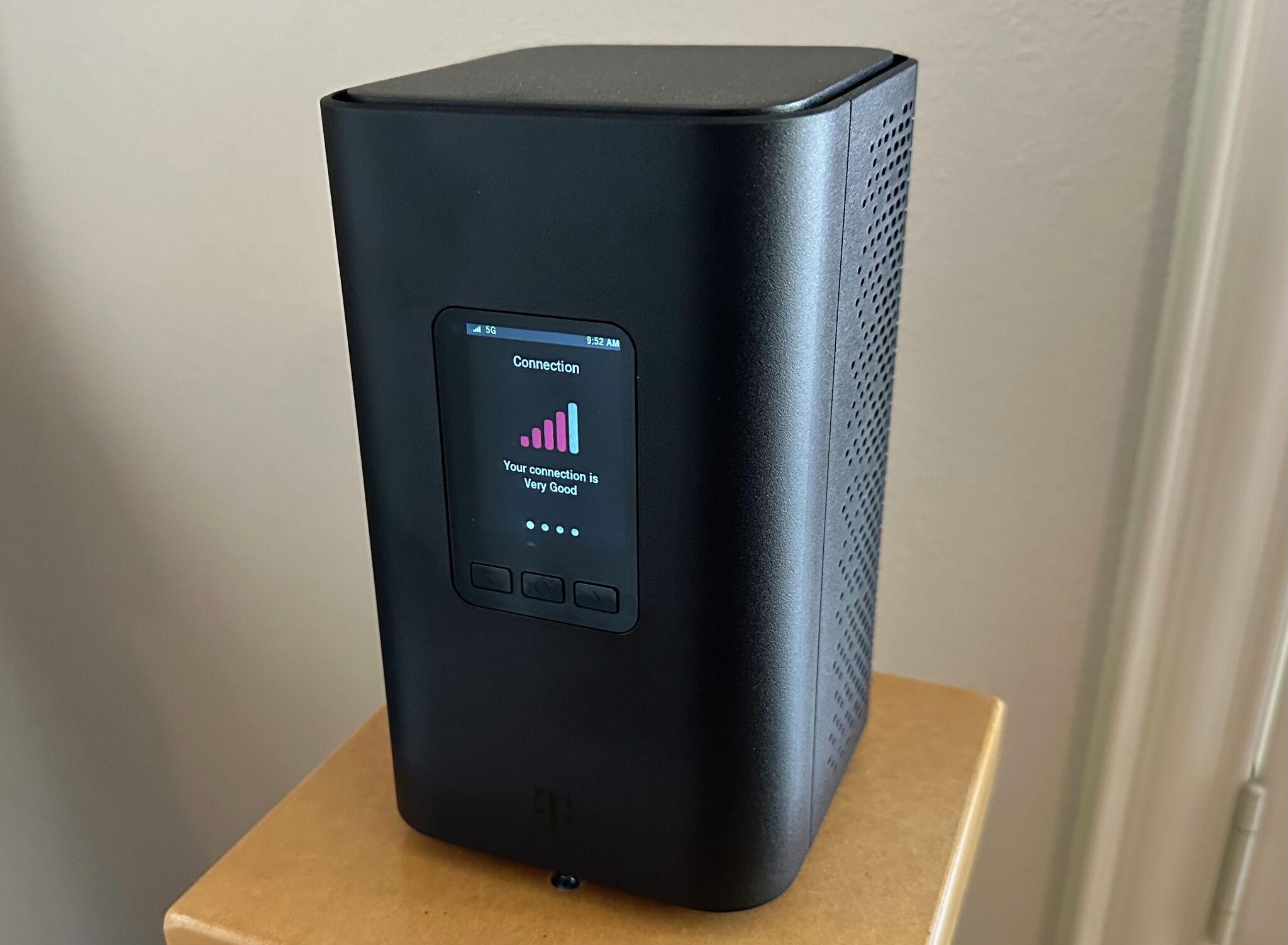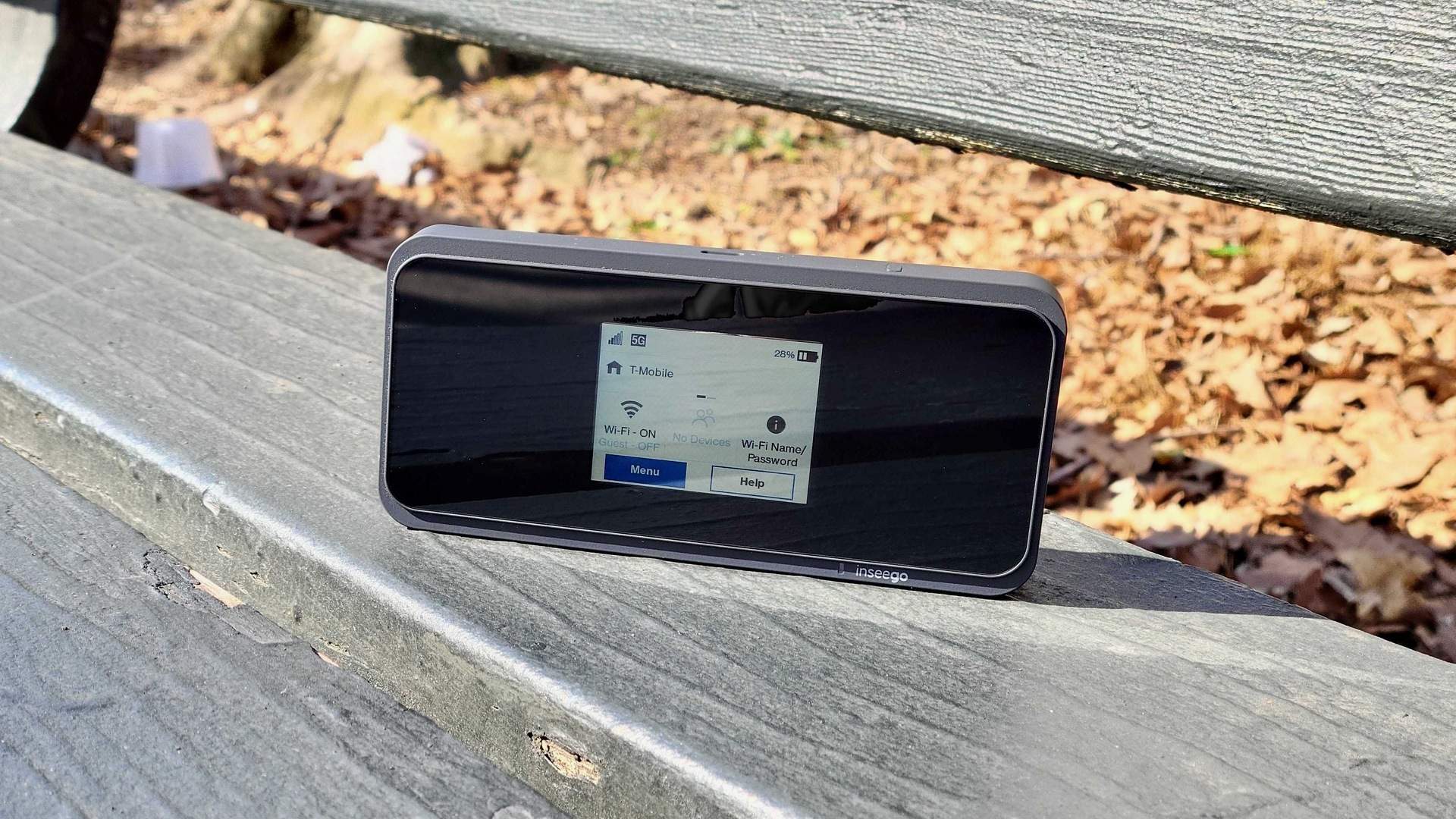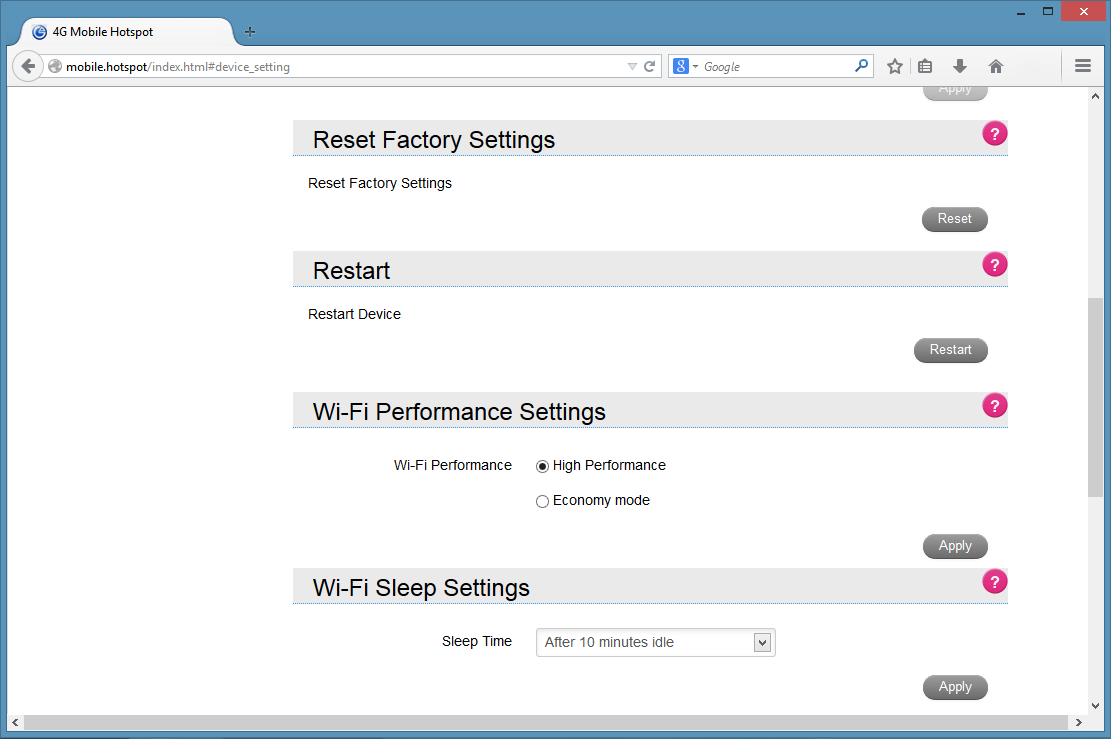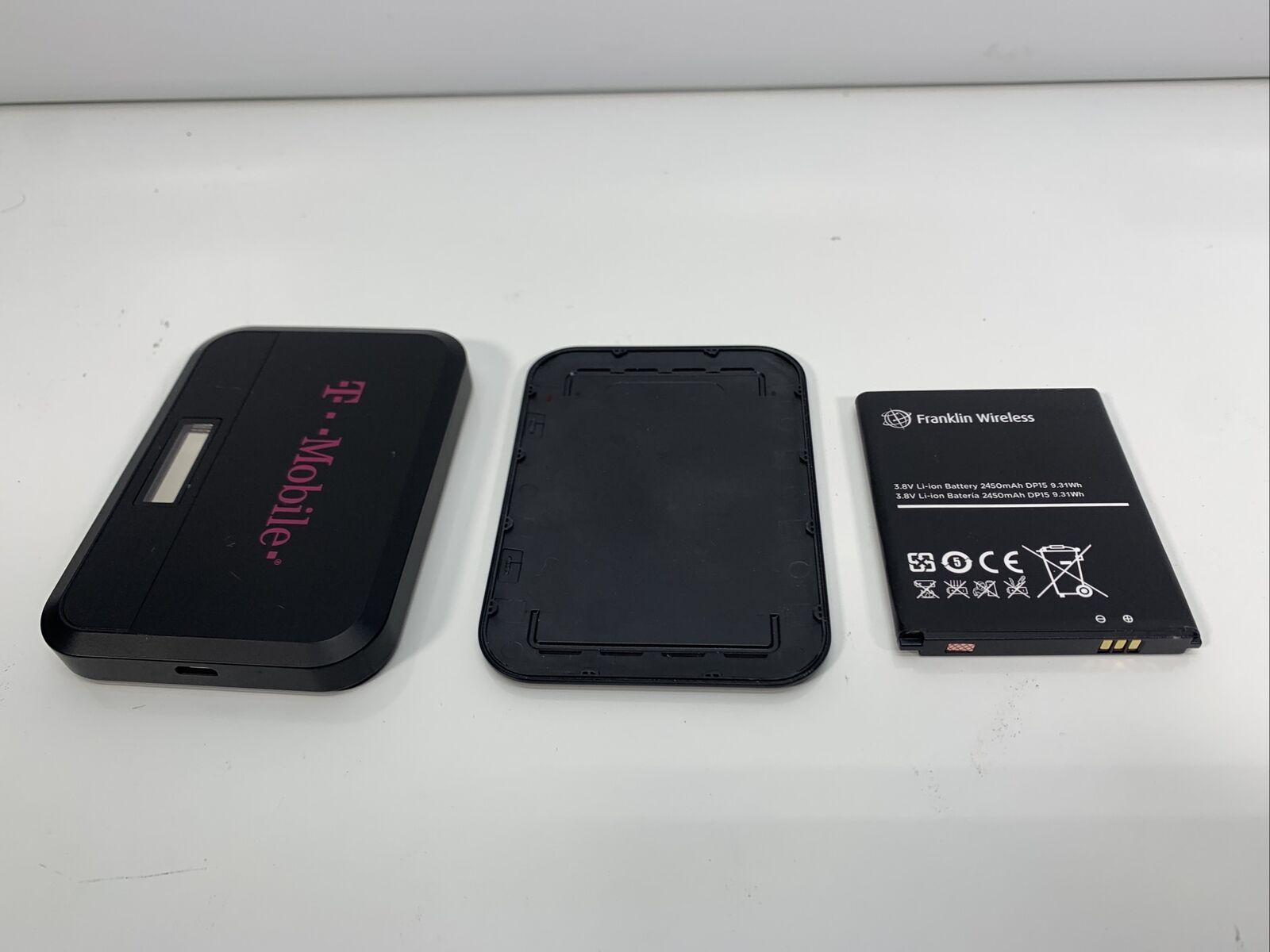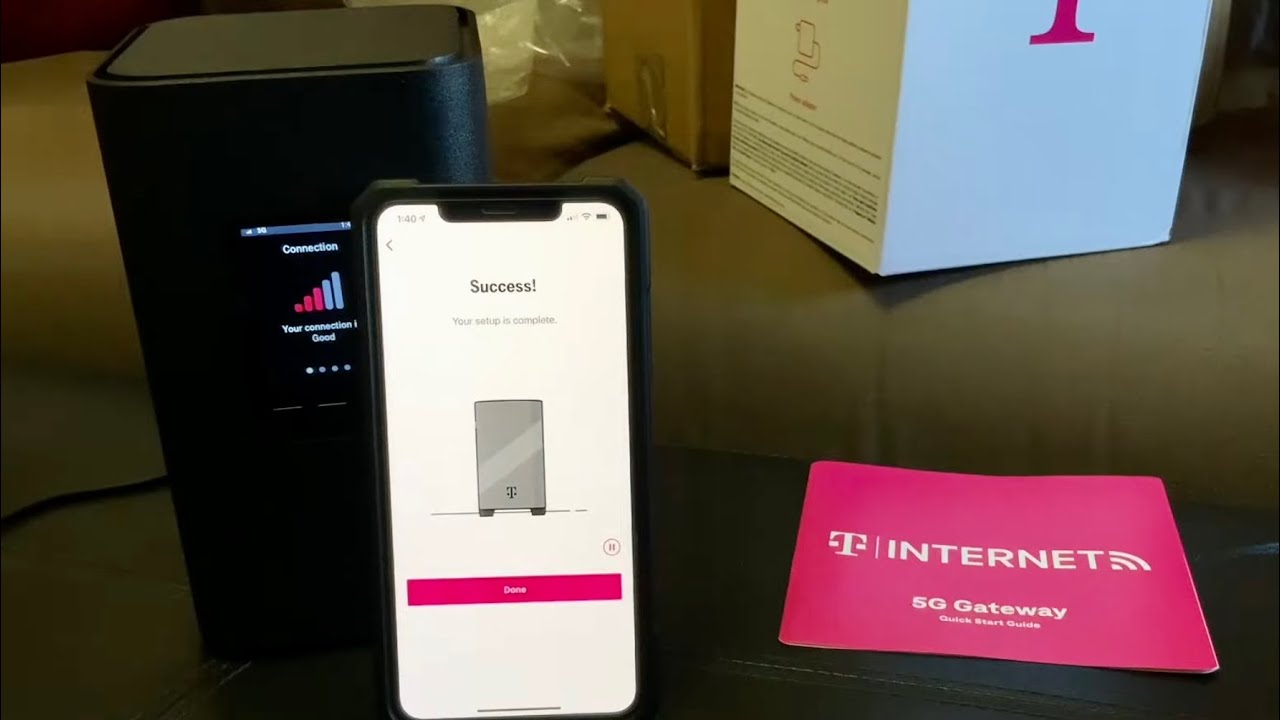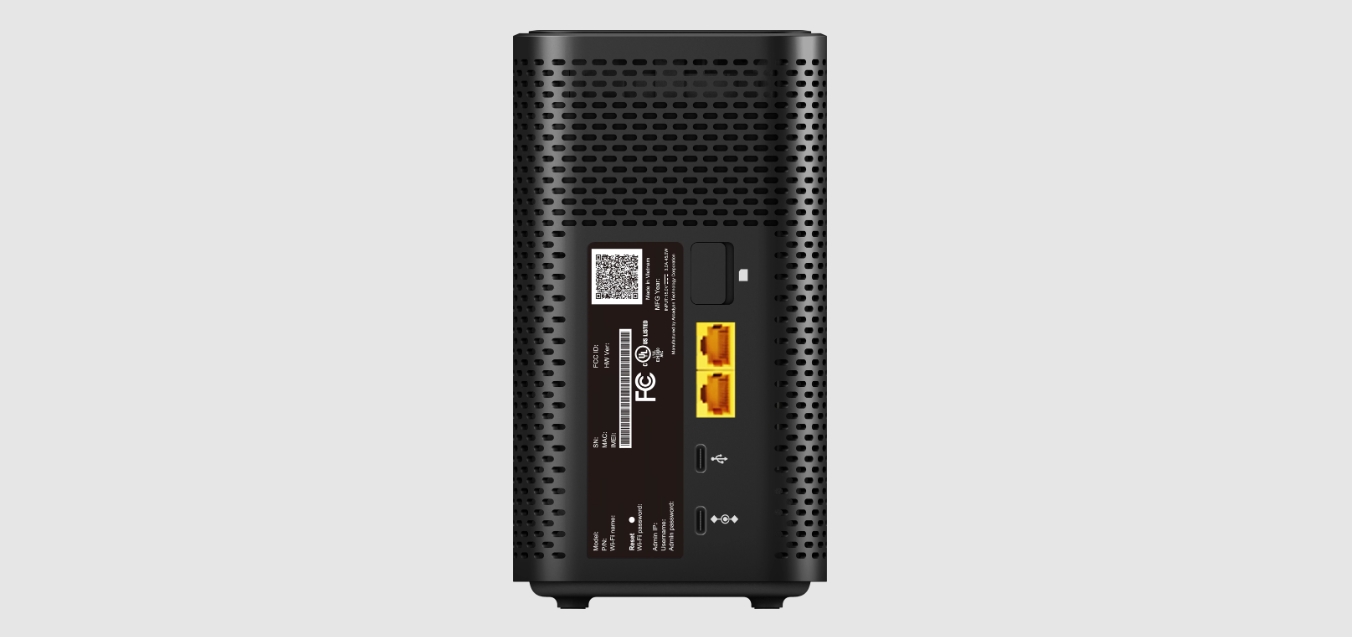
To reset T-Mobile 5G gateway, press and hold a paperclip in the Reset port on the back of the device for 5 to 10 seconds, depending on your model. This factory reset will erase all custom settings, including Wi-Fi names, passwords, and any other configuration changes, and restore the gateway to its original out-of-box state.
How to reset T-Mobile 5G gateway: what you need to know
A factory reset is the most effective way to fix persistent connectivity problems or return your gateway to default settings. This process applies to all T-Mobile 5G Gateway models, including the Nokia 5G21, Arcadyan KVD21, Sagemcom Home Internet Gateway, and the G4AR/G4SE and G5AR/G5SE units. The critical warning: every custom setting you have made since setup will be permanently erased, so you must be prepared to reconfigure the device afterward.
Before you begin
Before performing a factory reset, take these preparatory steps to avoid losing important configurations:
- Back up any settings you have customized, such as Wi-Fi network names and passwords, port forwarding rules, or parental controls.
- Note your custom configurations on paper or in a text file so you can easily re-enter them after the reset.
- Disconnect all devices connected to the gateway, computers, smartphones, gaming consoles, and smart home equipment, since the reset will temporarily disconnect everything.
- Understand that reset methods differ by model: the physical button works on all supported gateways, but only the Nokia 5G21 additionally documents a web-interface factory reset path.
Reset T-Mobile 5G gateway using the physical reset button
This method works for every T-Mobile 5G Gateway model and is the most reliable way to perform a factory reset when you cannot access the web interface.
- Locate the Reset port on the back of the gateway. It is a small, recessed hole.
- Insert a paperclip into the Reset port and hold it firmly.
- Hold the paperclip for the duration specified for your model:
- G4AR/G4SE and G5AR/G5SE: 5 seconds
- Nokia 5G21: 5-10 seconds
- Arcadyan KVD21 and Sagemcom: Follow the same button-hold method; T-Mobile documents the Reset port for these models with hold times consistent with the 5G Gateway pages.
- Older LTE Wi‑Fi Gateway: 4+ seconds for factory restore.
- Remove the paperclip when the gateway indicates the reset is starting. On models with an LCD screen, such as the Nokia 5G21, the display will show “Release button to restart” before the device reboots.
- Wait for the gateway to restart and complete the reset process. The lights or LCD will stabilize when finished.
Reset T-Mobile 5G gateway using the web interface
This method is documented only for the Nokia 5G21 Gateway. If you own that model and prefer a software-based reset, use these steps:
- Ensure your computer or mobile device is connected to the same network as the gateway.
- Open a web browser and enter the gateway’s IP address (typically 192.168.1.1) into the address bar.
- Log in with your gateway credentials (default credentials are usually printed on the device sticker).
- Navigate to System > Factory Reset.
- A warning will appear stating that network-related data will be deleted. Select Yes to continue.
- The LCD will display “Factory reset is ongoing.” When complete, you will be prompted to download the T-Life app.
- After the reset, swipe left on the LCD to the Connection screen and select Refresh on the web GUI screen to restore connectivity.
For those gateways, use only the physical reset button method.
What about the T-Life app?
The T-Life app does not support a factory reset. It only documents a restart (reboot) function. To restart your gateway from the app, go to the Overview screen and select Restart your gateway. This is a normal reboot that does not erase any settings. If you need to perform a full factory reset, you must use the physical Reset port or the web interface (Nokia 5G21 only).
Frequently Asked Questions
Is the reset method different by model?
Yes. All supported models, Nokia 5G21, Arcadyan KVD21, Sagemcom, G4AR/G4SE, and G5AR/G5SE, can be reset using the physical Reset port. However, only the Nokia 5G21 page documents an additional factory reset option via the web interface at System > Factory Reset.
How long should I hold the reset button?
Hold times vary by model and source. The G4AR/G4SE and G5AR/G5SE pages specify 5 seconds. The Nokia 5G21 page says 5-10 seconds. An older LTE Wi‑Fi Gateway guide lists 4+ seconds. For best results, hold the paperclip until the gateway’s lights or LCD indicate the reset has started.
Does the T-Life app support factory reset?
No. The retrieved T-Mobile support page for the T-Life app documents only Restart your gateway from the Overview screen, which is a reboot, not a factory reset. A full reset requires the physical button or web interface.
What happens to my settings after a factory reset?
All configuration changes made since setup are deleted, including Wi-Fi network names and passwords, port forwarding rules, and any custom security settings. The gateway returns to its default factory state, and you must set it up again as if it were new.
Can a factory reset improve T-Mobile home internet speed?
Resetting alone may not directly improve speed, but it can resolve configuration errors or software glitches that cause slow performance. If you consistently experience slow speeds after a reset, contact T-Mobile support for further troubleshooting.
How many devices can connect to T-Mobile home internet after a reset?
The factory reset does not change the device limit; it restores the default limit set by T-Mobile for your gateway model. After reset, you will need to reconnect all devices and may need to check your gateway’s settings for any connection limits.
For the wider topic, see reset T-Mobile 5G home internet.