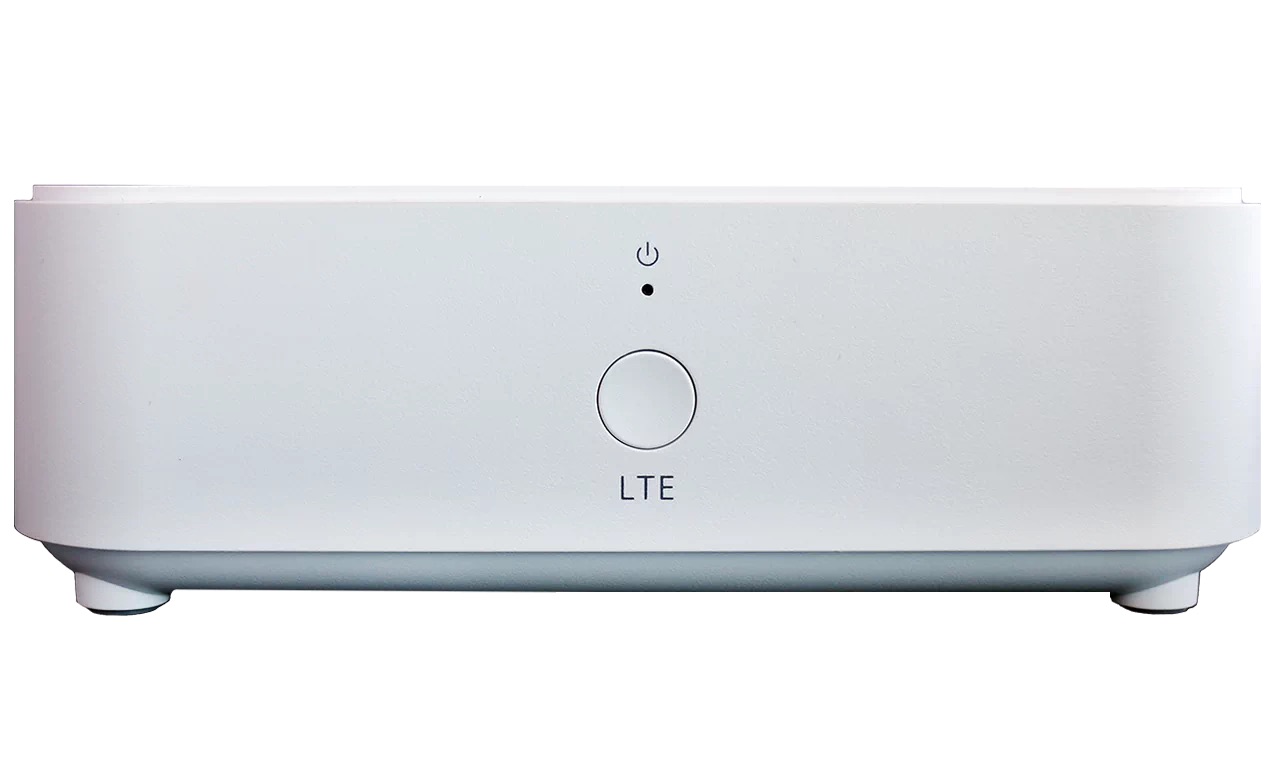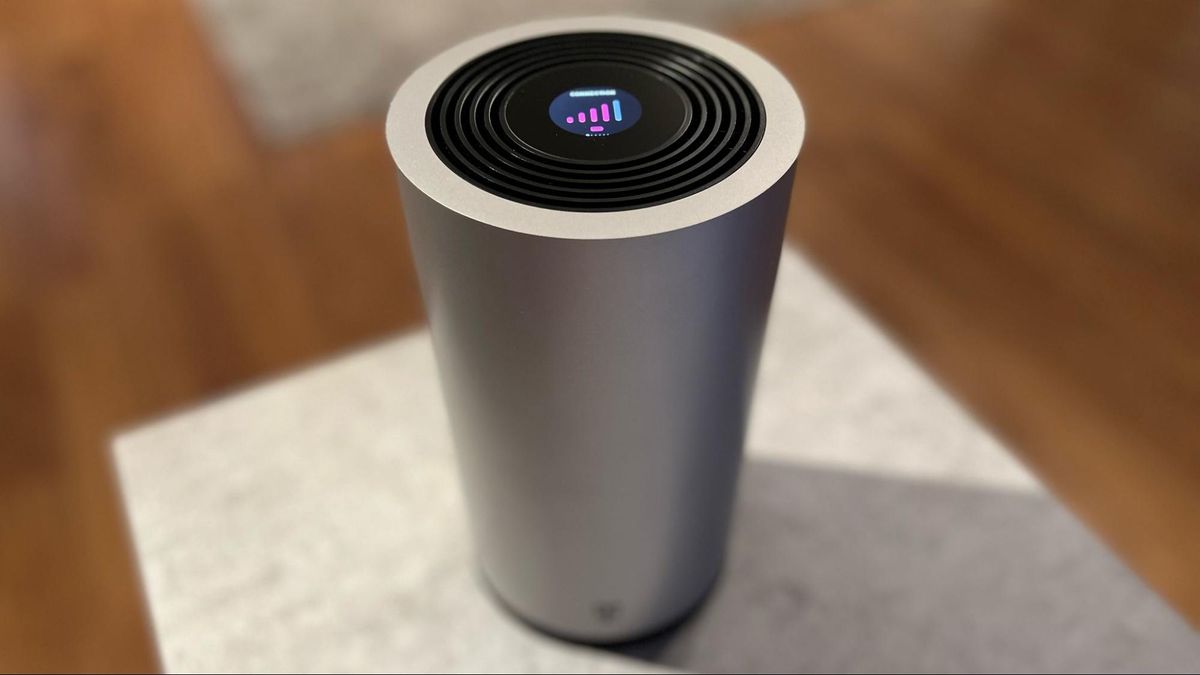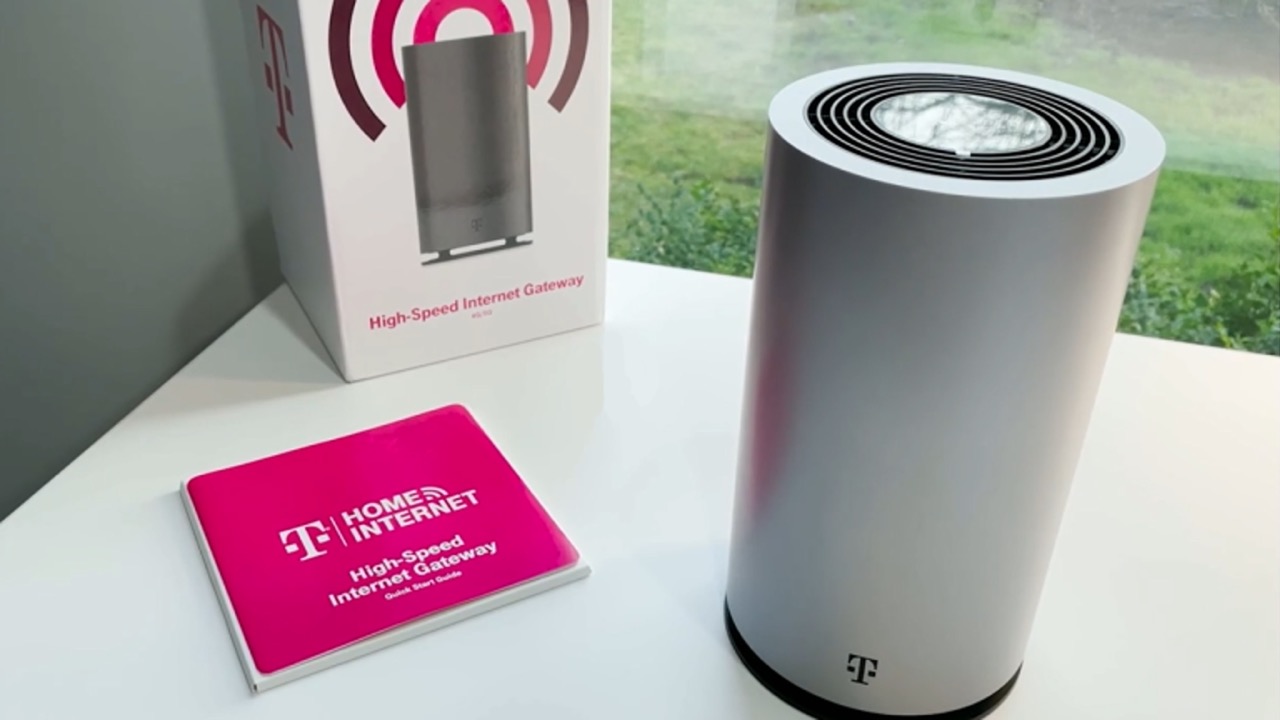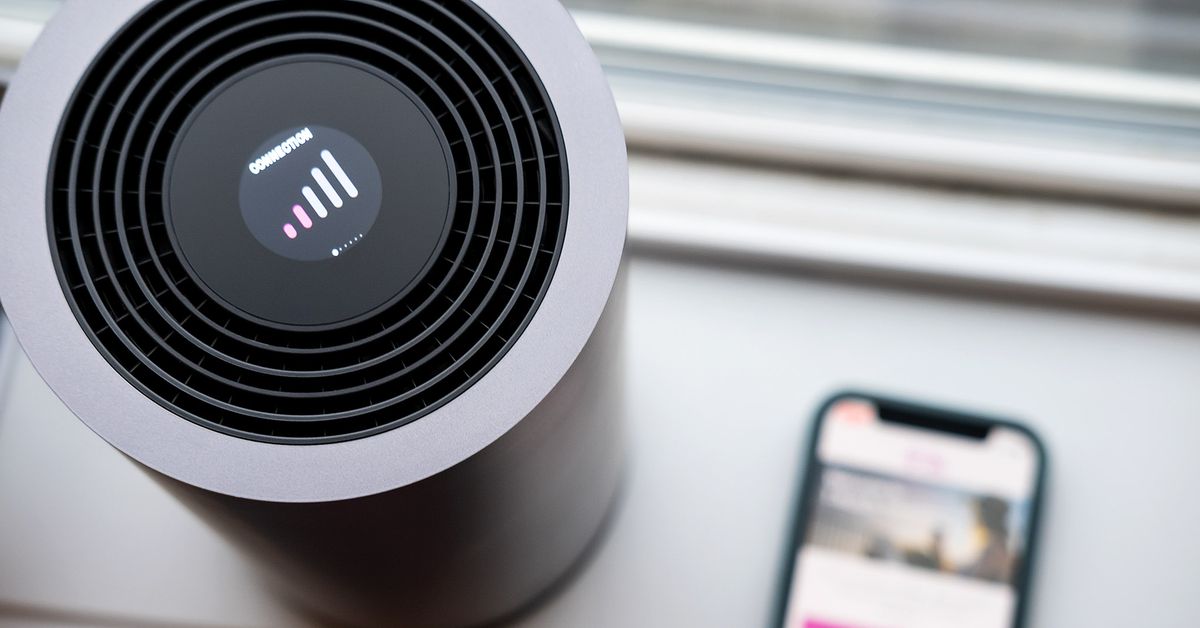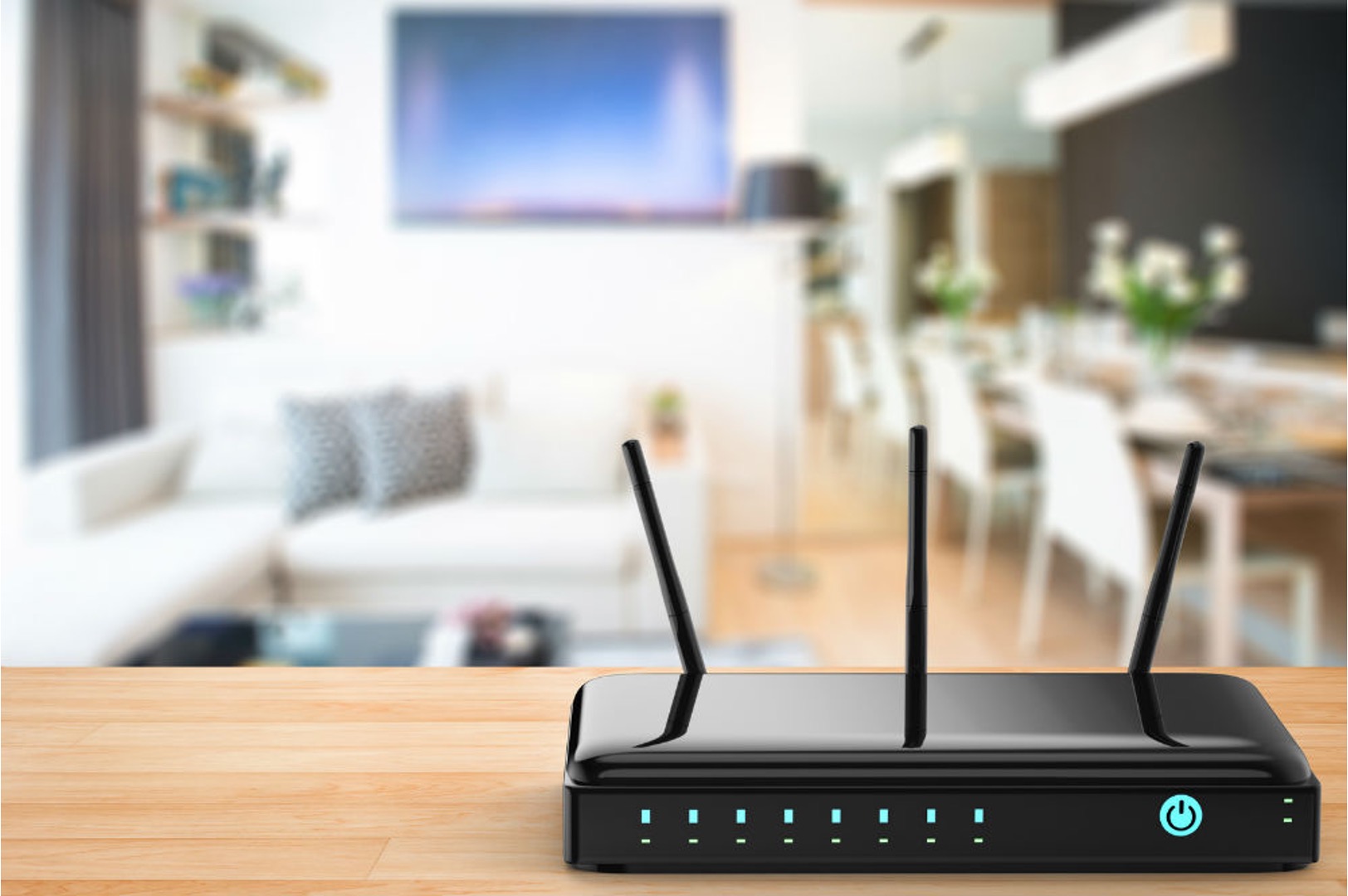
Most T-Mobile Home Internet gateways do not have a physical WPS button, while some T-Mobile mobile hotspots do. If you are searching for a T-Mobile router WPS button, your first step is to identify which type of device you have.
Does my T-Mobile router have a WPS button?
The answer depends entirely on whether you have a T-Mobile Home Internet gateway or a T-Mobile mobile hotspot. Most T-Mobile Home Internet gateways, such as the 5G Gateways (including models like the KVD21, G4SE, G5AR, G5SE, Sagemcom Fast 5688W, and Nokia 5G21), do not have a physical WPS button. In contrast, some T-Mobile mobile hotspots, such as the MiFi® X PRO 5G, do offer WPS functionality, either through a physical button or their web user interface.
How to connect without a WPS button on a T-Mobile gateway
Since most T-Mobile Home Internet gateways lack a WPS button, you must connect devices manually. This is the most common scenario for T-Mobile users.
- Locate the Wi-Fi network name (SSID) and password. These are printed on a sticker on the bottom or back of your gateway.
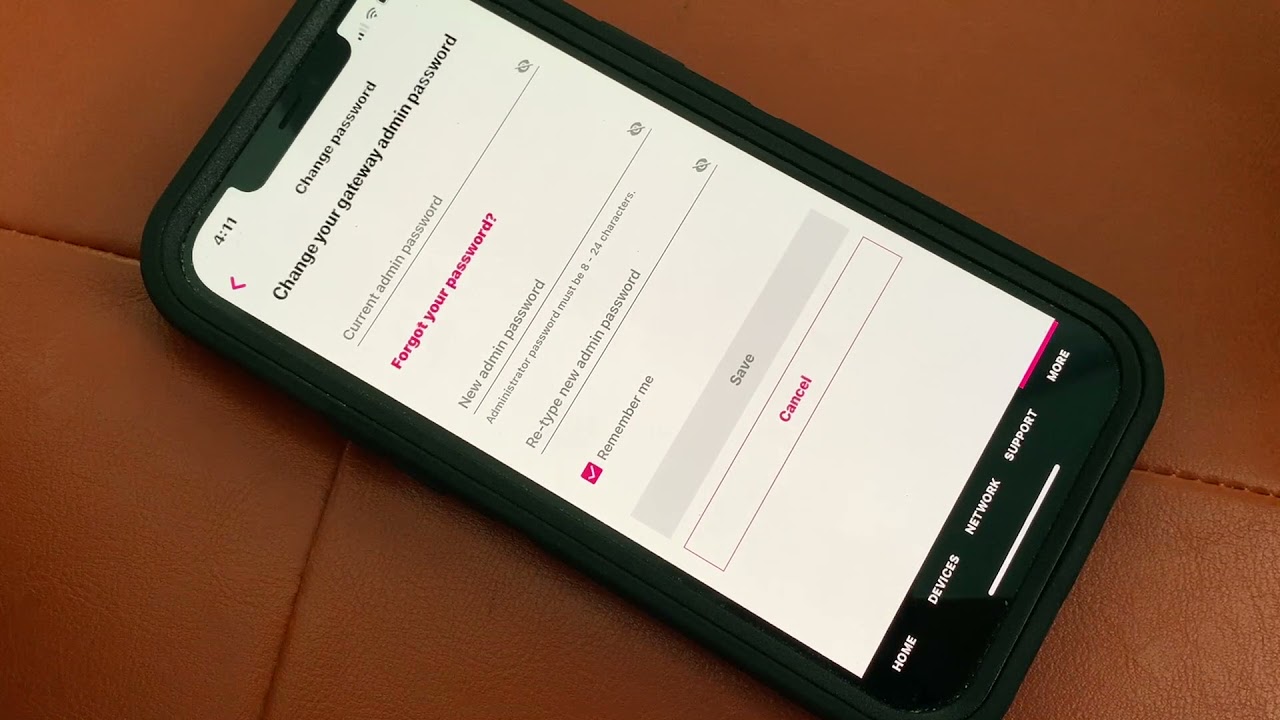
- Alternatively, open the T-Life app on your phone to view and manage your Wi-Fi network name and password. This is a convenient method for managing wireless passwords.
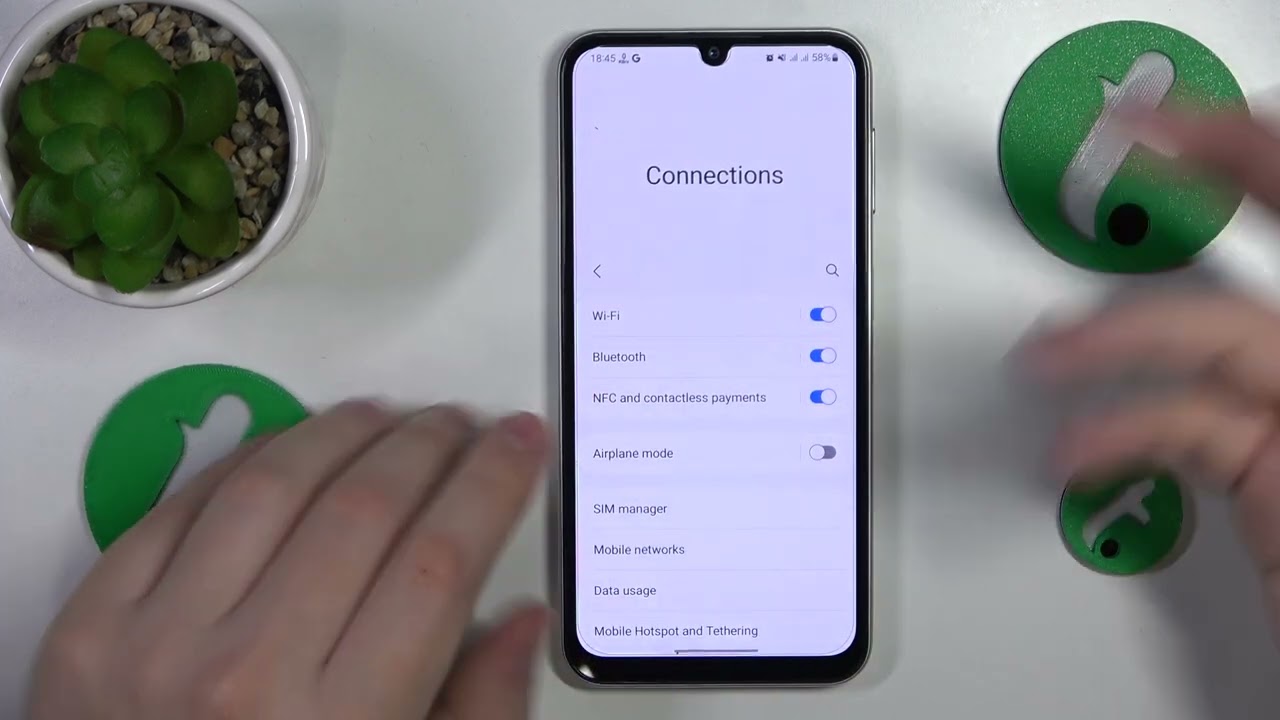
- On the device you want to connect (phone, tablet, or computer), open the Wi-Fi settings.
- Select your T-Mobile Wi-Fi network (SSID) from the list.
- Enter the Wi-Fi password when prompted, and the device will connect.
How to use the WPS button on a T-Mobile mobile hotspot
If you have a compatible T-Mobile mobile hotspot, such as the MiFi® X PRO 5G, a physical WPS button may be present. It is often located on the bottom of the device and labeled "WPS." For some T-Mobile Mobile Hotspots, a WPS button may be located on the bottom of the device and needs to be pressed and held for about 5 seconds to initiate connection. In some T-Mobile router models, the WPS button may be integrated with other functionalities, such as the reset button or the Wi-Fi on/off switch.
- Ensure the hotspot is powered on and operational.
- Press and hold the WPS button on the hotspot for about 5 seconds to initiate the connection process.
- On the device you want to connect (phone, tablet, or laptop), activate WPS mode.
- The hotspot and device will communicate to establish a secure connection. The WPS LED indicator on the hotspot may blink or change color during this process.
- Once the connection is successful, the device will be connected to the hotspot's Wi-Fi network without needing to enter a password.
How to use WPS via the hotspot web interface
For T-Mobile mobile hotspots that support WPS but may not have a physical button, or as an alternative method, you can use the web interface.
- Connect a device to the hotspot's Wi-Fi network (you may need the password from the device sticker).
- Open a web browser and go to
http://mobile.hotspotto access the WebUI Manager. - Navigate to the Wi-Fi settings section.
- Find the WPS option and select "Start WPS" or choose to use a PIN code method.
- Follow the on-screen instructions to complete the connection with your device.
Troubleshooting WPS connection issues on a hotspot
If you are using a T-Mobile mobile hotspot and encounter problems with WPS, check these common issues.
- Check if WPS is enabled: Ensure the WPS feature is turned on in the hotspot's settings. This can be confirmed via the WebUI Manager at
http://mobile.hotspot. - Ensure the device is in range: The device you are trying to connect must be within the hotspot's wireless signal range. Physical obstructions or interference from other electronics can disrupt the WPS process.
- Understand the WPS LED indicator: The WPS LED on the hotspot provides visual feedback. If it does not light up or respond when you press the button, the WPS feature may be disabled or there may be a hardware issue. Restart the hotspot and try again.
- If the WPS button fails to initiate the connection process, confirm that the device attempting to connect supports WPS functionality.
- If the WPS connection yields inconsistent results, verify that there are no physical obstructions or interference sources, such as other electronic devices, hindering the WPS communication.
- Some older WPS implementations may be susceptible to security breaches, prompting users to consider alternative connection methods, such as manual Wi-Fi password entry, to mitigate potential risks.
- Older devices may exhibit compatibility issues when attempting to establish a WPS connection; consider updating the device's firmware or seeking alternative connection methods.
Frequently Asked Questions
Can I disable the WPS feature on my T-Mobile hotspot for security reasons?
Yes, you can typically disable WPS through the hotspot's web interface (WebUI Manager) at http://mobile.hotspot. Disabling it can enhance security by removing a potential attack vector.
Can I disable the WPS feature on my T-Mobile router for security reasons?
Yes, you can typically disable WPS on your T-Mobile router using the router's web interface or management app.
What should I do if I can't find the WPS button on my T-Mobile mobile hotspot?
If you cannot locate a physical WPS button, refer to the device's user manual or check the web interface at http://mobile.hotspot. The WPS functionality may be available only through the software settings, not a physical button.
Are there alternative methods to connect devices to my T-Mobile gateway if it doesn't have a WPS button?
Yes. Since T-Mobile Home Internet gateways generally do not have a WPS button, you must connect devices manually using the Wi-Fi network name (SSID) and password. These are found on the sticker on the device or in the T-Life app.
Related reading: How To Turn Off T-Mobile Home Internet WiFi.