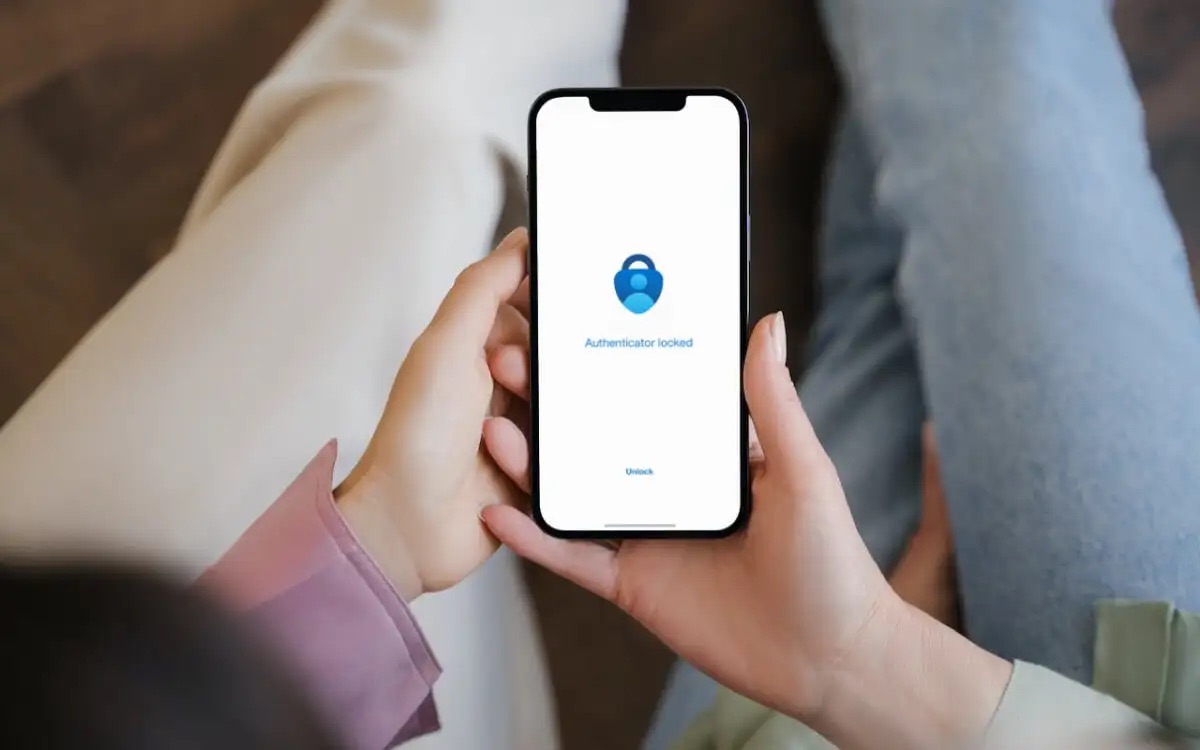
To set up Microsoft Authenticator on a new phone, you must first enable cloud backup on your old device, then sign in with the same personal Microsoft account on the new phone to restore your accounts. This process transfers your two-factor authentication codes, ensuring you can securely sign in to your accounts without needing to reconfigure each one manually.
Before you begin: Prepare your old phone
The crucial prerequisite of enabling cloud backup on the old phone ensures your accounts can be restored on the new device. Without this step, you will need to set up each account from scratch.
- On your old Android phone, open the Microsoft Authenticator app, tap the three vertical dots (menu) or three horizontal lines, select "Settings," and turn on "Cloud Backup." You must select a personal Microsoft account where the backup will be stored.
- On your old iPhone, open the Microsoft Authenticator app, go to "Settings," and turn on "iCloud Backup." Ensure iCloud Drive, iCloud Keychain, and Authenticator backup are enabled in your Apple Account settings under iCloud > Saved to iCloud.
- If your cloud backup on the old phone is outdated, disable and then re-enable cloud backup to force a fresh backup.
How to set up Microsoft Authenticator on your new phone
Installing the app on the new phone and initiating the account recovery process by signing in with the same personal Microsoft account will restore your accounts automatically.
- On your new phone, install the Microsoft Authenticator app from the Google Play Store (Android) or Apple App Store (iOS).
- To transfer accounts from the old phone, open the Microsoft Authenticator app on the old phone, navigate to the account, tap it, look for 'Transfer accounts', and a QR code will appear. On the new phone, tap 'Add account' and select 'Scan QR code' to scan the code from the old phone.
- Open the Authenticator app on your new phone and select "Begin recovery" or "Already have a backup? Sign in to your recovery account."
- Sign in with the same personal Microsoft account you used for the backup on your old phone.
- Your accounts will automatically be restored in Microsoft Authenticator on your new device.
Finalizing your account transfer
Post-recovery steps ensure all accounts work correctly and your old phone is no longer active.
- For work or school accounts and passwordless sign-in Microsoft accounts, you will need to sign in again after restoration to fully re-activate them on the new phone.
- Passkeys are handled separately from Authenticator account backup. If a passkey was saved only to the old phone, you need to add a new passkey for the new phone via aka.ms/mysecurityinfo.
- Keep your old phone until you confirm that you can sign in to all your accounts from the new phone.
- After transferring, it is recommended to remove the accounts from your old phone to prevent notifications from going to that device.
Troubleshooting common transfer problems
Solutions for verified issues such as cross-platform restoration failures, outdated app versions, and being locked out of a work account.
- Cross-platform restoration failures: Authenticator backups can only be restored on the same device type (iOS to iOS, Android to Android). Cross-platform restoration is not supported. If you are switching from Android to iOS or vice versa, you must set up each account manually on the new phone.
- Outdated app versions: Microsoft Authenticator app versions older than 12 months are not supported. Update the app on both your old and new phones before attempting a transfer.
- Locked out of a work account: If you are completely locked out of a work or school account, contact your IT administrator to reset your Multi-Factor Authentication (MFA).
- If you encounter persistent issues, try clearing the cache and data of the Microsoft Authenticator app via your phone's app settings.
Frequently Asked Questions
How do I set up Microsoft Authenticator on a new phone if I no longer have my old device?
If you no longer have your old phone and did not enable cloud backup, you cannot restore your accounts. You must set up each account individually by signing into the service and re-adding the Authenticator app as a verification method. For work or school accounts, contact your IT administrator to reset your MFA settings.
Can I use Microsoft Authenticator on multiple devices simultaneously?
Yes, you can use Microsoft Authenticator on multiple devices simultaneously. When setting up the app on each device, add the same accounts and follow the necessary verification steps. This allows you to generate authentication codes on any device where the app is installed.
How do I set up Duo Mobile on a new phone?
If you need to set up Duo Mobile on a new phone, the process is similar: enable backup in the Duo Mobile app on your old device, install Duo Mobile on the new phone, and restore from backup using the same method. Cross-platform restoration for Duo Mobile also requires same-device-type transfers.
What should I do if I see "invalid code" when signing in with Microsoft Authenticator?
Ensure the date, time, and time zone are correctly set on your new phone. Incorrect time settings cause the app to generate incorrect verification codes. If the problem persists, generate a new code and try again.
Can I transfer accounts from Microsoft Authenticator to a different authenticator app?
No, Microsoft Authenticator backups are proprietary and can only be restored within the Microsoft Authenticator app. To move accounts to a different app, you must set up each account manually by scanning the QR code provided by each service.
If you don't have the QR code or code for your accounts, you may need to contact your IT administrator or the service provider for assistance.