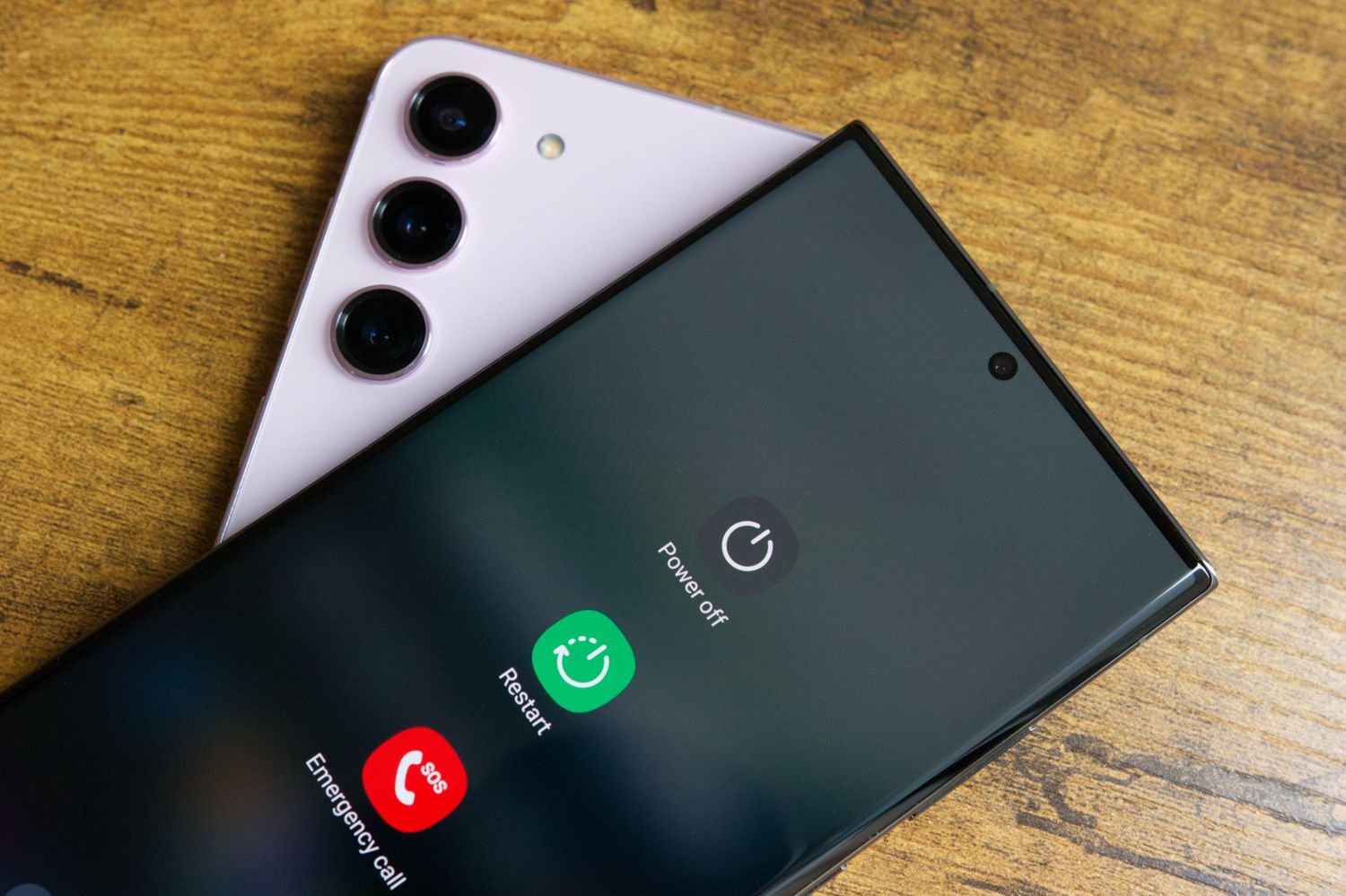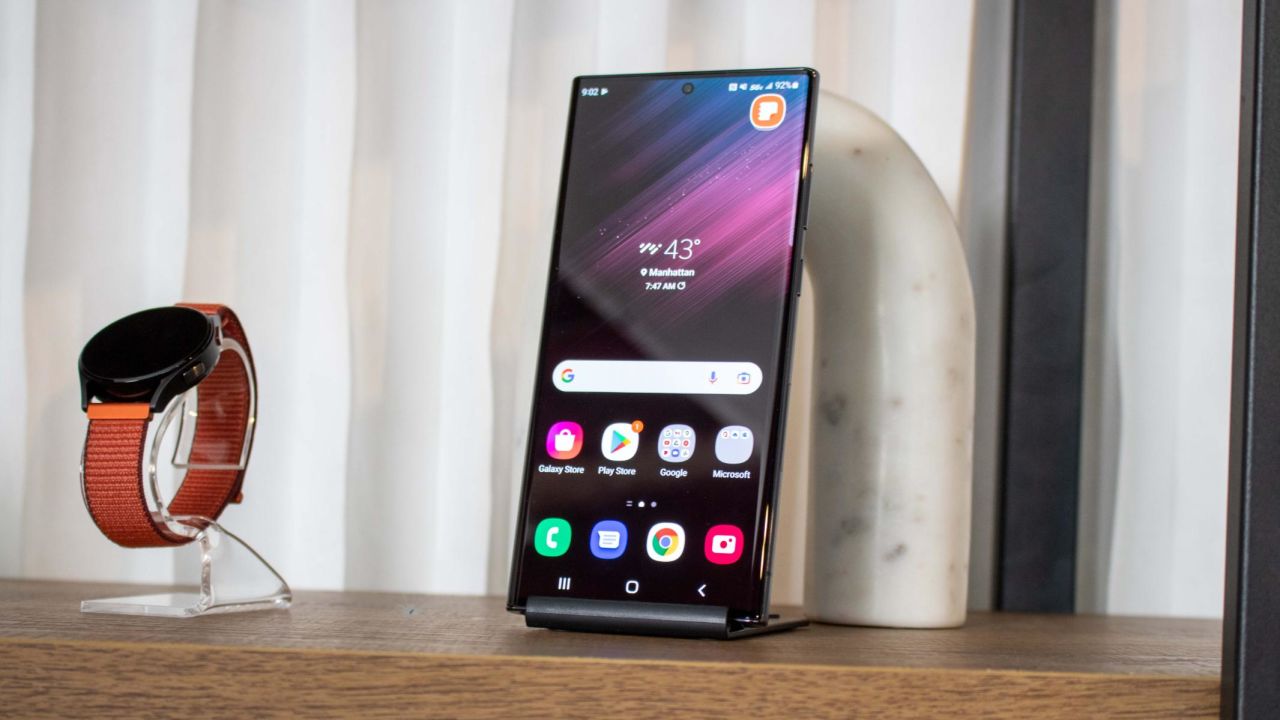
To turn off a Samsung Galaxy phone, press and hold the Side and Volume down buttons simultaneously, then tap Power off twice to confirm. If your model has a dedicated Power button, press and hold it until the Power menu appears, then tap Power off twice. This covers the standard shutdown for all current Galaxy devices, whether you're powering your phone on and off for the day or troubleshooting an issue.
How to Turn Off a Samsung Galaxy Phone With the Side Key
On most recent Samsung Galaxy phones without a dedicated Power button, the shutdown sequence uses the Side key and the Volume down button together. This is the primary method documented by Samsung for models like the Galaxy S and Note series.
- Press and hold the Side and Volume down buttons simultaneously for a few seconds.
- When the Power menu appears, tap Power off.
- Tap Power off again to confirm the shutdown.
If your Galaxy phone has a dedicated Power button on the right edge, the process is slightly different. Press and hold that Power button until the Power menu appears on screen, then tap Power off and confirm by tapping Power off a second time.
Turn Off Your Samsung Galaxy From Quick Settings
When you cannot reach the physical buttons, or you prefer a menu-based approach, the Quick Settings panel offers a reliable shutdown path. This method is useful if the Side key is stuck or you want to avoid pressing hardware buttons entirely.
- Swipe down from the top of the screen using two fingers to open the Quick settings panel.
- Tap the Power icon in the upper-right corner, next to the Settings icon.
- Tap Power off, then tap Power off again to confirm.
Samsung Australia documents the same flow and refers to this panel as the Quick Panel. This is the only menu-based shutdown Samsung officially supports; there is no deep Settings app path for turning off the device.
Use Bixby Voice to Shut Down Your Phone
Bixby Voice provides a hands-free way to power down your Galaxy phone. This is helpful when your hands are occupied or you want to confirm the shutdown verbally rather than tapping through menus.
- Set up Bixby Voice in the Bixby app if you have not already done so.
- Press and hold the Side button to call Bixby.
- Say “Turn off the phone.”
- Confirm the shutdown when Bixby asks for verification.
Bixby will ask for confirmation before shutting down the device, so you will not accidentally power off the phone with a stray voice command.
Force Restart When Your Galaxy Phone Is Frozen
If your Galaxy phone becomes unresponsive and the normal shutdown methods do not work, a force restart is the correct solution. This is different from a standard power off: a force restart shuts the phone down and immediately turns it back on, while a normal power off leaves the device off until you press a button again.
- Press and hold the Volume down and the Side button (or Power button) simultaneously.
- Keep holding both buttons for more than 7 seconds, until the Samsung logo appears on the screen.
- Release the buttons and allow the phone to restart.
On some models, if the phone is unresponsive, press and hold the Side key and Volume Down key simultaneously for more than 7 seconds until the Samsung logo appears. Samsung notes that if the Power menu does not appear when you use the shutdown button method, continuing to hold the buttons will trigger a force reboot rather than a normal power-off. This force restart does not delete any data or settings; it simply resets the phone's software state to clear frozen processes.
Frequently Asked Questions
How do I turn off a Samsung Galaxy phone with no Power button?
This is the documented method for Galaxy models that use a Side key instead of a dedicated Power button.
How do I turn off a Samsung Galaxy phone with a dedicated Power button?
Press and hold the Power button until the Power menu appears, then tap Power off twice. Samsung documents this sequence for devices that still include a separate Power button.
Can Bixby turn off a Galaxy phone?
Yes. After setting up Bixby Voice, press and hold the Side button to call Bixby and say “Turn off the phone.” Bixby will ask for confirmation before shutting down the device.
What is the difference between Power off and force restart?
Power off shuts the phone down normally through the menu, leaving it off until you press a button. Force restart uses Volume down + Side/Power until the phone turns off and back on, which clears frozen processes without deleting data.
Are the steps the same on all Galaxy models?
Samsung's support pages show the same general methods across the Galaxy lineup, but they vary based on whether the device has a Side key or a dedicated Power button. The Quick Settings panel and Bixby voice methods work consistently across models.
Is it safe to turn off a Samsung Galaxy phone while it's updating?
It is generally advised not to, as interrupting an update can cause software issues or a bricked device.
Related reading: How To Turn Off Samsung Cellphone and How To Turn Off My Galaxy Phone.