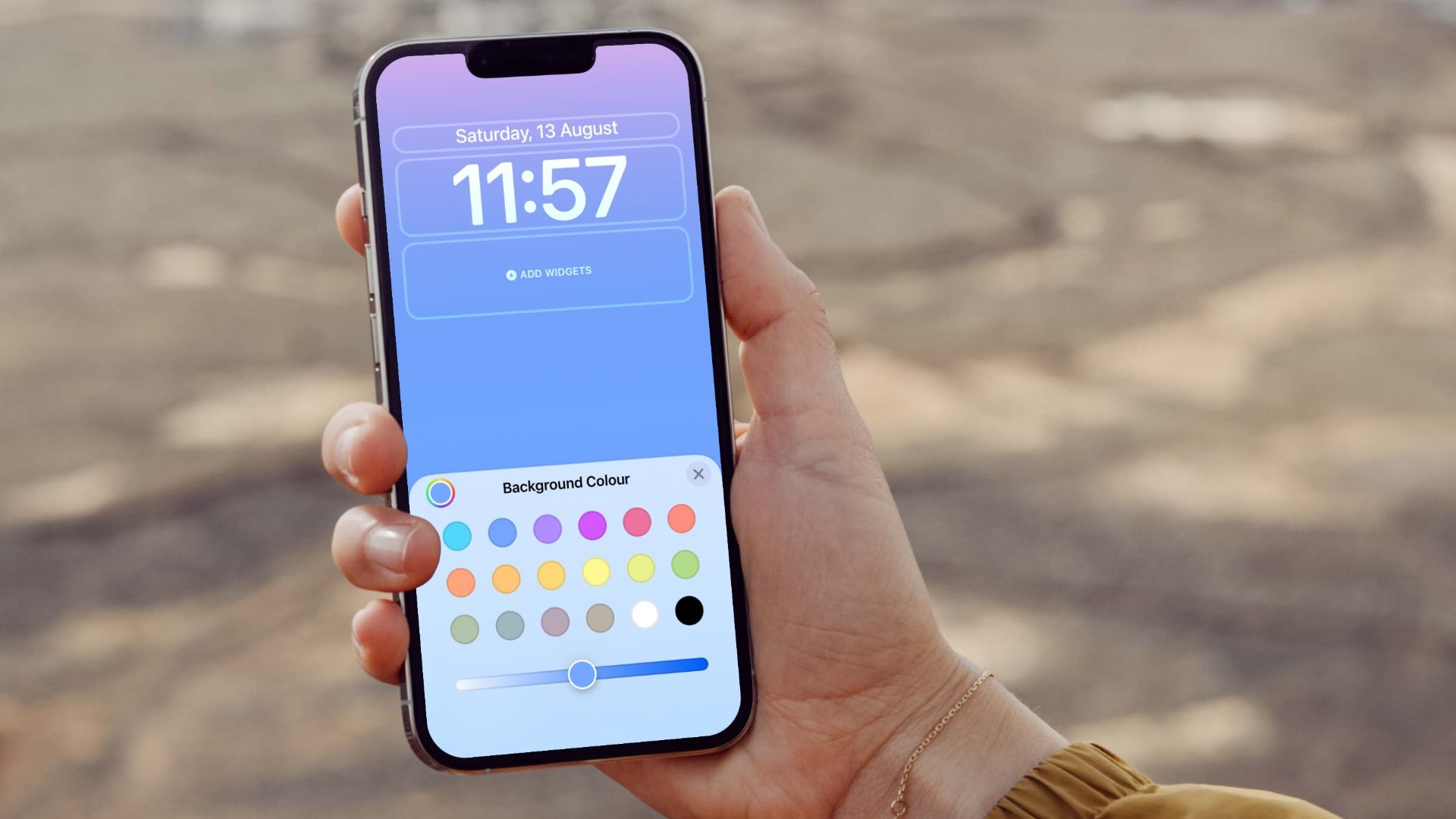
To change your lock screen to a gradient color in iOS 16, use the built-in Color wallpaper feature in Settings.
Where to find the color wallpaper setting
Apple documents the official path to the color wallpaper setting as Settings > Wallpaper > Add New Wallpaper. From the wallpaper gallery, tap the top button labeled Color to design your wallpaper. This is the only built-in way to achieve a gradient-style lock screen, as Apple does not offer a separate “gradient” option by that name.
Steps to set a color wallpaper as your lock screen
- Open Settings on your iPhone.
- Tap Wallpaper.
- Tap Add New Wallpaper.
- At the top of the wallpaper gallery, tap Color.
- Choose the color wallpaper you want. Swipe through the available presets to find one that looks like a gradient.
- Tap Add.
- Tap Set as Wallpaper Pair to apply it to both your lock screen and home screen, or tap Customize Home Screen to choose a separate home screen wallpaper.
That’s it. Your lock screen now shows the color or gradient-style wallpaper you selected. You can repeat these steps anytime to pick a different color. If you are interested in changing wallpapers and themes on phones more broadly, the same Settings path works for other wallpaper types like Photos or Dynamic.
What to do if you want a custom gradient
Apple’s built-in tools do not include a custom gradient builder for the lock screen. The Color wallpaper offers preset options, but you cannot adjust the gradient direction, color stops, or blend. To create a custom gradient, you need to make a wallpaper for your phone using a third-party design app (such as Canva or Adobe Express) on your iPhone or computer. Specific apps like Wallpaper X, Vellum, Gradients, and Procreate also offer gradient creation tools. When designing, use your iPhone screen resolution dimensions (e.g., 1170 x 2532 pixels for iPhone 12 and newer). Save the resulting image to your Photos, then follow the steps above but choose Photos instead of Color in the wallpaper gallery. For a detailed walkthrough of that process, see the sibling page on custom lock screen wallpapers. Another method is using Shortcuts to set a gradient lock screen: create a shortcut that generates a gradient image and sets it as your wallpaper automatically.
Frequently Asked Questions
Can the lock screen be changed to a gradient color in iOS 16 using Apple’s built-in tools?
Yes, but Apple documents the feature as the Color wallpaper, not a separate “gradient” option. The Color presets include gradient-like appearances, so you can achieve a gradient look without third-party apps.
Where is the setting to change the lock screen to a color?
The setting is at Settings > Wallpaper > Add New Wallpaper > Color. You can also access the wallpaper gallery directly from the lock screen by touching and holding it, then tapping the plus icon.
Can I revert to the default wallpaper after changing it to a color?
Yes. Go back to Settings > Wallpaper, tap Add New Wallpaper, and choose a built-in Apple wallpaper (such as the default dynamic or still images) from the gallery. Tap Add, then Set as Wallpaper Pair to restore the original look.
Will changing the lock screen color affect my iPhone's performance?
No, changing the lock screen color or gradient wallpaper does not affect your iPhone's performance. It uses the same system resources as any other static wallpaper.
Is it possible to change the lock screen color on older iPhone models?
Yes, the Color wallpaper feature is available on all iPhone models that support iOS 16, including older compatible devices like iPhone 8 and iPhone X.