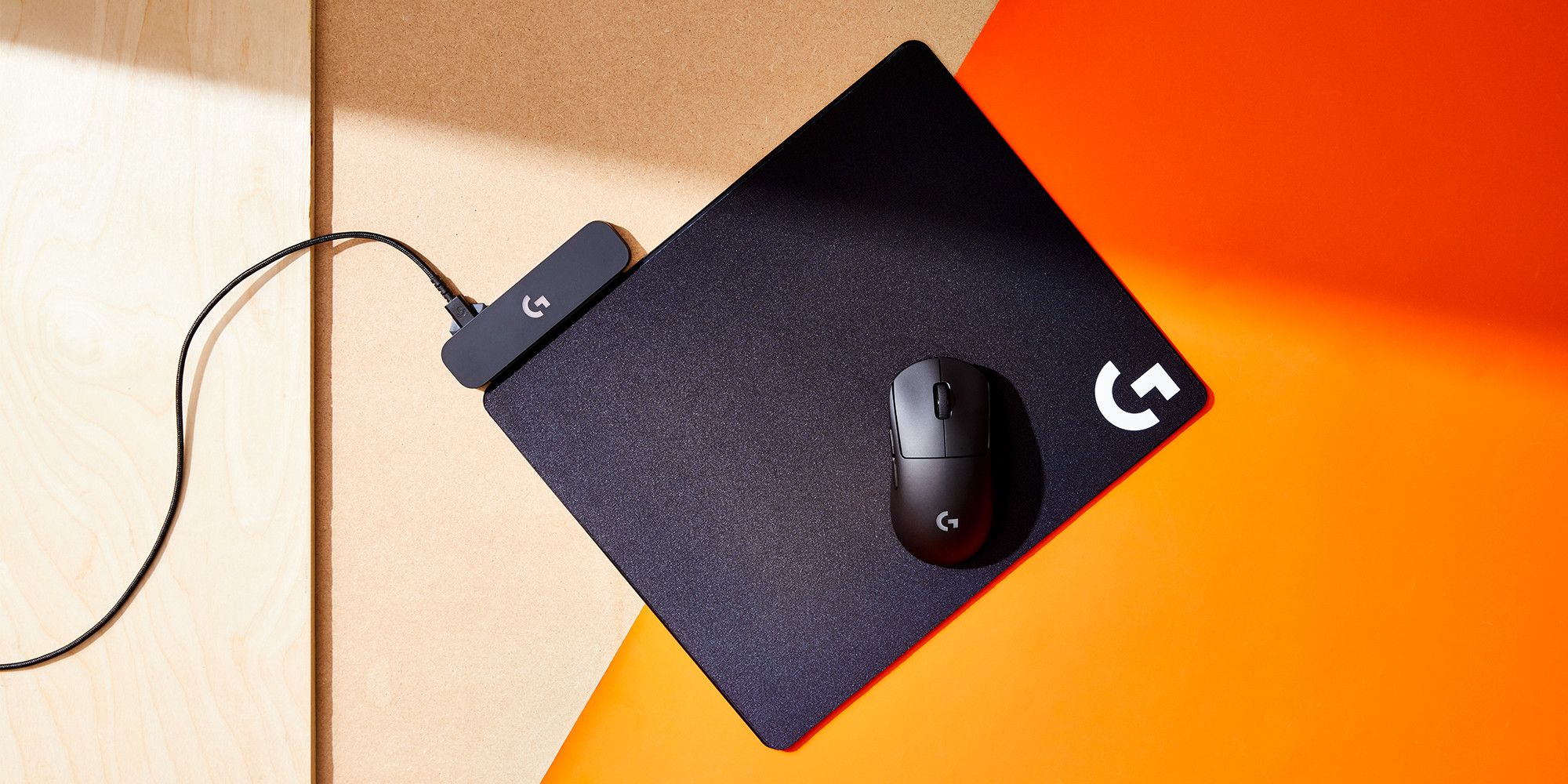
To charge your Logitech wireless mouse, you must first identify your specific model because the charging port, cable type, and LED indicator meanings differ between mice like the MX Master 2S, MX Anywhere 3, and G403.
Identify your Logitech wireless mouse model to charge it correctly
Logitech wireless mice do not share a single universal charging procedure. The charging port, either Micro-USB or USB-C, and the battery indicator LEDs vary by model. Before connecting any cable, check the bottom or side of your mouse for the model name (e.g., MX Master 2S, MX Anywhere 3, G403, or G703). Using the wrong cable or ignoring the correct indicator can lead to confusion about whether the mouse is actually charging.
How to charge the Logitech MX Master 2S
- Locate the Micro-USB port on the front of the MX Master 2S.
- Connect the provided Micro-USB cable to the mouse.
- Plug the other end into a USB power source, such as a computer USB port or a USB wall charger.
The side LEDs on the MX Master 2S show battery status when you turn the mouse on: three green lights mean 100%, two green mean 66%, one green means 33%, and one red light means 10%, recharge now. Logitech says a minimum of 3 minutes charging gives enough power for a full day of use. A full charge can last up to 70 days depending on use.
How to charge the Logitech MX Anywhere 3
- Locate the USB-C port on the front of the MX Anywhere 3.
- Connect the provided USB-C cable to the mouse.
- Plug the other end into a USB power source.
The top LED on the MX Anywhere 3 shows green from 100% to 10% battery, turns red at 10% or below, and pulses green while charging. Like the MX Master 2S, a 3-minute charge provides a full day of use, and a full charge lasts up to 70 days depending on use. You can install Logitech Options to receive battery status notifications, including low-charge warnings.
How to charge the Logitech G403 or G703 gaming mouse
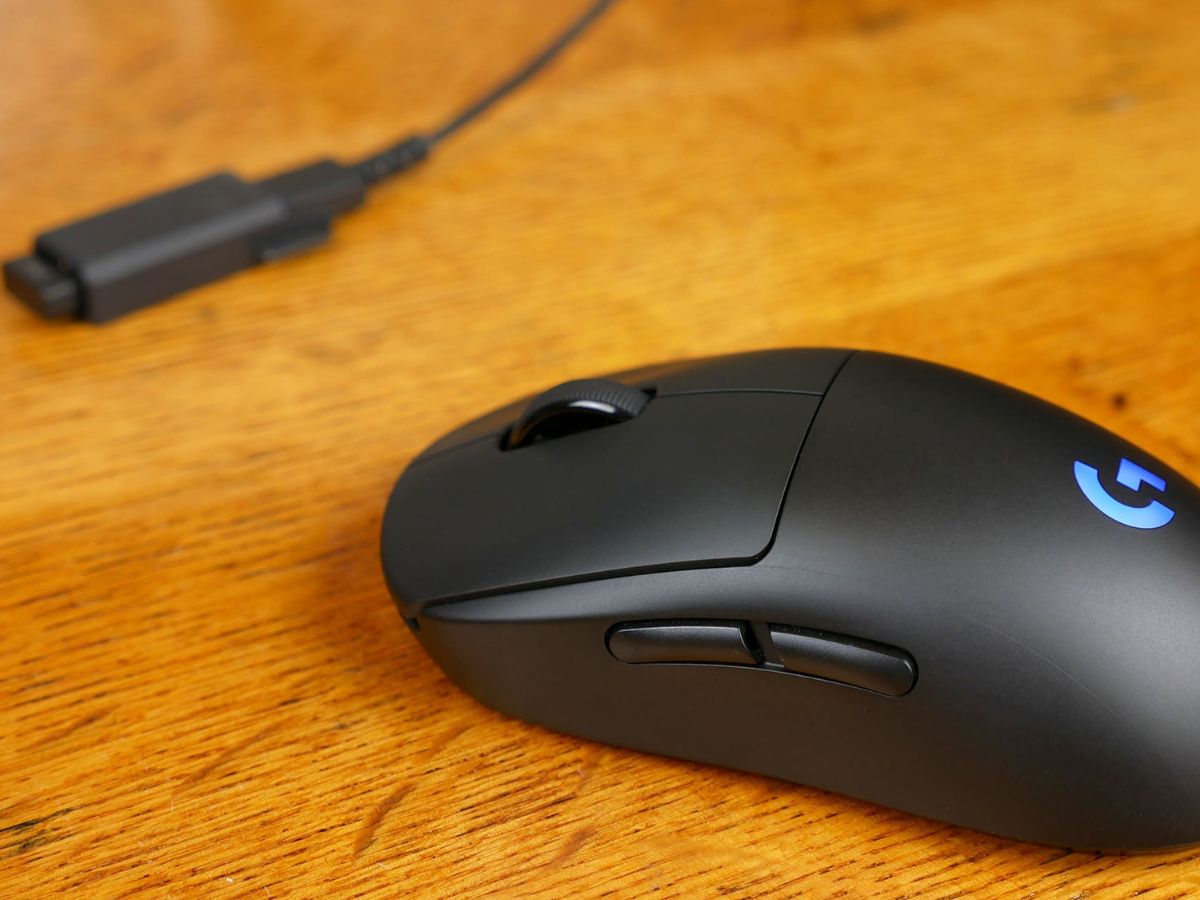
- Locate the Micro-USB port on the front of the G403 or G703.
- Connect the supplied Micro-USB to USB cable to the mouse.
- Plug the USB end into a USB port on your computer.
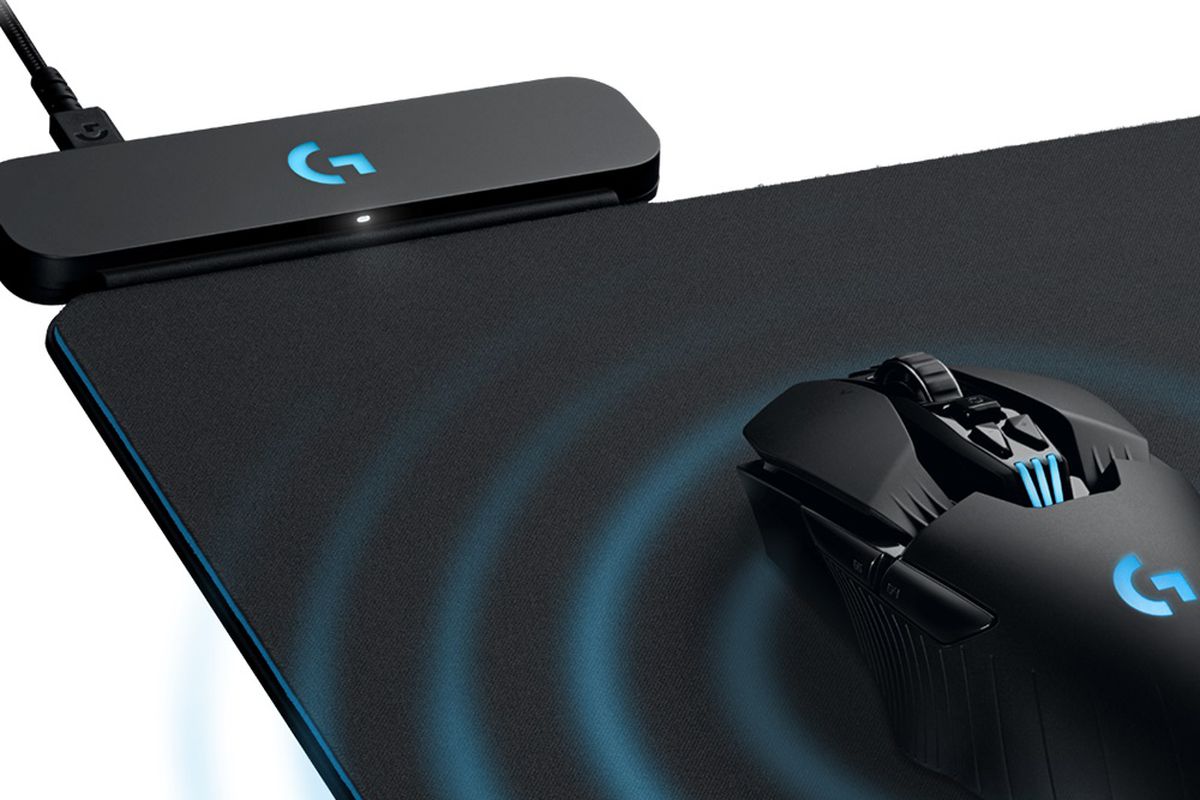
When the battery drops below 15%, the scroll wheel LED blinks red. At 10% battery, a notification appears in the upper right corner of your screen. Battery status can be checked in Logitech Gaming Software (LGS), where it appears in the upper left corner when LGS opens. Note that these gaming mice charge via a computer USB port, not a wall adapter.
Monitoring the charging progress and what the LED colors mean
Logitech mice use LED lights to indicate battery status. The LEDs light up when you turn the mouse on, then turn off to conserve battery power. For models covered by Logitech’s indicator page, the meanings are consistent: three green = 100%, two green = 66%, one green = 33%, and one red = 10%. For the MX Anywhere 3 specifically, the top LED is green from 100% to 10%, red at 10% or below, and pulsing green while charging. For the MX Master 2S, the side LEDs show the same green and red levels. When the LED shows a steady green (or stops pulsing, in the case of the MX Anywhere 3), the mouse is fully charged.
Disconnecting and testing your Logitech mouse
Once the LED indicates a full charge, gently pull the cable straight out from the mouse’s charging port, do not twist or yank it. Move the mouse to verify cursor movement on screen, click the left and right buttons to confirm responsiveness, and test any additional features like the scroll wheel or DPI buttons. If the mouse functions normally, it is ready for use. For models that support it, such as the MX Master 2S and MX Anywhere 3, the quick-charge feature means even a short charge can get you back to work quickly, though charging wireless earbuds and headphones follows a different process entirely, as those devices use their own proprietary cables and indicators.
Frequently Asked Questions
Can I use my Logitech wireless mouse while it is charging?
Yes, you can use most Logitech wireless mice while they are charging, as long as the cable does not interfere with movement. The mouse will continue to function normally, and the charging indicator will update accordingly.
How long does it take for a Logitech wireless mouse to fully charge?
Logitech does not specify exact full charge times for these models, but the MX Master 2S and MX Anywhere 3 both reach a full charge in a few hours when connected to a standard USB power source. The G403 and G703 also charge fully within a similar timeframe when plugged into a computer USB port.
What should I do if my Logitech wireless mouse is not charging?
First, ensure the cable is fully inserted into both the mouse and the power source. Try a different USB port or wall adapter. If the LED does not light up at all, the cable may be damaged, or the mouse’s battery may need replacement, consult Logitech support for your specific model.
Can I use any USB charger to charge my Logitech wireless mouse?
Yes, any standard USB-A or USB-C charger that provides the correct voltage will work. Avoid using fast-charging phone adapters that may exceed the mouse’s power requirements, as this could damage the battery over time.
Does the Logitech MX Anywhere 3 come with a charging cable?
Yes, the MX Anywhere 3 includes a USB-C to USB-A charging cable in the box. If you lose it, any standard USB-C cable will work for charging.
Related reading: How To Charge Beats Wireless Headphones and How To Charge A20 Wireless Headset.