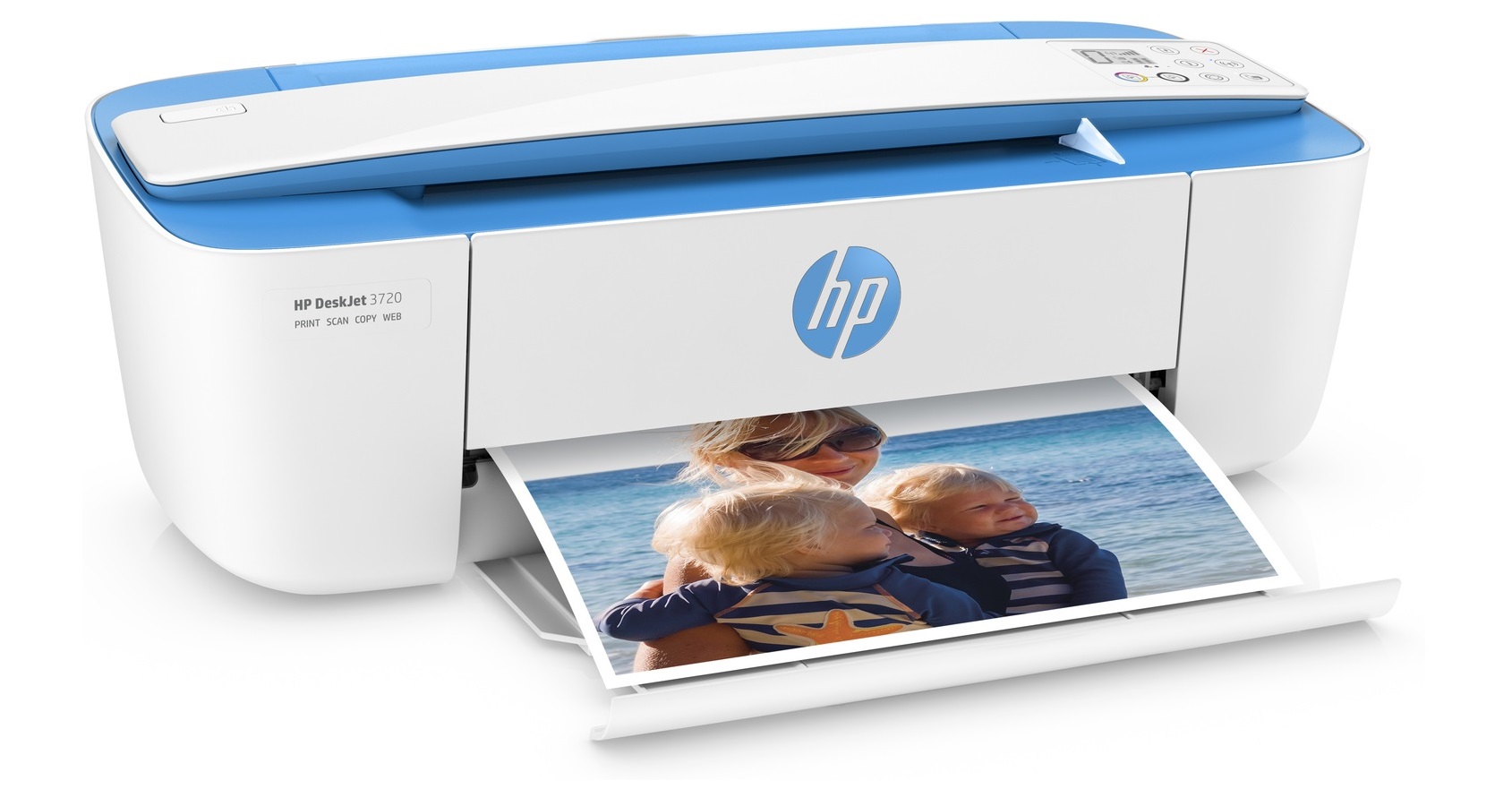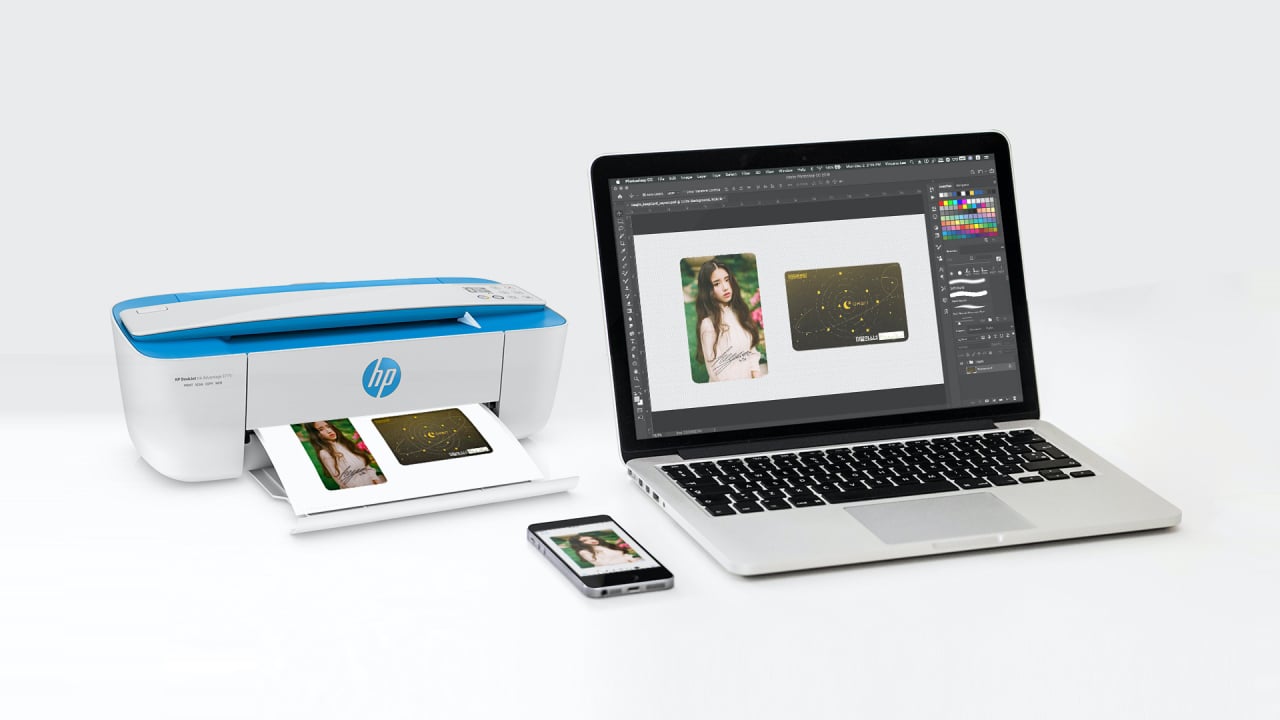
To set up HP 3700 wireless printer, download the HP Smart app from 123.hp.com, put the printer into setup mode, and follow the app prompts to connect to your 2.4 GHz Wi-Fi network. This process works for both computer and mobile device setup, with additional options like WPS and Wi-Fi Direct for flexible printing.
Before you set up your HP 3700 wireless printer
You need the printer, power cable, a 2.4 GHz Wi-Fi network (the DeskJet 3700 supports 2.4 GHz only), and a computer or mobile device with the HP Smart app from 123.hp.com. Ensure your printer is unpacked, placed in a well-ventilated area, and turned on.
Step 1: Download the HP smart app
Go to 123.hp.com on your computer or mobile device to download and install the HP Smart app, the required software for setup. This app guides you through the entire wireless printer setup process.
Step 2: Put the printer in setup mode
Press and hold the Wireless and Cancel buttons together for a few seconds until the Power button and blue wireless light start blinking. This indicates the printer is ready to connect to your network.
Step 3: Connect to your Wi-Fi network
Follow the HP Smart app prompts to select your 2.4 GHz network and enter the password. The blue wireless light stays solid when connected. If you prefer a button-based method, use the alternative setup below.
Alternative setup using WPS
If your router supports WPS, press and hold the printer's Wireless button until it blinks, then press the WPS button on your router within two minutes. The printer connects when the Wireless button stays lit.
Set up printing on your iPhone or iPad
Ensure your Apple device is on the same Wi-Fi network as the printer. Turn on Bluetooth for setup only, HP Smart opens, tap the Plus icon, and if the printer is not visible tap Add a new printer. For regular printing, use AirPrint directly from an app's Share icon or Settings icon. Not all apps support AirPrint, so check the app's print options.
Set up printing on your Android device
Android 4.4+ devices use the built-in HP Print Service Plugin for printing. For Android 4.3 or earlier, download the HP ePrint app from Google Play. You can also use the HP Smart app from 123.hp.com for printer setup.
Using Wi-Fi direct on your HP 3700
Press the Wi-Fi Direct button to turn on the feature, then find the printer in your device's Wi-Fi settings under a network name containing 'DIRECT'. The default Wi-Fi Direct password is 12345678, but this detail is from community support rather than the official quick-start guide. This allows direct printing without a router, useful when you need to set up a HP wireless printer in a location without network access.
Frequently Asked Questions
Does the HP DeskJet 3700 support Wi-Fi?
Yes. HP's setup guide says it connects to 2.4 GHz wireless networks only. It does not support 5 GHz networks.
Do I need an app to print from my phone?
For iPhone and iPad, you can use AirPrint without an app if the printer is on the same network. For Android, the HP Print Service Plugin is built into Android 4.4+ devices, but you may need the HP Smart app for initial setup.
How do I load paper into the HP 3700 printer?
Open the input tray door at the front, move the paper width guides outward, insert a stack of plain paper aligned with the edge guides, then adjust the guides to touch the paper edges. Close the door to complete loading.
How do I replace ink cartridges in the HP 3700 printer?
Open the cartridge access door, wait for the carriage to stop, press down on the empty cartridge to release it, remove it, unpack the new cartridge, remove protective tape, insert it into the correct slot until it clicks, and close the door.
How do I perform a factory reset on the HP 3700 printer?
Turn on the printer, wait until it is idle and silent, disconnect the power cord from the back, wait at least 60 seconds, plug the power cord back in, and turn on the printer if it does not turn on automatically. This erases all personalized settings.
For the wider topic, see wireless printer setup.
Related reading: How to Set Up and Connect Any Wireless Printer and How To Set Up HP Deskjet 3050 Wireless Printer.