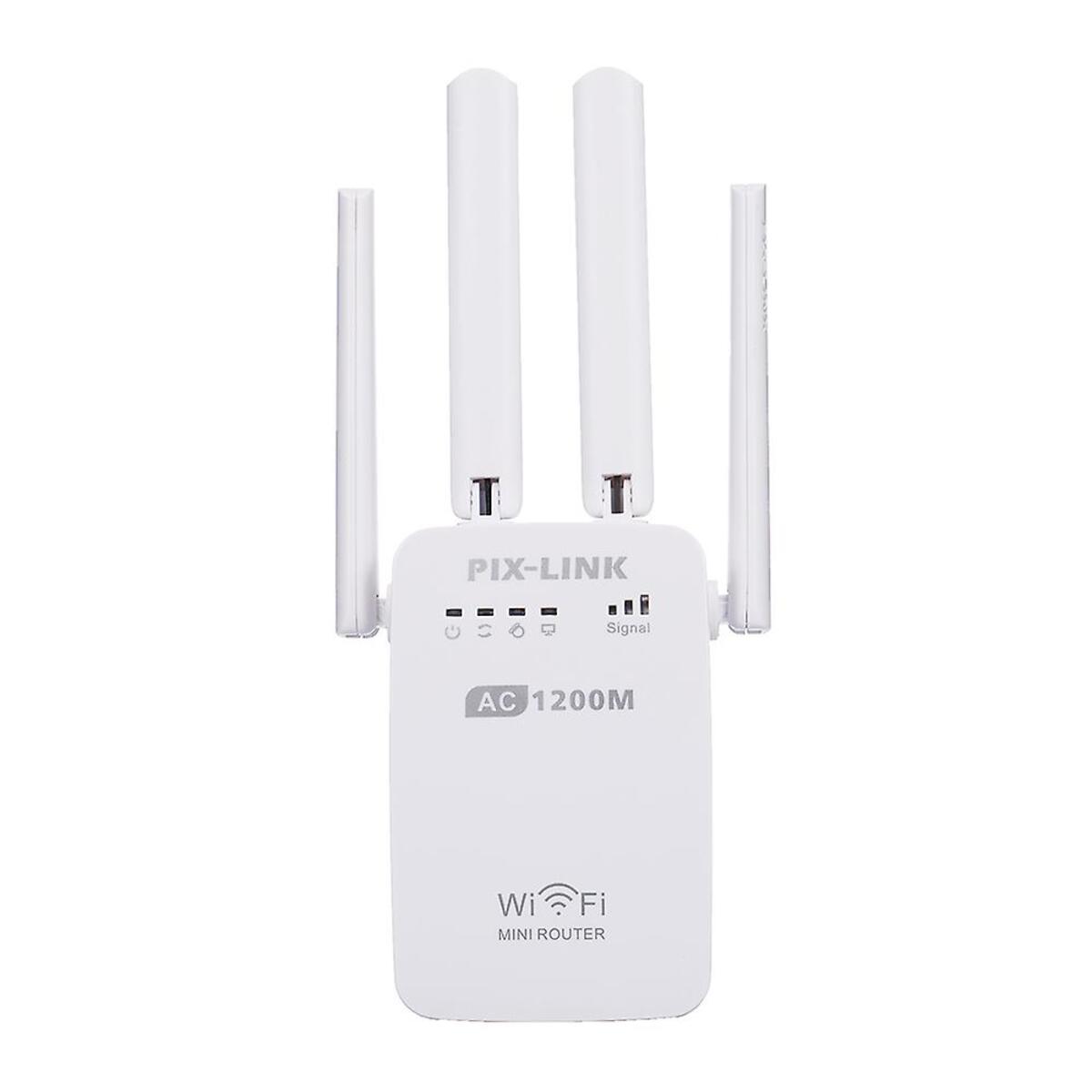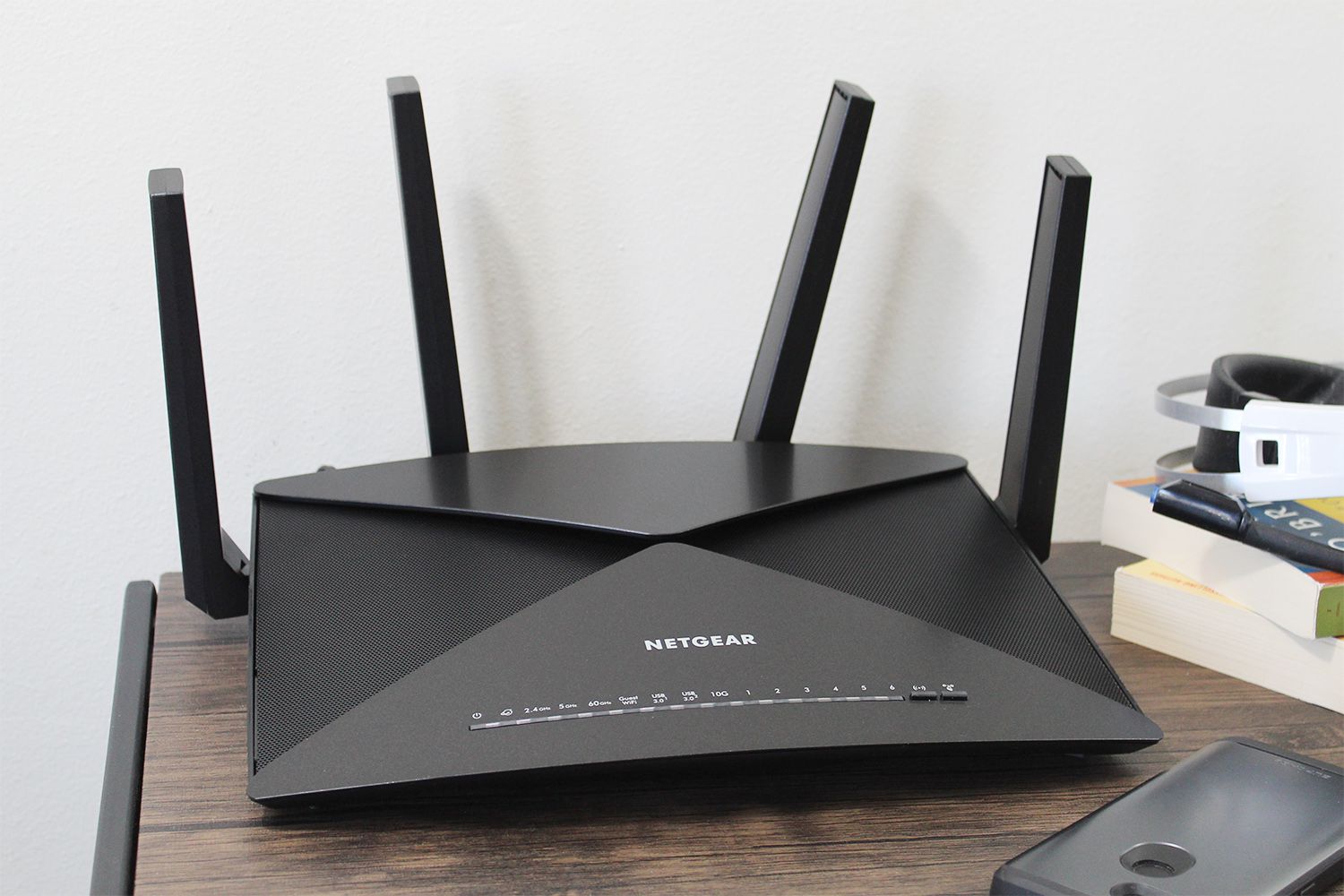
To set up your Netgear wireless router, start by connecting the modem to the router's Internet or WAN port with an Ethernet cable, then power on the modem first and wait for its lights to stabilize before powering on the router. From there, the fastest method is to use the Nighthawk app on your mobile device to complete the setup and personalize your WiFi network.
How to set up your Netgear wireless router with the Nighthawk app
The primary method for setup is using the NETGEAR Nighthawk app, available for iOS and Android mobile devices. Download the Nighthawk app, then connect your mobile device to the router's default WiFi network (SSID) using the network key (password) found on the router's label. Launch the Nighthawk app and follow the on-screen instructions to complete the router installation, connect to the internet, and personalize your WiFi network name (SSID) and password. The app handles the technical details, making it the simplest way to get your network online.
Connect your Netgear router to the modem
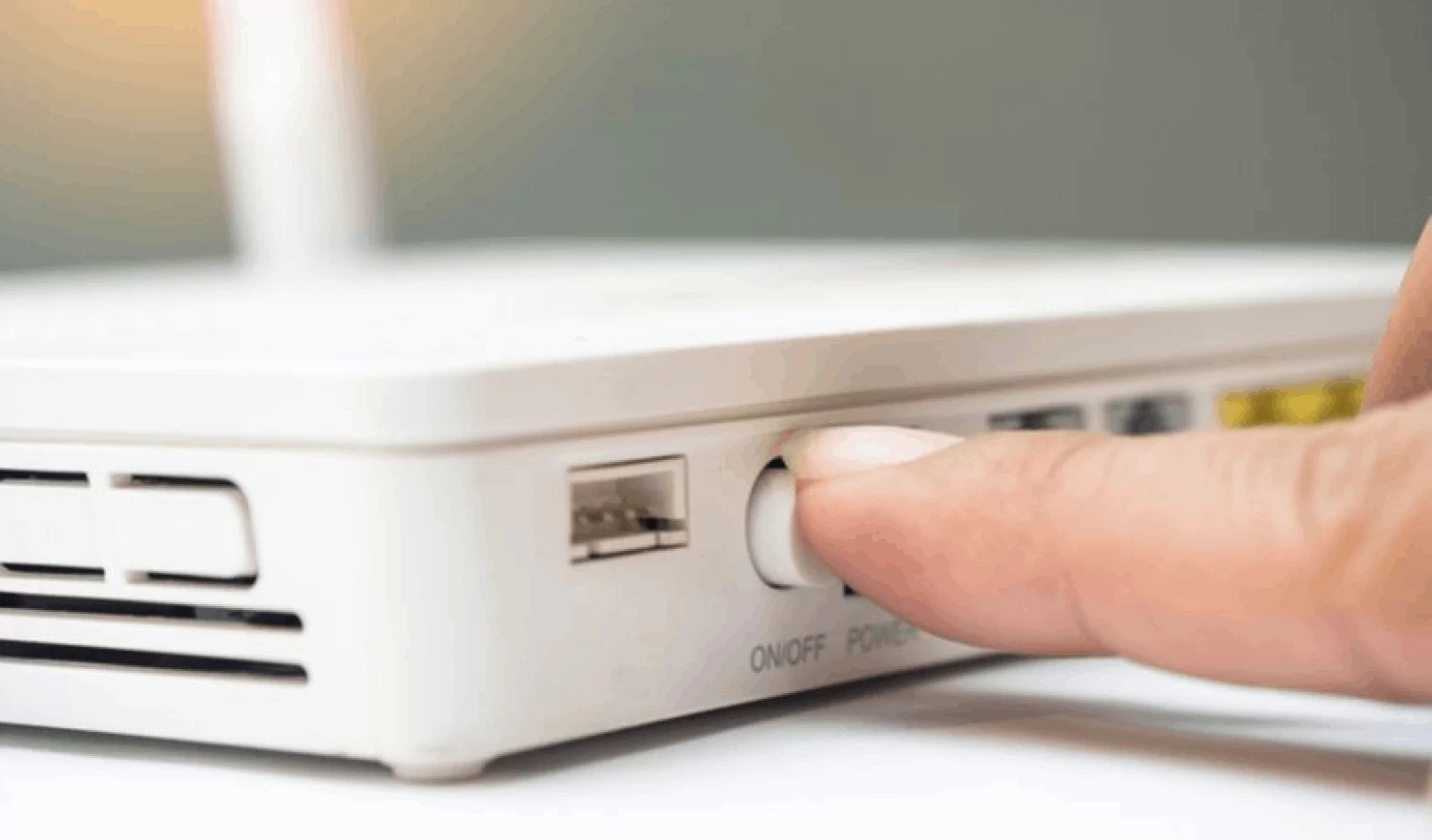
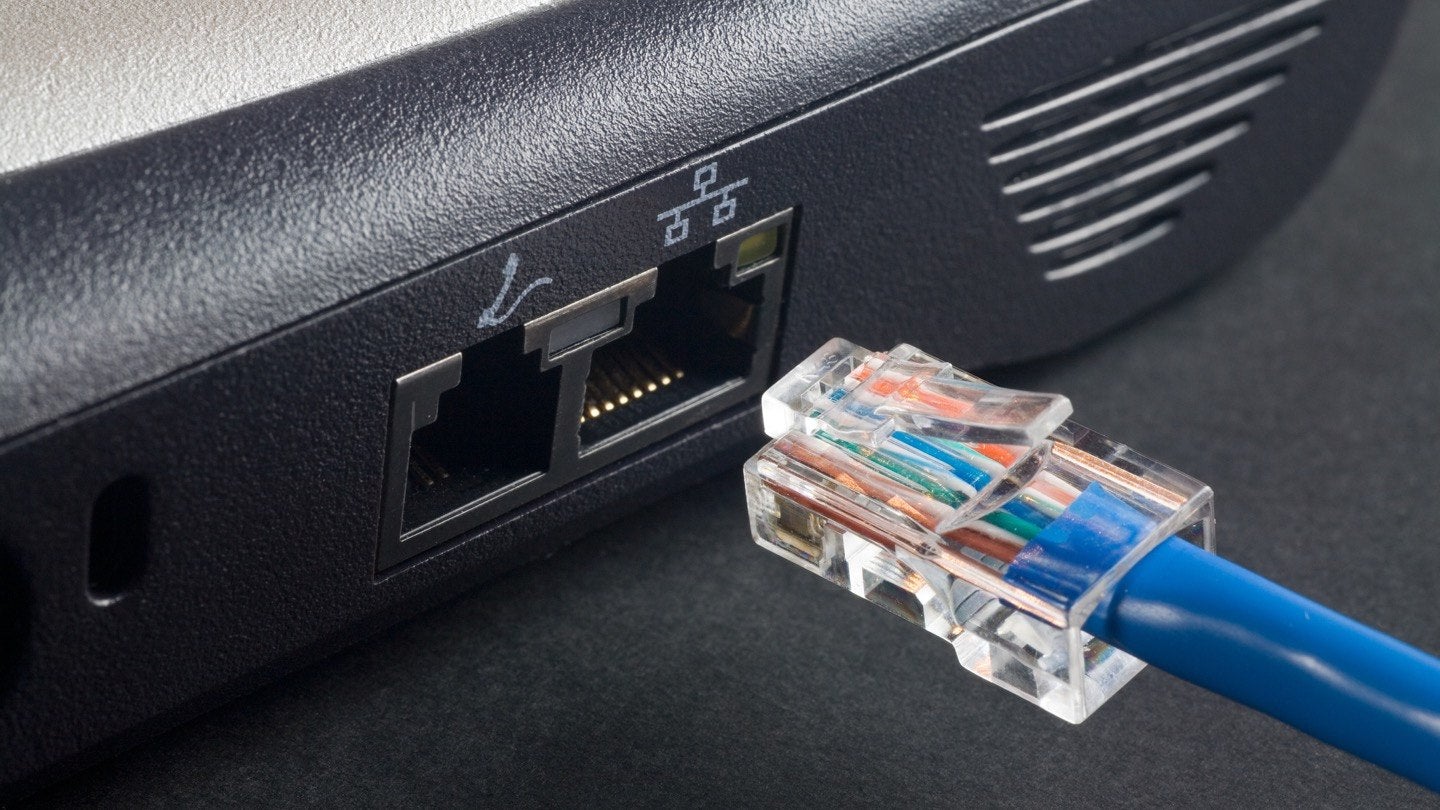
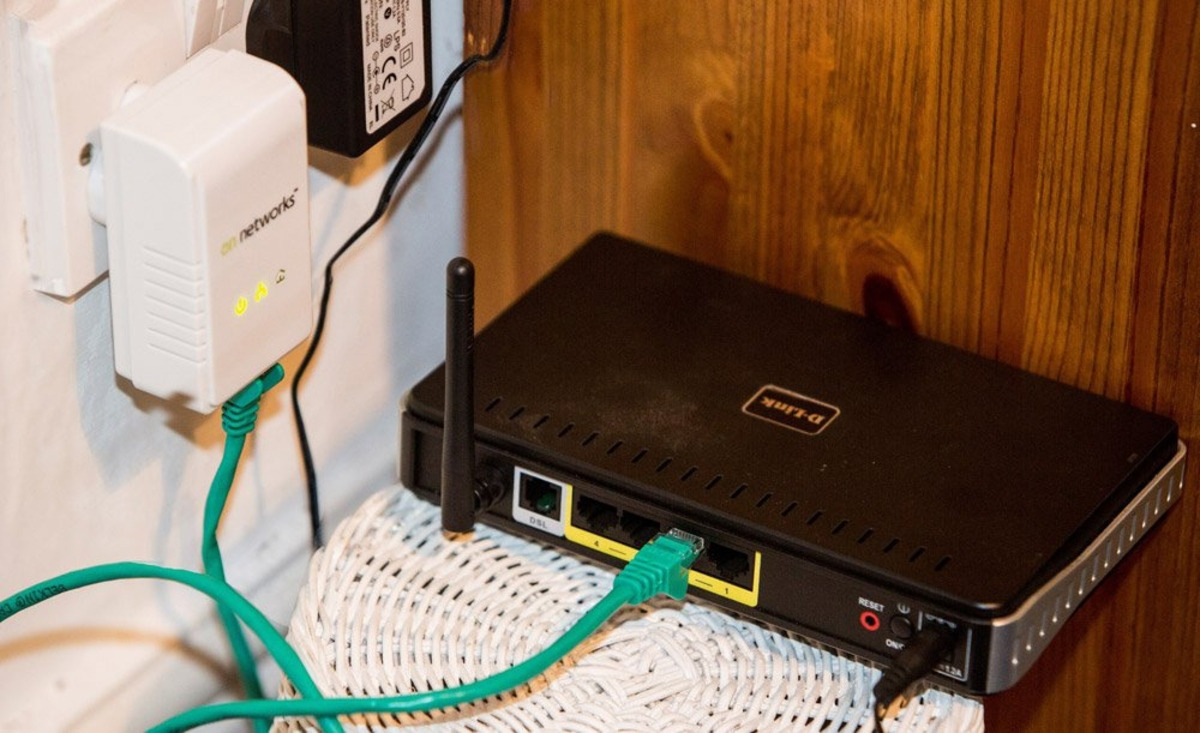
Before any software setup, you need to establish the physical connection between your modem and router. Unbox and inspect the contents to ensure all components (router, power adapter, Ethernet cable, accessories) are present. Choose a central location for the router away from walls or large objects for optimal Wi-Fi coverage. Power on your modem first and wait for its indicator lights to stabilize, then power on your Netgear router. To begin, connect your modem to the router's Internet or WAN port using an Ethernet cable. This sequence ensures the router can properly detect and communicate with your internet service. Once both devices are powered and connected, the router's internet LED should indicate a successful link.
Access the router's web interface for setup
If you prefer not to use the mobile app, you can set up the router using a web browser. Connect a computer to any LAN port on the router with an Ethernet cable, or wirelessly connect to the router's default WiFi network. Open a web browser and navigate to www.routerlogin.net, www.routerlogin.com, or the router's IP address (commonly 192.168.1.1 or 192.168.0.1). When prompted, enter the default username, which is typically "admin," and the default password, which is "password"; however, always check the router's label for the specific credentials. The default password may be left blank; check the router's documentation or manufacturer's website for the correct login credentials. Once logged in, you have full access to the router's configuration pages.
Configure your wireless network settings
Once logged into the web interface, use the Setup Wizard or Netgear Genie setup wizard to guide you through configuring your internet connection and wireless settings. During setup, it is crucial to personalize your WiFi network name (SSID) and create a strong, unique WiFi password, with WPA2 being the recommended security standard. You can choose to hide the SSID if you want to make your network less visible. WPA3 is a supported security type if your router and devices are compatible. Avoid using WEP or WPA/WPA2 mixed mode as they offer less secure encryption. The wizard will walk you through each step, from detecting your internet type to setting up your wireless security. After making your selections, save the new configuration to apply the changes. This is also the time to consider setting up wireless connections for guest access if your router supports it, keeping your main network more secure.
Final steps for a secure and fast network
After your network is live, take a moment to secure and optimize it. Regularly update your router's firmware, as keeping it current can resolve many connectivity and performance issues. Firmware updates are typically available through the Nighthawk app or the web interface under the administration or maintenance section. For further optimization, explore the router's advanced settings to adjust channel selection or enable quality of service (QoS) features, which can prioritize bandwidth for streaming or gaming. Adjust advanced wireless settings like channel selection, wireless mode, and transmission power to impact range and performance.
Frequently Asked Questions
What is a wireless router?
A wireless router is a device that creates a local network, allowing multiple devices to connect to the internet wirelessly. It acts as a gateway between your devices and your internet service provider.
Can I set up my Netgear wireless router without a computer?
Yes, you can set up your Netgear wireless router entirely from a smartphone or tablet using the Nighthawk app. The app guides you through the same setup steps without needing to access a web browser.
What should I do if I forget my WiFi password after setup?
If you forget your WiFi password, you can look it up by logging into the router's web interface or the Nighthawk app. Alternatively, you can reset the router to factory defaults using the reset button on the device and go through the setup process again.
How do I secure my Netgear wireless router from unauthorized access?
To secure your router, change the default admin username and password, enable WPA2 encryption for your WiFi network, and regularly update the router's firmware. Avoid using simple or common passwords for both the admin login and your WiFi network.
Related reading: How To Set Up Wireless Mini Router and How To Restart Wireless Router.