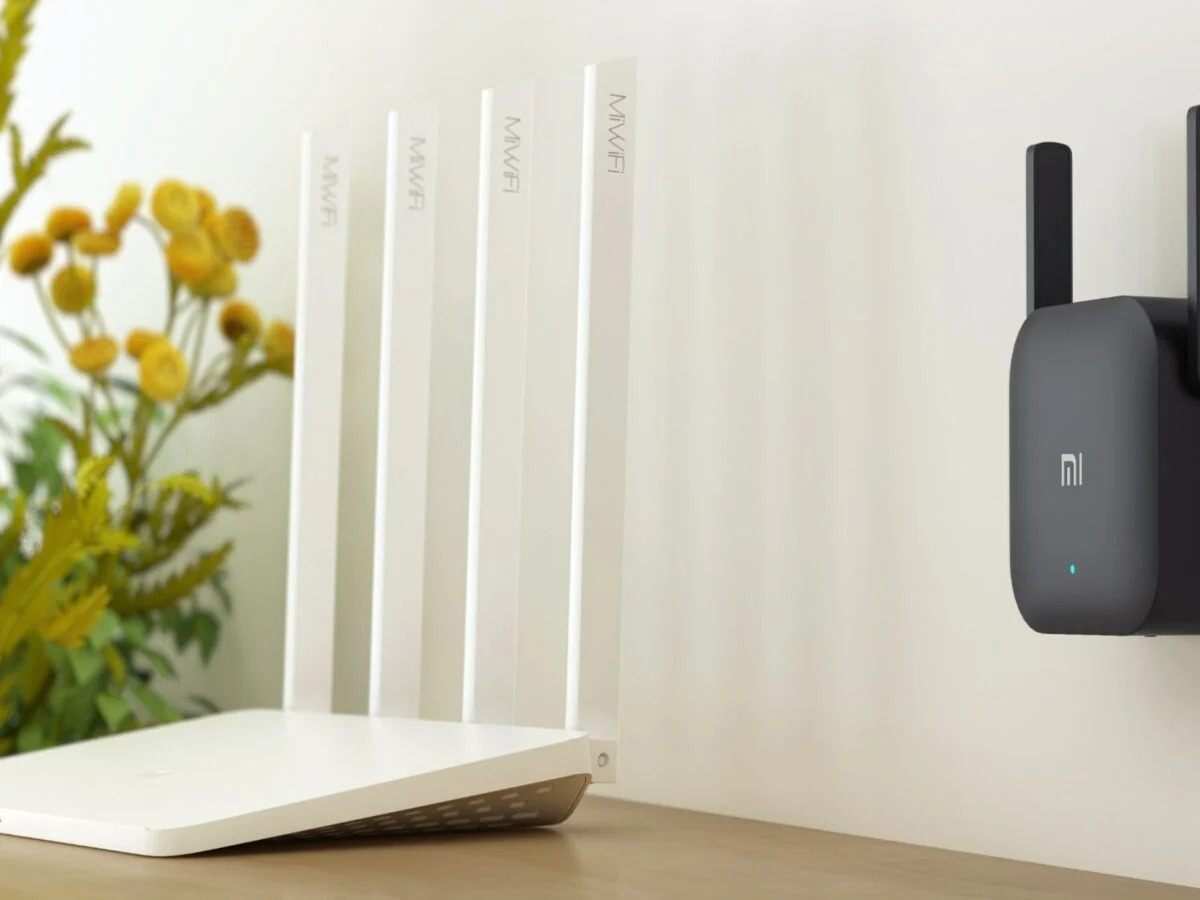
To set up a wireless repeater, place it within range of your main router's strong signal, connect a device to its default network, and configure it through its web interface to extend your existing Wi-Fi. This step-by-step guide covers positioning, connection, configuration, and testing so you can eliminate dead zones in your home or office.
What a wireless repeater does
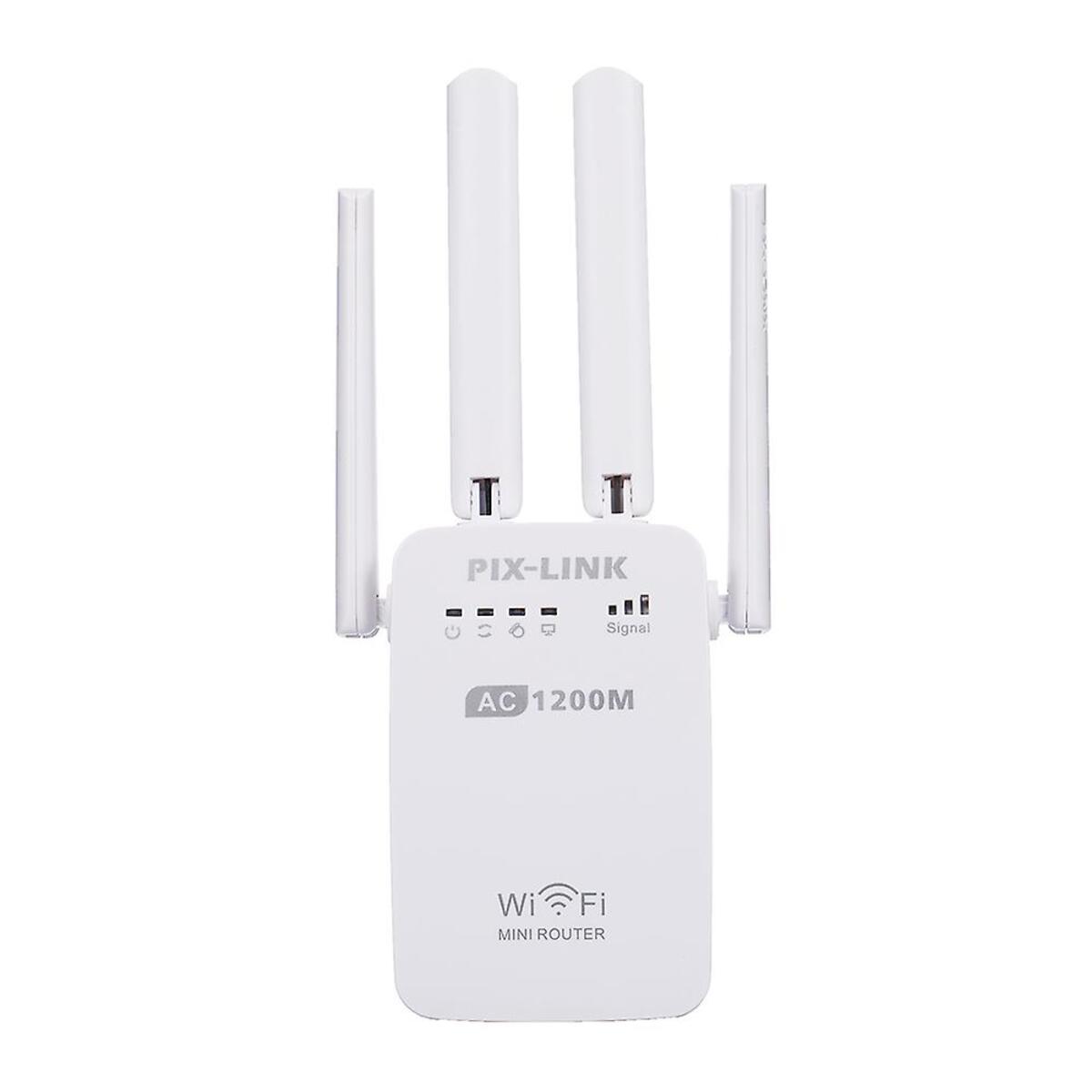
A wireless repeater receives your existing Wi‑Fi signal, amplifies it, and rebroadcasts it to extend coverage. It does not create a separate network; all devices connected to the repeater remain on the same network as those connected directly to the router. While it increases range, it may introduce slight latency, meaning speeds can be a bit slower than a direct connection to the router.
What you need before starting
You will need an existing working Wi‑Fi network, a compatible wireless repeater, the main network’s SSID and password, a power outlet near the area you want to cover, and a computer or mobile device to access the repeater’s configuration page. Confirm the repeater supports the same wireless protocol as your router (such as 802.11ac or 802.11n).
Step 1: Position the repeater
Place the repeater within range of the main router’s strong signal but close to the weak‑coverage area. Keep it away from walls, large appliances, and metal objects that can interfere with the signal. The goal is for the repeater to receive a solid signal from the router while being able to broadcast into the dead zone. Apple says to place extended Wi‑Fi base stations within range of the primary Wi‑Fi base station.
Step 2: Connect to the repeater
Power on the repeater and plug it into an electrical outlet. Use a computer or mobile device to connect to the repeater’s default Wi‑Fi network; the network name (SSID) and password are usually printed on a sticker on the device or in the user manual. Once connected, open a web browser and enter the repeater’s IP address in the address bar to access its configuration page.
Step 3: Configure the repeater to extend your network
On the configuration page, use the site survey or scan feature to locate your main Wi‑Fi network. Select it from the list and enter the network password when prompted. You can optionally customize the extended network’s SSID and security settings, but the repeater will simply amplify the existing network. Save any changes before proceeding.
Step 4: Test the extended coverage
Move to an area that previously had a weak signal and check for improved signal strength using your device’s Wi‑Fi bars or a Wi‑Fi analyzer app. If the signal is still weak, reposition the repeater slightly and repeat the test. Once you have consistent coverage, the setup is complete.
A note on using phones as repeaters
Apple documents Wi‑Fi extension only for AirPort base stations, not as a general phone-based repeater setup on iPhone or Android. For AirPort, the documented steps are to open Settings > Wi‑Fi on iPhone/iPad/iPod touch, tap the AirPort base station listed under Set up new AirPort base station, and follow the onscreen instructions. Apple says this setup assistant works on iOS 6.1 or later. Apple also documents a Mac configuration path for an extended network: open AirPort Utility, click Wireless, choose Extend a wireless network from Wireless Mode, choose the network from Network Name, enter the network and device password if needed, then click Update. Apple documents this for 802.11n Wi‑Fi base stations in its extended-network guide. Apple’s extended-network documentation is specific to AirPort hardware and 802.11n Wi‑Fi base stations. Apple’s iOS setup documentation says iOS 6.1 or later is required for the iPhone/iPad/iPod touch setup flow.
Frequently Asked Questions
Does a wireless repeater reduce internet speed?
Yes, because the repeater must receive and then retransmit the signal, which can add latency and cut throughput roughly in half. Modern repeaters and careful placement minimize this impact, but a direct connection to the router will always be faster.
Where should I place the repeater for the best performance?
Place it roughly halfway between the router and the dead zone, where it can still receive a strong signal from the router. Avoid corners, thick walls, and metal furniture. Experiment with a few spots while testing signal strength.
Can I use multiple repeaters to cover a large home?
Yes, you can daisy‑chain repeaters, but each hop reduces speed. For very large spaces, a mesh Wi‑Fi system is usually a better choice because it handles handoff between nodes more efficiently.
How do I connect wireless extender to my network?
Use the repeater’s web interface to scan for your main Wi‑Fi network, select it, and enter the password. This process is the same whether you connect wireless extender models from different brands.
How do I connect a tp link wireless extender?
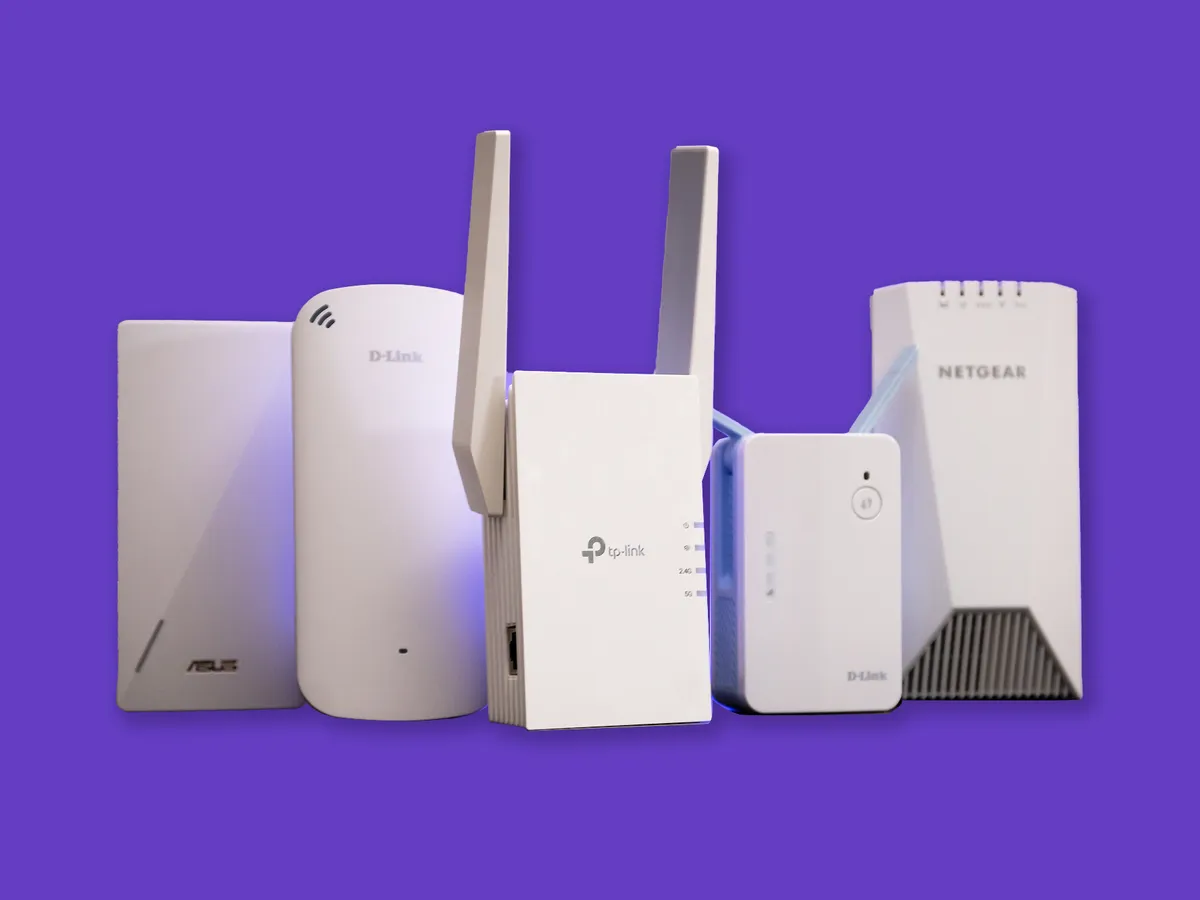
Connect a tp link wireless extender by plugging it in, joining its default Wi‑Fi network, opening its setup page, and using the site survey to select your main network. Most TP‑Link models also offer a WPS button for quick pairing.
How do I connect to Netgear wireless extender?
Connect to Netgear wireless extender by powering it on, connecting to its default network (often named NETGEAR_EXT), and visiting its setup page. The Netgear Genie app can also guide you through the process.
How do I make your wireless internet signal stronger?
To make your wireless internet signal stronger, position your router centrally and away from obstructions, update its firmware, and use a repeater or mesh system to extend coverage. Reducing interference from neighboring networks by changing the Wi‑Fi channel also helps.
How do I check wireless signal strength?
Check wireless signal strength by looking at the Wi‑Fi bars on your device or by using a free Wi‑Fi analyzer app on your phone or laptop.