The basics of taking a screenshot on Android
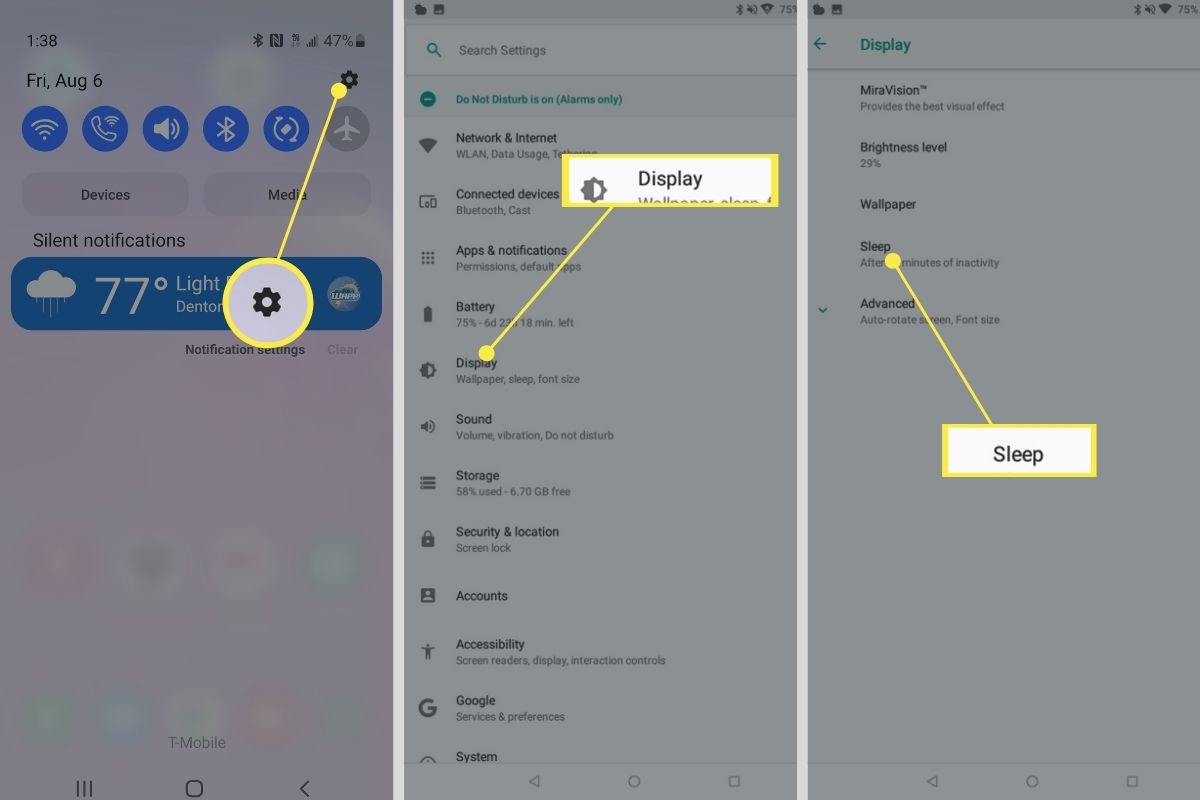
To take a screenshot on Android, open the content you want, then press and hold the Power and Volume Down buttons at the same time. This works whether you need to take a screenshot on Google phone models like a Pixel, or use the identical button combination to trigger a screenshot on Android Motorola devices. On a Pixel, a preview instantly appears at the bottom left corner. You can also say “Hey Google, take a screenshot.” Another option is to enable a Quick Tap gesture under Settings > System > Gestures. This lets you capture the display with a double-tap on the back of the phone.
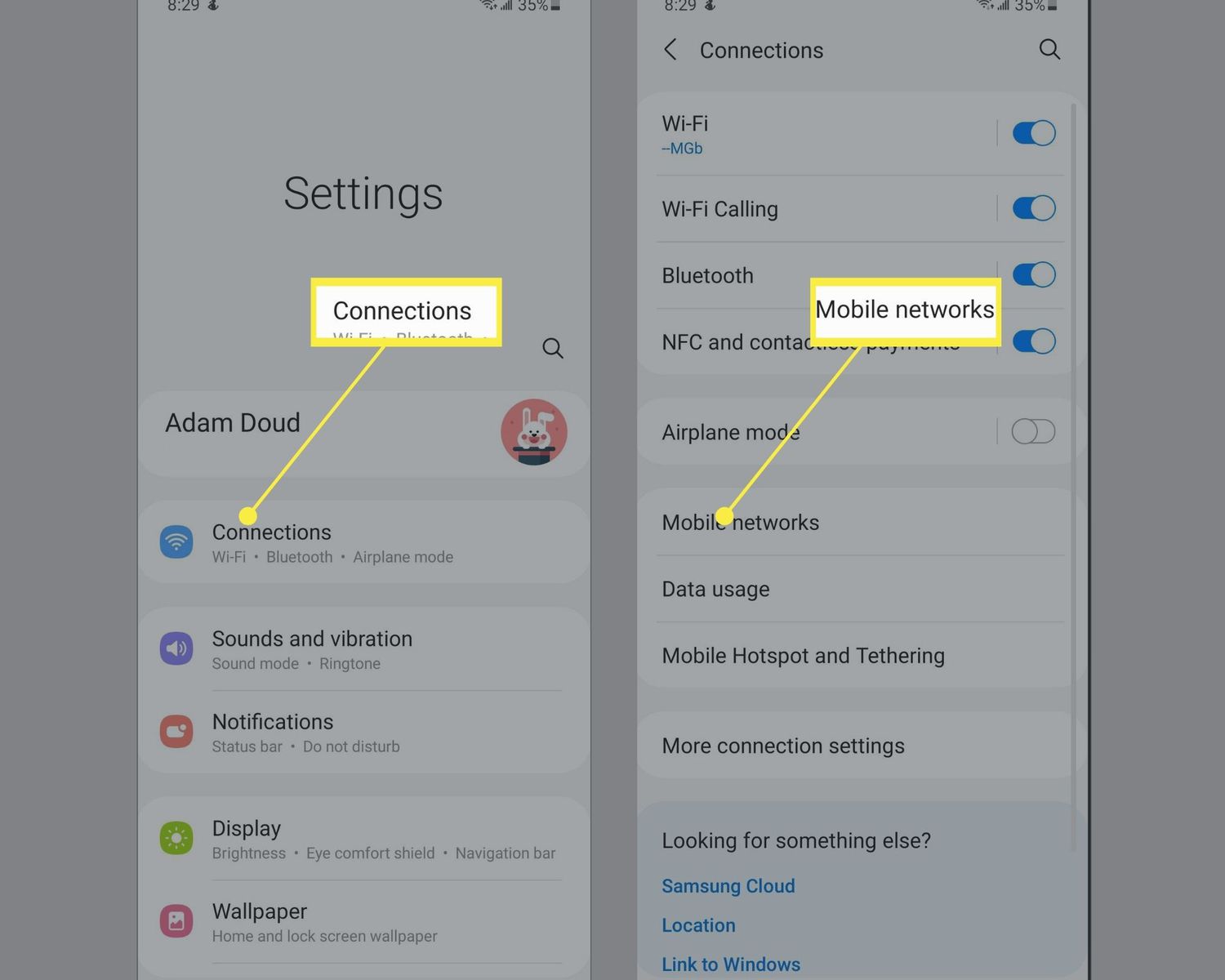
While that physical button shortcut is the universal starting point, some devices add extra gestures that are faster once you know them. For instance, you can take a screenshot on a Galaxy S21 and other Android phones using gestures or button combinations provided by the manufacturer. Motorola phones also support a three-finger touch-and-hold gesture. You may need to switch it on first in Settings > System > Gestures if taking a screenshot on Galaxy S21 alternatives has made you accustomed to non-button methods, though this path is documented for Motorola devices.
Foldables and tablets with unique hardware often break the standard pattern entirely. To take screenshot on Samsung Galaxy Z Flip, the narrower form factor means the button placement feels different in one hand. The layout difference is even more stark when you need to take a screenshot on any Kindle Fire. This can surprise anyone used to modern Android muscle memory.
Recording your screen and editing what you capture
Once a still image is not enough, Android’s built-in recorder handles moving captures from the same Quick Settings area you use for Wi-Fi or Bluetooth. Swipe down twice from the top of the screen and tap Screen record, then choose whether to capture audio, show touches, or record a single app before the countdown starts. If you want smoother footage with commentary for longer sessions, you can set up your recording options before you hit record. After you stop the capture, trimming dead air and tightening cuts is usually easier on the phone than moving files to a desktop, and editing with the InShot app gives you a straightforward way to refine your recording without leaving your gallery. Keep in mind that the recorder notification stays in your shade while capturing, so you can stop it without hunting through menus. For a deeper dive into live recording, you can explore the ultimate guide on how to screen record mobile games easily, and if you own a Samsung device, you can also use its native photo app, giving you a quick way to edit mobile videos using the InShot app.
Working with text and items you've copied
Before you rely on muscle memory for copy and paste on an Android phone, it helps to know that the clipboard lives in your keyboard, not in a separate app. Tap a text field to bring up the keyboard, then look for a clipboard icon on the toolbar. On Samsung devices it may be labeled Clipboard, while other keyboards may tuck it behind a three-dot menu or a small paper icon. Tapping that may open a panel showing your recently copied snippets, where you can tap any one to drop it straight into your message or note. If you have ever scrambled to find my clipboard on my phone after copying something important, that toolbar is where your copied text and images may be available. Whether items stick around depends on your keyboard and phone model. When you switch between an Android handset, an iPad, or a Mac, the process shifts: Apple’s cross-device feature lets you touch and hold, choose Copy on one device, then tap Paste on another, but it does not offer a visible clipboard history you can browse the way some Android keyboards may.
Advanced controls and hidden features
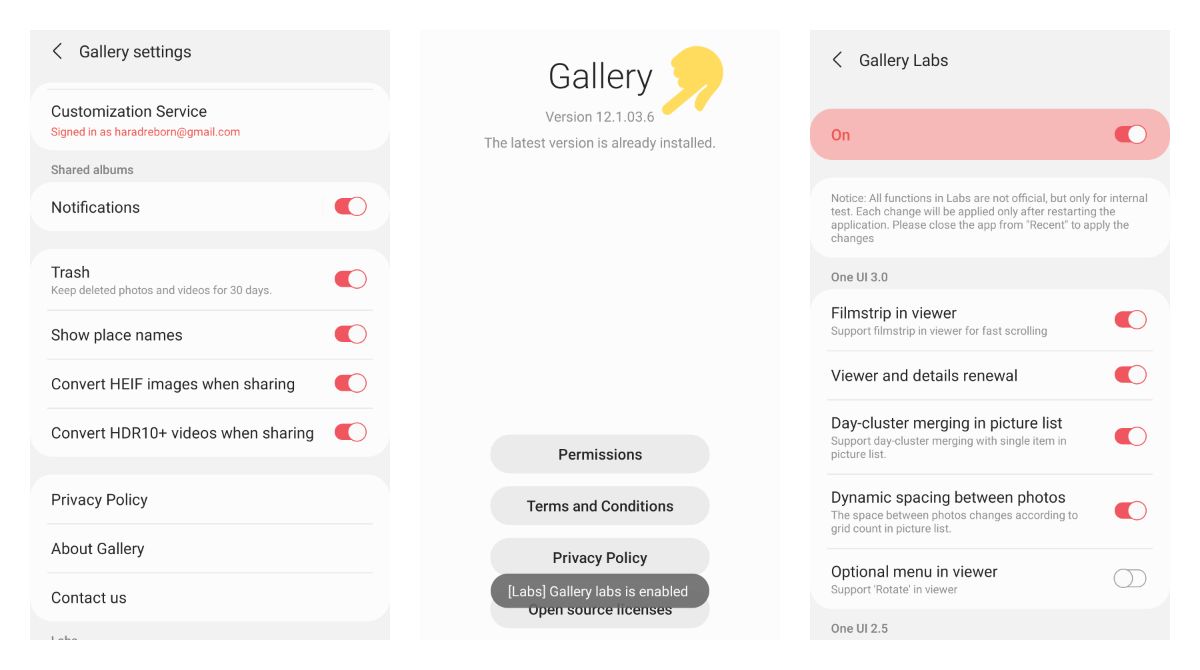
If tapping the screen is ever difficult, you can control your Android phone with facial expressions through Google’s Switch Access tool. Head into Settings > Accessibility > Switch Access and complete the Camera Switch setup. Then you can assign actions like opening the notification shade to a smile or raised eyebrows. You can also adjust the gesture size and hold time so the phone doesn’t misinterpret a blink. For juggling tasks, you can dig into split screen on Android and iOS devices to keep a video playing while you reply to a message, though the exact menu path and supported models vary. The exact menu path for activating the dual view varies by manufacturer and software version. When you need steadier video than your hand can manage, you can use a Hohem gimbal to add cinematic smoothness to a panning shot. Pair it with your camera app so sudden footsteps don’t ruin the clip. On a Samsung device, you can also enable Samsung's Gallery Labs feature to reveal experimental editing tools hidden inside the native photo app. This gives you a quick way to clean up a screenshot before sending it along.