To turn ringer off iPhone 13 instantly, flip the physical Ring/Silent switch on the left side of the device toward the back of the phone until you see an orange indicator. This is the fastest and most reliable way to silence incoming calls and notifications without digging into settings.
Turn ringer off iPhone 13 instantly with the silent switch
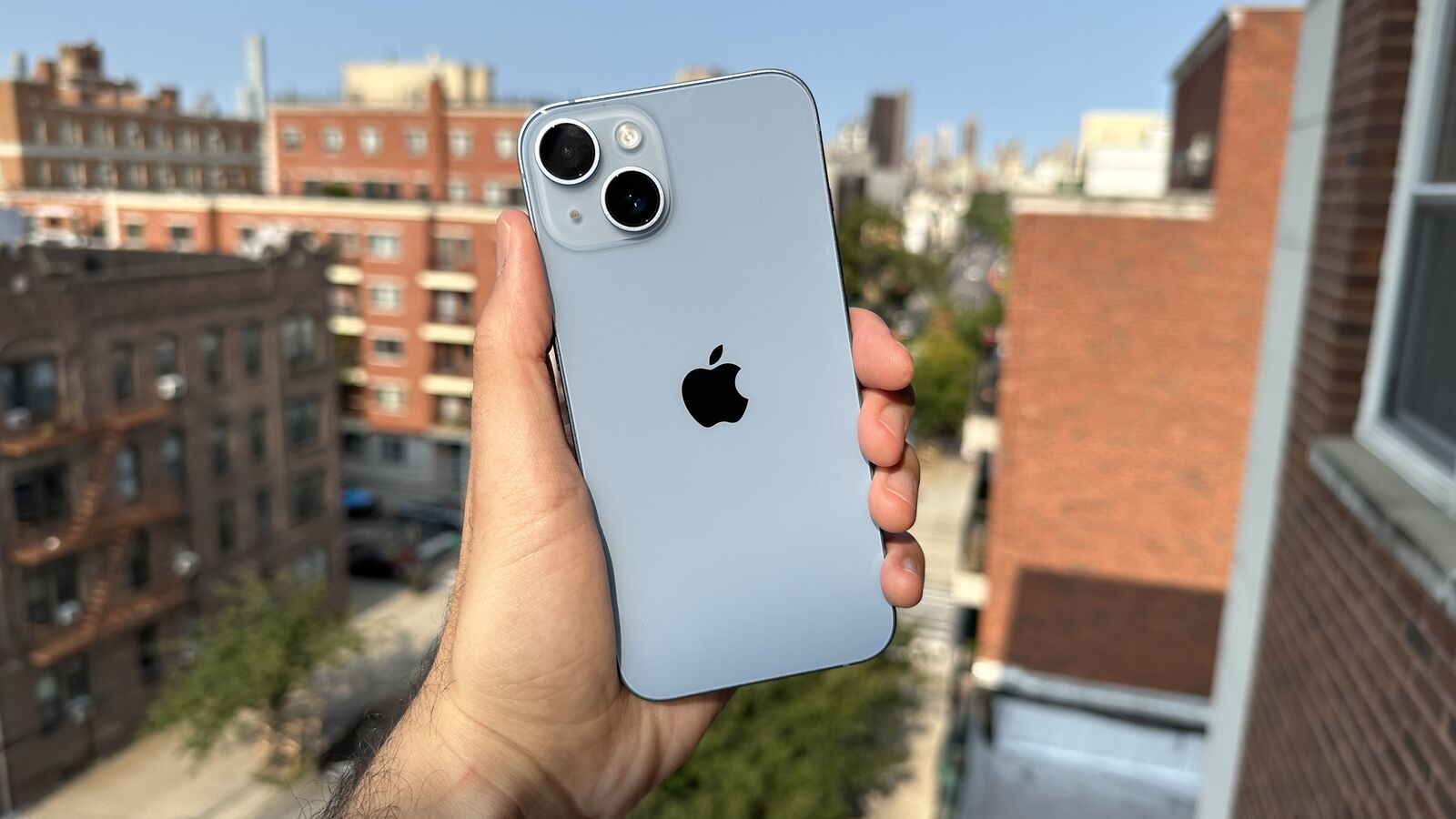
The primary method to silence your iPhone 13 is the physical Ring/Silent switch located on the left side, above the volume buttons. The silent switch is located on the left side of the device, above the volume buttons. Flipping the switch toward the back of the phone reveals an orange indicator, confirming that Silent mode is active. When Silent mode is on, your iPhone 13 will not ring or play alerts or other sound effects for incoming calls and notifications. This switch gives you immediate control without needing to unlock the screen or open any menus.
What sounds does the silent switch not stop?
It is critical to know that the silent switch does not silence everything. Clock alarms, audio from apps like Music, and many games will still play sounds even when Silent mode is enabled. Additionally, in some countries or regions, sound effects for the Camera, Voice Memos, and Emergency Alerts may still play regardless of the switch position. For complete silence during a meeting or at night, you need to manage these exceptions separately.
Silence the ringer from the Control Center
When the physical switch is inconvenient or unavailable, you can toggle Silent mode through the Control Center using Focus modes. To access Focus modes, swipe down from the top-right corner of your iPhone 13 screen to open Control Center. Tap the 'Focus' button in Control Center (it may display 'Do Not Disturb' or another active Focus) to view available options. Tap 'Do Not Disturb' from the Focus menu to turn it on or off. This software-based approach silences incoming calls and notifications just like the physical switch, but it also lets you schedule silence and customize exceptions.
How to schedule silence with Focus modes
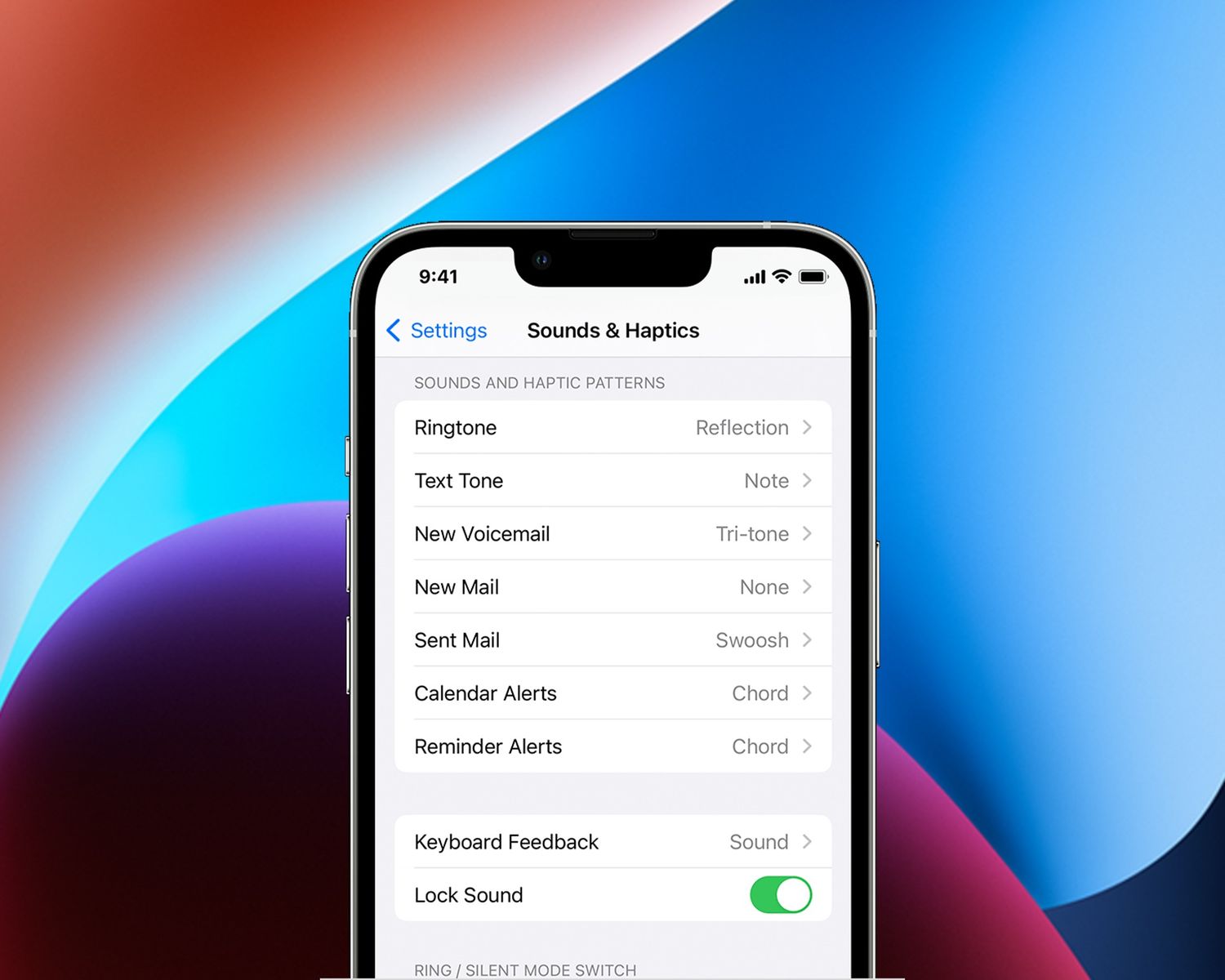
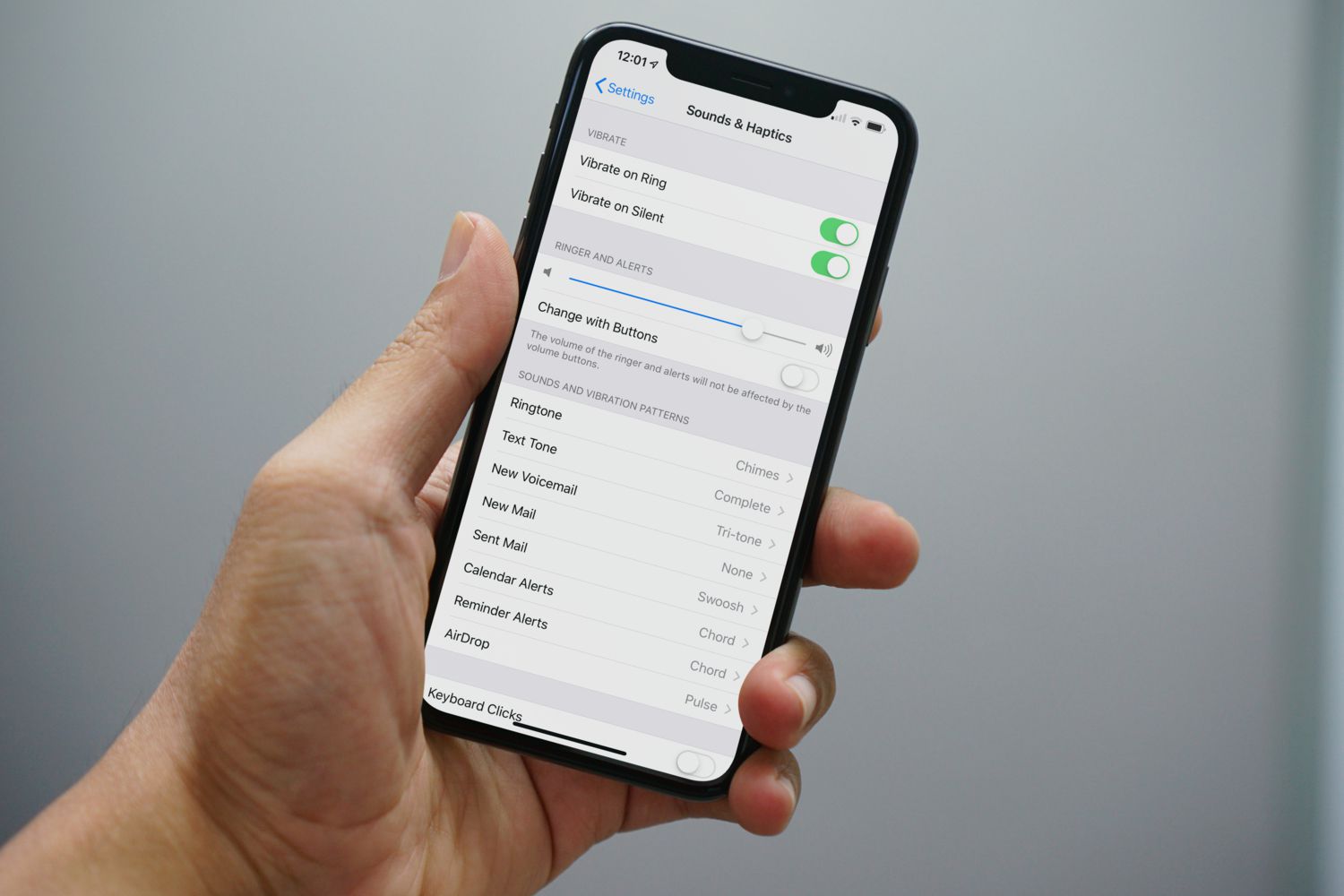
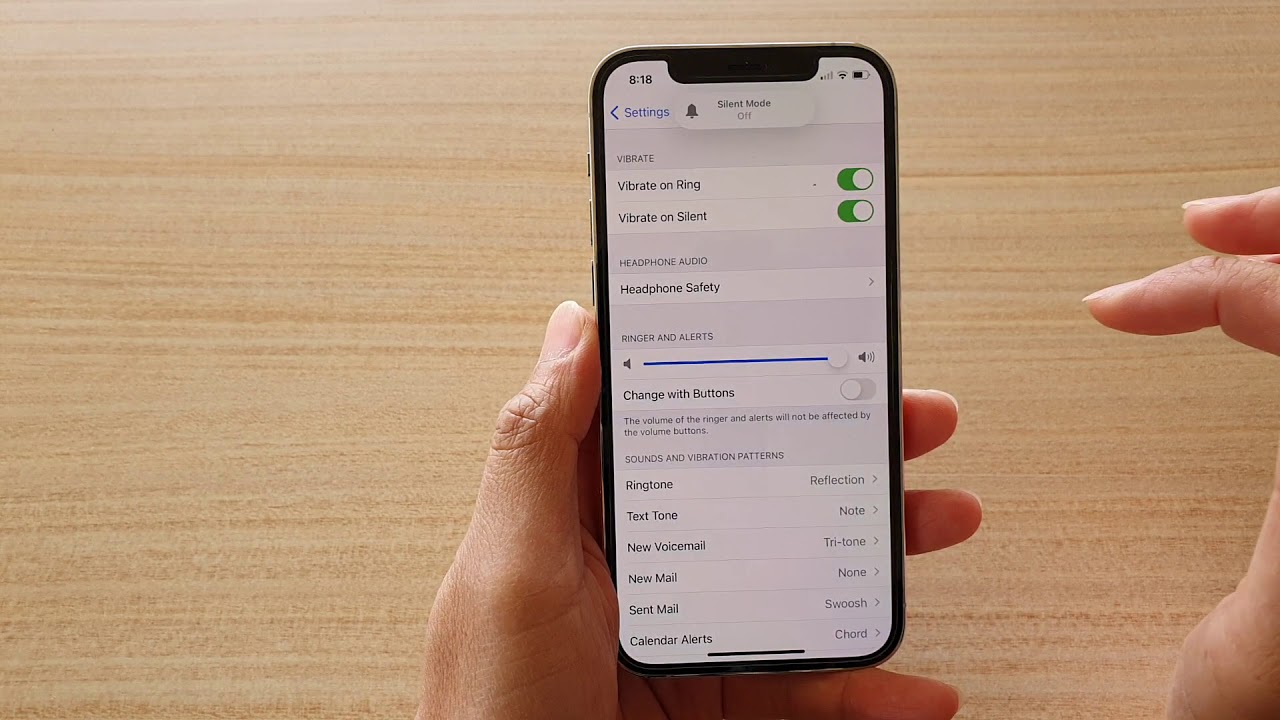
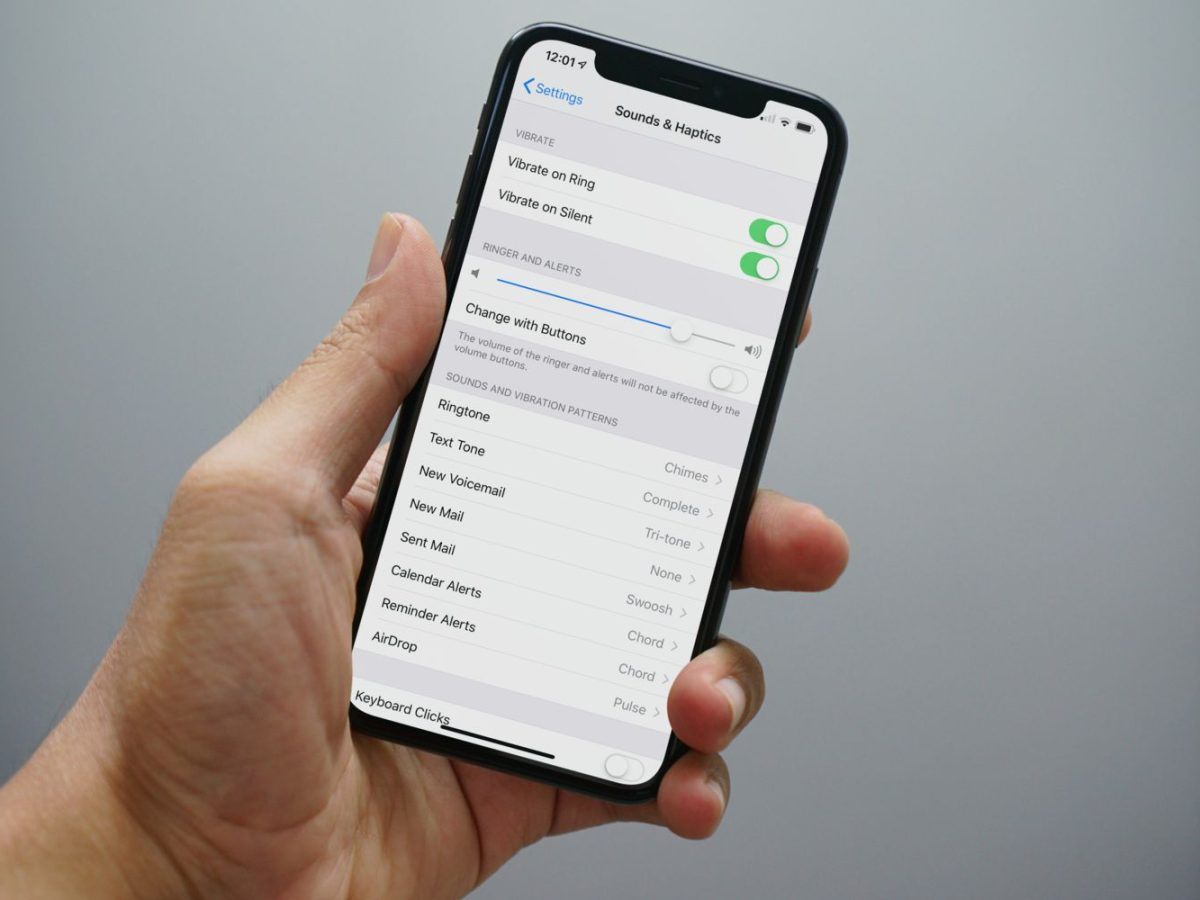
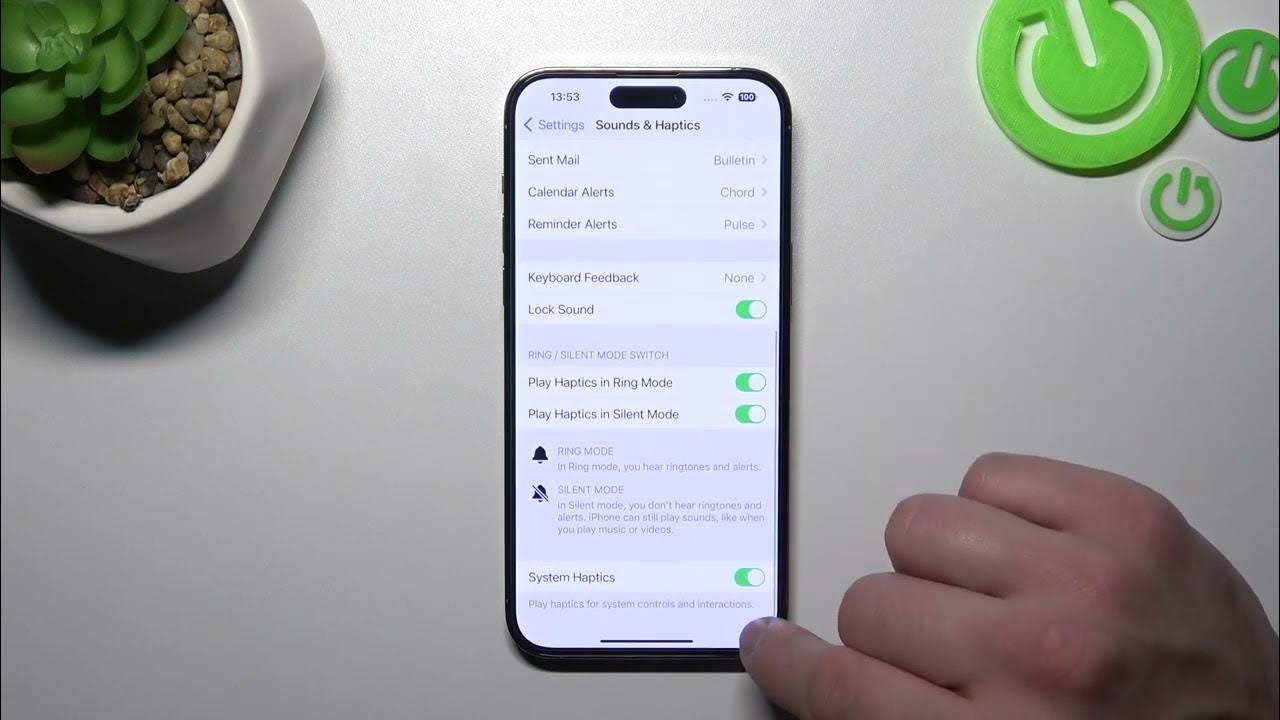
For guaranteed silence at specific times or during activities, customize Do Not Disturb in the Settings app. To customize Do Not Disturb or other Focus modes, go to the Settings app, then tap 'Focus'. Within Focus settings, you can specify which people and apps are allowed to send notifications or calls, even when the Focus is active. To ensure all calls are silenced during a Focus, navigate to the Focus settings, tap 'People' (or 'Choose People'), then 'Allow Calls From' and select 'No One' or ensure no contacts are listed under 'Allow Notifications From'. To prevent repeated calls from ringing through, turn off the 'Allow Repeated Calls' option within the Focus settings. If 'Intelligent Breakthrough & Silencing' is enabled in Focus settings, it may allow important notifications to interrupt you; turn this off for complete silence. You can also set a schedule, such as during work hours or bedtime, so the Focus activates automatically. For fine-tuning audio behavior beyond calls, you can also adjust the volume, mute and speaker controls in the Sounds & Haptics settings to manage media and system sounds separately.
Frequently Asked Questions
Can I still receive calls when the ringer is off on iPhone 13?
Yes. When the ringer is off using the silent switch or a Focus mode, incoming calls will not ring audibly, but they will still come through. You may feel vibration if vibrate is enabled, and the call will appear on your screen. The silent switch only mutes the ringtone and alert sounds, not the call connection itself.
How do I know if the ringer is turned off on my iPhone 13?
The most direct indicator is the orange bar visible on the physical Ring/Silent switch when it is flipped toward the back of the phone. In Control Center, the Focus button will show “Do Not Disturb” or another active Focus, and the bell icon will appear muted. You can also check by pressing a volume button, if the “Ringer” slider shows a muted icon, the ringer is off.
Is there a way to turn off the ringer temporarily without flipping the switch?
Yes. Use the Control Center as described above: swipe down from the top-right corner, tap the Focus button, and select “Do Not Disturb.” This silences the ringer without touching the physical switch, and you can turn it off the same way when you want sound back.
Will my alarm still go off if the ringer is turned off?
Yes. Clock alarms are not affected by the silent switch or by Do Not Disturb mode. Your alarm will sound at the set time even when the ringer is off. To silence alarms, you must turn them off individually or use the Bedtime schedule in the Clock app.
Can I set a specific time to turn off the ringer automatically?
Yes, using Focus modes. In Settings > Focus > Do Not Disturb, you can set a schedule (e.g., 10:00 PM to 7:00 AM) to automatically enable silence. You can also create custom Focus modes for specific activities like driving, working, or sleeping, each with its own schedule and allowed exceptions.
For the wider topic, see volume, mute and speaker controls.
Related reading: How To Turn Off Ringer On IPhone 14 and How To Turn The Ringer On IPhone 11.