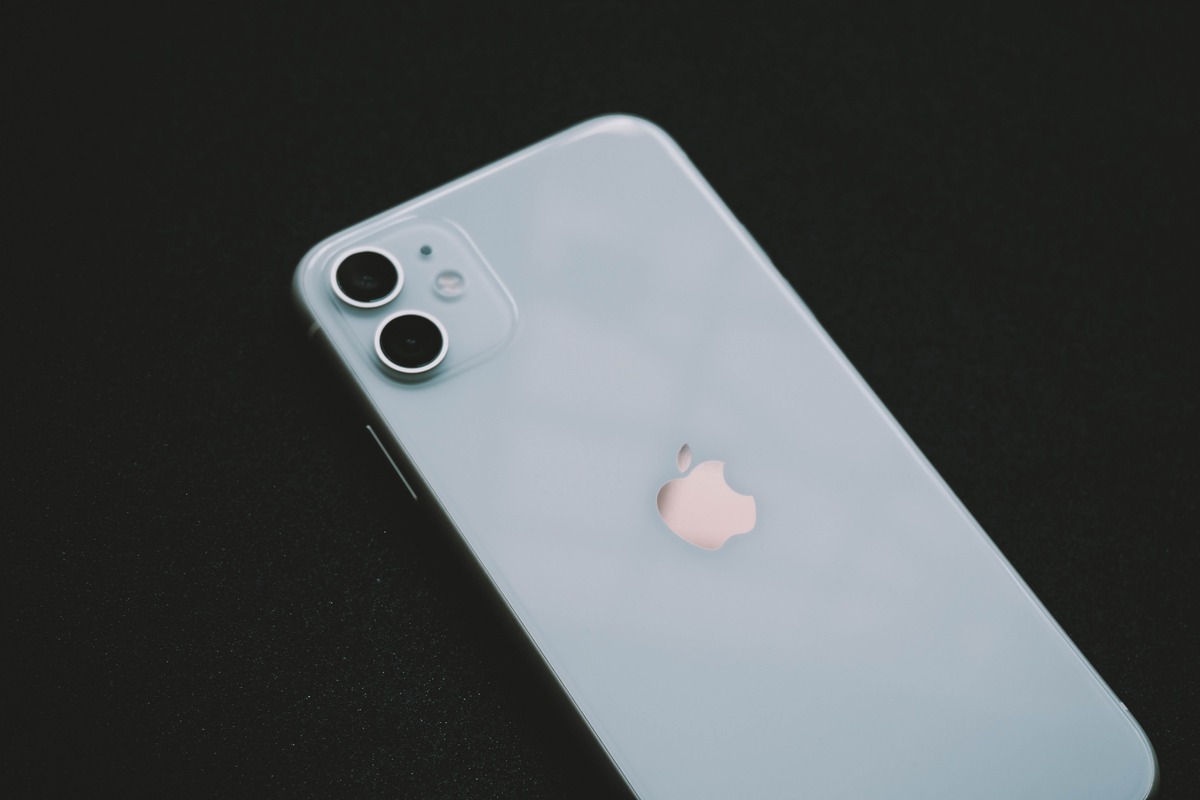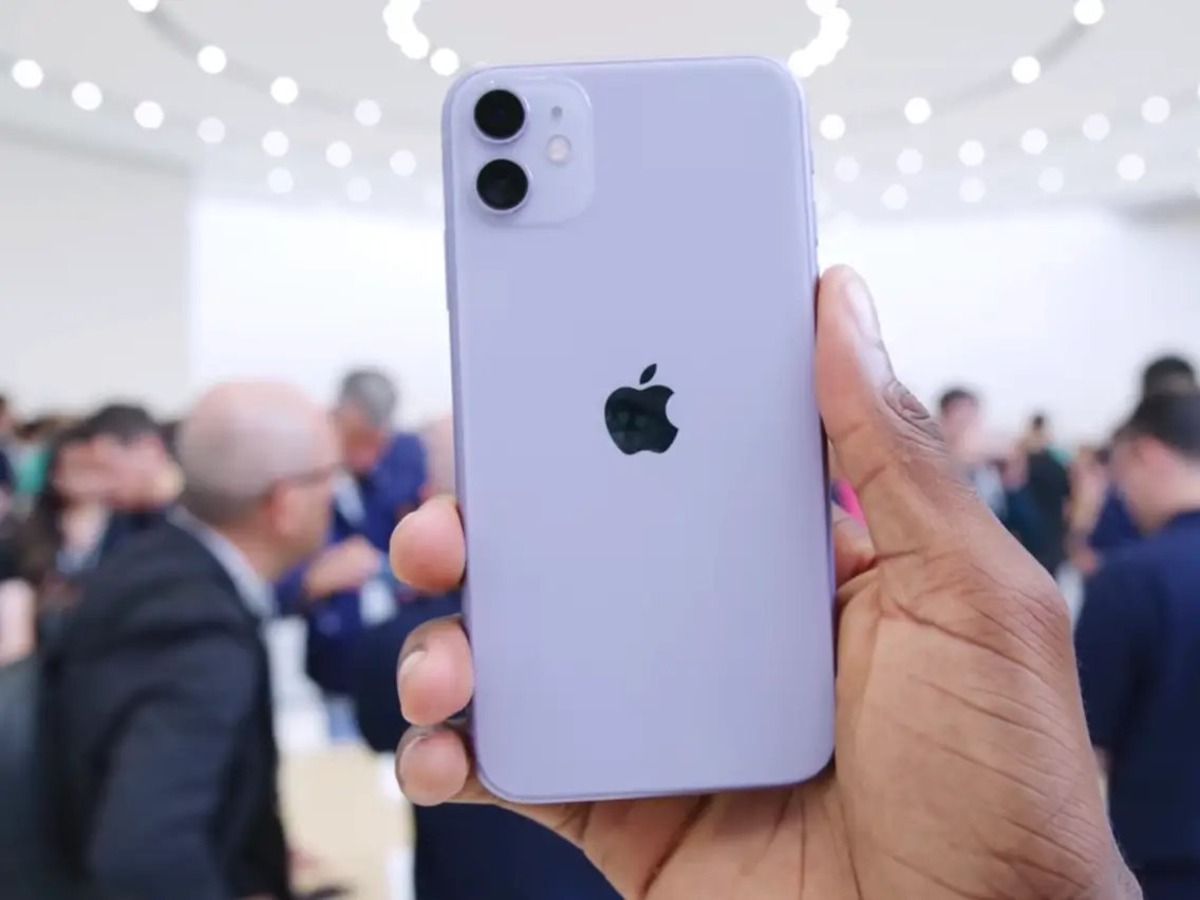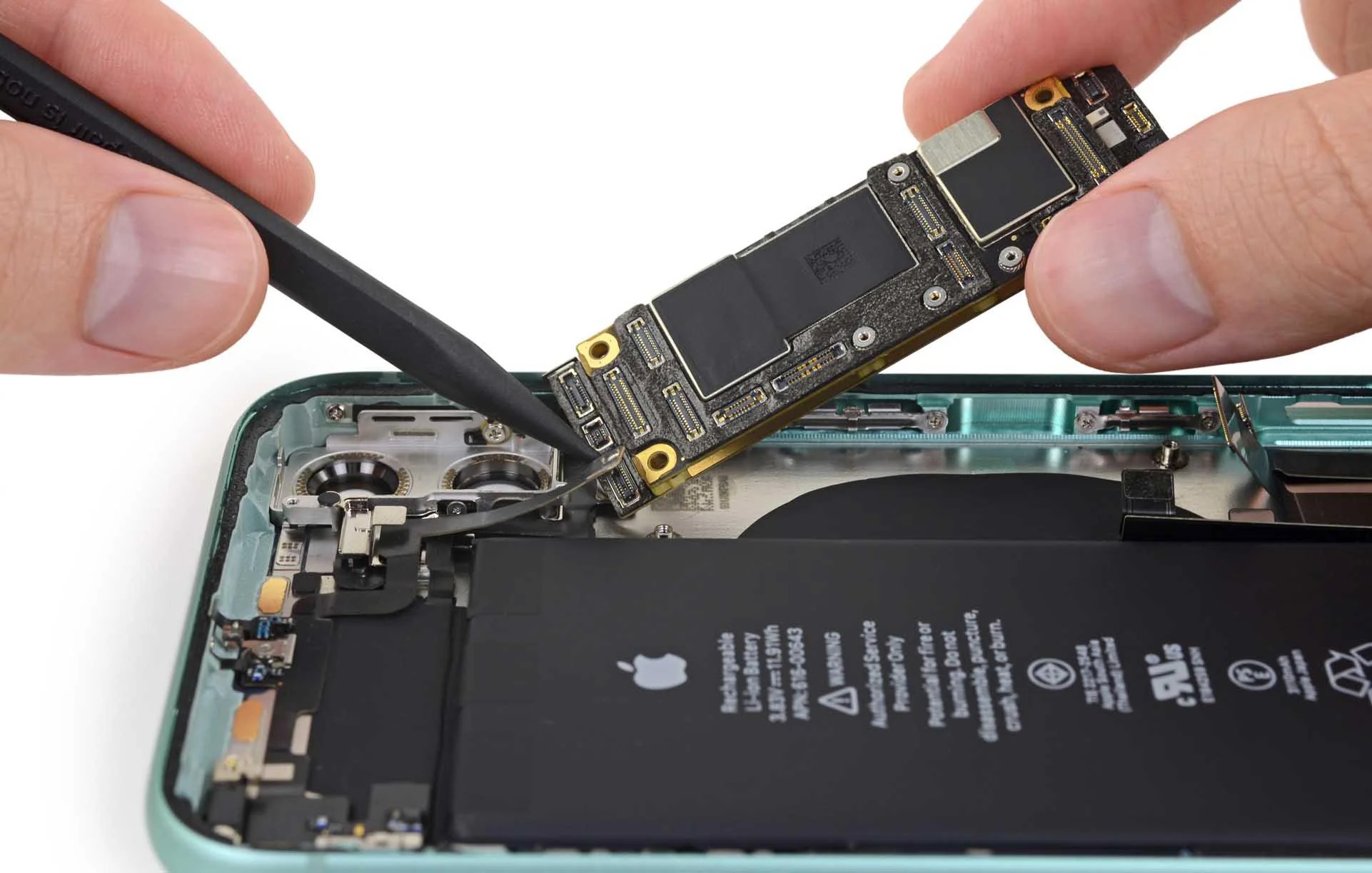
If you are searching for where is the antenna on iPhone 11, the direct answer is that there is no visible or serviceable antenna point for you to locate or adjust.
Where is the antenna on iPhone 11 per Apple
Cellular service depends on the iPhone's connection to the carrier network, not on a manually configurable antenna setting. Apple's support documentation focuses on cellular settings and network status rather than antenna placement, meaning that improving signal does not involve finding or touching an antenna. The antenna on the iPhone 11 is strategically integrated into the device's frame, allowing for improved signal reception and transmission without the need for visible antenna lines on the exterior. The iPhone 11 incorporates multiple antennas to support various wireless technologies, including cellular, Wi-Fi, and Bluetooth, strategically positioned to optimize signal strength and stability.
How to check and manage cellular settings
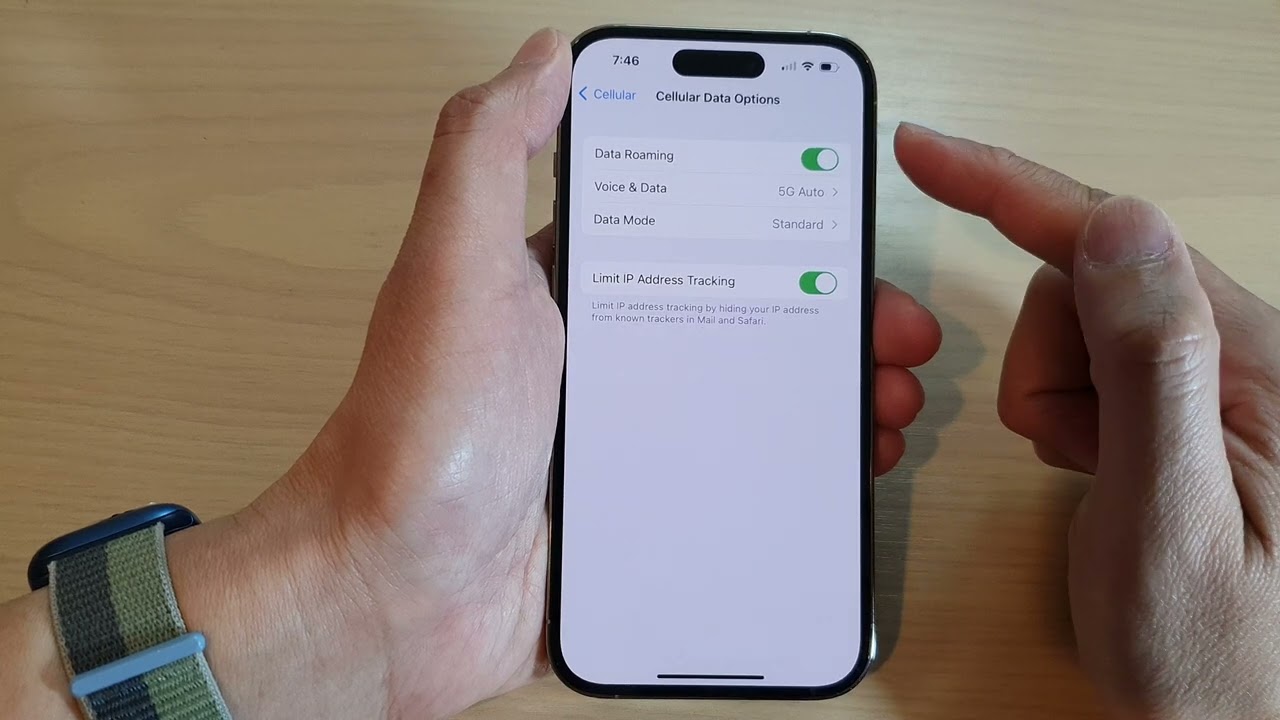
To verify and adjust your iPhone 11's connection to the cellular network, use the documented settings path. Start by navigating home screen and apps to open the Settings app, then follow these steps:
- Tap Cellular.
- Turn Cellular Data on or off as needed.
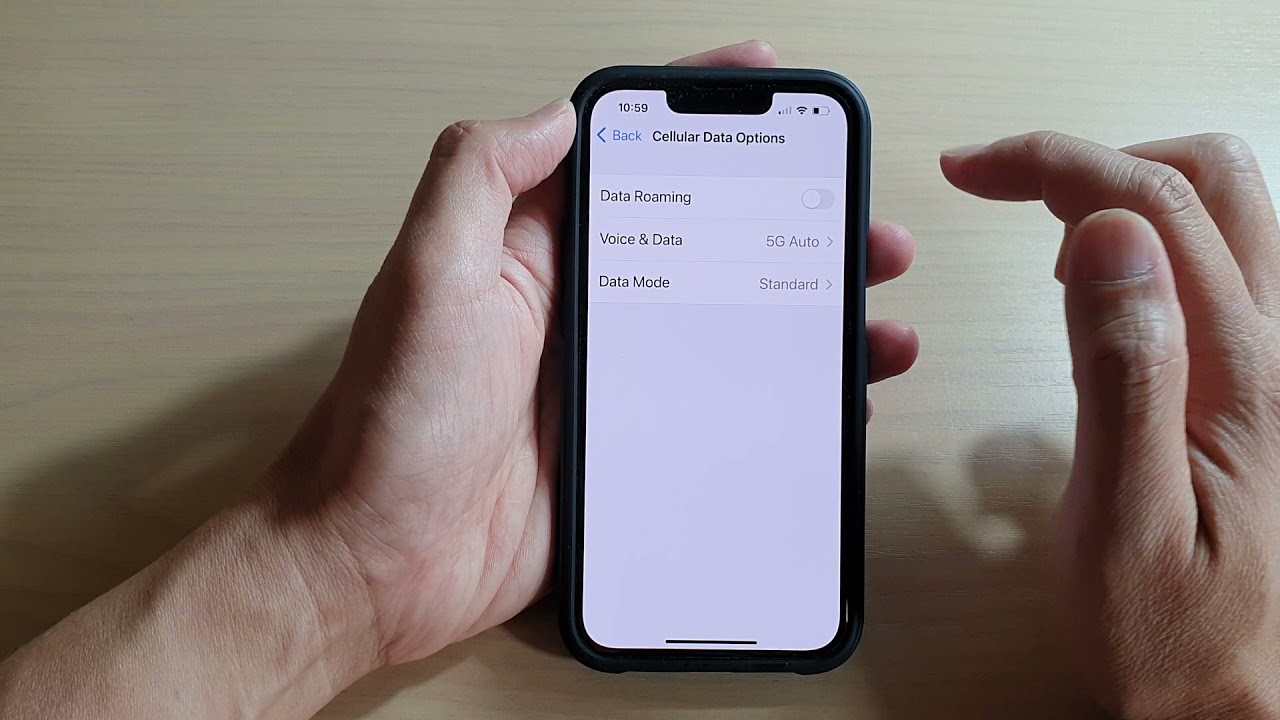
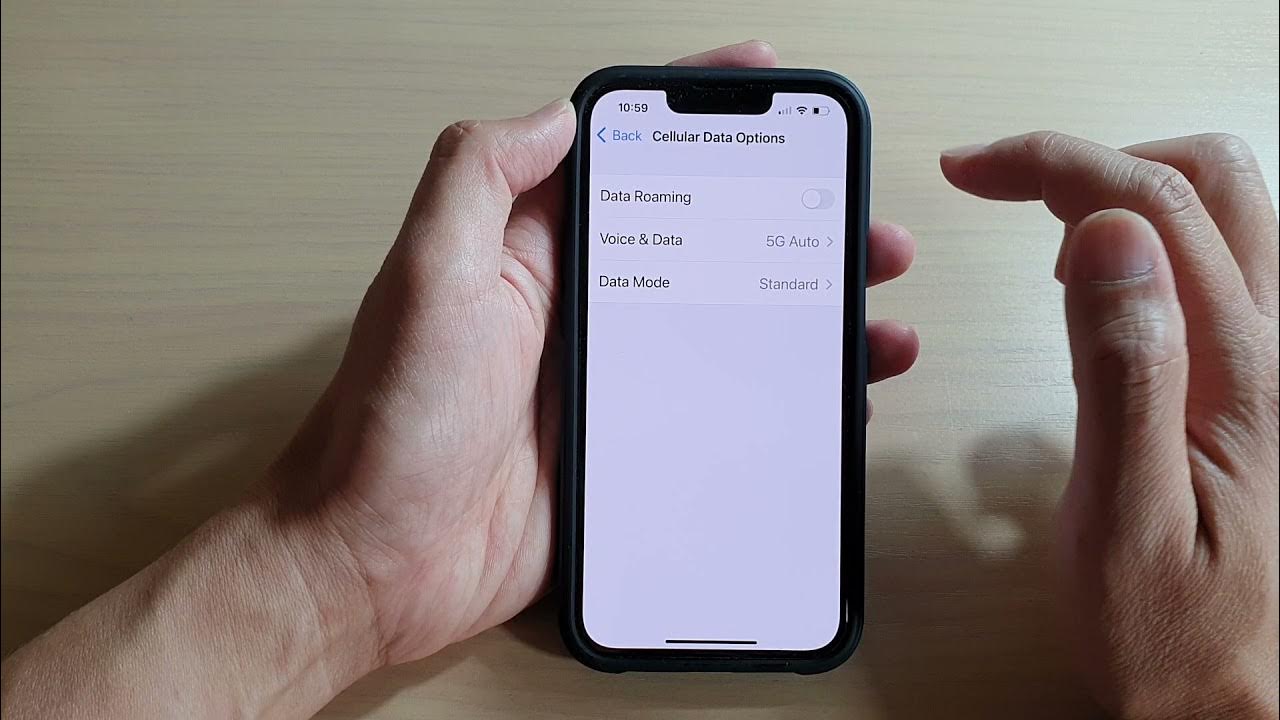
- Tap Cellular Data Options to access additional network controls, such as roaming and network mode, when supported by your carrier and region.
The exact options under Cellular Data Options vary by carrier and region; some options may not appear on every device or plan. If your iPhone has multiple SIMs, you may need to choose the cellular line first before changing data settings.
How to troubleshoot No Service or Searching issues
If your iPhone 11 displays "No Service" or "Searching," Apple provides a documented troubleshooting path. Follow these steps:
- Go to Settings > Cellular.
- Tap the relevant cellular line (if you have multiple lines).
- Check whether the line is turned on. If it is off, tap Turn On This Line.
- Check for service again.
Common antenna-related issues include signal loss or weak reception due to physical obstructions, network congestion, or software glitches. Interference from external factors such as electronic devices, metal structures, or electromagnetic interference can disrupt wireless communication. Users may encounter issues with GPS accuracy or stability, resulting in unreliable navigation and location-based services, which can be attributed to antenna malfunctions or software inconsistencies. Overheating near the antenna area can indicate hardware issues or excessive network activity, affecting performance and signal reception. Water damage can compromise the iPhone 11's antenna functionality, leading to connectivity issues and signal disruptions.
What to do if signal problems persist
If you continue to experience signal issues after verifying cellular settings and line status, check for carrier settings updates and confirm your carrier's coverage in your area. Since the antenna is not user-serviceable, persistent problems require contacting Apple Support for further assistance. There are no documented user steps for antenna replacement or repair in Apple's official resources. Keeping the device updated with the latest software is an effective way to optimize antenna performance.
Frequently Asked Questions
Can I improve signal by holding my iPhone 11 a certain way?
The antenna is internal, and signal strength depends on network conditions and carrier coverage rather than how you hold the device.
Does a case block the iPhone 11 antenna?
Apple does not specify that cases block the antenna, as the antenna is integrated into the device's frame. However, cases with metal components or thick shielding materials may interfere with radio signals in general. It's advisable to avoid covering the area where the antenna is located, as this may interfere with signal reception. Using a protective case that doesn't obstruct the antenna's functionality is recommended.
Why does my iPhone 11 show "SOS" instead of signal bars?
This indicates your iPhone is not connected to your carrier's network but can still make emergency calls. Follow the troubleshooting steps above to check your cellular line status and settings.
Is there a way to reset the antenna on iPhone 11?
There is no documented antenna reset. The closest option is to toggle Cellular Data off and on, or restart your iPhone, which refreshes the device's connection to the network.
Related reading: How Old Is An IPhone 11 and Where Is The Speaker Located On An IPhone 11?.