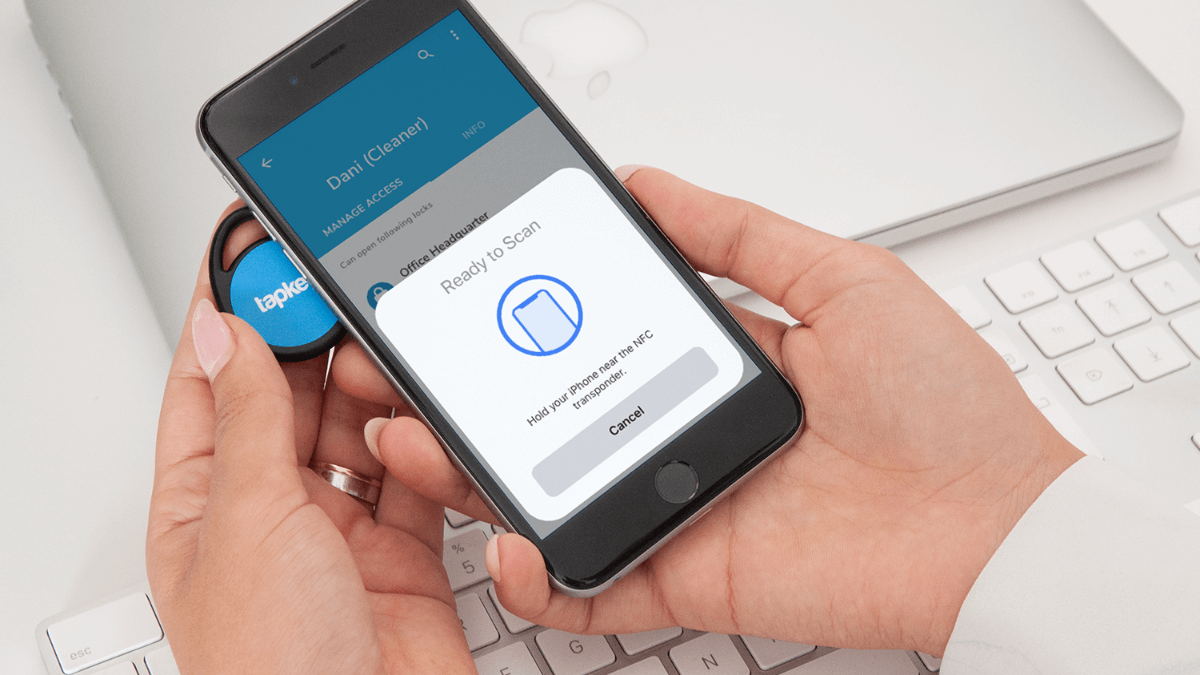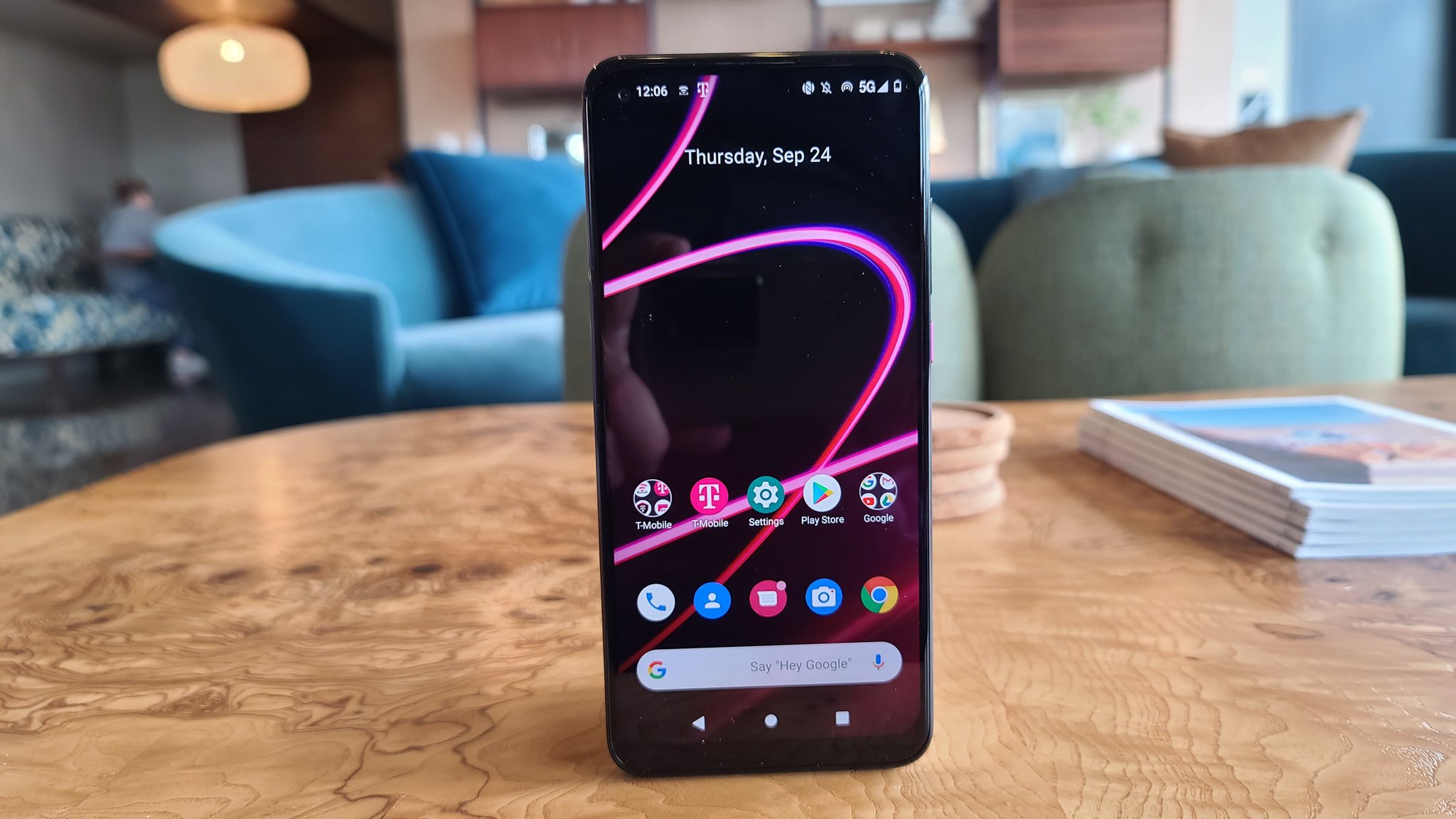
To scan an NFC tag on Android, simply turn on NFC in your phone's settings and hold the back of your device near the tag. The phone will automatically read the tag and show you a notification or prompt to interact with its data.
What is NFC?
NFC, or Near Field Communication, is a short-range wireless technology that lets two devices exchange data when they are held close together, typically within a few centimeters. It works through electromagnetic induction, where a tiny chip in one device acts as both a transmitter and receiver. NFC is commonly used for contactless payments, reading smart tags, and quickly sharing information like a website URL or contact card. The data stored on an NFC tag is usually formatted as NDEF (NFC Data Exchange Format), which Android can read and process without any special setup.
How to enable NFC on your Android phone
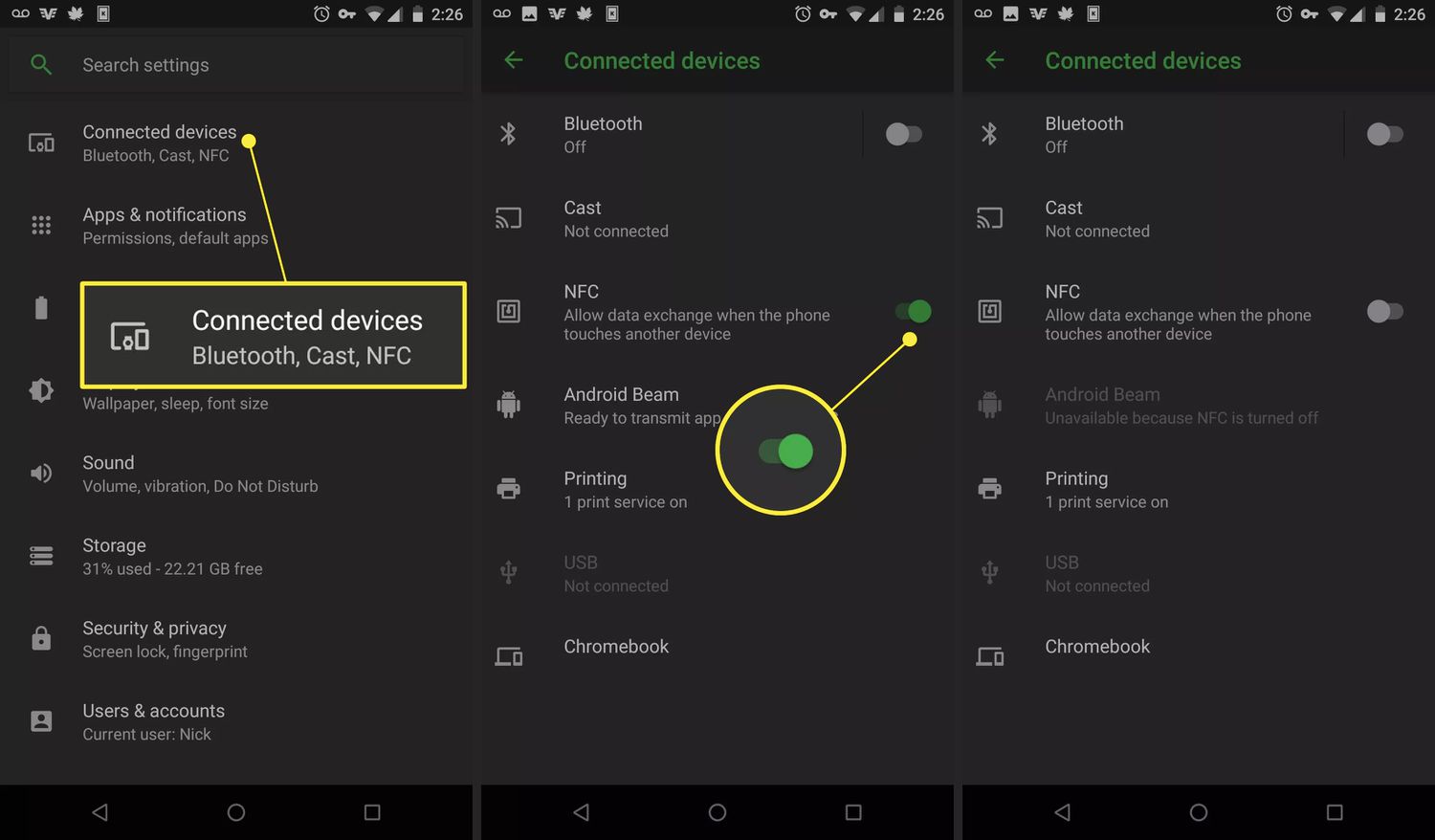
Before you can scan a tag, NFC must be turned on. The exact steps depend on your phone model and Android version, but the general approach is the same. Tap it and flip the switch to On. Some phones also offer a quick toggle for NFC in the notification shade, look for the NFC icon. If you don't see any NFC option, your phone may not support the feature (see the FAQ below for how to check).
How to scan an NFC tag on Android
- Make sure NFC is enabled. Follow the steps above to turn it on. On iPhone 7, 7 Plus, 8, 8 Plus, and X, NFC Tag Reader must be turned on in Control Center before scanning. On iPhone XS, XR, and later, NFC Tag Reader is supported automatically, so the phone reads NFC tags without opening Control Center. Apple's page lists specific models that automatically support NFC Tag Reader: iPhone SE (2nd generation and later), iPhone XR, iPhone XS, iPhone XS Max, iPhone 11, iPhone 11 Pro, iPhone 11 Pro Max, iPhone 12 mini, iPhone 12, iPhone 12 Pro, iPhone 12 Pro Max, iPhone 13 mini, iPhone 13, iPhone 13 Pro, and iPhone 13 Pro Max.
- Locate the NFC tag. Tags are often embedded in stickers, cards, posters, product packaging, or key fobs. They may have a small icon or logo indicating the NFC symbol.
- Hold your phone near the tag. Place the back of your phone close to the tag, usually within 1-2 inches. You don't need to touch it; just bring it near.
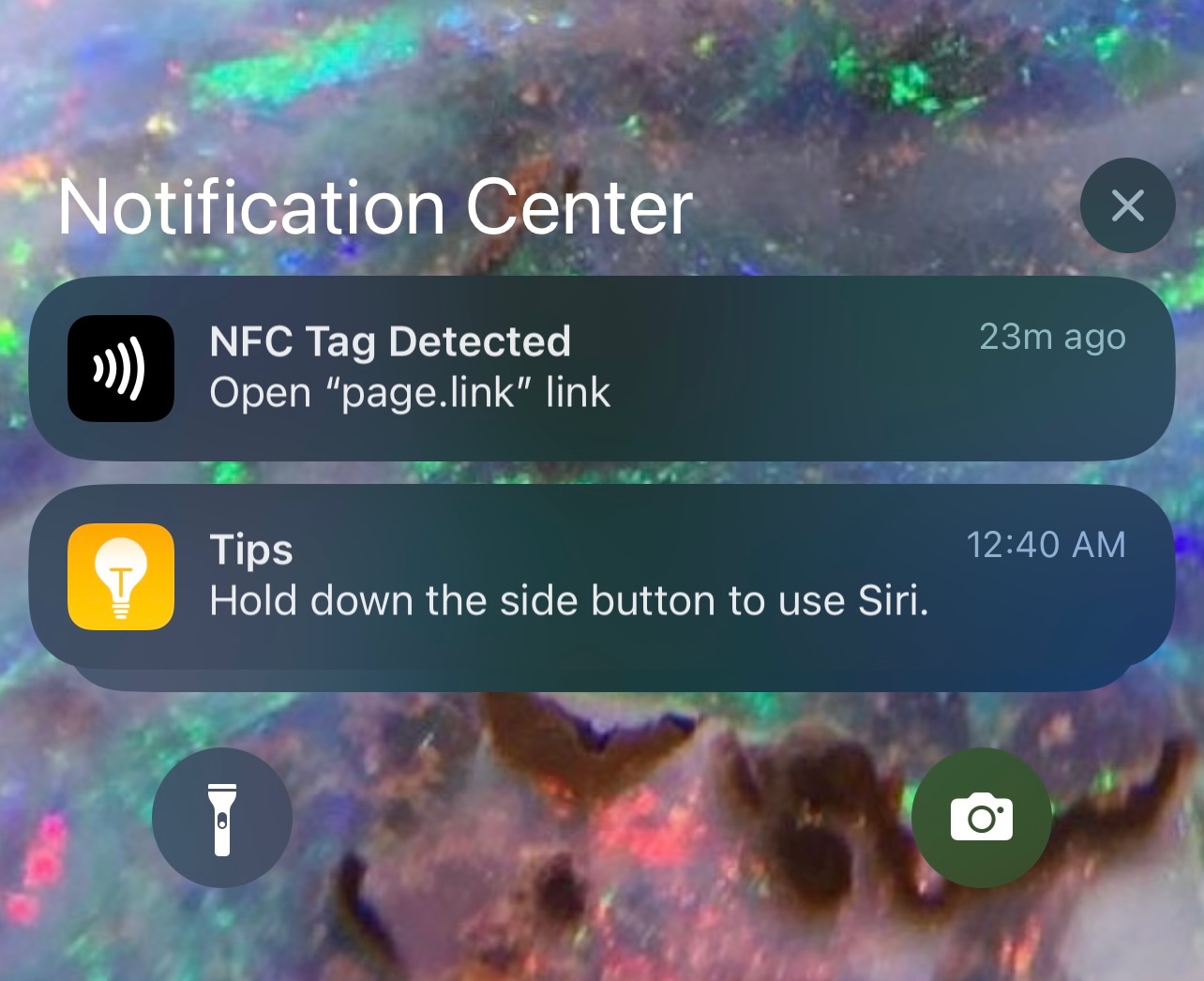
- Wait for the phone to recognize the tag. You may hear a sound, feel a vibration, or see a notification pop up on the screen. Android will automatically read the tag's data.
- Tap the notification to interact. Depending on what the tag contains, you might be asked to open a website, view a contact card, connect to Wi-Fi, or launch an app. Follow the on-screen prompt to complete the action.
Do you need an app to scan NFC tags?
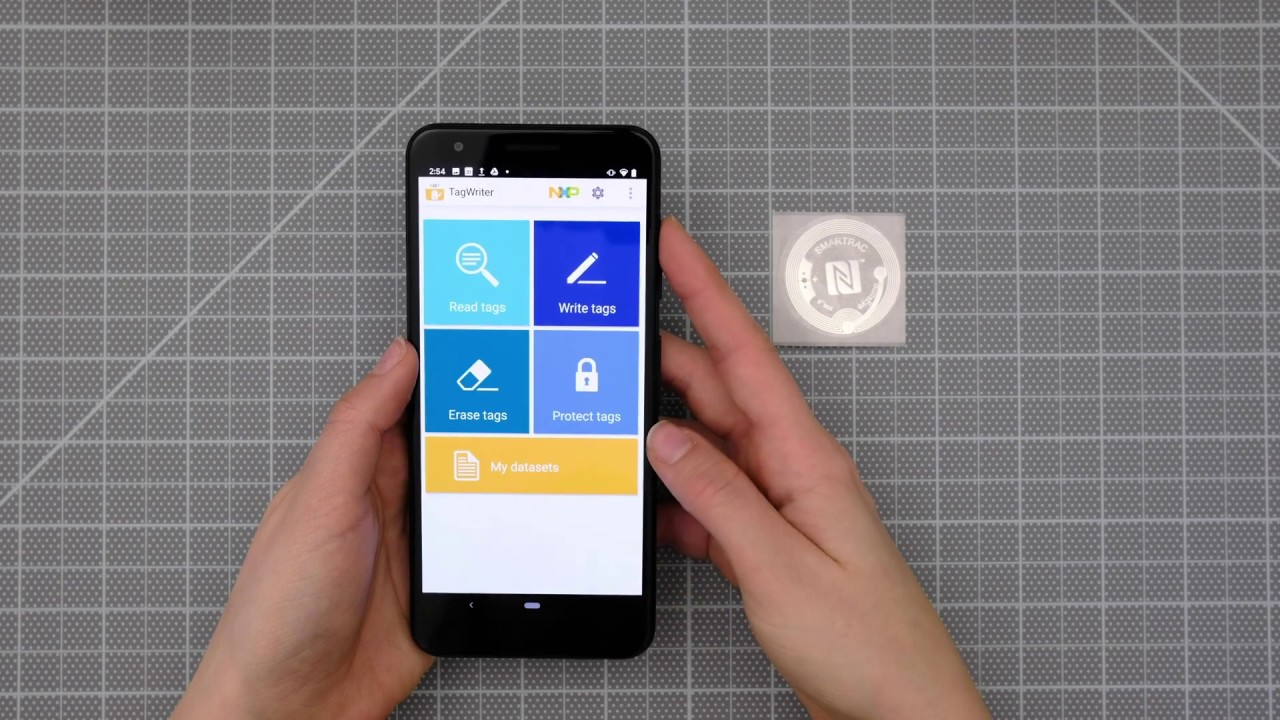
No, you do not need a third-party app to scan basic NFC tags on Android. The operating system's built-in NFC handler can read standard NDEF data, like URLs, phone numbers, or text, and prompt you to take action. However, some advanced uses do require a dedicated app. For example, writing or programming your own NFC tags, reading non-NDEF formats, or making contactless payments with services like Google Pay all rely on specific apps. The Google Play Store offers many such tools, but for everyday scanning of pre-programmed tags, your phone handles it natively.
Troubleshooting NFC scanning issues
- NFC is not enabled. Double-check that the NFC toggle is switched on in Settings. It may have turned off after a restart or software update.
- Phone is not detecting the tag. Make sure the tag is within a few centimeters of the phone's NFC antenna (usually near the top of the back). Remove any case, battery pack, or metal object that might block the signal. For iPhone 7, 8, 8 Plus, and X, confirm NFC Tag Reader is added to Control Center before trying again as a troubleshooting step.
- Tag may be damaged or incompatible. Try scanning a different NFC tag to see if the problem is with the tag itself. Some older or poorly made tags may not work reliably.
- Restart your phone. A simple reboot can clear temporary glitches that prevent NFC from working.
- App needs to re-request scanning permission. If you are using a specific app to scan tags, the app may need to prompt you again for NFC access. Close and reopen the app, or check its permissions in Settings.
Frequently Asked Questions
How do I check if my Android phone has NFC?
Open the Settings app and search for "NFC" using the search bar at the top. If you see an NFC option appear, your phone supports it. Alternatively, look in the "Connections" or "Wireless & Networks" section. You can also check your phone's specifications online or in the user manual.
What can NFC tags be used for?
NFC tags can store a wide variety of information. Common uses include opening a website, sharing a Wi-Fi password, launching an app, saving a contact, or triggering a smart home action like turning on lights. Businesses also use them for loyalty programs, digital menus, and product authentication.
Can I scan an NFC tag if my phone screen is off?
On most Android phones, NFC scanning works even when the screen is off or locked, as long as NFC is enabled. However, the action triggered by the tag, like opening a link, may require you to unlock the device first for security reasons.
What is the difference between NFC and Bluetooth?
NFC is designed for very short-range (a few centimeters) and quick data exchanges, usually without manual pairing. NFC is often used to initiate a Bluetooth connection by exchanging pairing information with a simple tap.
Why does my phone say "Tag not supported"?
This message usually appears when the NFC tag uses a format or protocol that your phone's built-in reader cannot interpret. The tag may be programmed with proprietary data, require a specific app, or be from a different ecosystem (like some transit card systems). Try installing the app associated with the tag, or check if the tag is meant for a different device type.
For the wider topic, see NFC tags and readers explained.