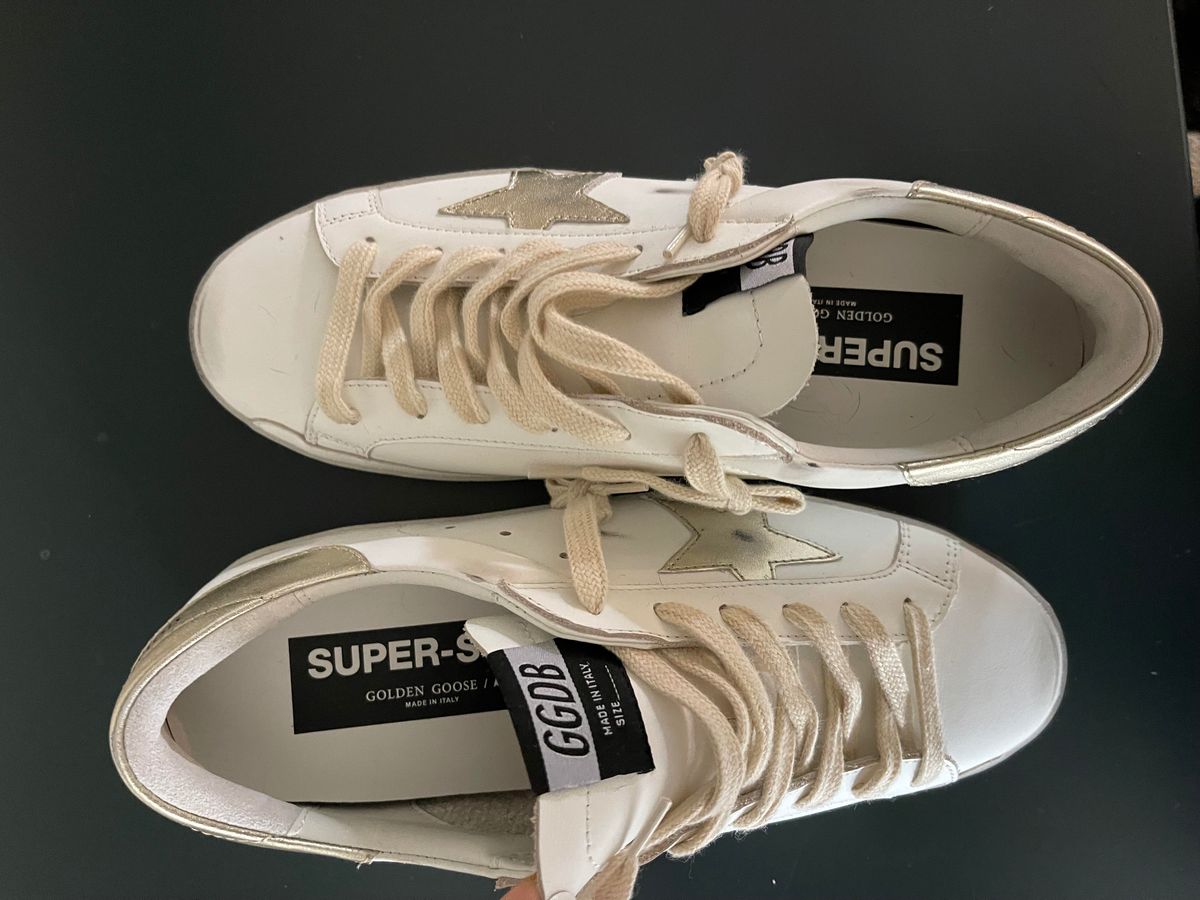
To scan NFC on Golden Goose shoes for authentication, hold your smartphone against the heel of the right shoe for 1-2 seconds. A successful scan redirects to the official Golden Goose website, confirming your sneakers are genuine.
How to scan NFC on Golden Goose shoes for authentication
The sole purpose of the NFC tag in Golden Goose shoes is authenticity verification. It is hidden under the heel of the right shoe, embedded within the shoe's layers. When scanned correctly, your phone will redirect to the official Golden Goose website, confirming the shoes are authentic. If the scan fails or shows a "red" indication, it is a red flag for counterfeits.
Where is the NFC tag on Golden Goose shoes?
The NFC tag is typically located under the heel of the right shoe, hidden within the shoe's construction. It is not visible because it is embedded between the layers of the sole, protecting it from wear and tear. This placement allows the tag to remain passive and functional without affecting the shoe's comfort or design.
How to scan the tag with an Android phone
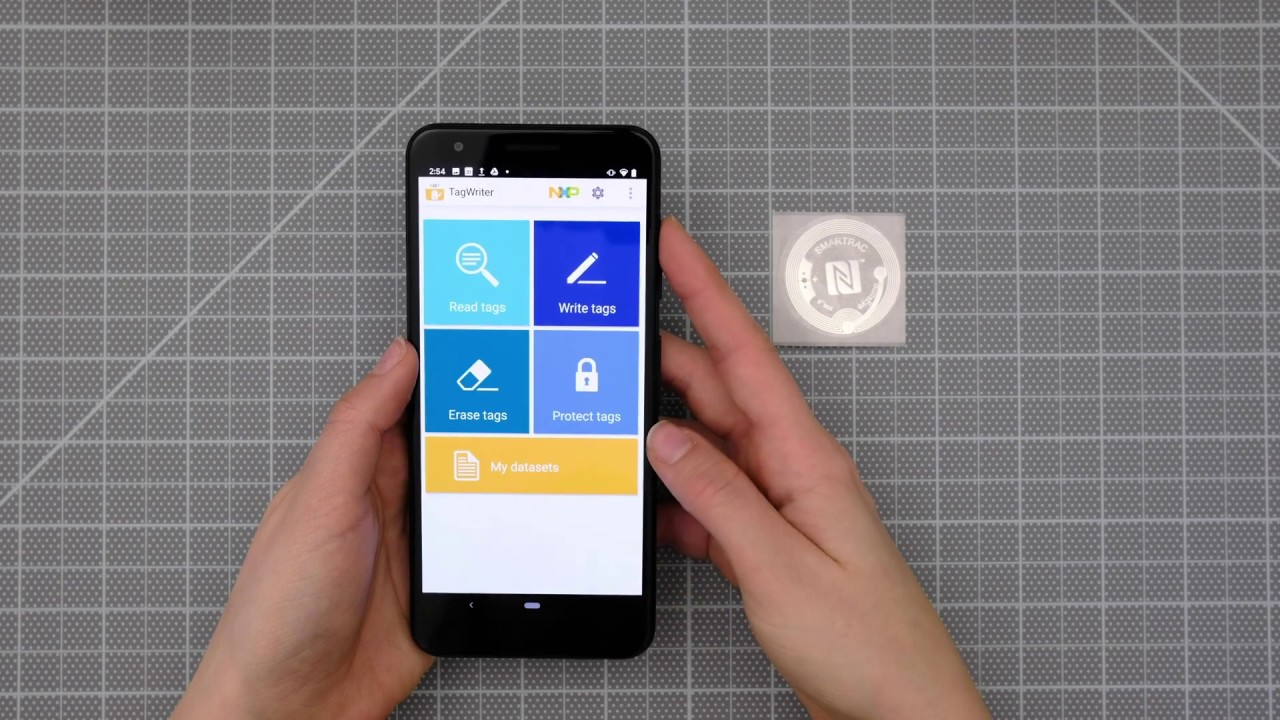
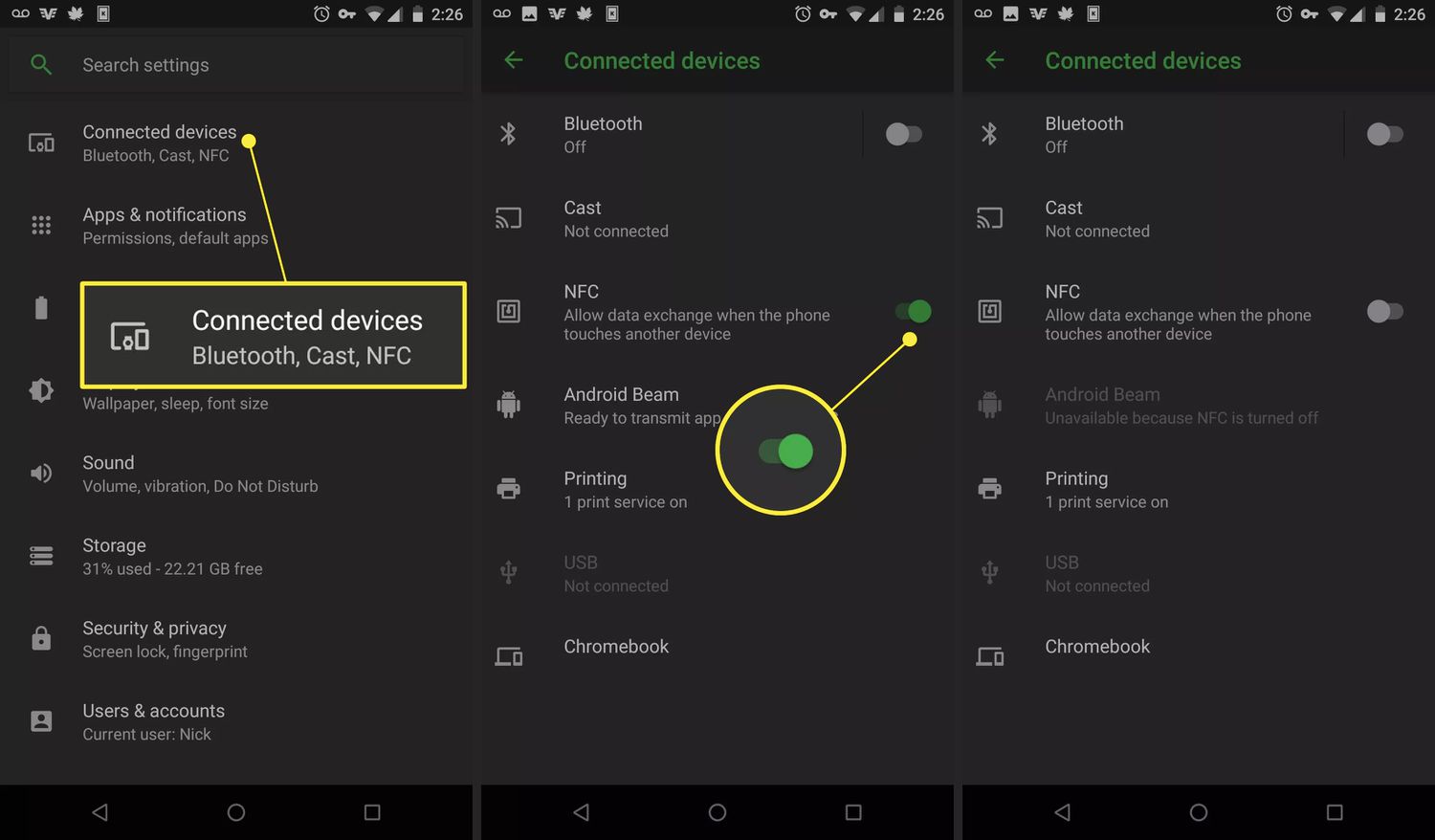
- Enable NFC in your phone's settings: Go to Settings > Connected Devices or Connections (exact name may vary) > Connection Preferences, then toggle on NFC. Some Android phones may also require a specific "Read NFC Tag" function to be enabled in their settings.
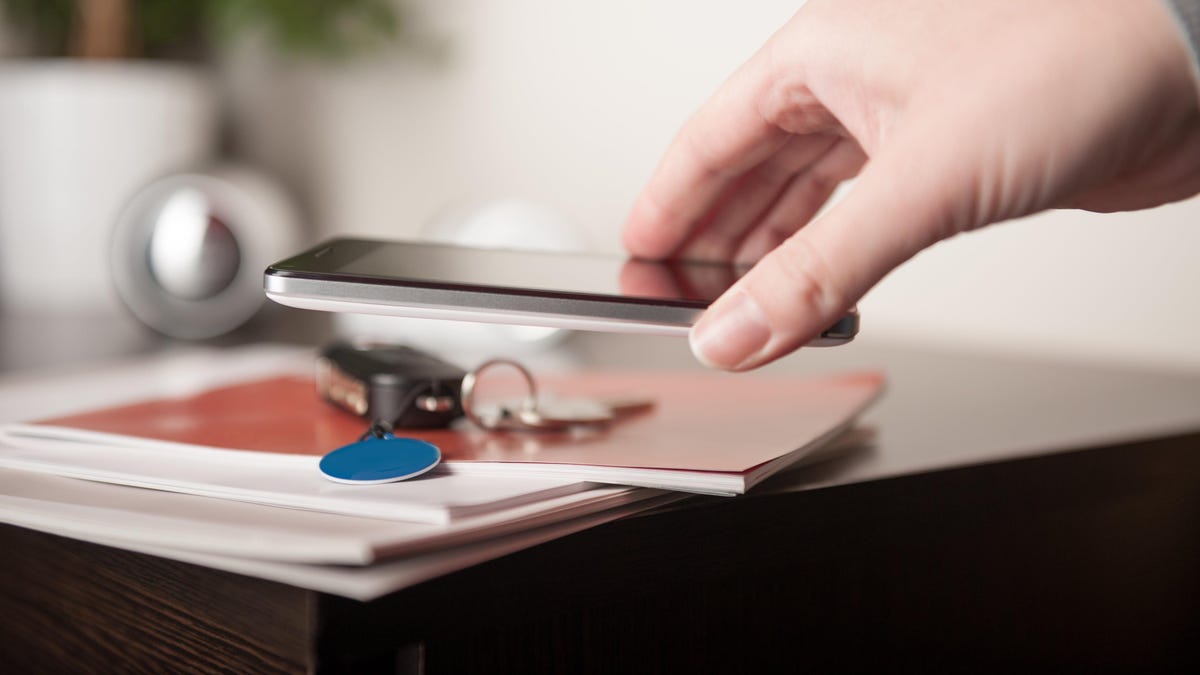
- Hold the back of your phone directly against the heel of the right shoe for 1-2 seconds, keeping it in close contact. Avoid quick movements.
- Wait for the redirect. The phone will detect the tag and open the official Golden Goose website.
How to scan the tag with an iPhone
NFC tags and readers explained: NFC is a short-range wireless technology that allows your phone to read passive tags by drawing power from the phone during scanning. All iPhone 7 and later models support NFC, but the method varies by model.
iPhone 7 through iPhone X
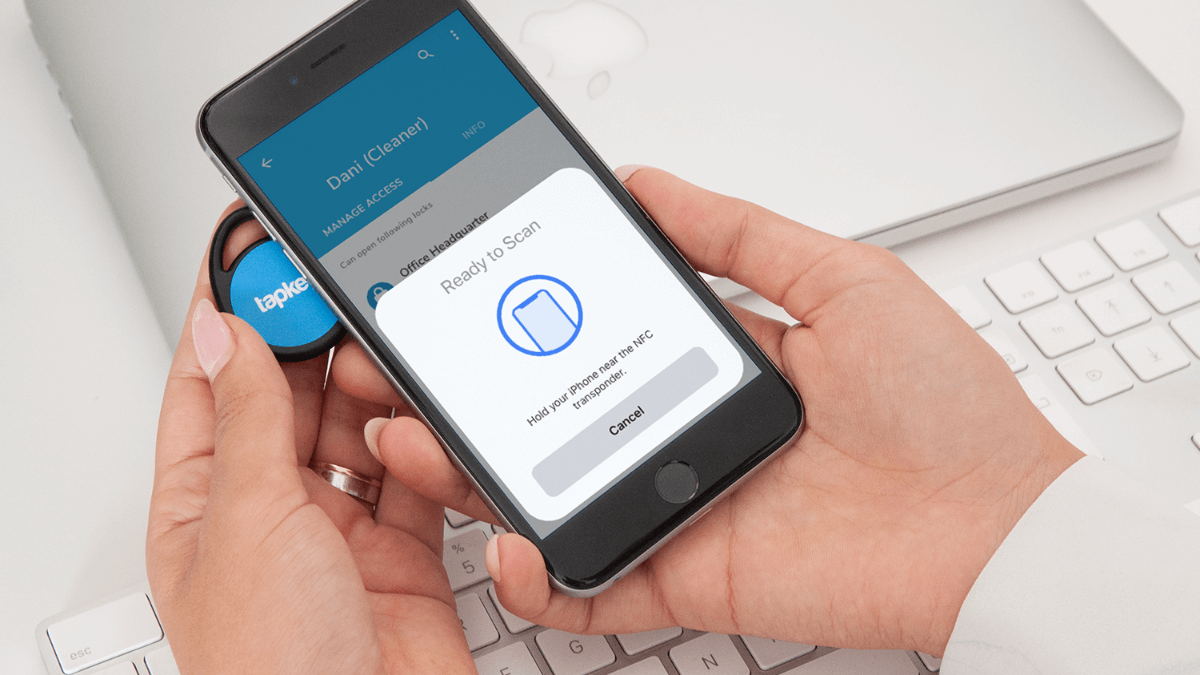
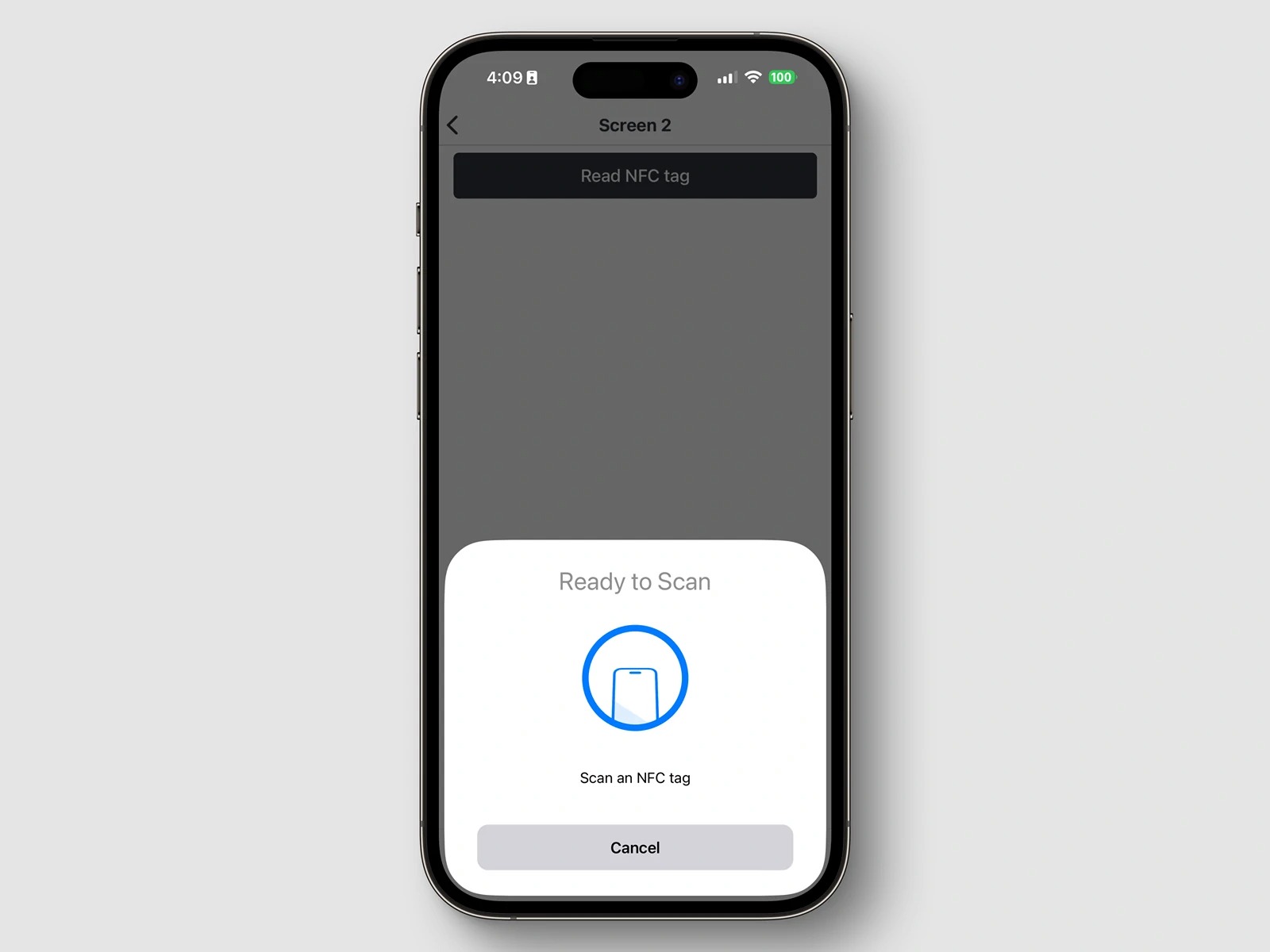
These models require a dedicated app to read NFC tags. Download a compatible NFC reader app from the App Store, open it, and hold the top of your iPhone against the heel of the right shoe for 1-2 seconds.
iPhone XS and newer
These models can read NFC chips without needing a specific application.
iPhone 11 and later
These models automatically recognize and scan NFC tags without requiring manual activation.
What the scan results mean
If the scan results in a "red" indication or fails to redirect to the official site, it is a red flag for counterfeits. The NFC tag's sole purpose is authenticity verification, so any unexpected behavior should raise suspicion.
Troubleshooting: why won't my phone scan the tag?
Common issues include thick phone cases, especially those made of metal or very thick shockproof materials, which can block NFC signals. Remove the case before scanning. Ensure you hold the phone in close contact with the heel for the full 1-2 seconds, as the effective communication range is only a few centimeters. The tag is passive and draws power from your phone, so your phone must have NFC enabled and sufficient battery. The scanning interval for NFC on a phone is not continuous and can vary based on factors like manufacturer settings, operating system, and power management, so try scanning again if it fails initially.
Frequently Asked Questions
Can I scan the NFC tag without removing the shoe's insole?
Yes, the tag is designed to be readable through the shoe's materials. You do not need to remove the insole or any part of the shoe.
Will scanning the NFC tag drain my phone battery?
No, the scan takes only 1-2 seconds and uses negligible power. The tag itself has no battery and draws power only during the brief scanning process.
What if my phone doesn't have NFC?
Most modern smartphones, including mid-to-high-end Android devices and all iPhone 7 and later models, have built-in NFC. If your phone lacks NFC, you cannot scan the tag, and you should rely on other authentication methods like checking the shoe's craftsmanship and materials.
Can I scan the tag multiple times?
Yes, the tag is reusable and can be scanned any number of times. Each scan will redirect to the official Golden Goose website, confirming authenticity.
Does the NFC tag work if the shoes are wet or dirty?
Moisture or dirt on the shoe's surface may interfere with the scan. Wipe the heel area clean and dry before scanning for best results.
For the wider topic, see NFC tags and readers explained.