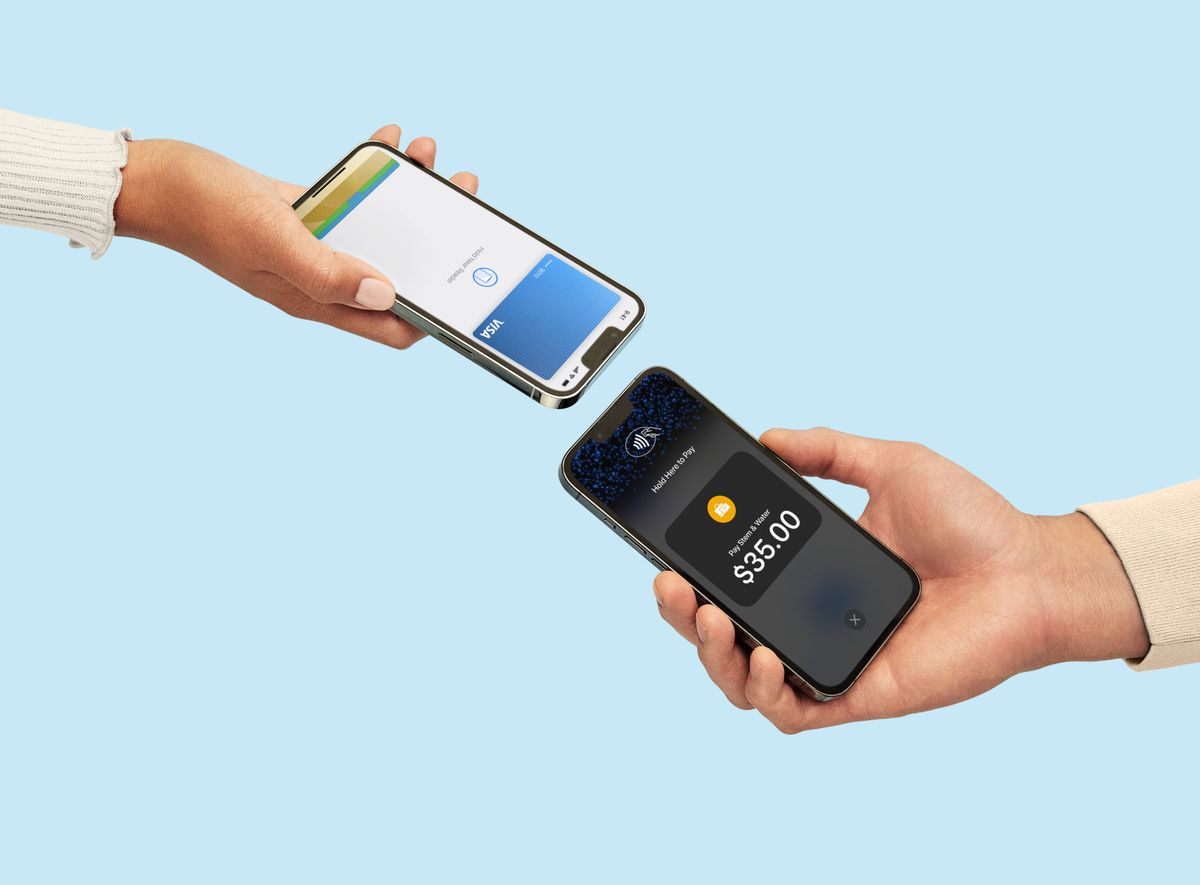
Where is NFC on my iPhone? It's physically located at the top back of the device, near the camera module. For iPhone SE (2nd generation and later), iPhone XR, XS, XS Max, and iPhone 11 through iPhone 13 models, NFC tag reading works automatically with no manual activation needed, while iPhone 7, 7 Plus, 8, 8 Plus, and iPhone X require you to turn on the NFC Tag Reader in Control Center before each use.
Where is NFC on my iPhone?
The NFC antenna sits inside the top edge of the iPhone’s back panel. On newer models (iPhone SE 2nd gen+, XR, XS, XS Max, 11-13), the iPhone continuously scans for NFC tags in the background, so you simply hold the top of the device near a tag and it reacts instantly. On older supported models (iPhone 7, 7 Plus, 8, 8 Plus, and X), you must manually enable the NFC Tag Reader through Control Center before the antenna will respond to a tag.
Which iPhone models support NFC?
Apple documents NFC for Apple Pay on all iPhone models starting with iPhone 6. iPhone 6 and 6 Plus were the first models to introduce NFC functionality. However, full NFC tag reading support varies by model. The following iPhones support automatic background tag reading without any manual steps: iPhone SE (2nd generation and later), iPhone XR, iPhone XS, iPhone XS Max, and iPhone 11 through iPhone 13. For iPhone 7, iPhone 7 Plus, iPhone 8, iPhone 8 Plus, and iPhone X, NFC tag reading is available but requires you to activate the NFC Tag Reader in Control Center before each use.
How to use NFC tag reader on older iPhones
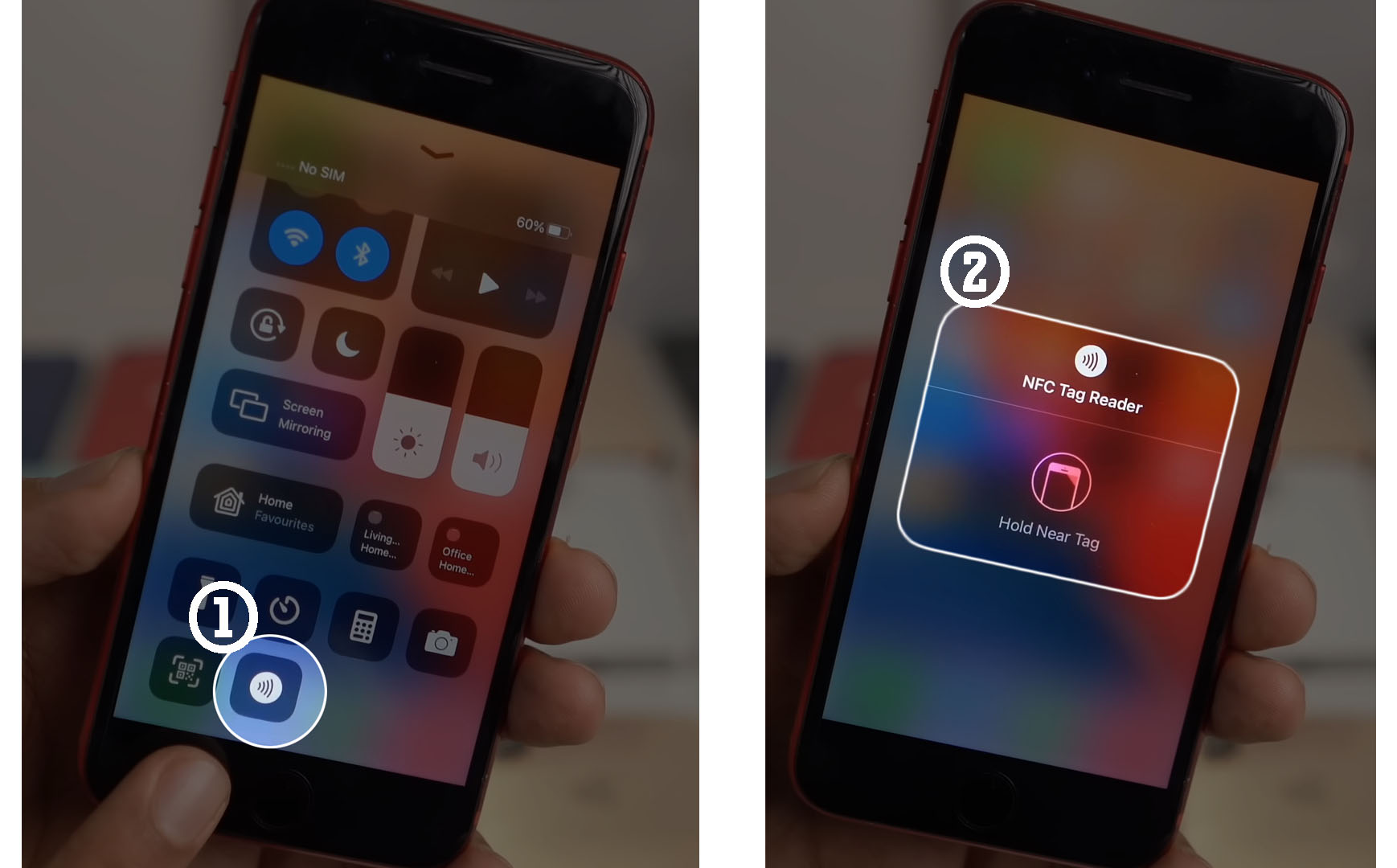
If you own an iPhone 7, 7 Plus, 8, 8 Plus, or iPhone X, follow these steps each time you want to read an NFC tag:
- To enable NFC, go to Settings > Wallet & Apple Pay and ensure NFC option is enabled.
- Open Settings, tap Control Center, then add the NFC Tag Reader control to your included controls.
- Tap the NFC Tag Reader icon (it looks like a small radio wave symbol).
- Hold the top back of your iPhone near the NFC tag until the notification appears.
This process gives you a complete understanding of NFC tags and readers explained in a practical, step-by-step way. Apple’s support documentation confirms that only these older models require the Control Center activation; newer models skip this entirely.
How NFC works automatically on newer iPhones
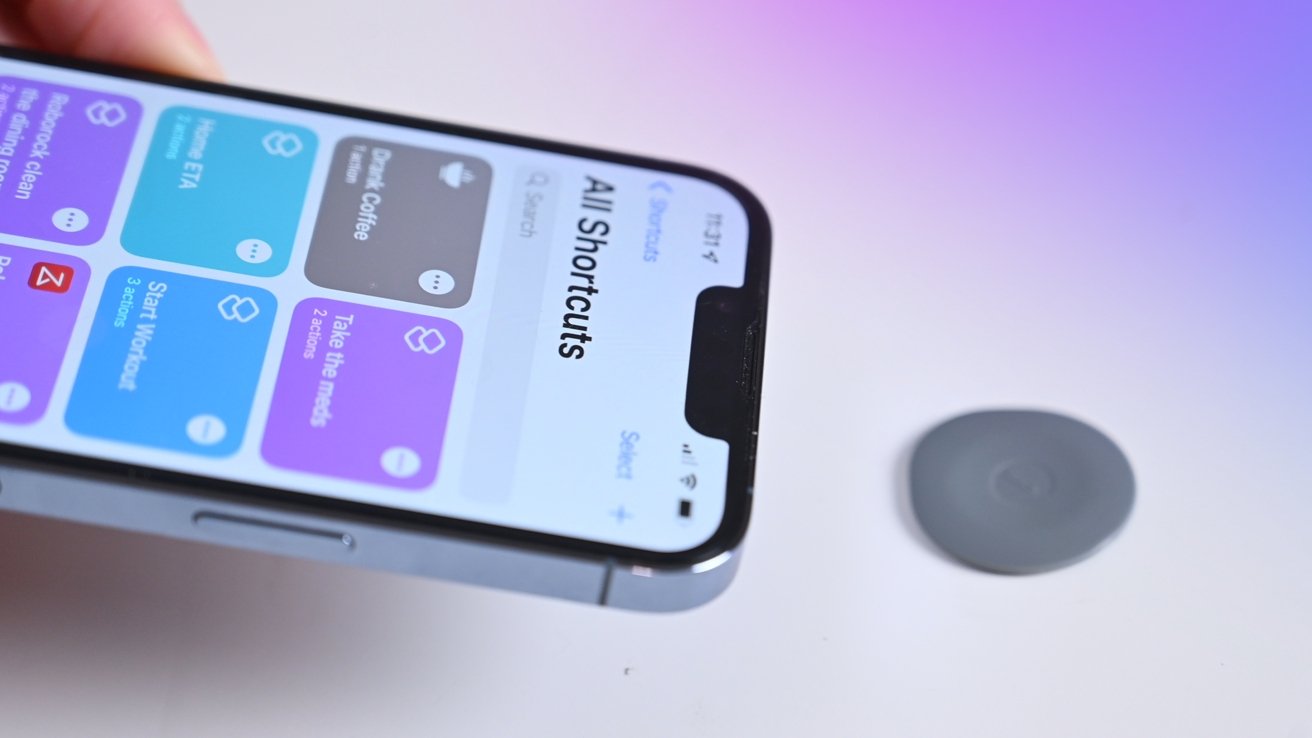
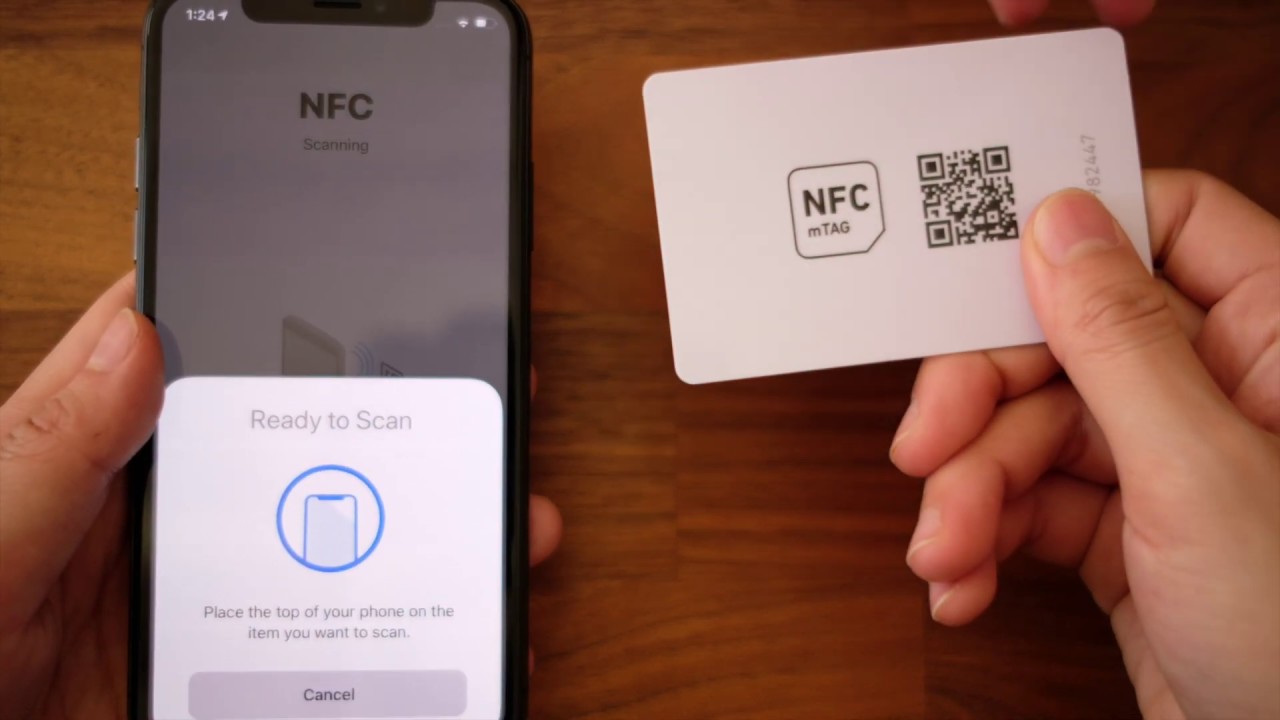
You do not need to open Control Center, tap any icon, or toggle any setting. Simply hold the top back of your iPhone near an NFC tag, and the iPhone reads it automatically. This hands-free behavior works for tasks like launching apps, opening websites, or triggering shortcuts from programmable NFC tags.
Using NFC for Apple Pay and contactless payments
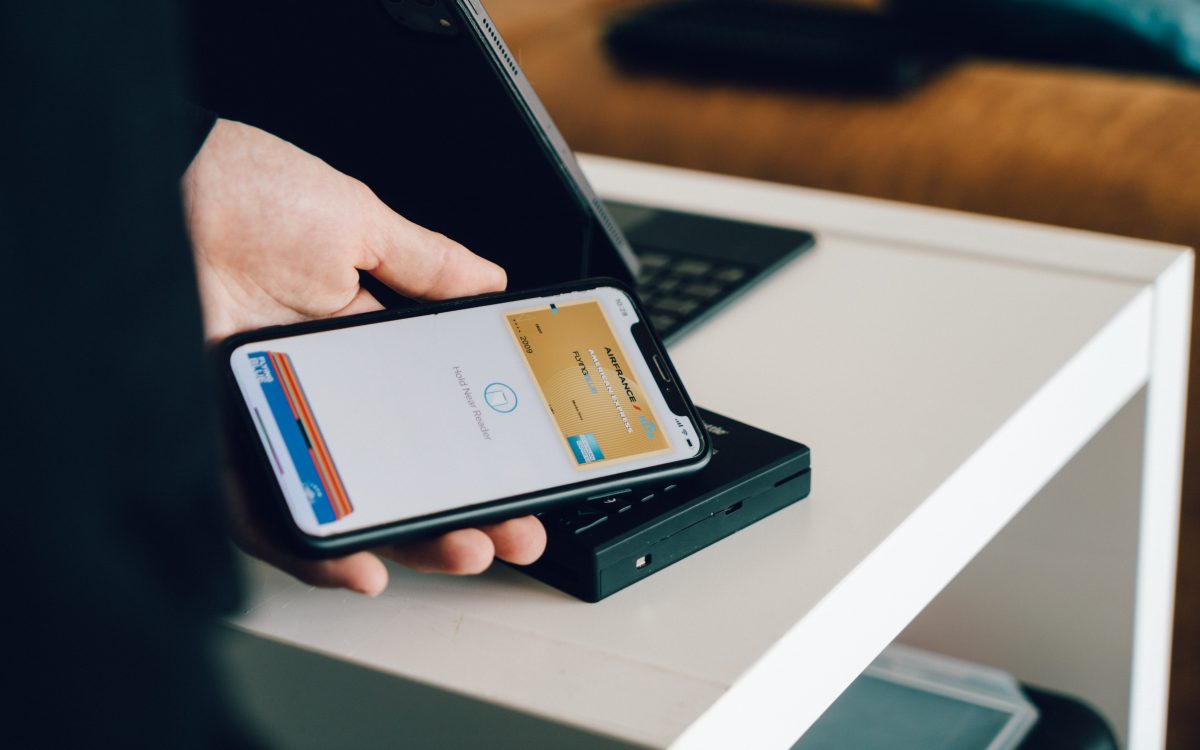
All iPhone models with NFC (starting from iPhone 6) use the same antenna for Apple Pay contactless payments. When you double-click the side button (or home button on older models), the iPhone activates the NFC chip and waits for a payment terminal. NFC transactions through Apple Pay require authentication via Face ID, Touch ID, or passcode verification before the transaction completes. No manual NFC toggle is needed for payments, the system handles it automatically on every supported model.
What to do if NFC isn't working
- Check model compatibility: Ensure your iPhone is iPhone 6 or later for Apple Pay, and iPhone 7 or later for NFC tag reading. Older models lack the hardware entirely.
- Set up Control Center on older models: If you have an iPhone 7, 7 Plus, 8, 8 Plus, or X, verify that NFC Tag Reader is added to your Control Center in Settings > Control Center.
- Position the tag correctly: NFC has a limited range of only a few inches, typically less than 4 inches. Hold the tag within a few centimeters of the top back of the iPhone, directly over the camera area.
- Remove cases and obstacles: Thick cases, metal attachments, or battery packs can block the NFC signal. Try reading the tag with the case removed.
- Restart the iPhone: A simple restart can resolve temporary NFC glitches on any model.
- Check reader compatibility: Older NFC readers or devices using different NFC standards may cause compatibility issues.
Frequently Asked Questions
Can I use NFC to transfer files between iPhones?
No. iPhones do not support file transfer via NFC. NFC on iPhones is limited to Apple Pay and specific NFC use cases authorized by Apple, unlike Android devices that allow broader NFC communication. For file sharing between Apple devices, use AirDrop instead.
Does NFC drain my iPhone battery?
No. The NFC chip consumes negligible power and only activates when it detects a compatible field or when you initiate a payment. Background tag scanning on newer models uses extremely low energy and has no noticeable impact on battery life.
Why doesn't my iPhone read some NFC tags?
Not all NFC tags are compatible with iPhone. Apple’s NFC implementation reads NDEF-formatted tags (the standard for most consumer tags). Tags that use proprietary formats or require Android-specific apps may not work. Additionally, some tags may be too small or poorly positioned to be detected. NFC tag reading availability may vary by country and region due to different NFC payment systems and standards.
Can I use NFC with my iPhone while it's in Airplane Mode?
Yes. NFC operates independently of cellular and Wi-Fi radios. You can use Apple Pay and read NFC tags while Airplane Mode is enabled, as long as the iPhone is unlocked and the NFC antenna is unobstructed.
Does the iPhone 13 have the same NFC location as older models?
Yes. The NFC antenna remains at the top back of the device on all iPhone models with NFC support, including iPhone 13. The physical position has not changed since the iPhone 6.