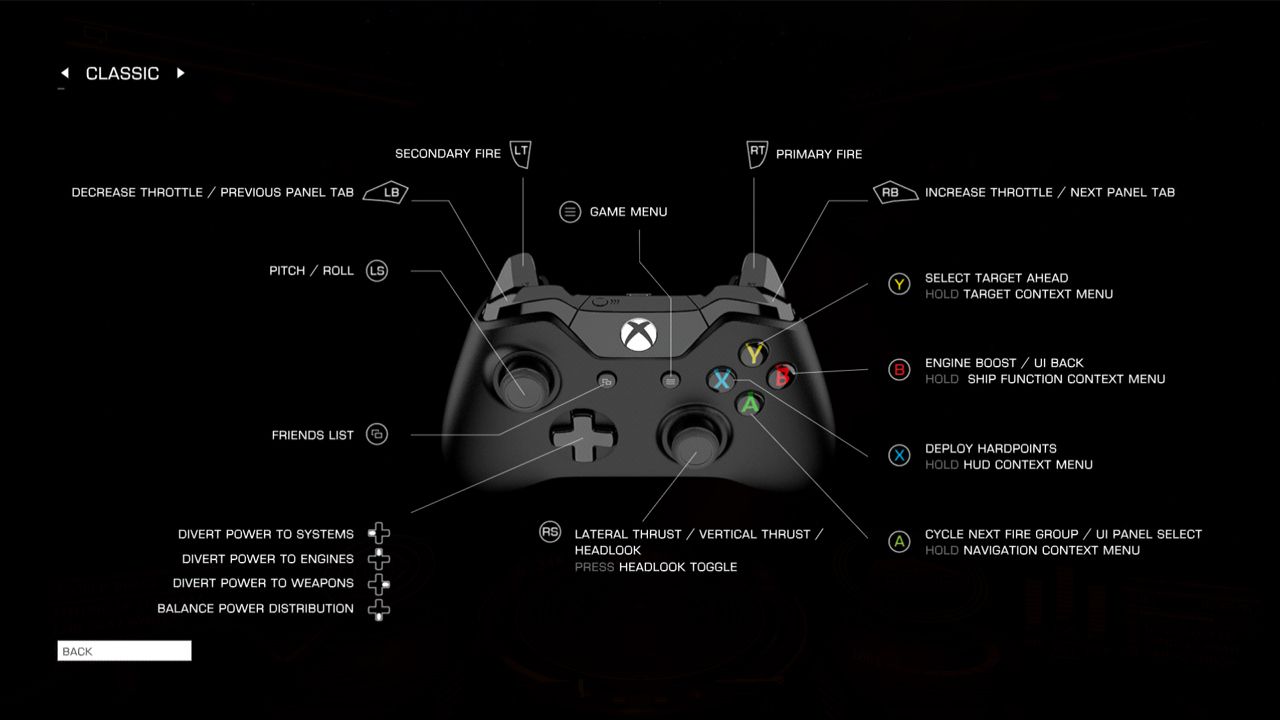
To set up a gamepad for Elite Dangerous, you connect your controller, load the built-in 'Gamepad' preset, and then map the UI Panel Select button. This elite dangerous gamepad setup process gives you full flight control and access to all ship interfaces without needing to touch your keyboard mid-flight.
Elite dangerous gamepad setup: the quick-start guide
For experienced users, here is a three-step summary to get flying immediately:
- Connect your controller via USB or Bluetooth and verify it appears in Windows Device Manager.
- Open Elite Dangerous, go to Options > Controls, and select 'Gamepad' from the preset dropdown menu to load Frontier's default bindings.
- Map the UI Panel Select button to open the left, right, and bottom ship panels, then test your controls in the training simulations.
Connecting your gamepad to a PC
To begin, connect your controller to your computer. For a wired connection, plug the USB cable into an available port on your PC and the other end into the gamepad. For a wireless connection, put your gamepad into pairing mode according to its manual, then open Windows Bluetooth settings, scan for devices, and select your controller when it appears. Check if the gamepad manufacturer provides a driver CD or DVD; if so, insert it into your computer's optical drive. If you don't have a driver disc, visit the manufacturer's website, navigate to the support or downloads section, and download the specific driver for your gamepad model and operating system. Downloaded driver files are often in a compressed format like ZIP or RAR; extract them using 'Extract All' or software like WinRAR or 7-Zip. Run the setup or installer file (typically named 'setup.exe' or 'install.exe') from the extracted folder and follow the on-screen instructions, which may involve accepting license agreements and selecting a destination folder. Restart your computer after driver installation to ensure the newly installed drivers are properly integrated into the system. After connecting, open Device Manager by searching for it in the Control Panel and look under 'Controllers' or 'Human Interface Devices'. If the gamepad appears without any error symbols, it is properly recognized. If it does not appear, restart your computer and check again.
Loading the official gamepad bindings in Elite Dangerous
Launch Elite Dangerous and navigate to the main menu. Select Options, then click the Controls tab. In the Controls tab, you will see different sections such as Flight Controls, SRV Controls, and UI Controls, corresponding to specific aspects of the game. Locate the preset dropdown menu at the top of the controls screen and select 'Gamepad' from the list. This step is crucial because it saves you from manually mapping dozens of individual controls.
Mapping the essential 'UI Panel Select' button
With the Gamepad preset loaded, you still need to bind the UI Panel Select function. This button opens the ship's left panel (navigation), right panel (systems), and bottom panel (cargo and modules). To assign a control, click on the corresponding entry; a prompt will appear asking you to press a button or move an analog stick on your gamepad. A common choice is pressing the right analog stick or a shoulder button. Without this binding, you cannot access menus for missions, outfitting, or system management using only the controller.
Understanding the context menu system
Elite Dangerous uses a context menu system for gamepad controls. Holding down a face button (A, B, X, or Y) temporarily changes the function of the other buttons and sticks, giving you a second layer of commands. For example, holding A while moving the right stick might control your ship's lateral thrusters instead of your view. You can customize these secondary actions in the Controls menu under each section. This system lets you fit critical shortcuts like deploying landing gear, opening the galaxy map, or activating chaff without needing a keyboard.
Testing and fine-tuning your controls
After configuring your bindings, use the in-game training simulations to test your setup. From the main menu, select Training and choose the flight, combat, and landing tutorials. Fly your ship, fire weapons, and practice docking to confirm every control works as expected. If you find that the sensitivity of the controls is too high or too low, you can adjust it in the game settings. Find this setting in the Flight Controls section and turn it off. This keeps yaw (left/right turning) on the stick's horizontal axis and roll on a separate input, preventing accidental spins during combat or docking.
Frequently Asked Questions
Can I use any gamepad for Elite Dangerous?
Elite Dangerous supports a wide range of gamepads, including Xbox, PlayStation, and generic USB or Bluetooth controllers. Most common controllers work, but you should check that your gamepad appears in Windows Device Manager before configuring it in the game.
How do I fix an unrecognized controller?
If Elite Dangerous does not see your gamepad, first verify it is listed in Windows Device Manager without errors. Restart your computer, then reconnect the controller.
Is a keyboard required if I use a gamepad?
Steam support states that a keyboard or gamepad is required for gameplay. While the gamepad preset covers most flight and combat actions, you may still need a keyboard for typing system names, accessing the chat window, or performing specific commands that lack an in-game binding.
Can I use a mobile phone or tablet as a gamepad?
Elite Dangerous does not have official documentation for setting up an iPhone or Android device as a gamepad. The official help page only directs users to contact support or browse FAQs, and no supported phone models or controller menus are documented in official sources.
Where can I find help with gamepad setup and troubleshooting?
For official gamepad setup and troubleshooting, visit the Elite Dangerous help page or browse the Steam community discussions. The Steam support page confirms that a keyboard or gamepad is required, but it does not provide step-by-step controller configuration instructions.
Related reading: How To Use Gamepad In Resident Evil 7 For PC and How To Connect 8BitDo Gamepad To PC.