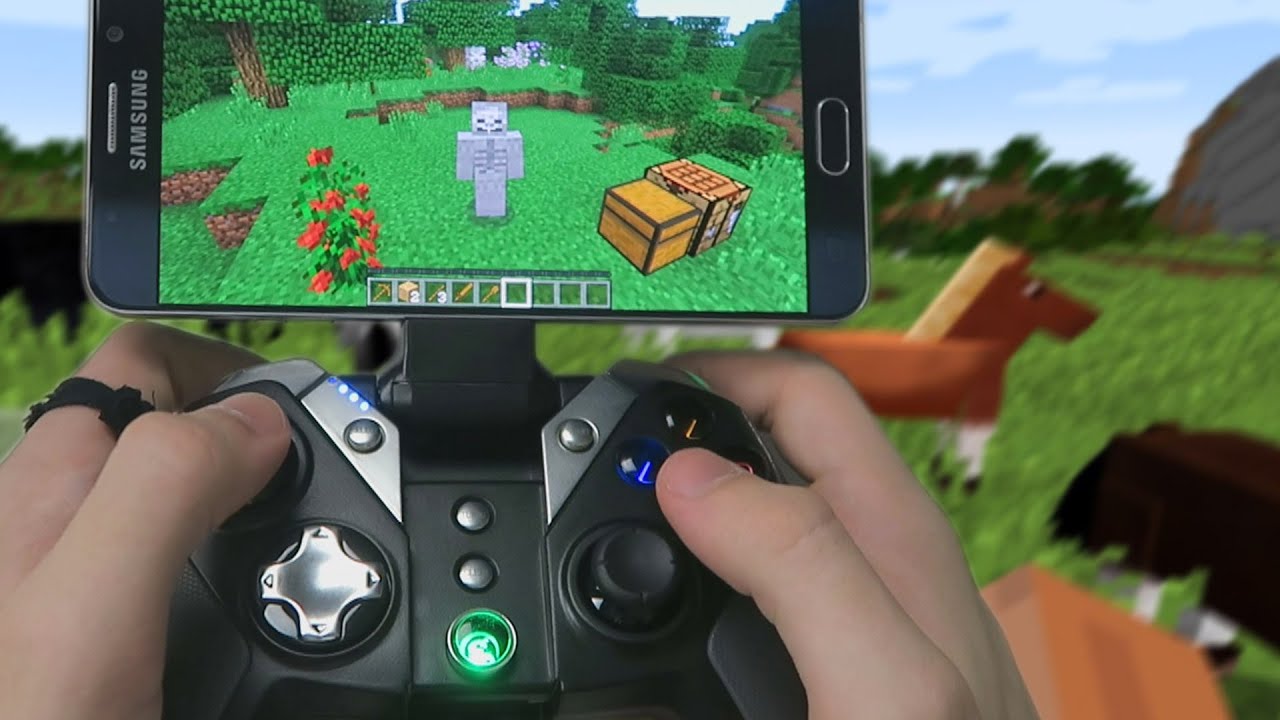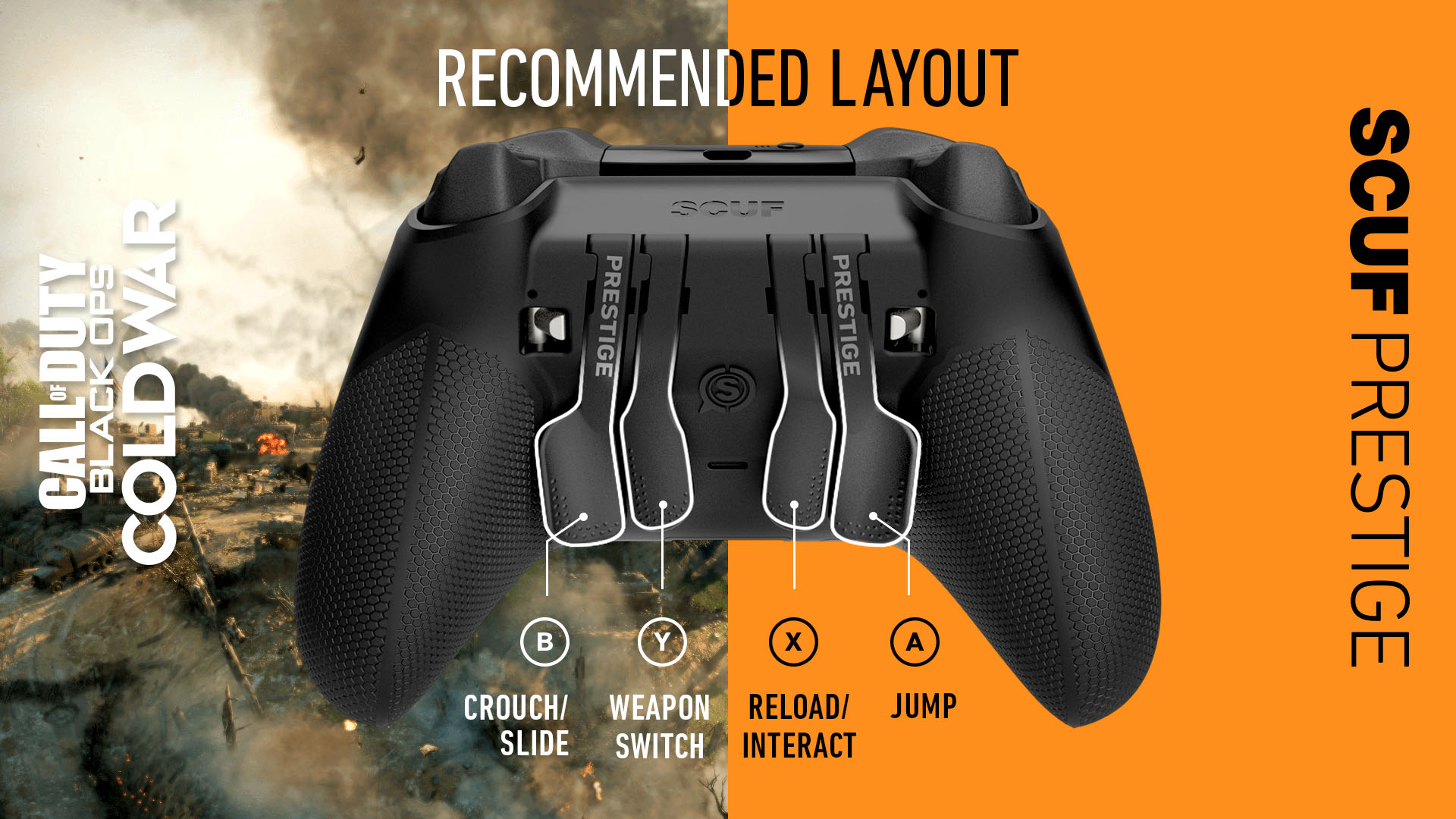
To use a black ops PC gamepad, connect a supported controller to your computer, and the game will typically detect it automatically without needing a special in-game toggle. If your controller does not work, verify it is an officially supported model and check the connection before moving to deeper troubleshooting.
Which gamepads work with Black Ops PC
Activision's official support pages list only specific controller families as supported for Call of Duty: Mobile, and those are the same models that are documented for controller use on PC. The officially supported controllers are Xbox One and Xbox Series X|S controllers, DUALSHOCK 4 controllers for PlayStation 4 excluding first-generation models, DualSense controllers for PlayStation 5, and Backbone One controllers. Other third‑party controllers may work, but the help center states they are not officially supported and are not guaranteed to function correctly.
How to connect your supported controller
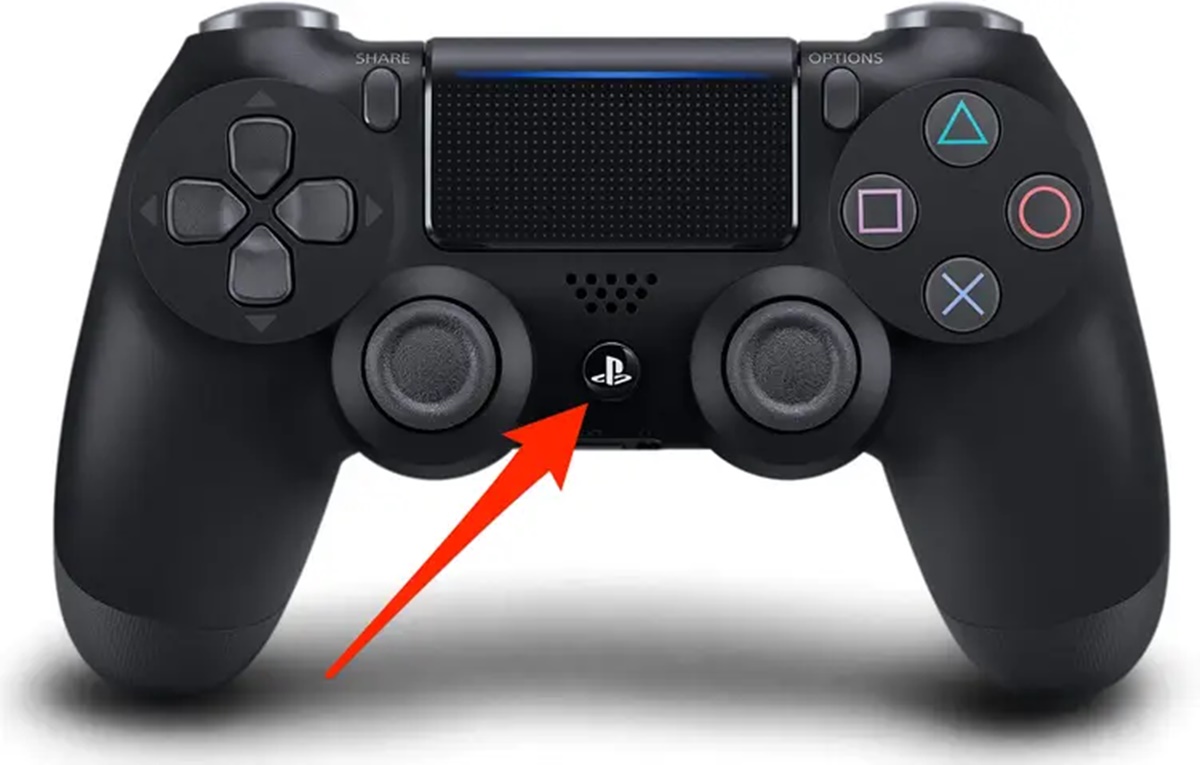
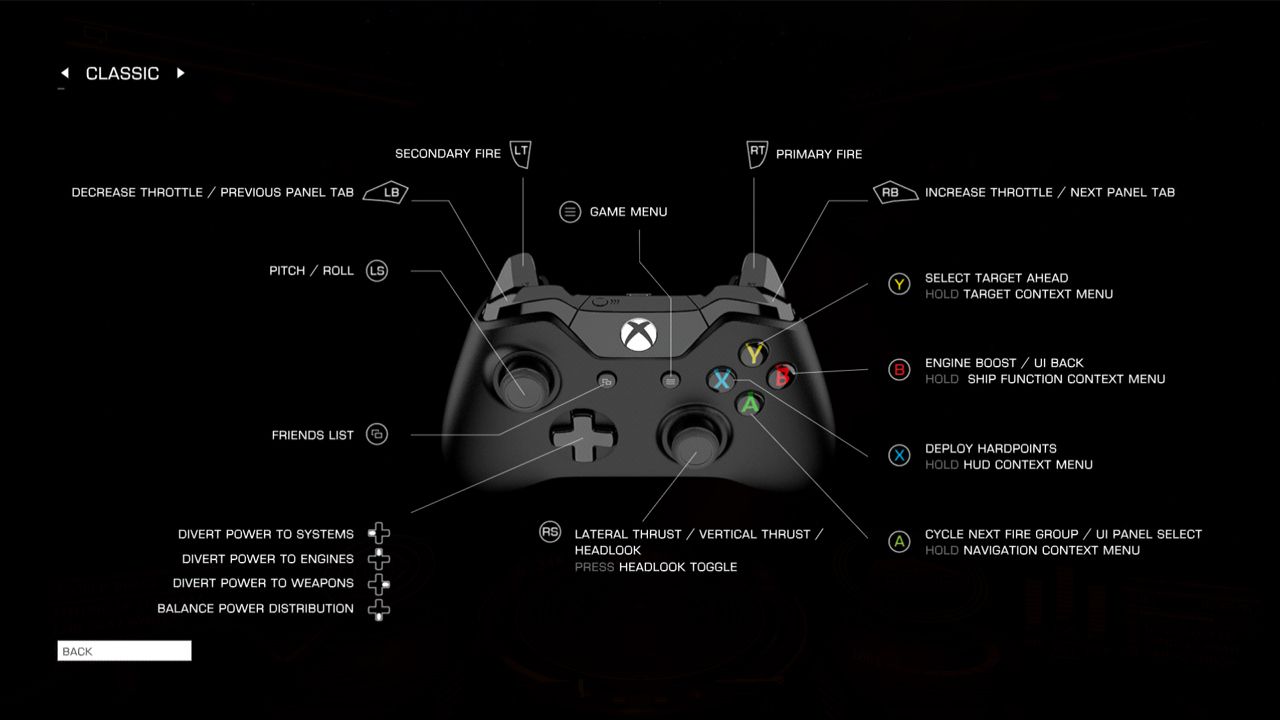
Connecting a supported controller to your PC is a straightforward process. For an Xbox controller, use a USB cable or pair it via Bluetooth if your controller supports wireless. For a PlayStation controller, connect it with a USB cable or use Bluetooth pairing. Once connected, Black Ops PC typically auto‑detects the gamepad and switches to controller input without requiring you to find and toggle a special setting in the game’s menus.
What to do if your gamepad isn't recognized
If your controller is not responding in Black Ops PC, start with these basic checks:
- Confirm the controller is one of the officially supported models listed above.
- Ensure the controller is properly connected to the PC via USB or Bluetooth, and that the PC itself recognizes the device in Device Manager under Human Interface Devices.
- Restart both the game and your computer, then reconnect the controller.
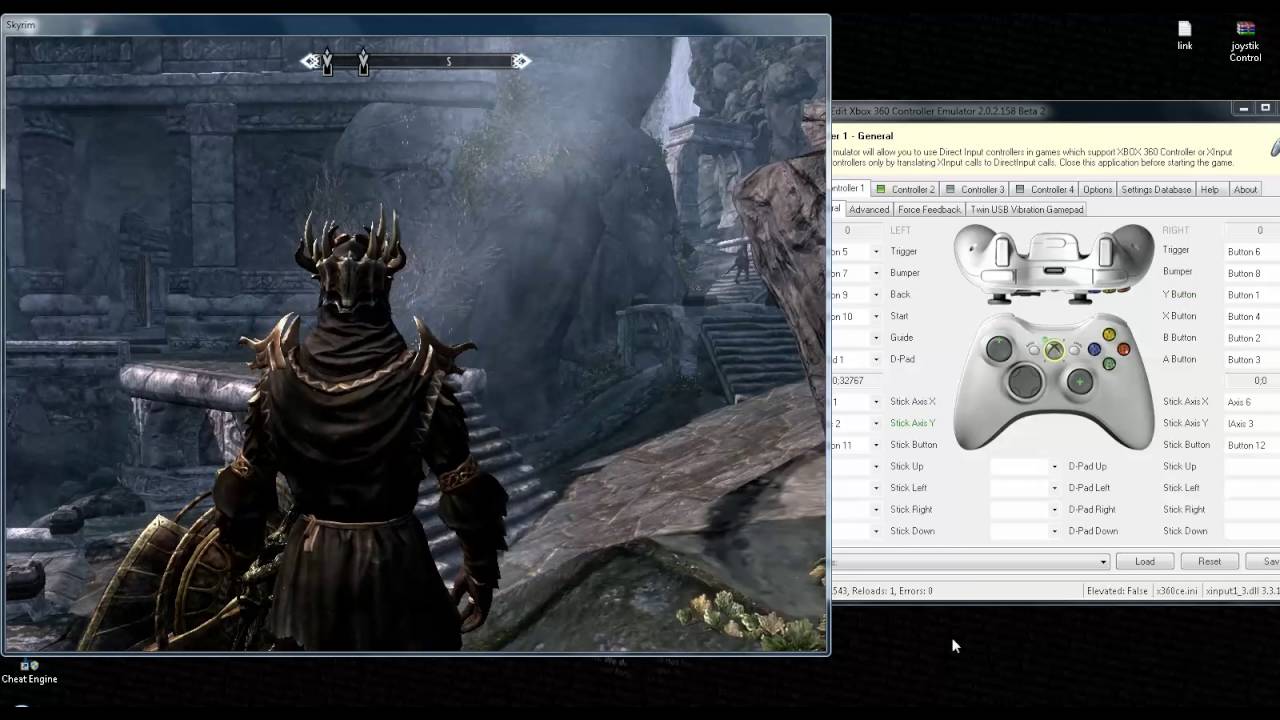
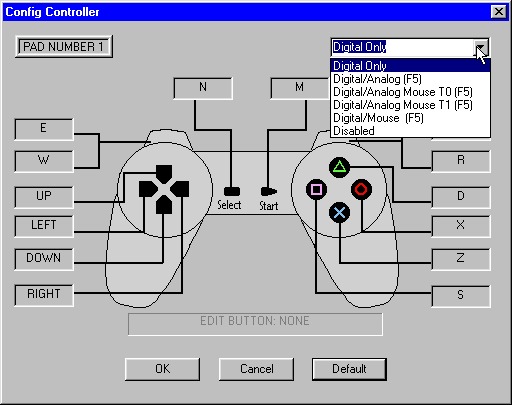
- Use third-party software such as X360CE or JoyToKey to map gamepad buttons to keyboard inputs if the game does not natively support the controller.
- Calibrate the gamepad via Windows Control Panel > Devices and Printers > right-click gamepad > Game controller settings > Properties to fix inaccurate movements or unresponsive controls.
- Lag or input delay can be reduced by connecting the gamepad directly to the PC instead of through a USB hub or extension cable.
- Regularly clean the gamepad buttons and analog sticks with a soft, lint-free cloth and mild cleaning solution to prevent performance issues from dust and debris.
- If the issue persists, consult the gamepad setup and troubleshooting hub for deeper fixes, as the official support pages do not provide a full enablement workflow for this query.
Unsupported controllers may still be compatible but are not officially supported, and no documented limits for in‑game menus, dead zones, button remapping, or supported Bluetooth versions were found in the retrieved official support.
Frequently Asked Questions
Are third-party controllers officially supported?
Third‑party controllers may work, but Activision states they are not officially supported. Only the models listed in the official help pages are guaranteed to function.
Can I use a wireless controller instead of a wired one?
Yes, wireless controllers such as Xbox and PlayStation models can be used via Bluetooth or a wireless receiver. Ensure the controller is paired correctly with your PC before launching the game.
Does Black Ops PC have a specific menu option to enable gamepad support?
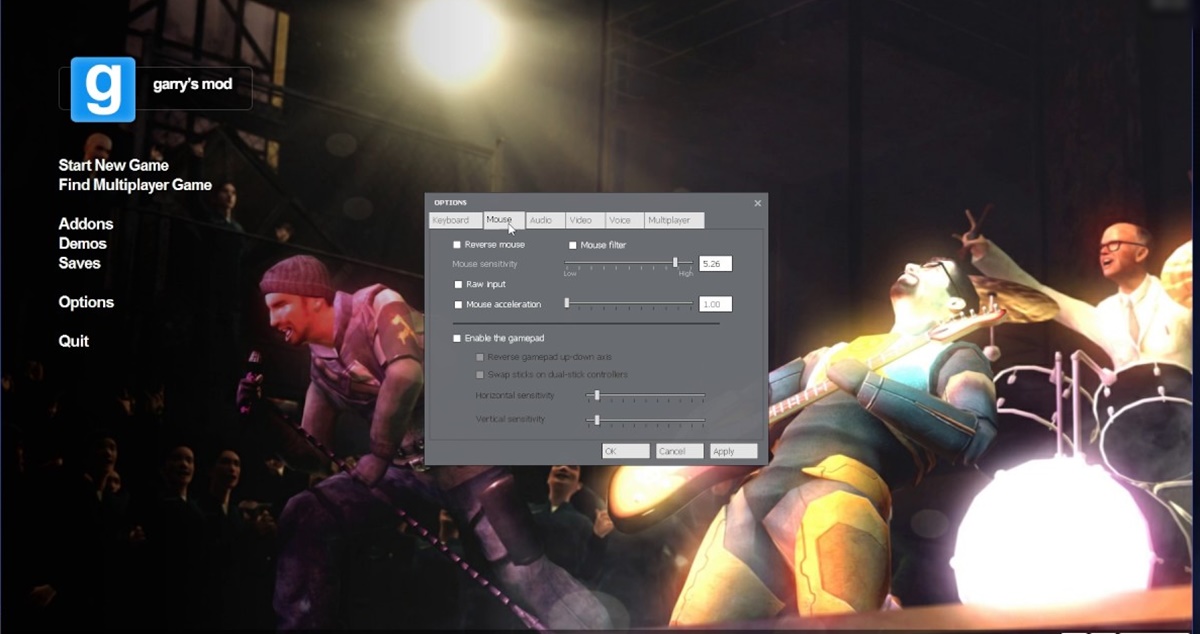
The game is designed to auto‑detect a connected supported controller.
What should I do if my controller is listed as supported but still doesn't work?
Check that your controller drivers are up to date, try a different USB port, and verify the controller works in other PC games. If it still fails, refer to the gamepad setup and troubleshooting hub for further steps.
Where can I find official support information for controller issues?
Activision’s help center provides the list of supported controllers and general troubleshooting for Call of Duty: Mobile.
Related reading: How To Use A Gamepad For Skyrim On PC and How To Connect Mocute Gamepad To PC.