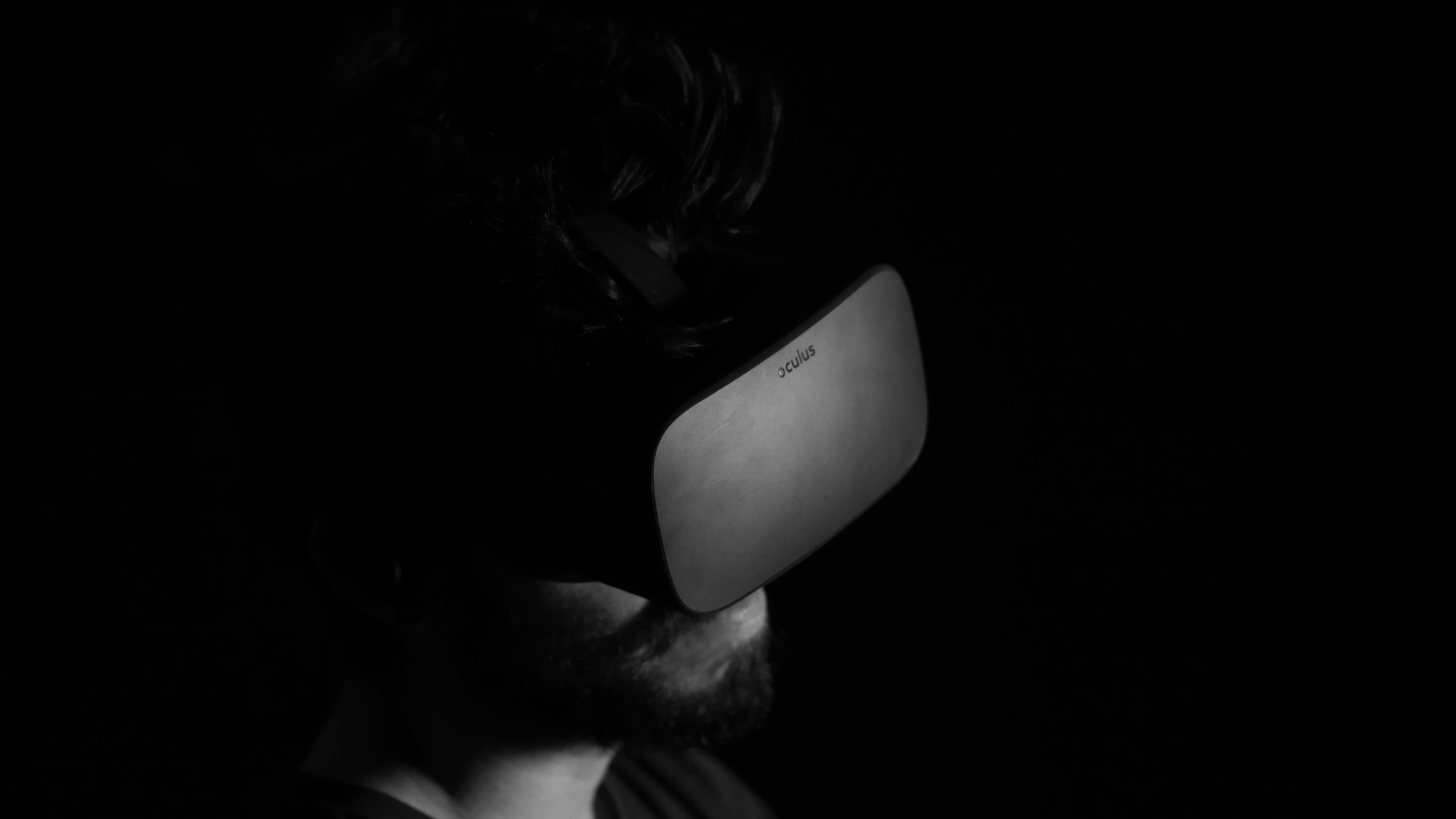
You can play Gorilla Tag on PC without VR, but only through unofficial community mods. The game officially requires a VR headset, so these modifications are the only way to play gorilla tag on PC without VR.
Can you play gorilla tag on PC without VR?
Officially, no. Gorilla Tag's Steam page explicitly states "This game requires a VR headset in order to play" and lists "VR Support: SteamVR or Oculus PC" as a requirement. However, a community of modders has created unofficial tools that adapt the game for desktop play. These mods let you use a keyboard and mouse or a gamepad instead of VR controllers. The experience is not the same as VR, you lose the immersive movement and physical interaction, but you can still join online matches and play the core game.
Official system requirements for gorilla tag
Before attempting any mods, ensure your PC meets the verified minimum specs from Steam. These are the requirements for playing with VR, but they also apply to the modded desktop version.
- OS: Windows 10
- Processor: Intel Core i5-4590 or AMD FX 8350
- Memory: 4 GB RAM
- Graphics: NVIDIA GeForce GTX 970 or AMD Radeon R9 290
- Network: Broadband Internet connection
- Storage: 140 MB available space
The original article recommends 8GB RAM for optimal performance, not the minimum 4GB. Recommended graphics cards include NVIDIA GeForce GTX 1060 or AMD Radeon RX 580.
What you need before starting
You must own a legitimate copy of Gorilla Tag on Steam or through the Oculus PC app. You also need to accept that you are using unofficial mods, which may break when the game updates. No mod can guarantee permanent compatibility, and you may need to reinstall mods after patches. A monitor with a resolution of at least 1080p is recommended for an immersive experience.
How to install monke mod manager
Monke Mod Manager is the most common tool for installing the required mods. Follow these steps:
- Download Monke Mod Manager from its official source.
- Locate your Gorilla Tag installation folder. For Steam, the path is typically
C:\Program Files (x86)\Steam\steamapps\common\Gorilla Tag. For Oculus PC, it isC:\Program Files (x86)\Oculus\Software\Software\another-axiom-gorilla-tag. - Launch Monke Mod Manager and point it to your Gorilla Tag folder.
- Check the boxes for the required components: BananaHook, Bepinject, Newtonsoft, TMPLoader, and Utilla.
- Click install and wait for the process to complete.
Adding unityexplorer for deeper mod support
UnityExplorer provides additional modification capabilities for non-VR play. To install it:
- Download the BepInEx Mono files from the UnityExplorer GitHub page.
- Extract the downloaded archive.
- Copy
UnityExplorer.BIE5.Mono.dllandUniverseLib.Mono.dllinto theBepInEx\pluginsfolder inside your Gorilla Tag installation directory.
Installing desktop mode and controller mods
Two specific mods enable non-VR play: Desktop Mode Mod and Controller Support Mod. These are crafted by enthusiasts to provide keyboard/mouse or gamepad alternatives. To install them:
- Open Monke Mod Manager again.
- Check the boxes for both mods and click install.
- Launch Gorilla Tag. The mods should activate automatically, allowing you to play with your chosen input method.
What to expect when playing without VR
Playing without VR means you lose the immersive movement that makes Gorilla Tag unique. The control feel is different, you use mouse look and keyboard keys instead of arm swinging. To climb objects, press and hold the left mouse button, then use W, A, S, D keys to move while holding onto the object. To interact with the environment or other players (grab, push, tag), press the right mouse button. Bugs are possible, especially after game updates. Online play still works, but other players will see you moving differently, and the experience is significantly less immersive than VR. If you want to play with friends who have VR, they may need to adjust to your different movement style.
Frequently Asked Questions
Is this official?
No. These mods are created by the community and are not endorsed or supported by the game's developer, Another Axiom. The only official way to play Gorilla Tag is with a VR headset.
Will I get banned?
Banning is possible but uncommon. The developer has not publicly stated a policy on non-VR mods. Use mods at your own risk, and avoid using any cheats or unfair advantages in online matches.
Does it work on Meta Quest standalone?
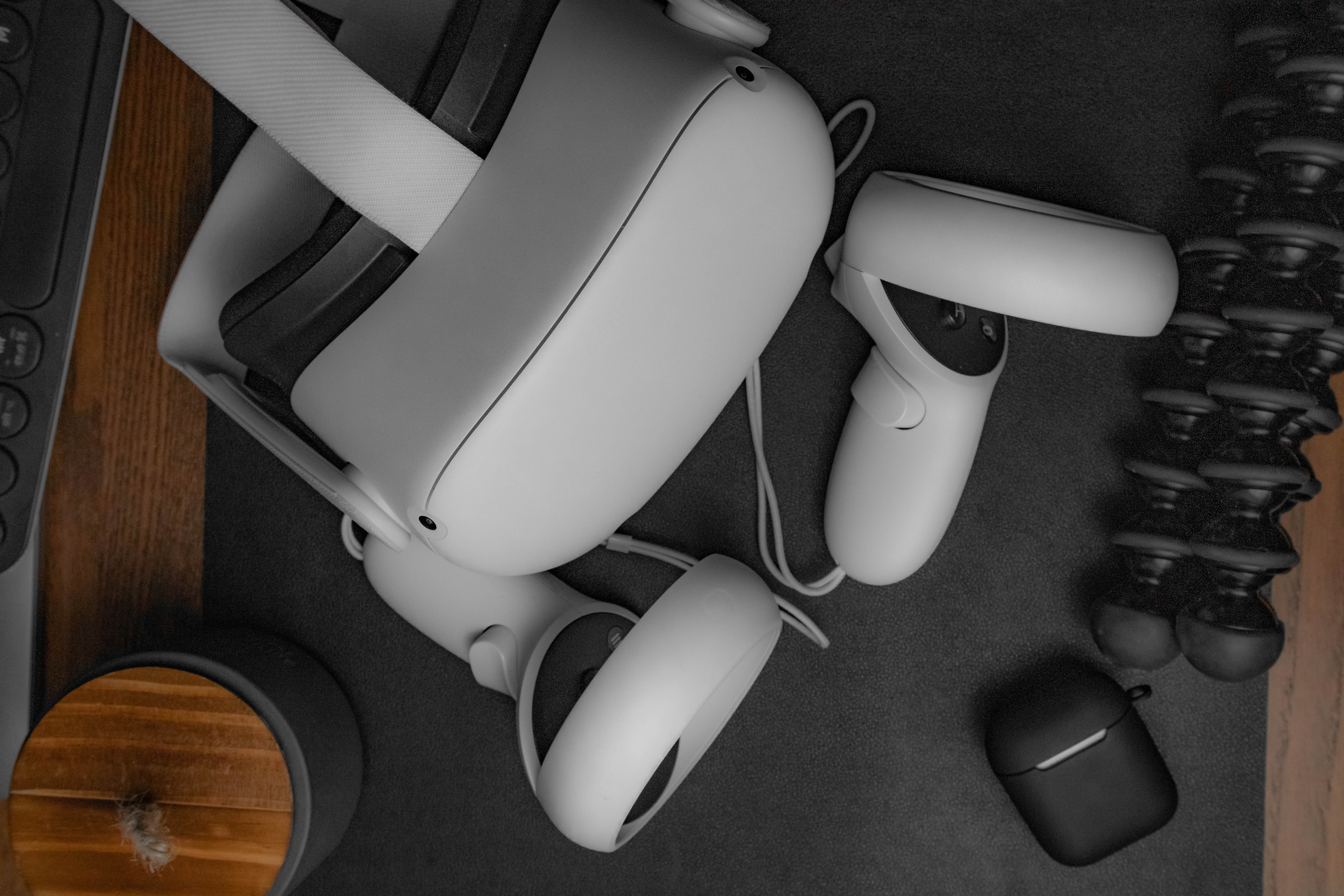
No. Gorilla Tag is available on Meta Quest 3S, Meta Quest 3, Meta Quest Pro, and Meta Quest 2 as a standalone VR game. These mods are for the PC version only and cannot be installed on the standalone Quest headsets. If you want to play without VR on a Quest, you would need to use a VR setup and TV casting to see the game on a screen.
Can I switch back to VR later?
Yes. Mods do not permanently alter your game files. To play in VR again, simply disable or uninstall the mods through Monke Mod Manager, or verify your game files through Steam or Oculus to restore the original version.
Do I need a powerful gaming PC to play Gorilla Tag without VR?
Gorilla Tag is a relatively lightweight game and does not require a powerful gaming PC to run smoothly without VR. The minimum specs listed above are sufficient for the modded desktop version. The game is lightweight, but a stable internet connection is required for online play.
Related reading: How To Use Gamepad For GTA 5 On PC.