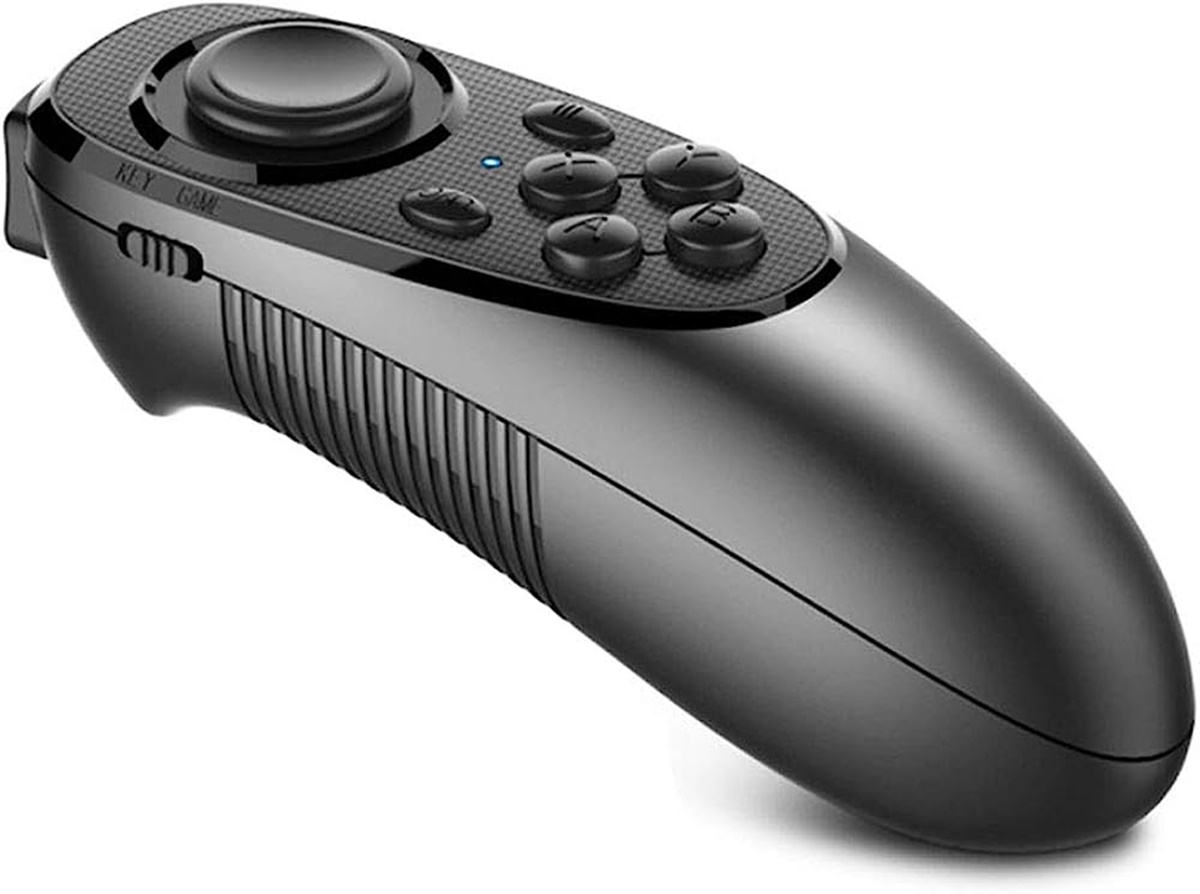
To find where to get a VR gamepad, the first step is to match the controller to your specific headset. This answer covers verified compatibility for Meta Quest headsets and PlayStation VR2, with direct purchase sources and setup instructions.
Where to get a VR gamepad for your headset
Your choice of VR gamepad depends entirely on which headset you own. Meta Quest headsets support standard Bluetooth gamepads, while PlayStation VR2 has strict controller requirements. For detailed connection guidance, refer to the gamepad setup and troubleshooting section for your device.
Gamepads for Meta Quest 2, 3, Pro, and 3S
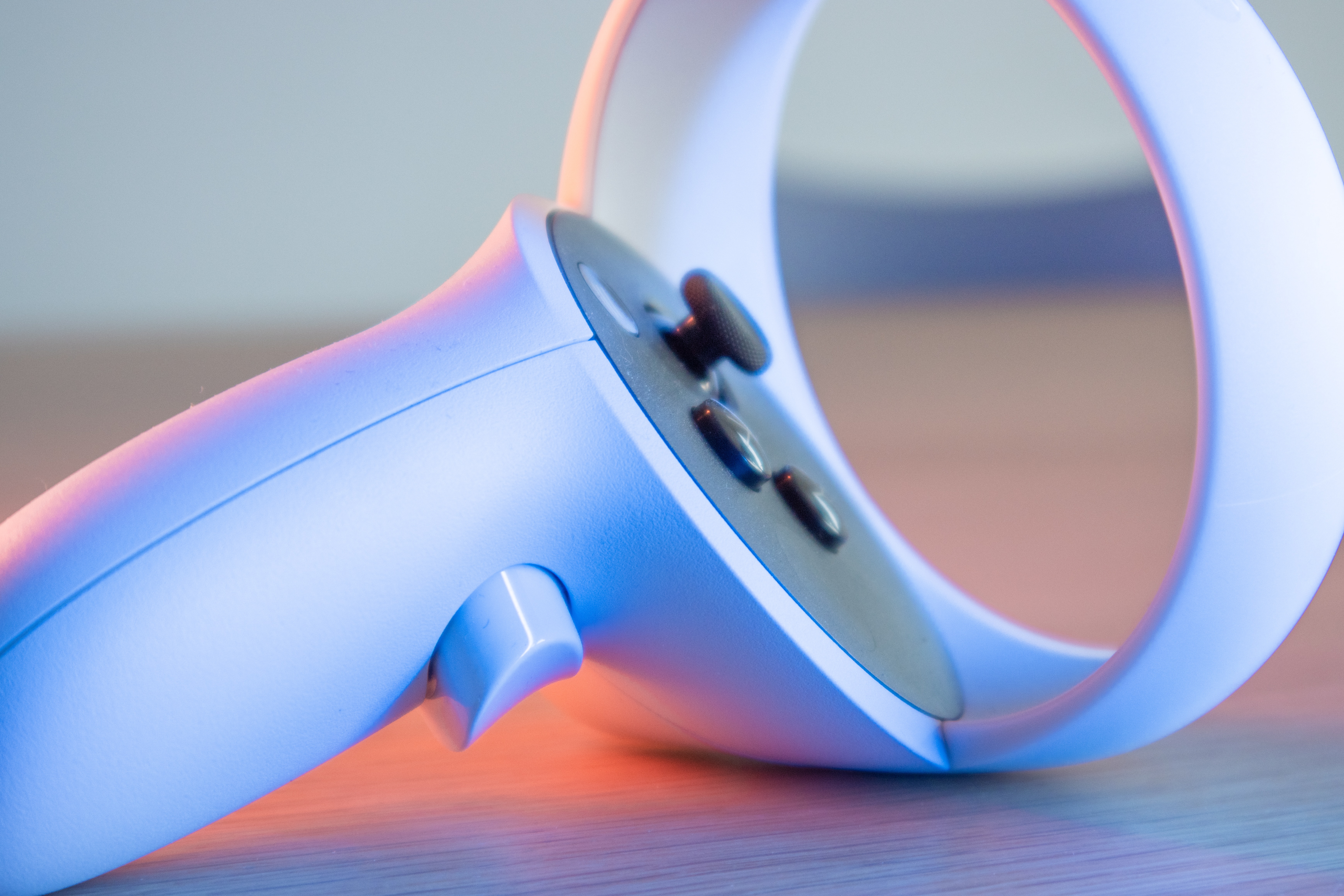
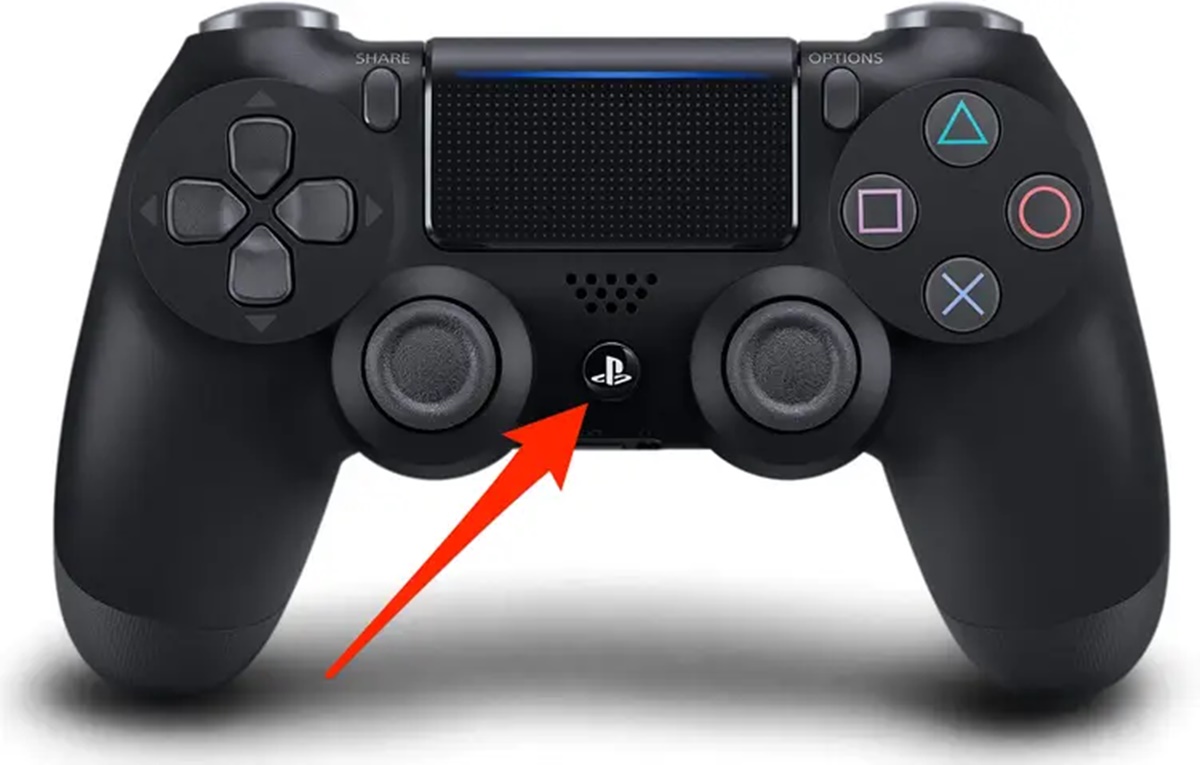
Meta Quest headsets (Quest 2, Quest 3, Quest Pro, and Quest 3S) support Bluetooth 3.0 Class 2 game controllers. This means any standard Bluetooth gamepad meeting that specification will work. Compatible examples include Xbox Wireless Controllers and PlayStation DualShock 4 controllers. You can purchase these gamepads online through major retailers like Amazon, Best Buy, and Walmart, or in physical stores such as Best Buy, GameStop, and electronics departments at Target and Walmart. Note that Quest 2 and Quest 3 controllers are not cross-compatible, but Quest Pro controllers can be paired with Quest 3 headsets. Meta Quest headsets support Bluetooth 3.0 Class 2 game controllers.
Gamepads for PlayStation VR2
PlayStation VR2 is compatible only with PlayStation 5 consoles. Its PS VR2 Sense controllers are exclusively compatible with PS VR2 headsets and cannot be used with other devices. Some PS VR2 games support the DualSense wireless controller; check the game's PlayStation Store page for specific compatibility details. PS VR2 is not compatible with PlayStation Move motion controllers or PlayStation VR Aim controllers. Purchase PS VR2 Sense controllers and DualSense controllers from PlayStation Direct, Amazon, Best Buy, or GameStop.
How to connect a gamepad to your Meta Quest
Follow these steps to pair a gamepad with your Meta Quest headset:
- Open the Navigator.
- Select "Quick controls," then "Settings," then "Devices."
- Select "Gamepad," then "Bluetooth settings" next to "Manage Bluetooth settings."
- Put your gamepad into pairing mode.
- Select your gamepad from the list of available devices.
To connect a gamepad to your Meta Quest headset, open the Navigator, select "Quick controls," then "Settings," then "Devices," select "Gamepad," then "Bluetooth settings" next to "Manage Bluetooth settings," put your gamepad into pairing mode, and select it from the list.
What to look for in a VR gamepad
Focus on verified compatibility with your specific headset. For Meta Quest, ensure the gamepad supports Bluetooth 3.0 Class 2. Ergonomics matter for extended play, look for a comfortable grip and well-placed buttons. Decide between wireless for freedom of movement or wired for a consistent connection. Battery life is important for wireless models; choose one with long-lasting or rechargeable batteries. Read user reviews to confirm real-world performance and durability.
Frequently Asked Questions
What is a VR gamepad?
A VR gamepad is a handheld controller used to interact with virtual reality games and apps. It provides familiar button and joystick controls for navigating VR environments.
How much does a VR gamepad cost?
Prices vary widely depending on brand and features.
Can I use a gamepad with ePSXe on my VR headset?
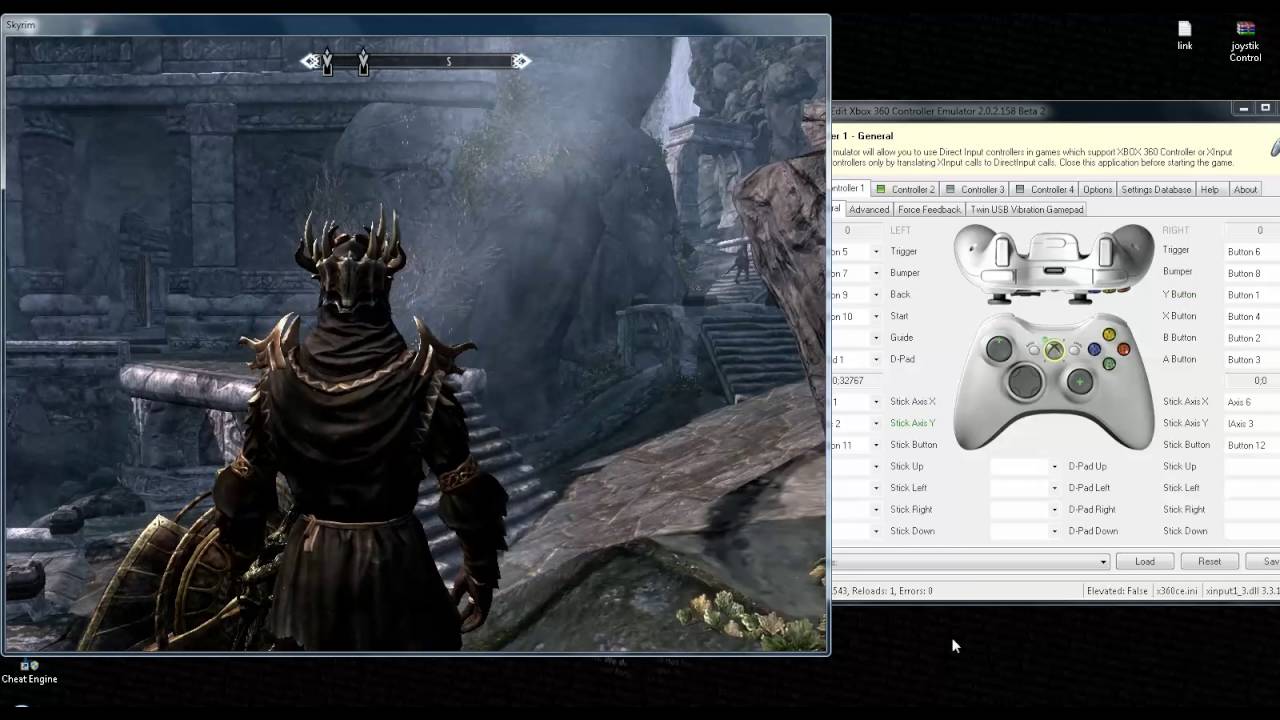
Yes, if your VR headset supports Bluetooth gamepads, you can use gamepad with ePSXe by pairing the controller and configuring the emulator's input settings. This works on Meta Quest headsets with compatible Bluetooth gamepads.
How do I adjust gamepad speed in VR games?
Gamepad sensitivity and speed settings are typically found within each game's options menu. Look for controller sensitivity, stick dead zone, or look speed settings to adjust gamepad speed to your preference.
Can I disable a gamepad in Steam while using VR?
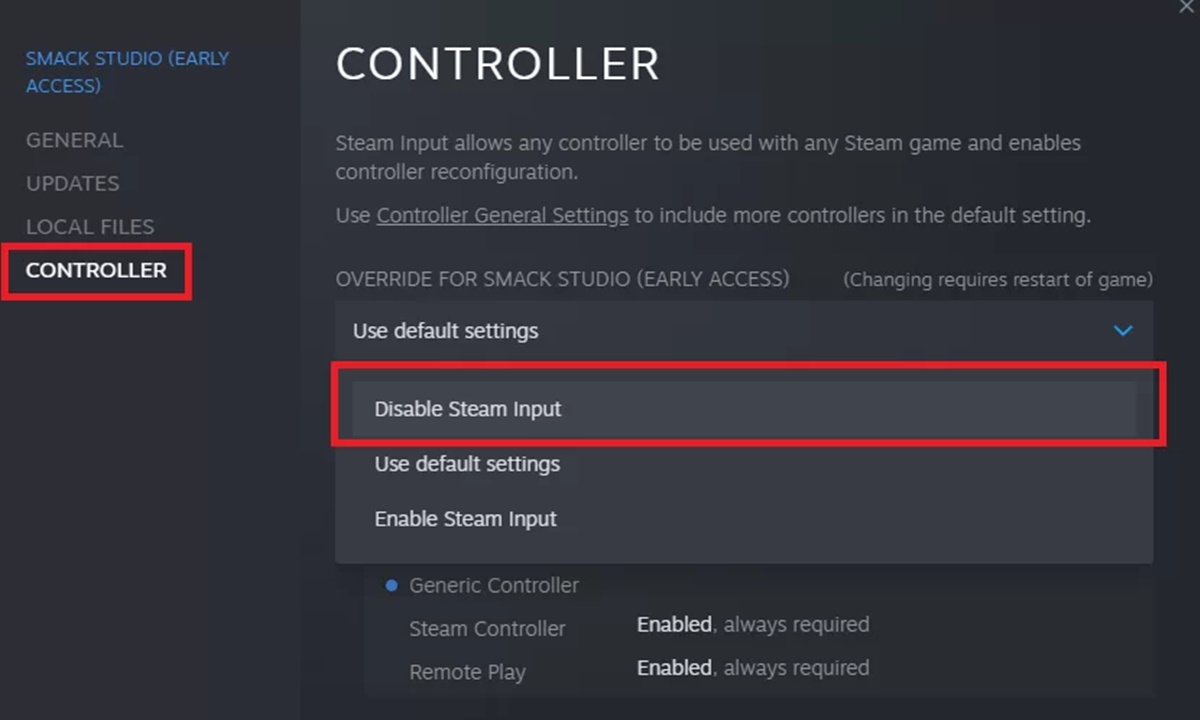
Yes, you can disable a gamepad in Steam by opening Steam's settings, navigating to the Controller section, and selecting "Disable Steam Input" for the specific controller or game. This prevents conflicts with VR motion controllers.
Are there alternatives to a VR gamepad?
Yes, alternatives include motion controllers that come with most VR headsets, hand tracking for compatible games, and keyboard-and-mouse setups for PC VR. These options may offer different levels of immersion but can replace a gamepad for certain titles.