To read a message without triggering a read receipt, you have two main options: use a quick device trick like Airplane Mode or change your permanent app settings. The first method lets you read the message immediately without the sender knowing, while the second disables the feature entirely so you never have to worry about it again.
Quick tricks to read a message discreetly
These methods work in the moment and require no permanent changes to your settings. They are ideal for when you need to read a message privately right now.
- Airplane Mode method: Before opening the messaging app, turn on Airplane Mode on your device. This cuts all internet connections. Once you open and read the message, the read receipt cannot be sent. After reading, close the app completely. Then turn off Airplane Mode. The sender will not be notified that you read their message.
- Disable mobile data or Wi-Fi: Disabling mobile data or Wi-Fi before opening a message prevents the read receipt from being sent.
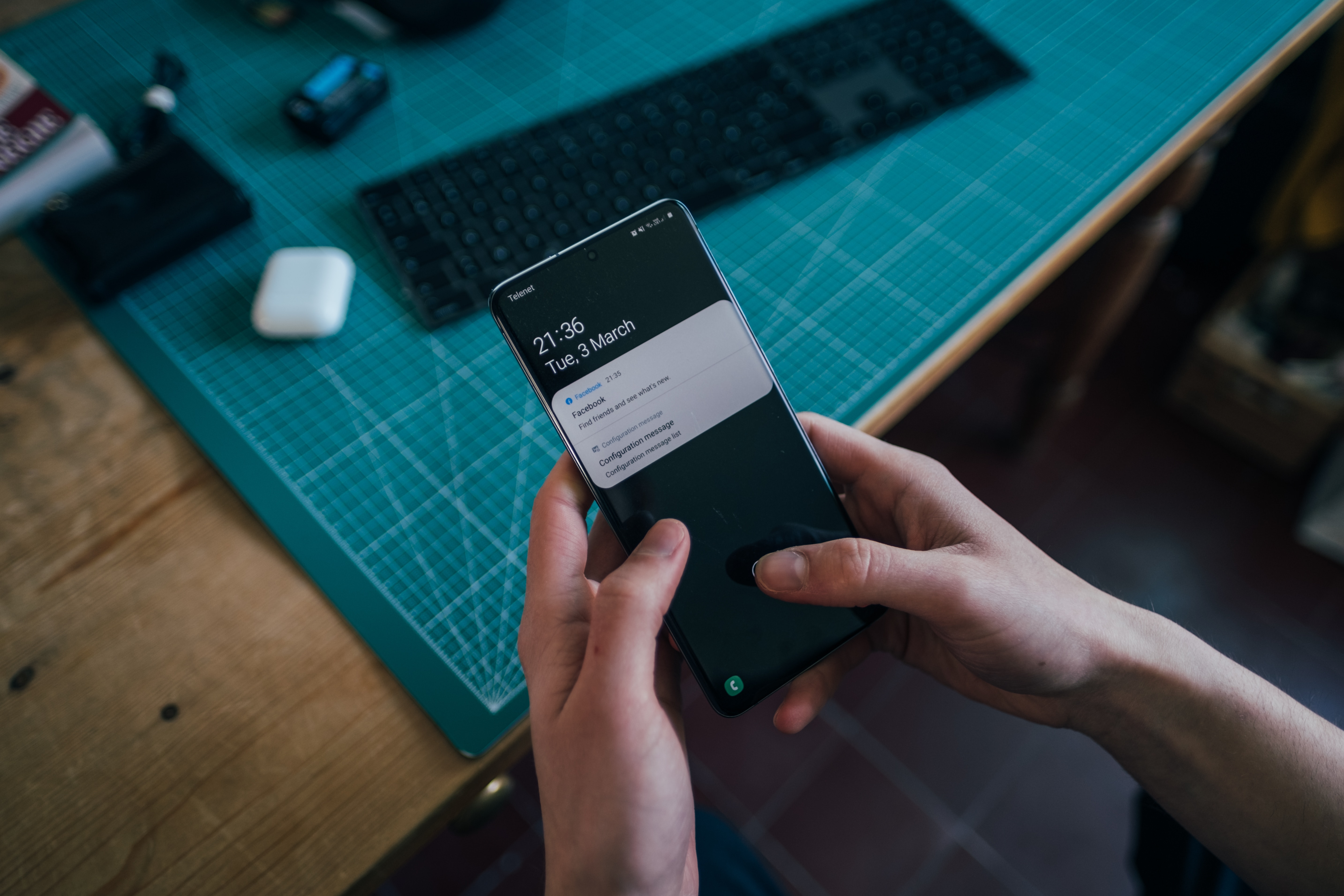
- Read from notification previews: Most smartphones show a preview of incoming messages on the lock screen or in the notification shade. Read the message content from this preview without tapping into the messaging app itself. The app still marks the message as unread, so no read receipt is triggered.
- Long-press to peek: On many devices, you can long-press (or 3D Touch on older iPhones) a message notification to see a pop-up preview of the full message. Release without opening the app, and the message remains unread.
- Use Incognito or Invisible mode: Some third-party messaging apps offer an Incognito or Invisible mode that disables read receipts; both sender and recipient must use the same app.
Turn off read receipts in your messaging app settings
If you want a permanent solution, disable read receipts in your app settings. This prevents your device from sending read receipts for all future messages.
On iMessage (iPhone and iPad)
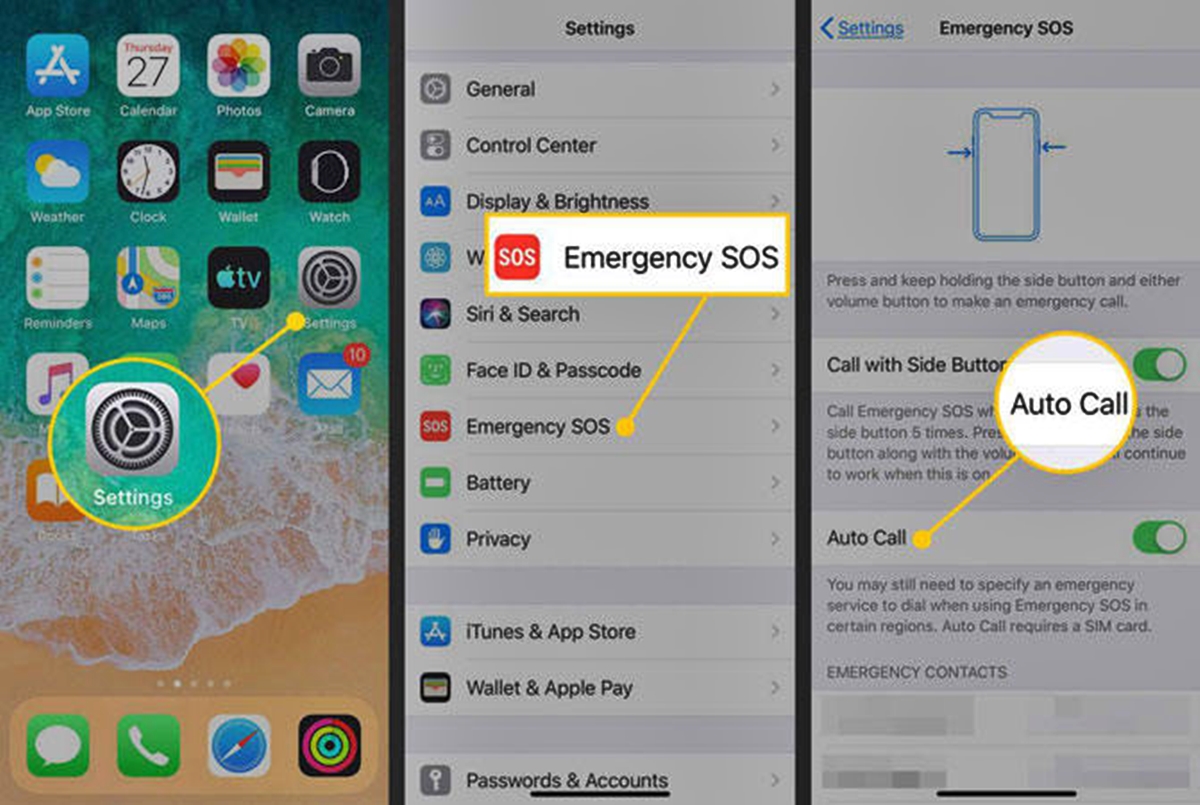
- Open the Settings app.
- Tap Messages.
- Scroll down and turn off Send Read Receipts. This disables read receipts globally for all iMessage conversations.
To disable read receipts for a single conversation only: open the iMessage chat, tap the contact's name or profile icon at the top, then toggle off Send Read Receipts. This overrides the global setting for that specific person.
On Mac, you can disable read receipts globally by going to Settings > Messages and turning off Send Read Receipts.
On WhatsApp
- Open WhatsApp and go to Settings.
- Tap Account, then tap Privacy.
- Turn off Read Receipts. Note that disabling this also prevents you from seeing when others have read your messages.
On Facebook Messenger
- In Facebook Messenger, tap your profile picture, scroll to Privacy, and toggle off Read Receipts.
On Gmail
- In Gmail, disable email tracking by going to Settings > General, finding the Email tracking section, and disabling 'Allow email read receipts'.
On Outlook
- In Outlook, go to File > Options > Mail > Tracking and uncheck 'Read receipt confirming the recipient viewed the message'.
On Slack
- In Slack, you cannot disable read receipts directly, but setting your status to Do Not Disturb prevents others from knowing when you've seen messages.
On Telegram
- Telegram does not offer a built-in option to disable read receipts, but turning off 'Auto-download media' lets you preview messages without triggering one.
These settings work across both iPhone and Android versions of WhatsApp. The same privacy toggles apply to your social, messaging and account apps that support read receipts, though the exact menu names may vary by platform.
Frequently Asked Questions
What is a read receipt?
A read receipt is a notification sent to the message sender when you open and view their message. It typically appears as a small icon or timestamp change, such as "Read" or blue check marks.
Why would someone want to read a message without triggering a read receipt?
Common reasons include maintaining privacy, buying time to formulate a thoughtful response, avoiding pressure to reply immediately, or simply not wanting the sender to know you have seen the message yet.
Will the sender know if I read their message using Airplane Mode?
No. When you read a message in Airplane Mode, the read receipt cannot be sent because your device has no internet connection. The sender will not be notified that you read it.
Can I disable read receipts for all messages on my smartphone?
Yes, most messaging apps allow you to disable read receipts in their settings. On iMessage, use Settings > Messages > Send Read Receipts. On WhatsApp, use Settings > Account > Privacy > Read Receipts.
Does turning off read receipts affect both sides of the conversation?
On WhatsApp, yes. Disabling read receipts also prevents you from seeing when others have read your messages. On iMessage, the setting is per-conversation or per-device, so it only affects your outgoing receipts, not what you see from others.
Related reading: How To Turn Off Data Breach Alerts On Life360 and How Do I Get Rid Of Pop Up Ads On My Android.