To get your phone out of SOS mode, you first need to identify which of three distinct causes is triggering the message: a temporary network signal loss, Samsung's battery-conserving Emergency Mode, or an accidentally activated Emergency SOS shortcut.
Why your phone says SOS and how to get it out of SOS mode
The "SOS" or "Emergency Calls Only" message in your status bar can mean one of three things. Most often, it is a temporary network issue where your phone cannot find a usable cellular signal. On Samsung Galaxy devices, it may indicate that "Emergency Mode" has been turned on, a feature designed to extend battery life by severely limiting phone functions. Finally, your phone may have accidentally triggered its built-in Emergency SOS shortcut, which places a call to emergency services and locks the screen. The fixes below address each scenario directly.
First fix: Check for a network or signal problem
This is the most common reason your phone displays SOS. A weak signal, a temporary network glitch, or a carrier outage can cause your device to lose normal service. Follow these steps in order:
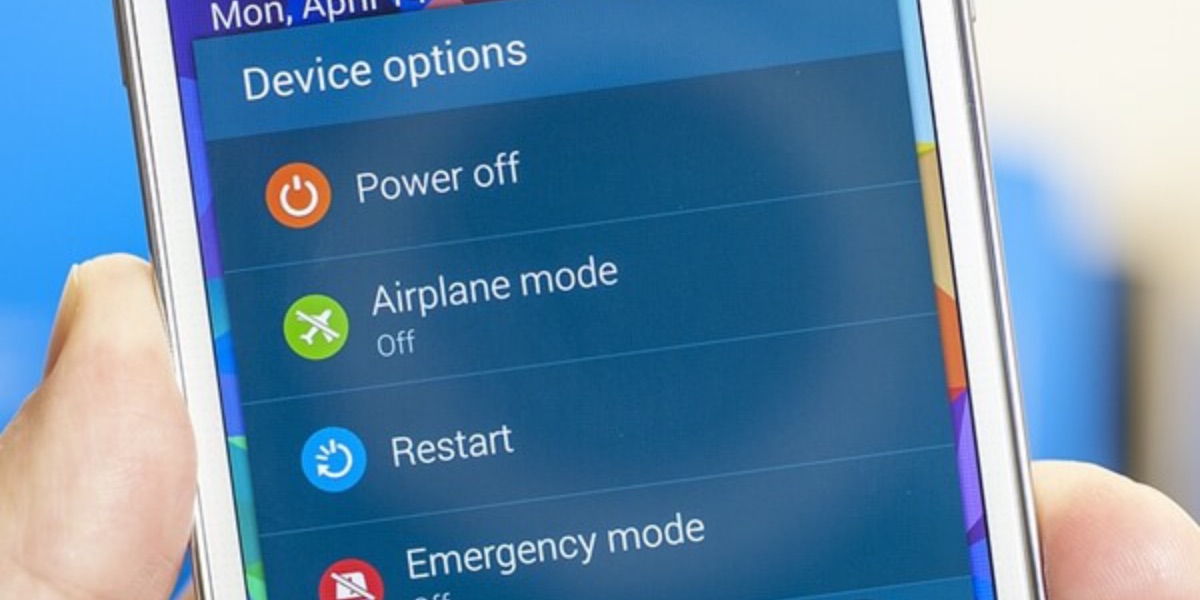
- Toggle Airplane Mode on and off. Open your phone’s quick settings panel and turn on Airplane Mode. Wait about 10 seconds, then turn it off. This forces your phone to re-scan for available networks.
- Restart your phone. Press and hold the power button until the power menu appears, then select Restart. A reboot clears many temporary software issues that can mimic a network failure.
- Check for carrier outages. Visit your carrier’s website or social media to see if there is a reported outage in your area. If so, wait for service to be restored.
- Reseat your SIM card. Turn off your phone, remove the SIM card tray, and take out the SIM card. Inspect it for damage, wipe the metal contacts gently with a clean cloth, and reinsert it firmly. Turn the phone back on. SOS mode can be triggered by a faulty or improperly inserted SIM card, and trying a different SIM card can help diagnose the issue.
- Update your phone software. Go to Settings > General > Software Update and install any pending updates. Updating phone software can fix bugs or conflicts that may be triggering SOS mode.
- Disable battery saving mode. Check your quick settings panel or battery settings and turn off any active power-saving modes. Disabling battery saving mode can help, as some phones limit network capabilities to conserve power, which may cause SOS mode.
- Improve your physical location. Moving to a different location, going outside, getting closer to a window, or going to a higher floor can improve signal and exit SOS mode.
If the SOS message disappears after any of these steps, the problem was a temporary signal loss. If it persists, move to the next fix.
Second fix: Turn off Samsung Emergency Mode
Samsung’s Emergency Mode is a separate feature from the network SOS message. It is designed to save battery in emergencies by limiting apps, background data, and screen brightness. When active, it can show an "Emergency Mode" banner that users sometimes confuse with a network SOS. To disable it:
- Tap the three dots in the top-right corner of the screen.
- Select "Turn off emergency mode" or "Disable Emergency Mode."
- Confirm by tapping "Disable."
Your phone will restart and return to normal functionality. Note that this mode is unrelated to Do Not Disturb and silent mode, which only silence notifications without restricting cellular service.
Third fix: Disable the Emergency SOS shortcut
If your phone is not in Samsung Emergency Mode and the network is fine, you may have accidentally triggered the Emergency SOS shortcut. This feature is designed to call emergency services quickly, but it can be activated by mistake when the phone is in a pocket or bag. The steps differ by platform:
On iPhone
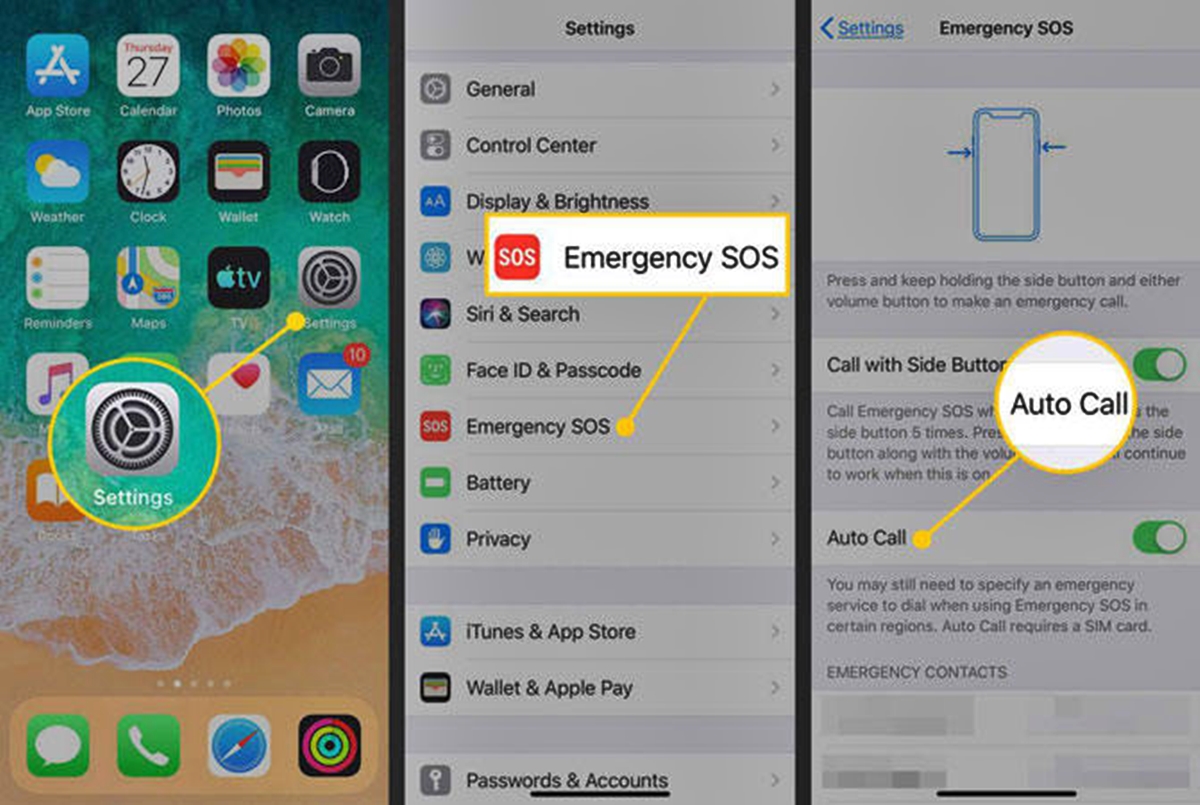
Go to Settings > Emergency SOS. Here you can control how the feature is activated. If "Call with 5 Presses" is enabled, quickly pressing the side button five times will trigger SOS. (In India, pressing the side button three times does the same.) You can also trigger it by simultaneously pressing and holding the side button and either volume button until the sliders appear and the countdown ends. To prevent accidental activation, toggle off "Call with 5 Presses" or adjust the settings to require a longer hold.
On Android
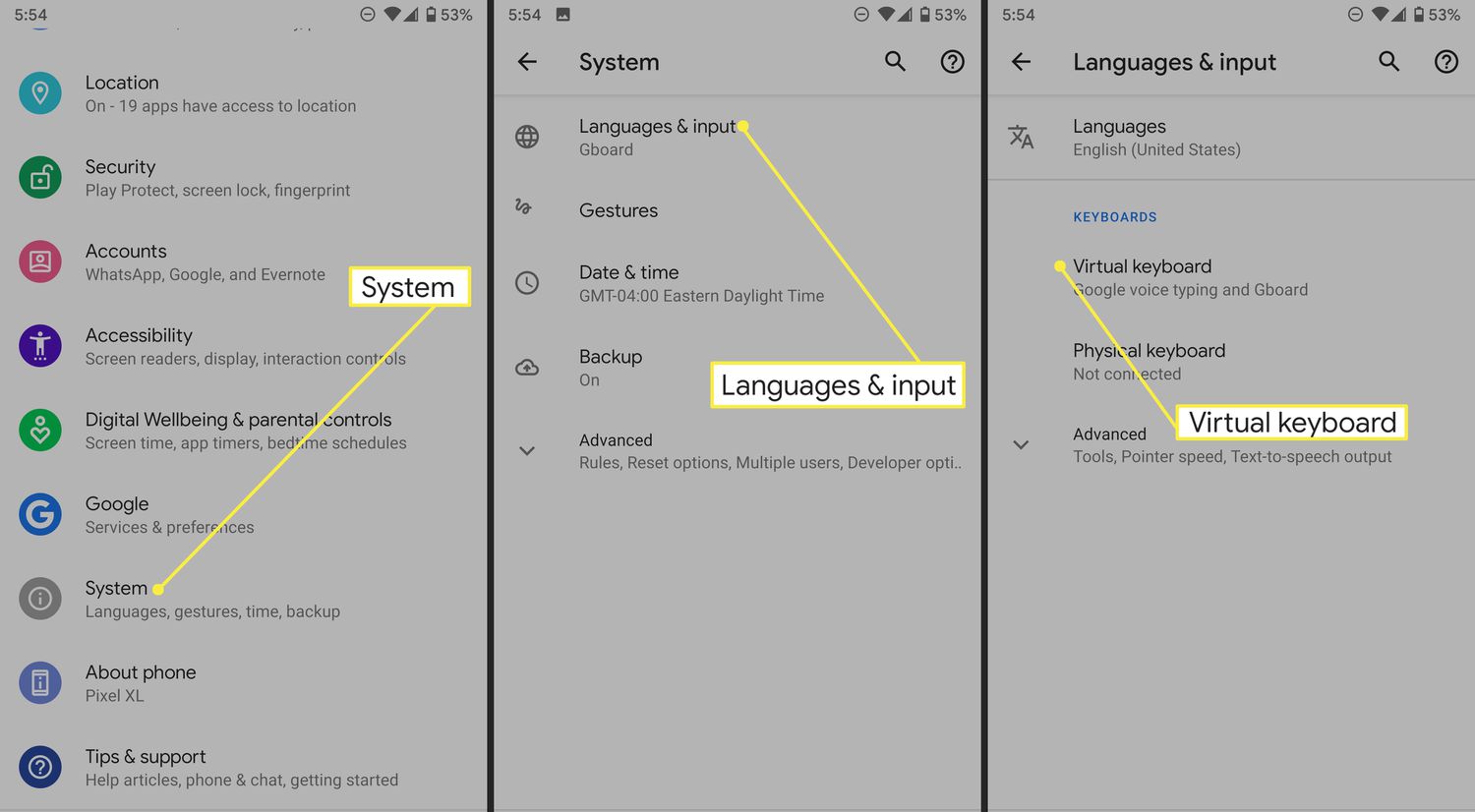
Go to Settings > Safety & emergency > Emergency SOS. Toggle off "Use Emergency SOS." This prevents the phone from automatically calling emergency services when the power button is pressed repeatedly or when a specific key combination is used.
After disabling the shortcut, the SOS message should clear. If you are concerned about disabling SOS mode entirely, note that you can still reach emergency services by manually dialing the emergency number, the shortcut is simply a faster way to do so.
Still stuck? When to contact your carrier
If you have tried all three fixes and your phone still shows SOS, the issue is likely not something you can resolve yourself. Contact your mobile carrier directly. They can check for a SIM card failure, an account-related block on your line, or a network provisioning error. In rare cases, the SIM card itself may need to be replaced. The carrier’s customer support can run diagnostics remotely or advise you on next steps.
Frequently Asked Questions
What does "SOS only" mean on my phone?
Can I turn off SOS mode permanently?
You cannot turn off the underlying ability to make emergency calls, but you can disable the Emergency SOS shortcut that triggers accidentally. On iPhone, go to Settings > Emergency SOS and turn off "Call with 5 Presses." On Android, go to Settings > Safety & emergency and toggle off "Use Emergency SOS." The phone will still allow you to dial emergency numbers manually.
Why does my phone say SOS even when I have full bars?
Will resetting my phone fix SOS mode?
A factory reset is rarely necessary and should only be considered as a last resort if carrier support advises it. Most SOS issues are resolved by toggling Airplane Mode, restarting, reseating the SIM, or disabling the Emergency SOS shortcut. A reset erases all data, so back up your phone first.
Does SOS mode drain my battery faster?
No. SOS mode itself does not drain battery. However, Samsung Emergency Mode actually conserves battery by limiting features. If your phone is stuck searching for a signal due to a network issue, that constant searching can drain battery faster than normal.
Why is my phone stuck in SOS mode?
It could be due to accidentally triggering the emergency calling feature by pressing the power button multiple times, or an issue with the SIM card or network connection.
How does a phone enter SOS mode?
A phone typically enters SOS mode when the power button is pressed multiple times consecutively, or via a dedicated SOS button on some devices.