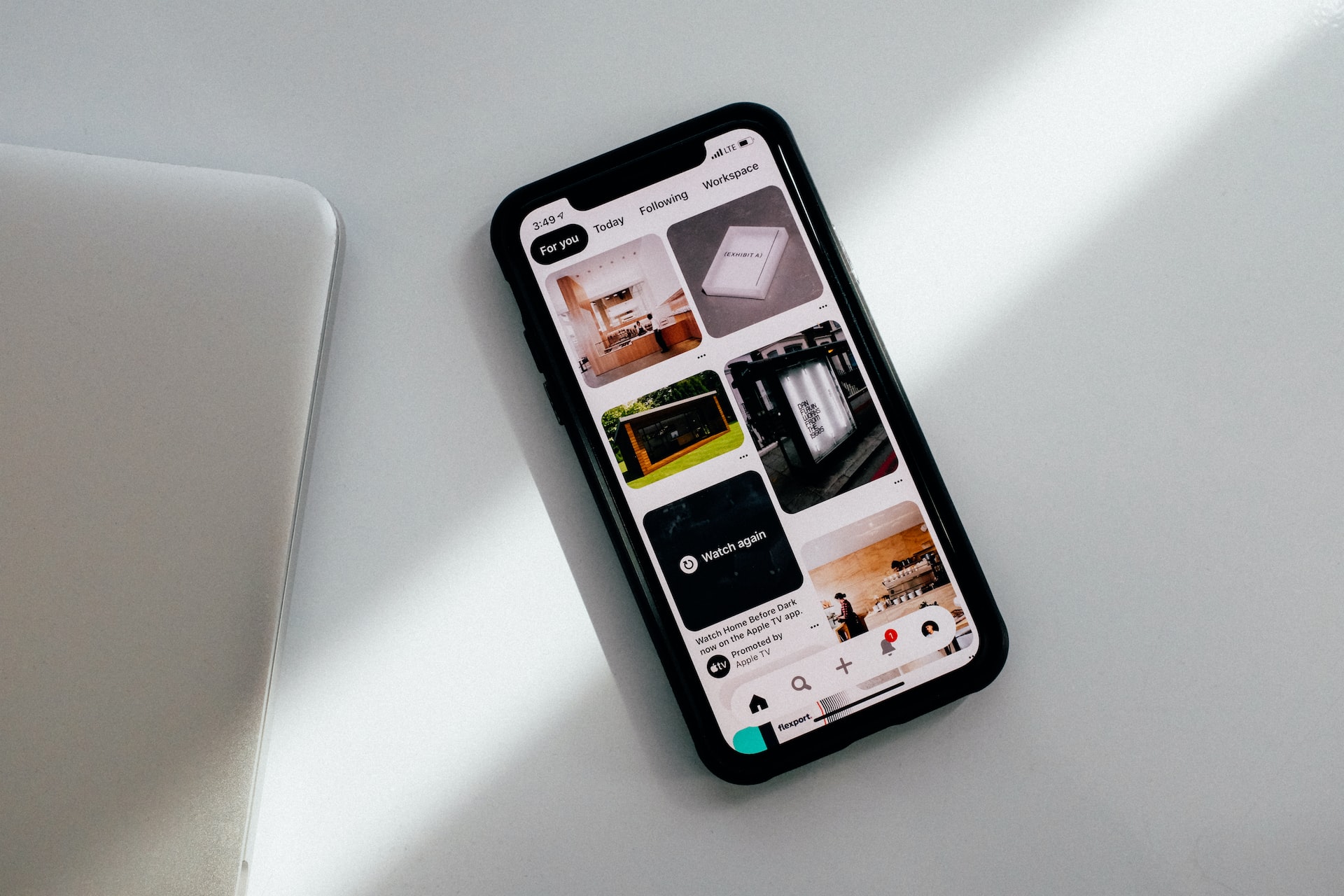
To create a pin on Pinterest mobile, open the Pinterest app on your device and sign in to your account. This step-by-step process covers creating a standard image or video Pin using the official Pinterest mobile app, with a note for business account users.
How to create a pin on Pinterest mobile
Open the Pinterest app on your mobile device and sign in to your personal or business account. The app does not require a specific device model or operating system version for this process, and the steps are the same for iPhone and Android.
Step 2: Tap the create button
Tap the "+" button, usually located at the bottom center of the screen, to start creating a new pin. If you have a business account, you will see additional creation choices after tapping this button; select the option that fits your content. Personal accounts proceed directly to the upload step.
Step 3: Upload your image or video
Select and upload an image or video file directly from your mobile device, or take a photo or record a video directly within the app. Pinterest allows you to create a Pin from either an image or a video. If you want to enhance your visuals before uploading, you can use photo editing and collage apps to prepare your media.
Step 4: Add your pin details
Fill in the following fields for your Pin:
- Title: A concise, captivating title that accurately reflects the content.
- Description: Additional context and information about the Pin.
- Destination website link: The URL where users can find more information or make a purchase.
Add any additional tags or categories; Pinterest provides suggestions based on your content, and you can manually add relevant tags or choose from existing categories. These details help users understand your Pin and make it more discoverable.
Step 5: Choose a board and publish
Select an existing board to save your Pin, or create a new board that aligns with the theme or topic. Once you have chosen the board, tap the button to publish your Pin. It will then be visible to others on Pinterest.
Frequently Asked Questions
Can I edit my pin after it's published?
Yes. Locate the Pin in your profile, tap it to open it, and select the edit option. You can change the title, description, board, or replace the image or video.
How do I delete a pin on Pinterest mobile?
Go to your profile, find the Pin you want to delete, tap it to open it, and select the delete option. Confirm your decision, and the Pin will be removed from your profile and any boards it was saved to.
Can I schedule pins to be published later?
You can schedule pins using Pinterest's "Publish Later" feature by selecting it instead of tapping "Publish" immediately.
Is there a limit to the number of pins I can create?
No, there is no limit to the number of Pins you can create on Pinterest. You can create as many as you want to share your ideas and content.
Related reading: How To Post A Link On Reddit Mobile and Tip Of The Day: How To Add A Comment In Pinterest.