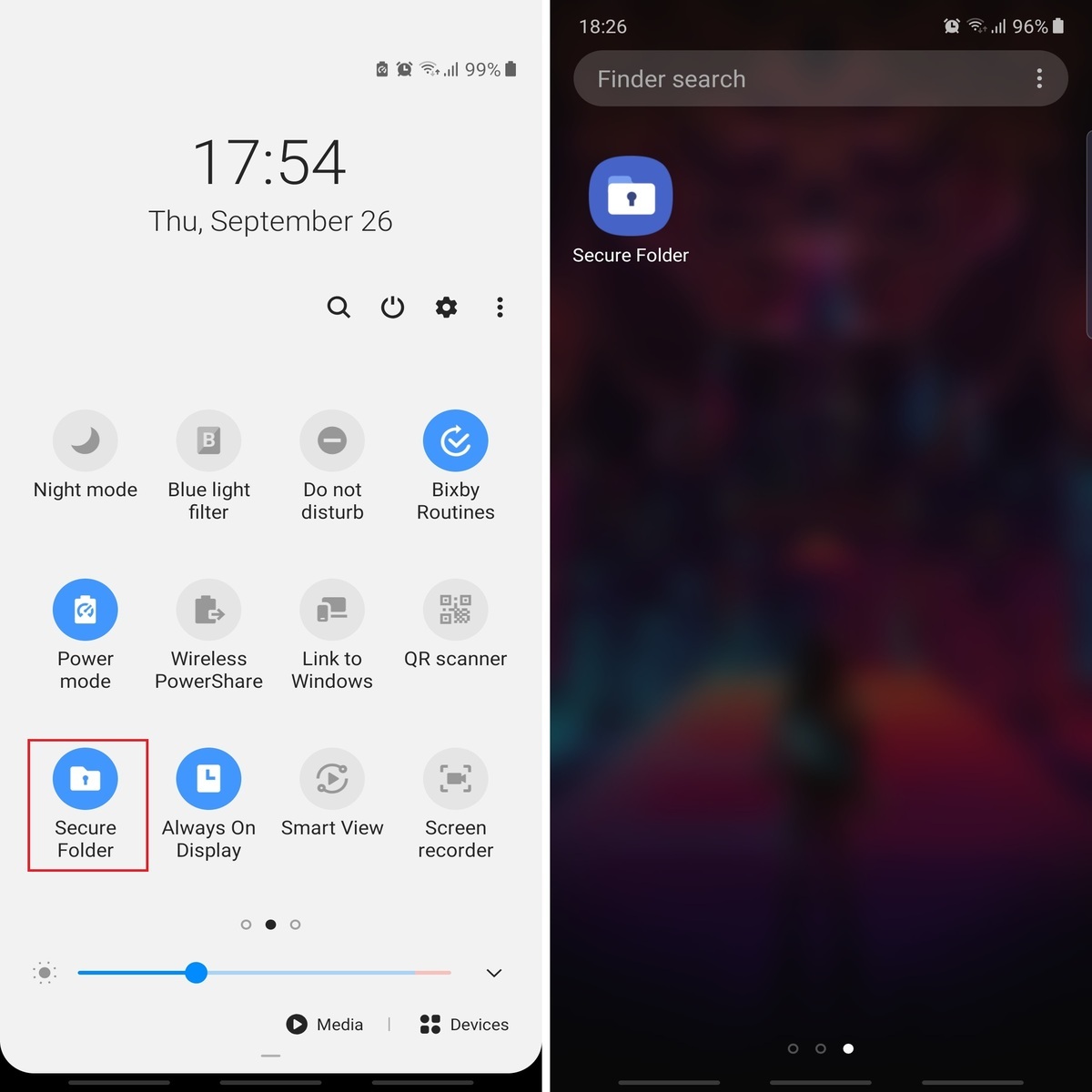
To access Secure Folder on Android, open the Secure Folder app from your app drawer and authenticate with your PIN, password, pattern, or biometrics. This feature is exclusive to Samsung Galaxy devices running Android 7.0 Nougat or higher and requires a Samsung account to set up and use.
What is Secure Folder and which devices support it
Secure Folder is a Samsung Galaxy feature that creates an encrypted, private space on your device for storing sensitive files, photos, and apps. It is available on Samsung Galaxy phones and tablets running Android 7.0 Nougat and above. Secure Folder is not available on other Android brands, iPhone, web browsers, or computers. You must sign in to a Samsung account to create or use Secure Folder.
How to access Secure Folder using the native app
The most direct way to access Secure Folder is through the dedicated app pre-installed on your Samsung Galaxy device.
- Open the app drawer by swiping up on the home screen or tapping the Apps icon.
- Locate and tap the Secure Folder icon, which looks like a folder with a lock.
- If you are setting up Secure Folder for the first time, tap Continue, then allow the requested permissions by tapping Continue again.
- Sign in to your Samsung account when prompted, then tap OK.
- Set a lock method: choose a PIN, password, or pattern. You can also enable biometrics such as fingerprint or facial recognition after setup.
- Once configured, authenticate with your chosen lock method each time you open the app to view or manage your private files.
How to access Secure Folder through device settings
You can also access Secure Folder from the Settings menu. The exact path depends on your device model, One UI version, and region.
On many devices, go to Settings > Biometrics and security > Secure Folder. On other devices, the path is Settings > Security and privacy > More security settings > Secure Folder. Both are documented by Samsung. Once you tap Secure Folder, authenticate with your lock method to open it.
How to access Secure Folder from the Quick Settings panel
The Quick Settings panel offers a shortcut to Secure Folder without navigating through menus.
- Swipe down from the top of the screen to open Quick Settings.
- If the Secure Folder tile is visible, tap it and authenticate to open the folder.
- If the tile is not present, you can access Secure Folder through Settings > Biometrics and security > Secure Folder instead.
- To hide or unhide the Secure Folder tile, swipe down twice to expand the full Quick Settings panel, tap the three-dot menu or edit icon, then toggle the Secure Folder tile on or off. Samsung India says you can also hide or unhide Secure Folder from the notification panel by swiping down twice and tapping Secure Folder.
What to do if you forgot your Secure Folder lock method
If you forget your PIN, password, or pattern for Secure Folder, Samsung provides a documented recovery method.
- On the Secure Folder lock screen, tap Forgot PIN.
- Tap Reset and enter your Samsung account password.
- After verification, you can set a new lock method for Secure Folder.
This is the only recovery method Samsung documents. There is no alternative way to regain access without your Samsung account credentials.
Frequently asked questions about Secure Folder access
Can I access Secure Folder on non-Samsung phones?
No. Secure Folder is a Samsung Galaxy feature and is not available on other Android brands, iPhones, or any other device.
Can I use third-party file managers to access Secure Folder?
While some file manager apps may attempt to browse the folder structure, this approach is not supported by Samsung and may not work reliably.
Is data stored in Secure Folder encrypted?
Yes. Secure Folder uses Samsung Knox platform security to encrypt all files, photos, and apps stored inside. Access requires authentication separate from your device lock screen.
Can I transfer files in and out of Secure Folder?
Yes. You can move files into Secure Folder by opening the file in its original app, long-pressing it, and selecting Move to Secure Folder. To move files out, open Secure Folder, long-press the file, and select Move out of Secure Folder.
How do I customize apps inside Secure Folder?
Open Secure Folder, tap the three-dot menu in the top-right corner, and select Settings. From there you can change the lock method, enable biometrics, or adjust notification preferences for apps running inside Secure Folder.
No carrier help-centre method for Secure Folder access is documented in Samsung support pages.
For the wider topic, see phone data and storage management.
Related reading: How To Enable Samsung's Gallery Labs Feature, How To Access The Cloud On Android, and How To Turn Off Notification On Samsung Phone.