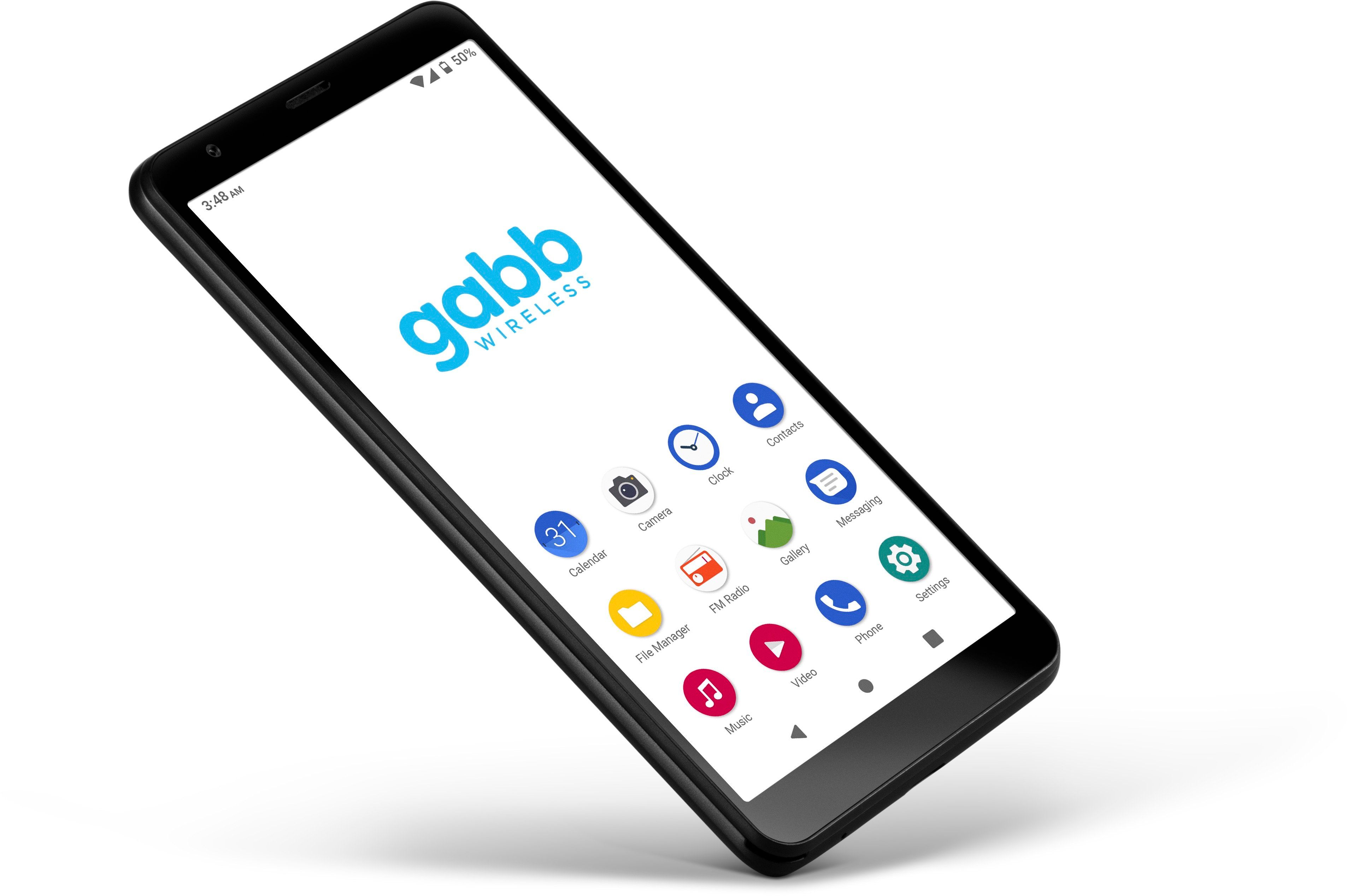
To add apps to a Gabb phone, you must use one of two official methods that differ by model: the Gabb Phone 4 uses the parent's MyGabb account synced through the child's Gabb ID app, while the Gabb Phone 4 Pro uses the Gabb App Store and Google Play Store. Parent-approved third-party apps are only available on the Advanced plan for the Gabb Phone 4 Pro.
How to add apps to a Gabb phone: what you need to know
Gabb documents two official ways to add apps, and the supported steps differ by model. For the Gabb Phone 4, app access is managed from the parent’s MyGabb account on a smartphone, then synced to the child’s phone with the Gabb ID app. For the Gabb Phone 4 Pro, parent-approved apps are managed in the Gabb App Store and then installed through the Google Play Store on the child’s phone.
Add apps to a Gabb Phone 4: Step-by-step
This method requires the parent to use the MyGabb app on their own smartphone. The child must have the Gabb ID app installed and be connected to Wi-Fi on the Gabb Phone 4.
- Sign in to the MyGabb app on the parent’s smartphone.
- Tap Manage.
- Tap the child’s Gabb Phone 4.
- Tap Manage Apps.
- Browse or search for the app, then tap Add, then Add App.
- On the Gabb Phone 4, open the Gabb ID app while connected to Wi-Fi, then tap Check for Updates.
The same flow is described in Gabb’s older guide as: log in to the Gabb account, choose App Management, enable the app, then on the child’s device open GabbID and select Check Updates.
Add apps to a Gabb Phone 4 Pro: Step-by-step
This method requires the Gabb Phone 4 Pro to be on the Advanced plan and connected to Wi-Fi. The parent approves apps through the Gabb App Store, and the child downloads them from the Google Play Store.
- Make sure the Gabb Phone 4 Pro is connected to Wi-Fi.
- Log in to the Gabb account and confirm the line is on the Advanced plan.
- Tap the hamburger icon in the upper-right corner, then tap Gabb App Store.
- Browse or search for the app, then select the checkbox next to the app.
- Wait for the app to load into the Google Play Store on the phone.
- After it appears, the child must download it from the Google Play Store on the phone.
What to do if the app does not appear
Gabb says the app can take up to 24 hours to appear on the phone after it is added. If the app does not show up, ensure the phone is connected to Wi-Fi. If it still does not appear, Gabb says to: log in again to the Gabb account on the parent’s device and repeat the approval steps.
Frequently Asked Questions
Can I add apps to a Gabb phone?
Yes, but only through the official methods Gabb documents. For the Gabb Phone 4, you use the MyGabb app and Gabb ID. For the Gabb Phone 4 Pro on the Advanced plan, you use the Gabb App Store and Google Play Store.
Can I use other app stores on a Gabb phone?
For the Gabb Phone 4 Pro, the only documented path is through the Gabb App Store and then the Google Play Store.
Can I remove apps from a Gabb phone?
Yes. On the Gabb Phone, go to Settings, select the Apps section, view the list of installed apps, and choose which ones to uninstall. On the parent’s side, you can also manage approved apps through the MyGabb account or Gabb App Store.
Are all apps in the Gabb App Store free?
No. Some apps may require a purchase or offer in-app purchases. The Gabb App Store includes both free and paid apps that are curated for safety and age-appropriateness.
Can I sideload apps from external sources?
For the wider topic, see mobile app guides.
Related reading: How To Set Up Gabb Phone and How To Block Youtube On Your Phone.